Emacs Extensions for
GE Smallworld Magik Development
Screen-casts, tutorials, and productivity tools for Magik programmers who use Emacs. From tab-mode and code folding to the Magik Debugger and object inspector — explore features built by a developer, for developers.
Learn MoreNine screen-casts published between November 2010 and January 2011 — covering everything from ECB mode to the Tree Item GUI control. Read the story behind the project →
Get in Touch
A Cheat Sheet for Magik Mode Keybindings in Emacs
Magik mode turns Emacs into a practical workspace for GE Smallworld development. It adds syntax highlighting, indentation, method navigation, evaluation commands, code folding, and access to a running Magik image. The result is a workflow that keeps source code, the interpreter, and inspection tools close together.
This cheat sheet for Magik mode keybindings in Emacs focuses on the actions developers use repeatedly: moving around a large application, sending code for evaluation, finding method definitions, inspecting objects, and narrowing a search without leaving the editor. Some commands come from standard Emacs, while others are supplied by Magik mode or a local extension.
Key assignments can vary between versions and consulting environments. Before relying on a shortcut, place the cursor in a Magik buffer and run C-h m (describe-mode) to see the active bindings. C-h k followed by a key sequence explains what that sequence currently does, making it a useful safety check when several packages share the same prefix.
Reading The Active Keymap
Emacs uses C- for Control and M- for Meta, which is commonly the Alt key on a desktop keyboard. For example, C-x C-s means hold Control while pressing x, then press s; M-x opens the command prompt. On macOS, the Meta key is often configured as Option, although the exact setup depends on the terminal or graphical Emacs.
The most reliable starting point is the Magik buffer itself. C-h m displays the mode documentation, C-h b lists all bindings available at the cursor, and M-x describe-function opens documentation for a named command. If a shortcut appears in this article but does not work, use M-x and search for terms such as magik, method, eval, fold, or inspect.
A compact reference for everyday movement is straightforward: C-f and C-b move by character, M-f and M-b move by word, C-n and C-p move by line, and M-< and M-> move to the beginning or end of the buffer. C-a and C-e move to line boundaries, while C-v and M-v scroll through the source. These are standard Emacs bindings, but they matter when tracing Magik methods quickly.
Navigating Methods And Source
Magik files can contain long lists of method definitions, nested procedures, pragmas, and related class implementations. Parentheses are not the only useful landmarks: _method, _proc, _endmethod, and _endproc provide meaningful structural boundaries. Use M-C-f and M-C-b where the mode supports expression movement, and combine them with C-M-a or C-M-e when navigating a Lisp-like syntactic form.
Search is often faster than scrolling. C-s starts an incremental forward search and C-r searches backwards; press the same command repeatedly to move between matches. M-% runs query-replace, while C-M-% performs a regular-expression replacement. For a method name, class name, slot, or message send, these commands are usually faster than opening a separate browser.
When a project contains thousands of Magik files, use M-x imenu to inspect indexed methods and definitions if the mode has supplied an Imenu index. M-x xref-find-definitions, commonly bound to M-., may also jump to a method definition when an appropriate backend is installed. M-* returns to the previous location. On a distributed project in Sydney, Melbourne, or Brisbane, this combination is particularly handy when source trees live on a remote development host.
Evaluating Magik Code
The main advantage of an Emacs Magik workflow is the short path between editing and execution. Magik mode installations commonly provide commands for sending the current line, selected region, method, or entire buffer to a running Magik session. The exact key sequence may be configured locally, so inspect C-h m or use M-x and search for magik-eval, magik-send, or magik-run.
A sensible evaluation rhythm is to select a small region with C-SPC, extend the mark using normal movement, and invoke the region-evaluation command. For a complete file, save with C-x C-s first, then use the buffer or file evaluation command supplied by the installation. Sending small units makes errors easier to isolate than loading a large application file and trying to determine which method failed.
Look for a session or listener command such as magik-start-session, magik-run, or magik-switch-to-session. Many teams bind session switching to a C-c prefix, but there is no universal assignment across Magik mode versions. C-x b remains useful for moving between the source buffer and a *Magik*, *Listener*, or similarly named process buffer.
Keep the interpreter state visible while developing. After changing a method, evaluate that method rather than restarting the whole image when the environment permits it. This is especially valuable for consultants supporting a customer system across Australian time zones: a small, repeatable evaluation cycle reduces the disruption of reconnecting to a shared test environment during a short afternoon handover.
Inspecting Objects And Collections
Magik development often involves examining an object whose behaviour is defined several levels away from the current method. Commands for object inspection, class browsing, slot display, or method lookup are usually exposed through M-x and may have local shortcuts under a Magik prefix. Search command names with M-x apropos-command RET magik when the keymap documentation is not clear.
Use the running session to inspect the receiver, its class, available methods, and relevant slots. If an inspection command accepts the symbol at point, place the cursor on the variable or method name before invoking it. If it reads the active region, select the expression first. This small habit avoids repeatedly typing long class names and collection expressions into a listener.
Collections deserve their own workflow. When a collection is too large to print sensibly, inspect its size, keys, or a representative subset rather than dumping every element. A debugger or object browser can reveal whether the issue is an empty collection, an unexpected class, a stale value, or a query returning more records than expected. Emacs keeps the source and diagnostic output available together, which helps when tracing database-backed Smallworld behaviour.
Breakpoints, stepping, and error buffers depend heavily on the Magik runtime connection and the extensions installed by a particular team. Treat C-h b as the local reference for debugger commands. Bind the actions you use most—continue, step, inspect, and quit—to a personal prefix only after confirming that it does not replace an existing mode command.
Folding Searching And Customising
Code folding makes large Magik source files easier to scan. If Magik mode provides folding commands, they may appear as magik-fold-* commands in M-x, or they may be integrated with outline-minor-mode or hs-minor-mode. Standard hiding commands include C-c @ C-h for hiding a block and C-c @ C-s for showing one when hs-minor-mode is active; check the active map because another folding package may use different keys.
Folding is most useful when combined with search: hide stable implementation details, search for a method or class, then expand only the relevant region. For broad pattern matching across the current buffer, occur creates a results buffer from M-x occur. The workflow is explained in Occur pattern search, which is useful for locating repeated Magik constructs without opening every match manually.
Customisation belongs in the init file once a workflow has proved useful. A typical setup may enable Magik mode for .magik files, define a project-specific session command, and add a personal prefix for evaluation or inspection. Keep those bindings separate from package defaults so an update does not silently overwrite them. C-h k can identify the command behind a key before you rebind it.
Teams should document shared shortcuts as well as private ones. A Perth developer working with a team in Canberra may use a different terminal, keyboard layout, or remote session from someone at a Melbourne office. Recording the command name, rather than only the physical key sequence, makes internal notes easier to maintain and helps new developers adapt the workflow to their own Emacs configuration.
Build a small personal reference from the commands that survive daily use: C-h m for the active mode, C-h k for any key, C-s and C-r for movement through matches, M-. and M-* for definition navigation, and the locally documented Magik commands for evaluation, sessions, inspection, and folding. Install it beside your project documentation, test each binding against the current Magik mode version, and use it as the working reference for faster Smallworld development.
Core Features
Tab Mode & ECB
Quick tab switching and Emacs Code Browsing mode for navigating Magik codebases efficiently.
Magik Smeller
Code analysis tool that helps identify potential issues in Magik source files.
Code Folding
Hide/Show mode for collapsing and expanding Magik code blocks to focus on what matters.
Visual Bookmarks
Quick visual bookmarks for jumping between key locations in your Smallworld session buffers.
Object Inspector
Inspect Magik objects and display them in an Emacs Deep Print buffer for detailed examination.
Magik Debugger
Set breakpoints and monitor slots and variables directly from within Emacs.
Development Tools
Direct links between Emacs and the Smallworld Development Tools application, including Click Monitor.
Screen-casts & Tutorials
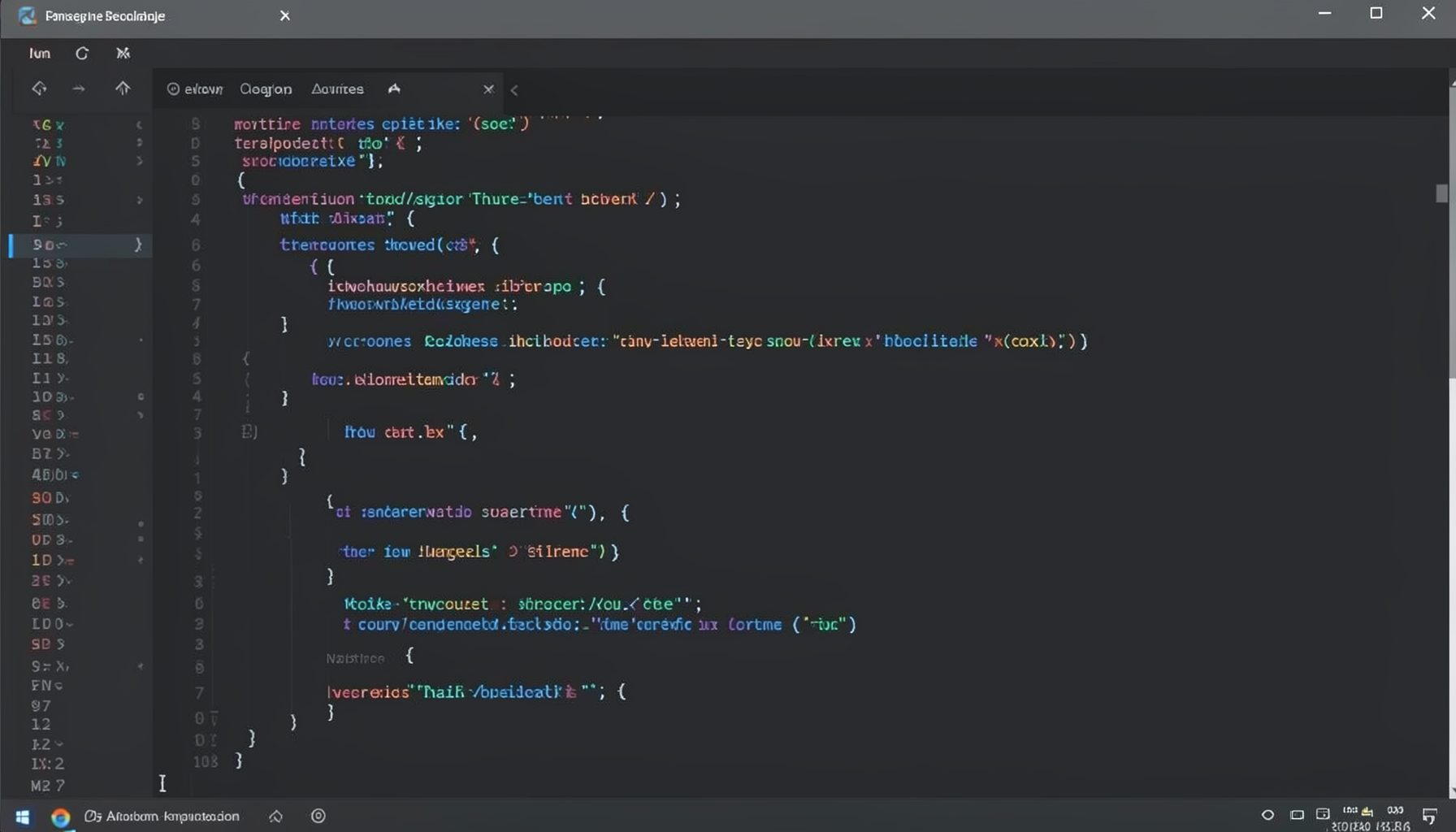
Screen-cast 1: Tab Mode, ECB & More
Covers tab-mode, ECB, Magik Smeller, code folding, visual bookmarks, pragma toggling, moving code, external editor, and MS Explorer.
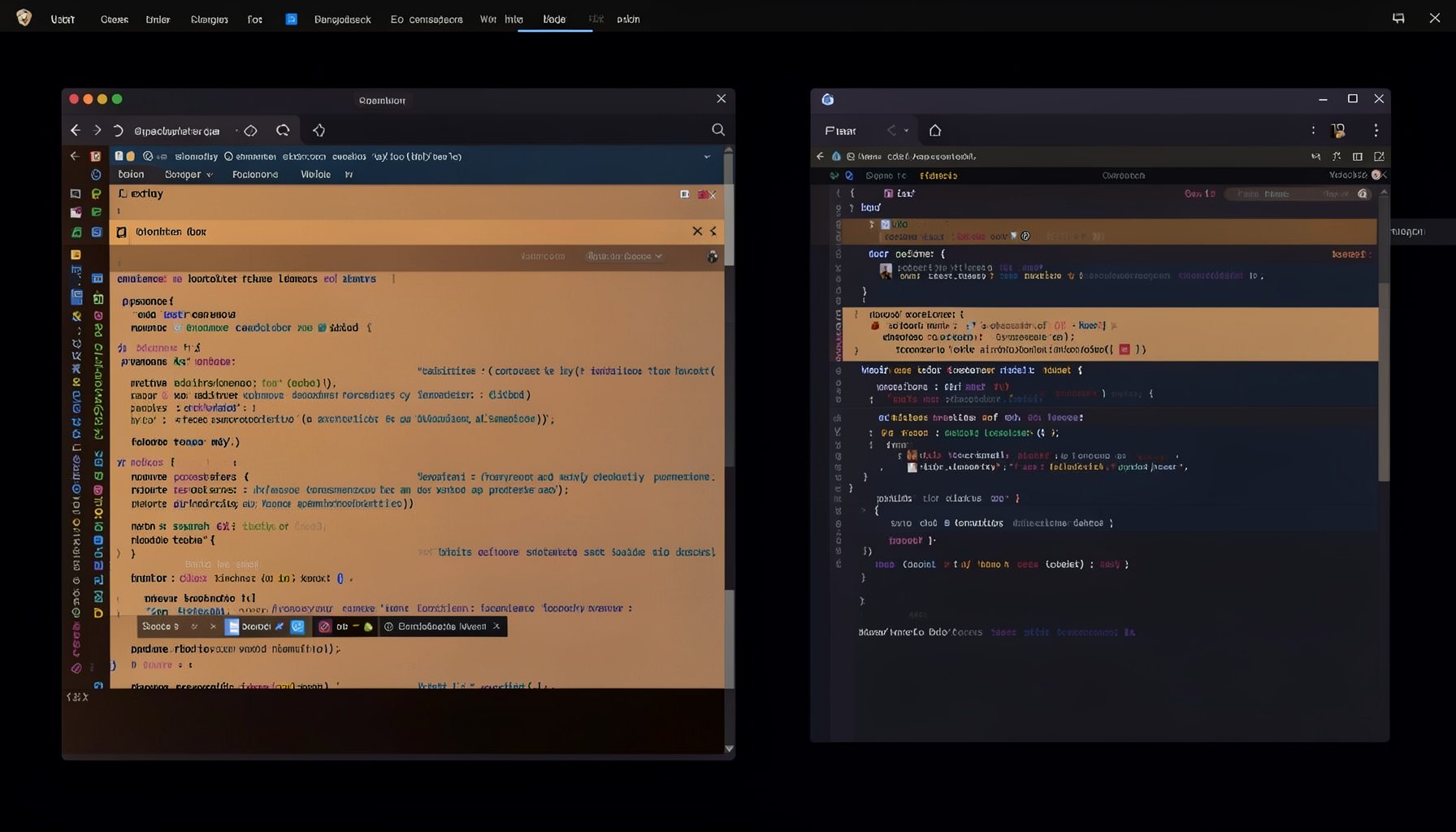
Screen-cast 5: Object Inspection & Deep Print
Inspect a Magik object, prompt for an expression evaluated within a Smallworld session, and display results in a Deep Print buffer.
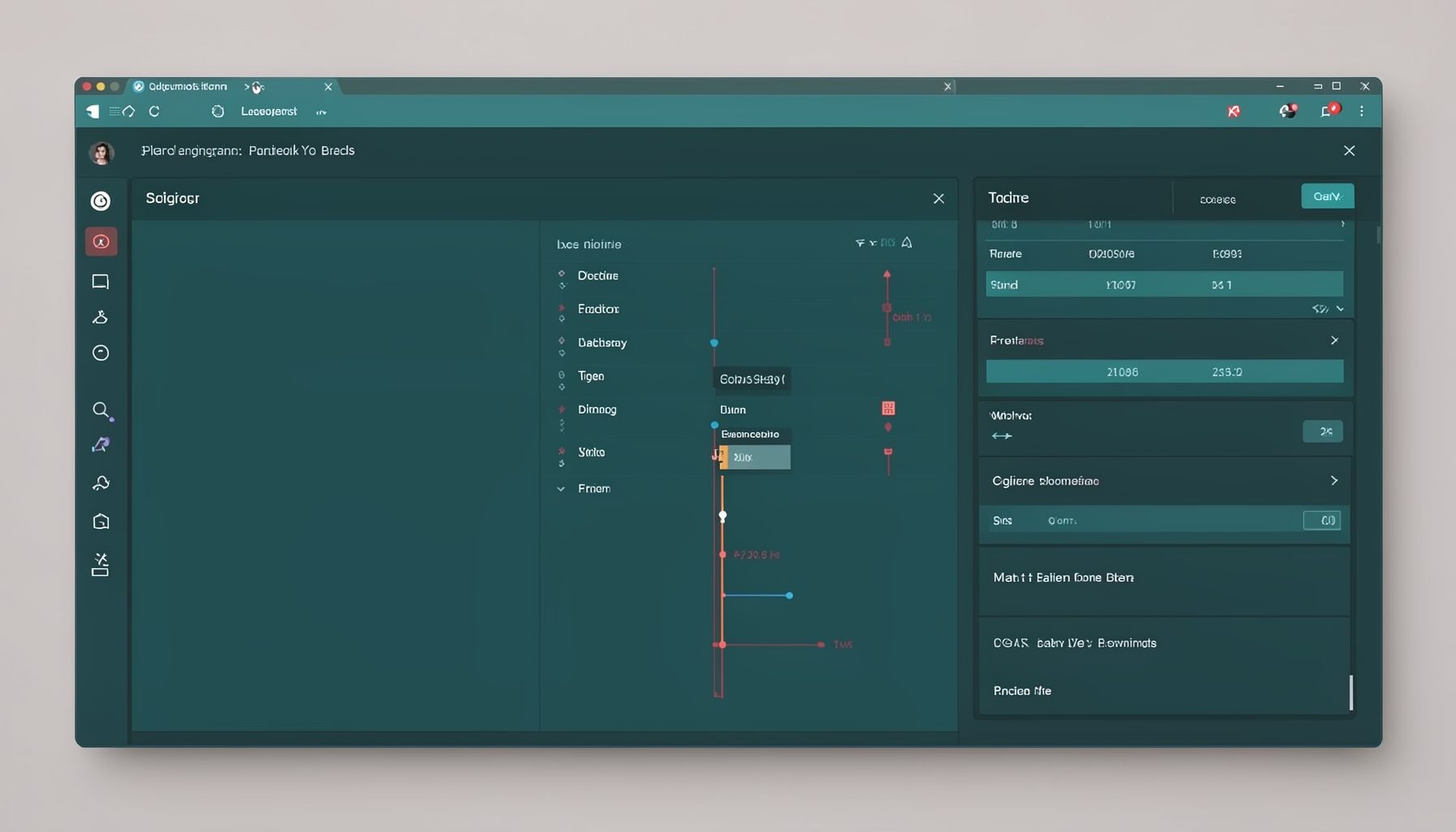
Screen-cast 7: Magik Debugger
Useful tools for application developers: Object Inspector and Magik Debugger with breakpoints and slot/variable monitoring.

Screen-cast 9: Tree Item GUI Control
Tree Item is a GUI control providing extensive facilities for displaying lists with rows, columns, trees, and in-place editing.