Emacs Extensions for
GE Smallworld Magik Development
Screen-casts, tutorials, and productivity tools for Magik programmers who use Emacs. From tab-mode and code folding to the Magik Debugger and object inspector — explore features built by a developer, for developers.
Learn MoreNine screen-casts published between November 2010 and January 2011 — covering everything from ECB mode to the Tree Item GUI control. Read the story behind the project →
Get in Touch
Automating Magik Test Runs with Emacs Compile Mode
Running Magik tests from a terminal works well for a quick check, but it becomes less convenient when development involves repeated edits, debugging, method navigation, and inspection of Smallworld objects. Emacs Compile mode brings the test command into the editor, keeps output in a searchable buffer, and lets you move directly from a failure to the relevant source location.
The approach is deliberately flexible. Magik installations differ between projects, Smallworld versions, runtime wrappers, and test conventions. Some teams launch tests through a shell script, while others use a project-specific command, image startup procedure, or test runner. Compile mode can accommodate each arrangement as long as the command produces readable output and, ideally, file-and-line diagnostics.
For Australian development teams, this can be particularly useful when colleagues are distributed between Sydney, Melbourne, Brisbane, Perth, and regional offices. A repeatable editor workflow reduces the need to remember local environment details, especially when a project uses a mixture of Linux development hosts, remote desktops, and corporate tooling.
What Compile Mode Provides
Emacs’ compile command runs an external command and displays its standard output in a dedicated compilation buffer. The usual key binding is M-x compile, although many developers assign a shorter project-specific key. Once the command finishes, Emacs records the result and makes recognised diagnostics available through next-error and previous-error.
The compilation buffer is more useful than a plain terminal transcript because it is interactive. A developer can search for a test name, jump between failures, preserve the output while editing, and rerun the command without leaving Emacs. Compilation mode also understands many common diagnostic formats, including messages containing a source path followed by a line number.
A basic workflow looks like this:
M-x compile
Run Magik test command
C-x `       Visit the next reported error
M-g p       Visit the previous reported error
g           Rerun the compilation command
The exact key bindings may vary with an Emacs configuration, but the underlying workflow remains the same: execute, inspect, jump, edit, and rerun.
Making the Magik Command Repeatable
The first step is to identify the command that reliably runs a test outside Emacs. It might be a shell script such as bin/test_magik, a project launcher, or a wrapper around a Smallworld runtime. Avoid placing a long, machine-specific command directly into an Emacs configuration if a repository script can hide those details.
For example, a project might provide a wrapper with a command similar to:
./tools/run-magik-tests.sh test/unit/geometry
The wrapper can set environment variables, select the correct Smallworld installation, initialise the Magik image, load test support, and shut down the runtime cleanly. It can also standardise the working directory and return a non-zero exit status when a test fails. That last detail matters because Compile mode uses the process status to distinguish successful and unsuccessful runs.
From Emacs, invoke the wrapper with:
M-x compile
./tools/run-magik-tests.sh test/unit/geometry
If the project requires a remote host, a container, or a particular shell, keep that logic in the wrapper. This makes the same command usable by Emacs, continuous integration, and colleagues working from different offices or development environments.
Choosing the Working Directory
Compile mode starts the command in Emacs’ current default directory unless the command changes it. Running tests from the wrong directory is a common cause of confusing failures: relative paths may not resolve, configuration files may be missed, or the runtime may load an unexpected version of a package.
For a project-specific command, use default-directory in a directory-local configuration. A .dir-locals.el file can associate the repository root with the project, while a package such as Projectile can detect it automatically. A simple directory-local setting might look like this:
((nil . ((compile-command . "./tools/run-magik-tests.sh"))))
When Emacs visits a file beneath that directory, M-x compile will offer the stored command. You can still edit the command in the minibuffer to run one test group or pass a filter.
If the test command must run from a deeper directory, make that explicit:
((nil . ((compile-command
          . "cd test && ../tools/run-magik-tests.sh"))))
A repository wrapper is usually easier to maintain than embedding cd commands in several editor configurations. It also helps teams working across Australian time zones, where a developer in Perth may need exactly the same invocation as a colleague in Sydney without manually adapting path assumptions.
Formatting Errors for Jump Navigation
The greatest productivity gain comes when Magik test failures become clickable locations. Compile mode uses compilation-error-regexp-alist to recognise file names, line numbers, and optional columns. If a test runner prints a line such as:
lib/geometry/angle.magik:87: Expected 90, received 89
Emacs may recognise it automatically, depending on the active compilation settings. If the output uses a different format, add a project-specific regular expression.
A simplified configuration could be:
(add-to-list
 'compilation-error-regexp-alist
 '(magik-test
   "^[[:space:]]*\\([^:\n]+\\.magik\\):\\([0-9]+\\):"
   1 2))
The first capture group identifies the source file and the second captures its line number. The expression may need refinement if paths contain colons, if output includes a workspace prefix, or if Magik diagnostics use a different extension. Test it against real output before relying on it for daily work.
The wrapper can also make diagnostics more consistent. For example, it could translate a framework failure into:
src/network/session.magik:214: test_login_with_expired_token failed
That format is easy for both humans and Emacs to read. Keep the original assertion text after the location so the compilation buffer remains useful for diagnosis.
Rerunning Focused Tests
A complete Magik test suite may take enough time that running it after every edit becomes wasteful. A useful wrapper accepts a package, file, class, or test name as an argument. Compile mode then becomes a convenient front end for both broad and narrow test runs.
Start with the full command stored in compile-command, then edit it interactively when a failure points to a small area:
./tools/run-magik-tests.sh test/unit/geometry
./tools/run-magik-tests.sh --match angle
./tools/run-magik-tests.sh --file test/unit/geometry/angle_tests.magik
The option names depend on the project’s runner. The important principle is to expose filtering in a predictable way. If the underlying framework lacks filtering, a shell wrapper can provide a consistent interface and translate options into the appropriate Magik startup or test-loading commands.
Compilation buffers can be named so separate runs do not overwrite each other. An advanced setup may use compilation-buffer-name-function to create buffers for unit tests, integration tests, or a selected package. Most teams can begin with one buffer and add naming only when parallel work makes the default behaviour confusing.
Preserving Useful Runtime Output
Magik failures often require more context than a single assertion line. Object representations, collection contents, method names, and database identifiers can explain why a test failed. Avoid suppressing all runtime output merely to make the compilation buffer shorter.
At the same time, noisy startup messages can bury the important failure. A wrapper can send routine environment messages to a log file while preserving test results, warnings, and stack traces on standard output. Another option is to use Emacs’ compilation filters to highlight or hide predictable lines, although changing the command output is usually easier to maintain.
When a failure involves an unexpected object, use the compilation buffer as the starting point, then switch to Magik’s debugging or inspection tools. Compile mode is responsible for launching and locating failures; it does not replace an interactive Magik debugger. The strongest workflow combines both: run a focused test in Compile mode, jump to the failing method, then inspect the relevant object state in the Magik development environment.
For database or collection tests, record enough identifying information to reproduce the problem without exposing sensitive production data. Australian projects handling utility, transport, planning, or government datasets may have strict rules around customer and location information. Test output should use fixtures or sanitised identifiers wherever possible.
Integrating With Emacs Project Workflows
Once the basic command works, connect it with the rest of the Magik editing environment. A Magik major mode can provide syntax highlighting, method navigation, code folding, and indentation, while Compile mode handles test execution. The result is a continuous loop from a method definition to its tests and back to the failing line.
A small helper command can run the current project’s tests without repeatedly opening the minibuffer:
(defun my-magik-test ()
  (interactive)
  (let ((compile-command "./tools/run-magik-tests.sh"))
    (call-interactively #'compile)))
For a more useful command, derive the test target from the current file or project metadata. Keep this logic modest until the command conventions are stable. A predictable compile-command is often more valuable than an elaborate function that works only for one repository layout.
Version-control hooks and continuous integration should run the same wrapper where possible. Local Compile mode then becomes a fast preview of the build server rather than a separate testing system. If the CI environment runs on Linux while developers use a managed desktop in Melbourne or Brisbane, the wrapper should document which parts are platform-specific and fail with a clear message when a required runtime is unavailable.
Diagnosing Common Problems
A compilation buffer that reports “finished” does not guarantee that the tests passed. Check the process exit status and ensure the wrapper returns failure when any test fails. Shell scripts that ignore the status of a child process can make broken tests appear successful.
Another frequent issue is an environment mismatch. Emacs launched from a desktop session may not inherit the same PATH, licence variables, runtime settings, or network configuration as an interactive terminal. Print essential environment details in a diagnostic mode, or launch the wrapper with explicit paths. Avoid placing secrets such as licence credentials in .dir-locals.el or repository files.
If next-error cannot find a source location, inspect the exact diagnostic text and the active regular expressions. Relative paths may need to be resolved against the compilation directory. Generated files, symbolic links, and Windows-style paths can each require a tailored pattern.
Finally, make failures reproducible. Capture the command, working directory, selected test target, and relevant runtime version in the compilation output. A clear record helps when a test fails overnight or when a colleague in Adelaide investigates a result produced earlier in Sydney. Good diagnostics shorten the distance between a red test and a safe fix.
Set up a stable Magik test wrapper, connect it to Emacs’ compile-command, and tune the error pattern using real project output. With those foundations in place, Compile mode turns repeated test execution into a fast edit-and-verify cycle that fits naturally alongside Magik navigation, debugging, and object inspection. Explore the Magik Emacs tools and documentation on Magik Emacs, and use the same workflow as a foundation for dependable Smallworld development.
Core Features
Tab Mode & ECB
Quick tab switching and Emacs Code Browsing mode for navigating Magik codebases efficiently.
Magik Smeller
Code analysis tool that helps identify potential issues in Magik source files.
Code Folding
Hide/Show mode for collapsing and expanding Magik code blocks to focus on what matters.
Visual Bookmarks
Quick visual bookmarks for jumping between key locations in your Smallworld session buffers.
Object Inspector
Inspect Magik objects and display them in an Emacs Deep Print buffer for detailed examination.
Magik Debugger
Set breakpoints and monitor slots and variables directly from within Emacs.
Development Tools
Direct links between Emacs and the Smallworld Development Tools application, including Click Monitor.
Screen-casts & Tutorials
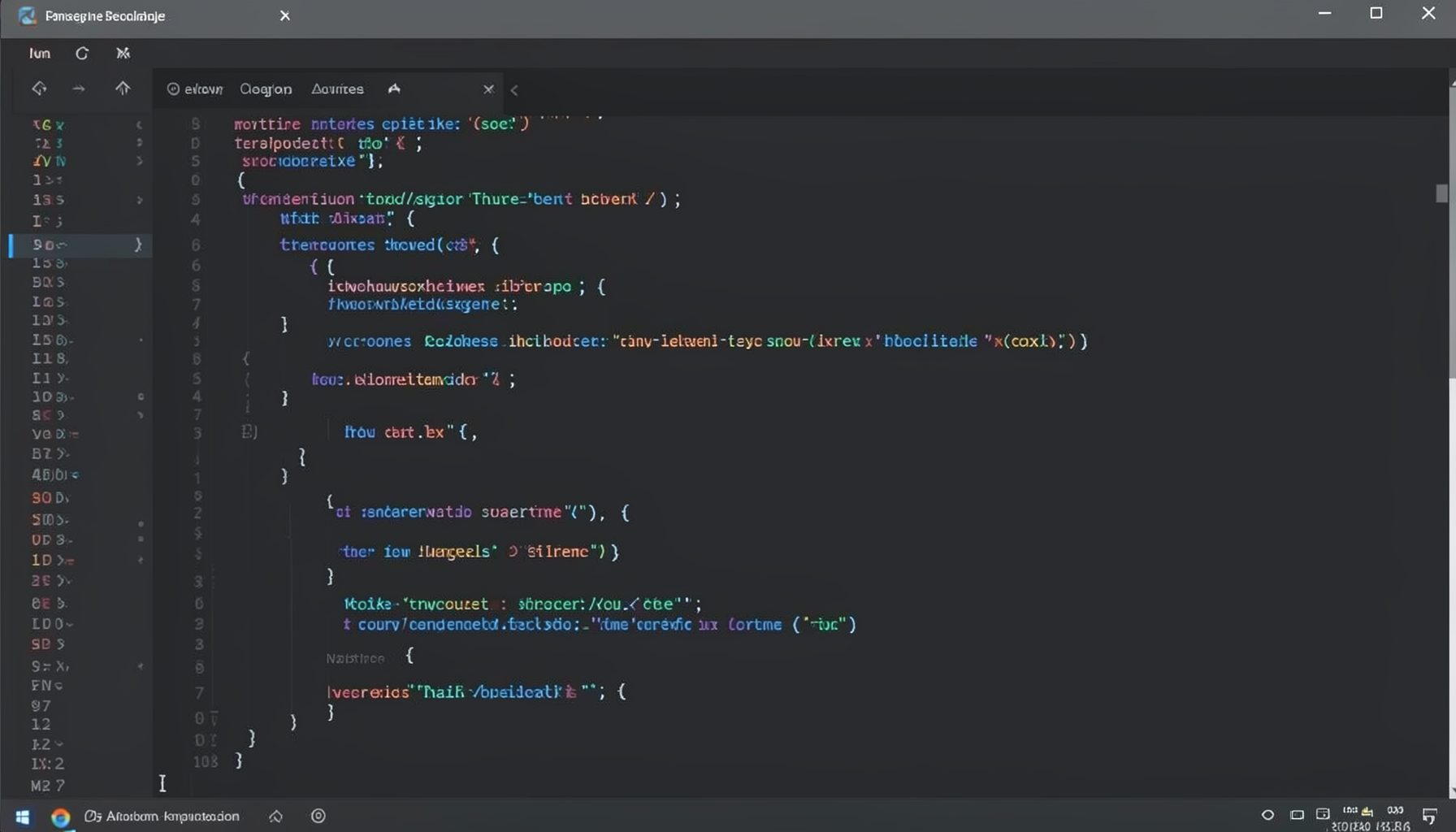
Screen-cast 1: Tab Mode, ECB & More
Covers tab-mode, ECB, Magik Smeller, code folding, visual bookmarks, pragma toggling, moving code, external editor, and MS Explorer.
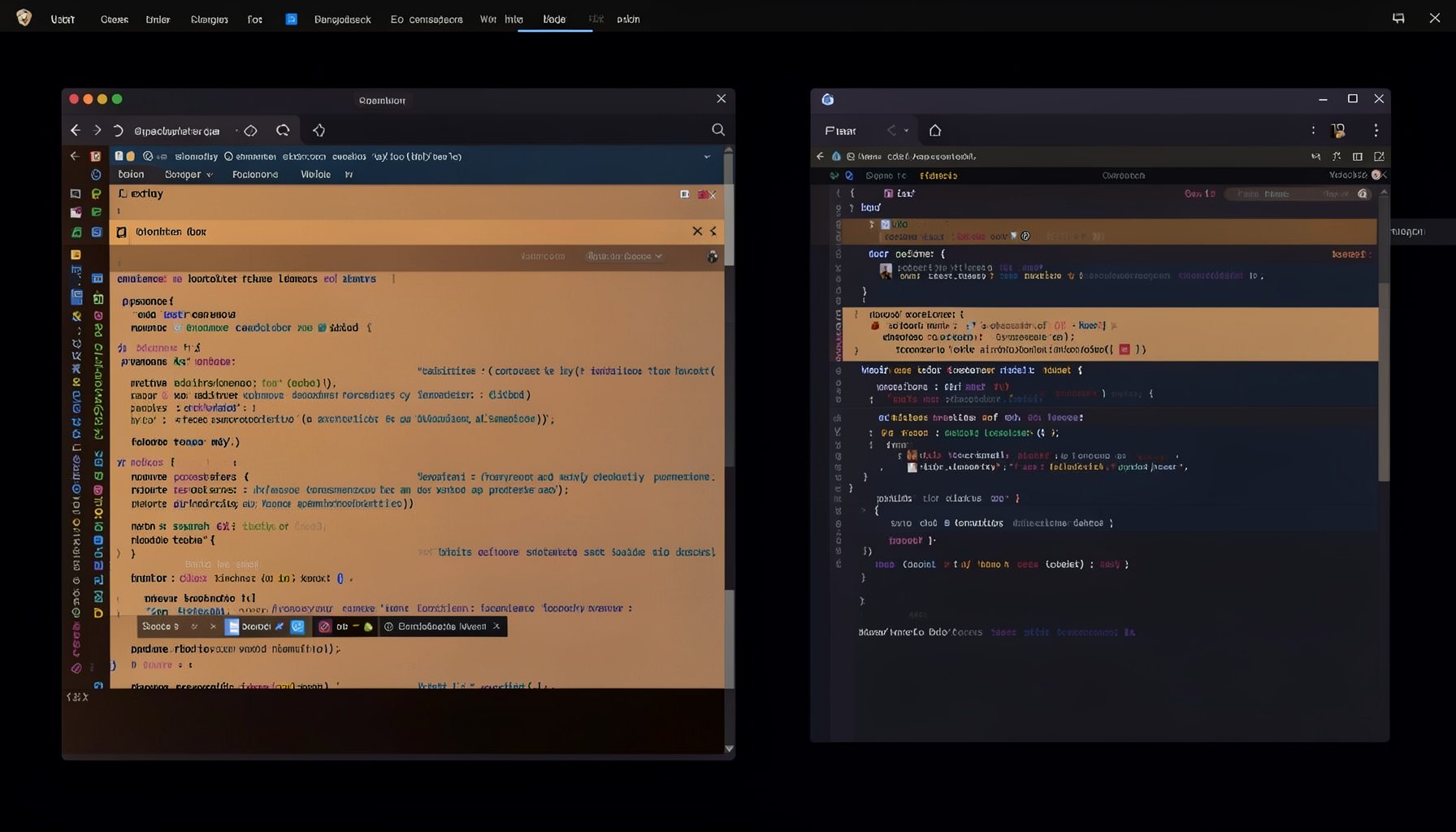
Screen-cast 5: Object Inspection & Deep Print
Inspect a Magik object, prompt for an expression evaluated within a Smallworld session, and display results in a Deep Print buffer.
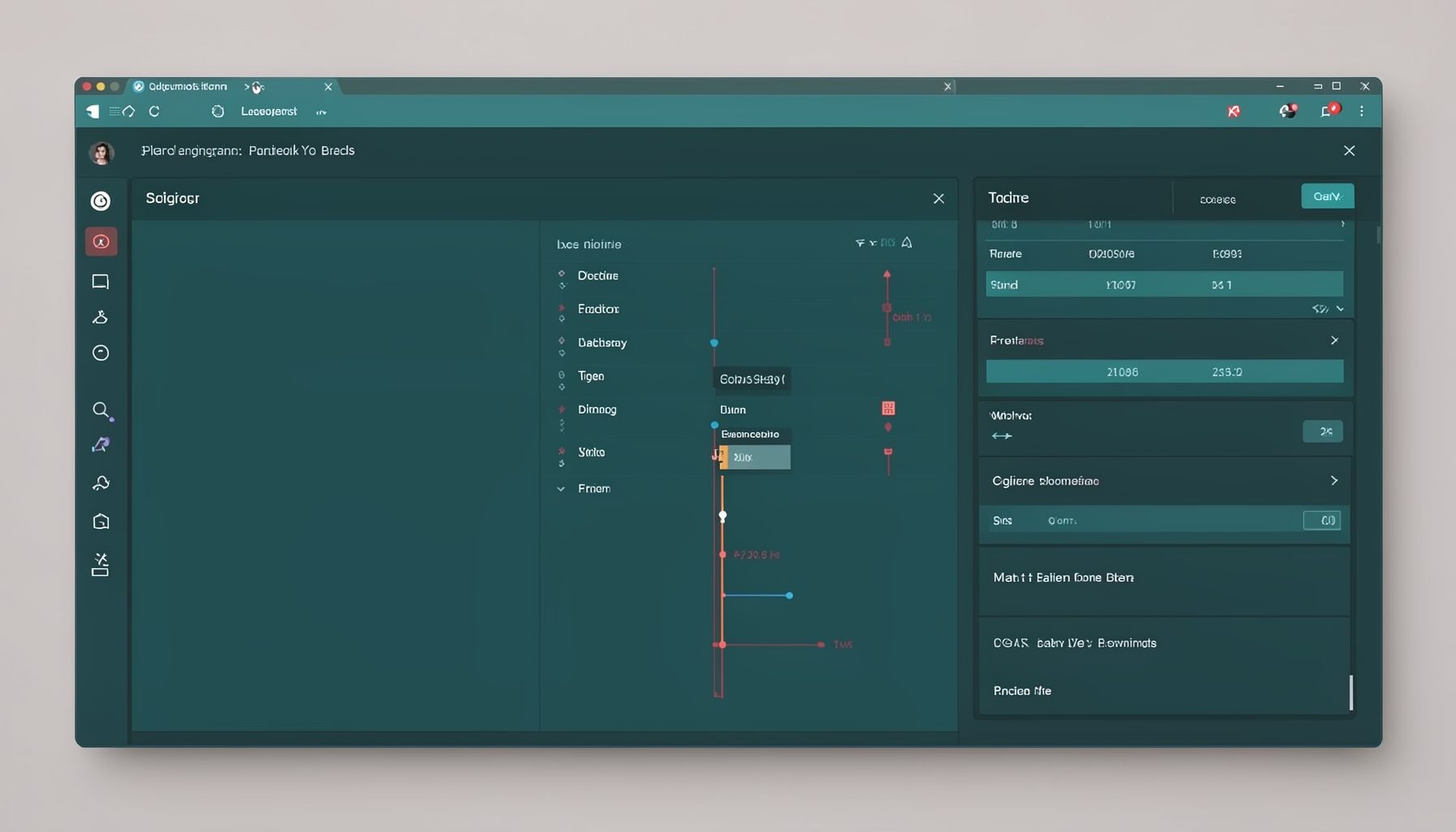
Screen-cast 7: Magik Debugger
Useful tools for application developers: Object Inspector and Magik Debugger with breakpoints and slot/variable monitoring.

Screen-cast 9: Tree Item GUI Control
Tree Item is a GUI control providing extensive facilities for displaying lists with rows, columns, trees, and in-place editing.