Emacs Extensions for
GE Smallworld Magik Development
Screen-casts, tutorials, and productivity tools for Magik programmers who use Emacs. From tab-mode and code folding to the Magik Debugger and object inspector — explore features built by a developer, for developers.
Learn MoreNine screen-casts published between November 2010 and January 2011 — covering everything from ECB mode to the Tree Item GUI control. Read the story behind the project →
Get in Touch
Building a Magik development environment with Doom Emacs
A productive Magik workstation needs to bridge two worlds: the familiar Emacs editing model and the specialised tooling used with GE Smallworld. Doom Emacs provides a fast, keyboard-driven foundation, while a carefully configured Magik layer can bring syntax highlighting, method navigation, code folding, documentation lookup, debugging support and object inspection into one consistent workspace.
This approach suits developers maintaining long-lived Smallworld applications across utilities, telecommunications, transport and government projects. Whether the team is based in Melbourne, Brisbane or Perth, the aim is the same: reduce context switching, make legacy code easier to understand and create a repeatable environment that works for both office and remote development.
Prepare the Magik and Emacs foundations
Begin by confirming the Smallworld installation and the version of Magik used by the project. Enterprise environments often contain several generations of code, and a configuration that works with one runtime may need small adjustments for another. Record the locations of the Magik executable, image files, source directories, libraries and any startup scripts before changing Emacs.
Doom Emacs runs on top of a standard Emacs installation, so install a currently supported Emacs release first. On macOS, Homebrew is a convenient option; on Linux, use the package manager or a maintained binary build. Windows users can run Emacs natively or use a development setup that already provides the required Unix-style command-line tools. In an Australian consultancy, this preparation is particularly useful when a Sydney-based developer and a Perth-based developer need matching environments across different corporate laptops.
Clone Doom Emacs into the usual user configuration directory and run its installation command. The exact command can vary by Doom version, so follow the instructions supplied by the release being installed. Add the Doom binary directory to PATH, then verify that doom doctor runs without major errors. This check catches missing tools, stale configuration paths and package conflicts before Magik support is added.
A practical installation should also include Git, ripgrep and a language-aware project search tool. These utilities make a visible difference when a codebase spans thousands of methods and several Smallworld products. If the project uses remote development, check latency and VPN behaviour early. An office in Adelaide may have a fast local connection while a regional site relies on a less predictable link, so the editor should remain useful even when the database or runtime is temporarily unavailable.
Create a focused Doom configuration
Doom’s configuration is divided into modules, package declarations and user settings. Enable the modules needed for editing, completion, project management, version control, syntax checking and terminal access. Avoid enabling every available feature at once. A smaller configuration starts faster, is easier to troubleshoot and gives Magik-specific code a clearer place in the system.
In init.el, enable the programming and completion modules appropriate to the selected Doom release. In config.el, set the preferred font, theme, line numbering and workspace behaviour. In packages.el, declare Magik-related packages or a local package source. A typical arrangement might include a Magik major mode, a syntax table, indentation rules and helper commands for sending code to a running Smallworld session.
Keep project-specific paths outside the shared configuration where possible. For example, use environment variables or a local settings file for the Smallworld installation directory, image location and connection details. This prevents a developer’s workstation path from being committed to a team repository. It also helps when a contractor moves between a client project in Canberra and an internal development machine in Melbourne.
Doom’s leader key can provide a memorable command structure for Magik work. Bind commands for opening the current method, finding references, sending a region to the runtime, refreshing class metadata and displaying an inspected object. Use a separate prefix such as m or g for Magik commands, while leaving standard project and version-control bindings intact. The result should feel predictable: project actions remain project actions, and Magik actions are grouped together.
After each configuration change, run doom sync and restart Emacs. For larger changes, inspect the *Messages* and package management buffers. When a package fails to load, identify whether the issue is an unavailable repository, an incompatible Emacs version, a missing executable or a Magik runtime path. Treating each failure as a small, isolated diagnostic task is quicker than repeatedly rebuilding the entire environment.
Make Magik code easy to navigate
Magik systems reward strong navigation because behaviour is often distributed across classes, mixins, exemplar definitions, method categories and generated code. Configure the editor to recognise Magik files by extension and to apply the correct major mode automatically. Syntax highlighting should distinguish method declarations, variables, symbols, strings, compiler directives and comments without making long source files visually noisy.
Code folding is especially valuable in Magik. A developer should be able to collapse method bodies, class definitions and documentation blocks, then scan the structure of a large file quickly. Folding commands should be available from the keyboard and should preserve the current point when sections are opened or closed. This is helpful during a production support call, when an engineer needs to locate a method quickly rather than scroll through hundreds of lines.
Completion should be based on realistic project metadata rather than generic English words. Where a Magik language server is unavailable, a tags database, indexed symbol list or project-aware completion source can still provide useful results. Generate tags from the source tree after major changes and give the update command a Doom binding. Include application libraries, but exclude generated output and vendor directories that produce misleading matches.
Method navigation deserves its own workflow. Commands for jumping to a method definition, finding callers and returning to the previous location should work consistently across source files and runtime buffers. If the project has naming conventions for predicates, accessors and private methods, reflect those conventions in the completion and search configuration. Developers in Australian utilities projects often inherit naming patterns that have evolved over decades; clear navigation reduces the learning burden for someone joining the team.
Use project-local search for broad investigations and structured symbol search for precise ones. ripgrep is fast for locating message sends, database field names and configuration keys. Emacs tags or an indexed cross-reference database is better when the same name appears in many unrelated contexts. Combining both methods makes it easier to trace a data flow from a user interface or batch job through Magik methods and into a Smallworld database operation.
Connect editing with debugging and inspection
A development environment becomes substantially more useful when Emacs can communicate with a running Magik session. The connection may be provided by a specialised Magik package, a project-specific socket mechanism, a terminal process or a set of commands that copy expressions into the Smallworld prompt. Choose the most stable mechanism available in the local installation rather than forcing a generic debugger model onto a proprietary runtime.
Create commands for sending the current expression, selected region or entire method to the active session. The command should report errors in a dedicated buffer and preserve the source buffer for correction. A simple workflow might be: edit a method, send it to the image, run a focused test or query, inspect the result and jump back to the source. This is faster and safer than repeatedly copying code between unrelated windows.
Object inspection needs careful presentation. Long collection results should be displayed in a readable buffer with truncation, filtering and a way to request more detail. Useful inspector commands might show an object’s exemplar, slots, inheritance information and selected values. For database or collection analysis, add helpers that format counts, keys and representative records without flooding the Emacs display.
Debugging support can begin with practical features rather than a full graphical debugger. Capture stack traces in a compilation-style buffer so file names and line references become clickable. Add commands to move between the failing method and its callers. If the runtime supports breakpoints, watches or stepping, expose those actions through Magik-specific bindings and show the state in a dedicated buffer.
This setup is valuable for teams working across Australian time zones. A Brisbane developer may reproduce a problem during the morning, while a Perth specialist investigates the same trace later in the day. A saved stack trace, inspected object and reproducible command sequence create a useful handover without requiring both people to be online at once.
Maintain a team-ready workflow
A Doom Emacs configuration should be treated as project infrastructure. Keep shared package declarations, key bindings and documentation in version control. Store private credentials, machine-specific paths and client connection details outside the repository. Include a short setup document that explains the expected Emacs version, Doom revision, Magik runtime and commands for validating the installation.
Use separate profiles when different clients require incompatible Smallworld releases. Doom can load a common base configuration while environment-specific files define executable paths and project variables. Name those profiles clearly and make the active profile visible in the mode line or startup message. This avoids the costly mistake of running a development command against a production image.
Add a small validation checklist to the repository. It should cover opening a Magik file, recognising syntax, folding a method, jumping to a definition, searching references, connecting to a test session and displaying an inspected object. A project tracking system can hold ownership for these tasks; teams may also use lightweight project tracking when coordinating configuration work, migration steps and documentation across several consultants.
Performance matters in large repositories. Exclude compiled files, caches, generated exports and vendor trees from search and indexing. Delay expensive completion sources until they are needed, and avoid running metadata regeneration on every save if the source tree is large. On a remote desktop over an NBN connection, these choices reduce pauses that make the editor feel unreliable.
Finally, document the conventions that make the environment effective. Explain which command sends code to the runtime, where logs appear, how to refresh tags and how to switch between client profiles. Australian projects frequently involve a mixture of permanent staff, specialist contractors and offshore delivery teams, so clear operating notes are as important as the Emacs Lisp itself. A consistent setup lets everyone spend more time solving Magik problems and less time repairing local configuration.
Install the environment on a non-production workstation, validate the core editing and runtime workflows, then commit the stable Doom configuration with its setup notes. With the right Magik mode, project navigation, inspection buffers and debugging commands in place, Emacs becomes a practical daily console for Smallworld development rather than a separate text editor beside the real tools.
Core Features
Tab Mode & ECB
Quick tab switching and Emacs Code Browsing mode for navigating Magik codebases efficiently.
Magik Smeller
Code analysis tool that helps identify potential issues in Magik source files.
Code Folding
Hide/Show mode for collapsing and expanding Magik code blocks to focus on what matters.
Visual Bookmarks
Quick visual bookmarks for jumping between key locations in your Smallworld session buffers.
Object Inspector
Inspect Magik objects and display them in an Emacs Deep Print buffer for detailed examination.
Magik Debugger
Set breakpoints and monitor slots and variables directly from within Emacs.
Development Tools
Direct links between Emacs and the Smallworld Development Tools application, including Click Monitor.
Screen-casts & Tutorials
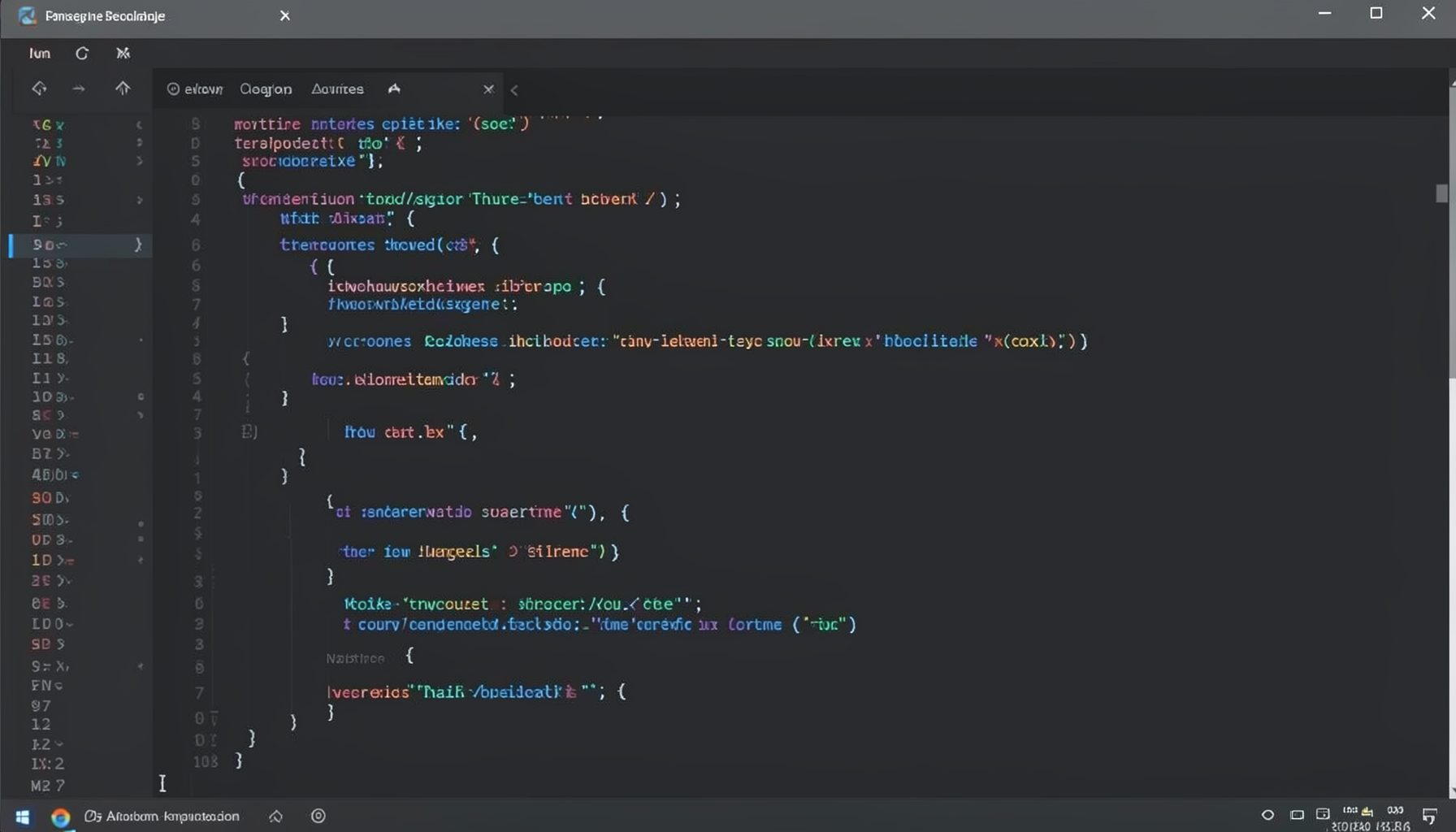
Screen-cast 1: Tab Mode, ECB & More
Covers tab-mode, ECB, Magik Smeller, code folding, visual bookmarks, pragma toggling, moving code, external editor, and MS Explorer.
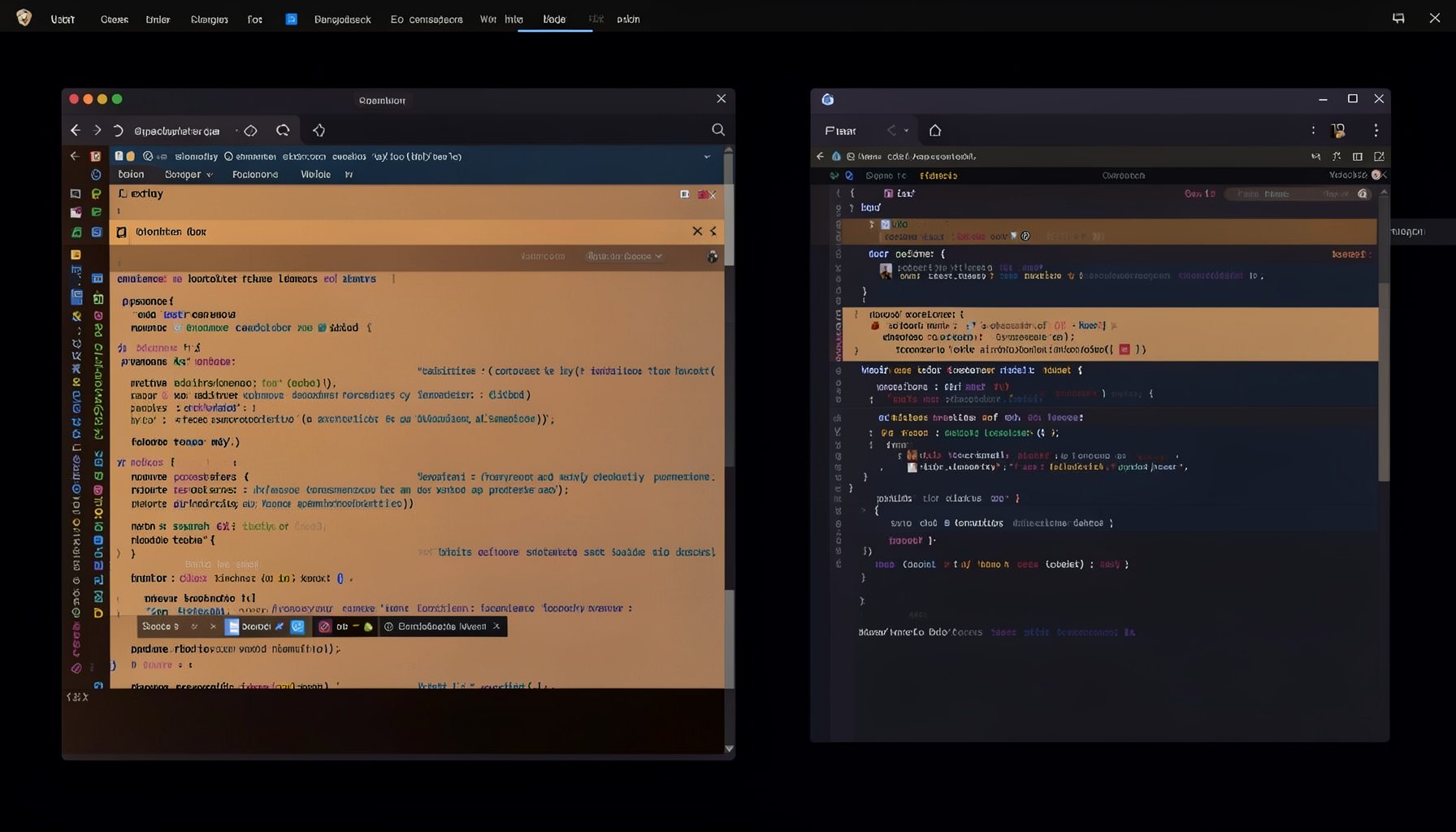
Screen-cast 5: Object Inspection & Deep Print
Inspect a Magik object, prompt for an expression evaluated within a Smallworld session, and display results in a Deep Print buffer.
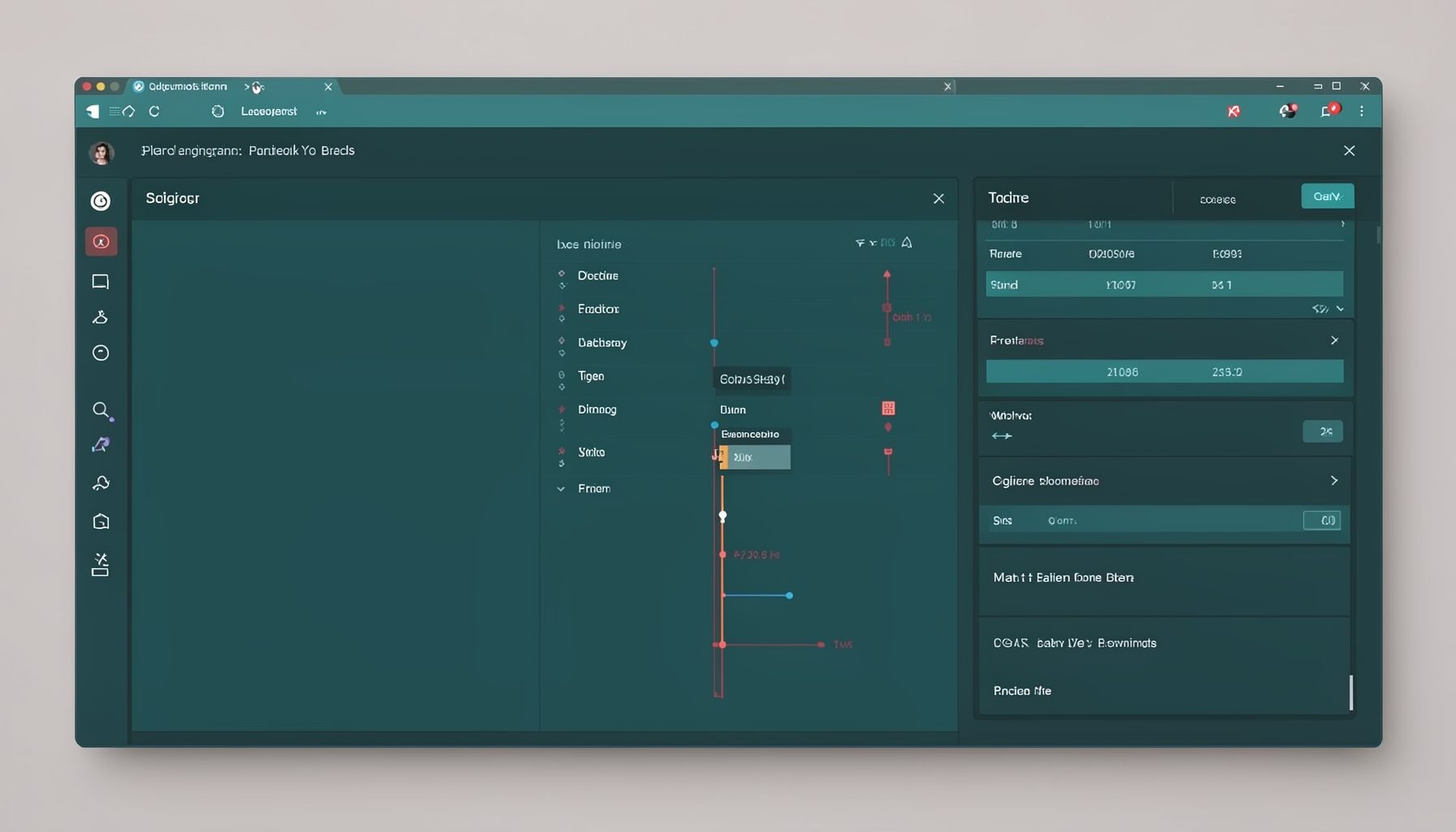
Screen-cast 7: Magik Debugger
Useful tools for application developers: Object Inspector and Magik Debugger with breakpoints and slot/variable monitoring.

Screen-cast 9: Tree Item GUI Control
Tree Item is a GUI control providing extensive facilities for displaying lists with rows, columns, trees, and in-place editing.