Emacs Extensions for
GE Smallworld Magik Development
Screen-casts, tutorials, and productivity tools for Magik programmers who use Emacs. From tab-mode and code folding to the Magik Debugger and object inspector — explore features built by a developer, for developers.
Learn MoreNine screen-casts published between November 2010 and January 2011 — covering everything from ECB mode to the Tree Item GUI control. Read the story behind the project →
Get in Touch
Run Magik Unit Tests with Emacs Compile
Emacs’ compile command is a practical way to run Magik unit tests without leaving the editor. It starts a test command, captures the output in a dedicated buffer, and gives you familiar navigation through failures. For Magik developers, this creates a shorter path between changing a method and checking its behaviour in a Smallworld environment.
The command is especially useful when a Magik test runner depends on a project-specific launcher, workspace configuration, database connection, or licensed runtime. Rather than forcing every developer to memorise a long terminal command, Emacs can store that command, display its results, and make the test cycle repeatable.
A good setup also suits the way Australian Smallworld teams work. A developer in Melbourne might run tests locally while a colleague in Perth reviews failures several hours later, or a Sydney consultancy might maintain separate commands for client installations. Keeping the test entry point visible in Emacs helps make those differences explicit and easier to support.
Why Compile Suits Magik Test Workflows
M-x compile is often associated with compiled languages, but its name is broader than that. Emacs runs any shell command and treats the output as a compilation buffer. That makes it suitable for Magik unit tests, static checks, database validation scripts, and other development commands that produce structured diagnostic messages.
Run M-x compile, enter the command used by your project, and Emacs opens a *compilation* buffer. Press C-x `` or use next-errorto move between recognised failures.RETon a diagnostic usually opens the relevant source file at the reported line.M-x recompile` then repeats the last command without requiring you to type it again.
Magik applications frequently run inside a configured Smallworld process rather than as a simple standalone executable. The test command may need environment variables, a product installation, a session file, or a wrapper script. compile does not remove those requirements; it gives them a consistent editor-based entry point. A repository script such as tools/run-tests is often the cleanest boundary between Emacs and the runtime.
This approach is useful for project teams supporting long-lived enterprise systems. A Brisbane developer can use the same command as a consultant working at a client site in Adelaide, provided the local launcher supplies the correct Smallworld environment.
Creating a Reliable Test Command
Start with a command that works from a terminal in the project directory. It might invoke a shell script, PowerShell wrapper, or a site-specific Magik test launcher. Keep the command focused on one useful operation, such as the complete unit-test suite or a stable subset of tests.
For example, a project may document a wrapper like this:
./tools/run-magik-tests
The wrapper can establish the runtime path, load the required Magik configuration, select the test package, and return a non-zero exit status when a test fails. The exact launcher varies between Smallworld installations, so the script should reflect the commands already approved by the project rather than assuming a universal Magik executable.
You can save the command in Emacs with:
(setq compile-command "./tools/run-magik-tests")
Then invoke M-x compile and accept the proposed command with RET. A prefix argument, C-u M-x compile, prompts for a new command, which is convenient for running a single test group or a diagnostic variant. M-x recompile repeats the last command, making it useful immediately after editing a method.
For a command that changes between projects, define a small interactive function:
(defun magik-run-unit-tests ()
  "Run the current project's Magik unit tests."
  (interactive)
  (let ((compile-command "./tools/run-magik-tests"))
    (call-interactively #'compile)))
This keeps the command discoverable through M-x and avoids placing a long runtime invocation in every buffer. If your project uses project.el, the function can also change to the project root before running the test script. That prevents failures caused by launching the command from a nested package directory.
Making Failure Messages Clickable
The basic compilation mode recognises many common formats, but Magik diagnostics may be produced by a wrapper or embedded runtime in a different form. A failure might include a source filename and line number, or it might print a stack trace with several frames. The first useful improvement is to make the test runner emit a predictable diagnostic format wherever possible.
A wrapper could format failures in a style such as:
ERROR: /work/smallworld/app/roads.magik:184: expected 12, got 11
If the output follows this pattern, add a compilation error rule to your Emacs configuration:
(add-to-list
 'compilation-error-regexp-alist-alist
 '(magik
   "^\\(?:ERROR: \\)?\\([^ \t\n]+\\.magik\\):\\([0-9]+\\):"
   1 2))

(add-to-list 'compilation-error-regexp-alist 'magik)
The regular expression captures the Magik source path and line number. Adjust it to match the output from your own runner, particularly if filenames contain spaces, line numbers are displayed with different punctuation, or the runtime prints a column number as well.
You can improve the review experience with standard compilation settings:
(setq compilation-scroll-output 'first-error)
(setq compilation-auto-jump-to-first-error t)
These settings keep the buffer moving to the first useful failure instead of leaving you at the end of a long log. compilation-scroll-output can also be set to t when watching a verbose test suite. Use C-x C-q in the compilation buffer if you need to edit its text temporarily for investigation, but treat the buffer as generated output rather than a permanent report.
Magik stack traces often contain more context than a single assertion failure. Once the file and line navigation works, the compilation buffer becomes a quick route from a failing test into the method under examination. That is particularly valuable when a database or collection operation fails several calls below the test itself.
Running Focused Tests During Development
A full suite is valuable before a merge, but it can be slow when a developer is working on one class or package. Create wrapper options for focused runs, such as a named test group, package, or test file. The command can then accept an argument supplied by compile:
(defun magik-run-focused-tests (argument)
  "Run Magik tests selected by ARGUMENT."
  (interactive "sTest group or file: ")
  (compile (format "./tools/run-magik-tests %s"
                  (shell-quote-argument argument))))
The exact selection syntax belongs to the project’s test framework. The important point is to keep the selection mechanism close to the test runner and let Emacs handle output and navigation. shell-quote-argument is important when a test name or path contains characters interpreted by the shell.
A useful workflow is to run a focused group after each change, use C-x `` to visit the first failure, correct the Magik method, and press M-x recompile`. Once the focused run passes, execute the complete suite before committing. This gives quick feedback without confusing a narrow check with full regression coverage.
The same pattern can support separate commands for unit tests, database-backed tests, and integration checks. For example, a team might use compile for fast in-memory collection tests and a second command for tests requiring a configured Smallworld database. Clear command names reduce the risk of running an expensive or environment-sensitive suite by accident.
Australian projects often have several deployment environments across states or client organisations. A test wrapper can select local configuration while preserving the same Emacs command names. That is safer than asking developers to edit commands manually when moving between an internal environment in Sydney and a client installation in regional New South Wales.
Sharing Configuration Across Magik Projects
Personal Emacs customisation is useful for experimenting, but a project-level setup makes the workflow easier to reproduce. Store the wrapper script in version control and document its prerequisites in the project README. A small Emacs library or .dir-locals.el file can then provide the default compile command for contributors who use Emacs.
Directory-local variables require care because they are project-controlled configuration. Emacs may ask whether to trust them. Review the file before accepting it, and avoid placing arbitrary destructive commands in a repository’s local settings. A safer arrangement is to commit only a command name or script path and keep credentials, database locations, and licensed runtime paths outside version control.
For teams using TRAMP or remote development, compile runs in the context of the current buffer’s host. That can be helpful when Magik is installed on a remote Linux server, but it also means that the command must exist on that host and use its environment. Make the compilation buffer’s command visible and check its working directory when diagnosing differences between local and remote runs.
The following comparison helps identify where each approach fits:
| Approach | Best use | Feedback | Main trade-off |
|---|---|---|---|
M-x compile with a project wrapper |
Repeated unit-test runs | Clickable errors and saved command | Requires predictable runner output |
M-x compile with a focused argument |
Testing one package or group | Fast, targeted results | Selection syntax must be documented |
| Terminal command | Initial setup and unusual diagnostics | Full native runtime output | Manual navigation and repeated typing |
Emacs recompile |
Repeating the last check after an edit | Very fast feedback loop | Reuses the previous command, which may be too narrow |
| CI test job | Pre-merge and shared verification | Durable build record | Slower feedback and environment dependency |
Adopt the simplest arrangement that matches the project. A wrapper script, a saved compile command, and a useful error expression are usually enough to turn Magik unit testing into a dependable editor workflow. More elaborate integration can wait until the team has a clear need for test selection, remote execution, or richer reports.
Use Emacs’ compile command as the daily front end for your Magik tests, then refine the wrapper and error matching around the output your Smallworld environment already produces. Explore Magik Emacs extensions and tutorials from HydePark Consulting for code navigation, debugging, object inspection, and other tools that make enterprise Magik development easier to manage.
Core Features
Tab Mode & ECB
Quick tab switching and Emacs Code Browsing mode for navigating Magik codebases efficiently.
Magik Smeller
Code analysis tool that helps identify potential issues in Magik source files.
Code Folding
Hide/Show mode for collapsing and expanding Magik code blocks to focus on what matters.
Visual Bookmarks
Quick visual bookmarks for jumping between key locations in your Smallworld session buffers.
Object Inspector
Inspect Magik objects and display them in an Emacs Deep Print buffer for detailed examination.
Magik Debugger
Set breakpoints and monitor slots and variables directly from within Emacs.
Development Tools
Direct links between Emacs and the Smallworld Development Tools application, including Click Monitor.
Screen-casts & Tutorials
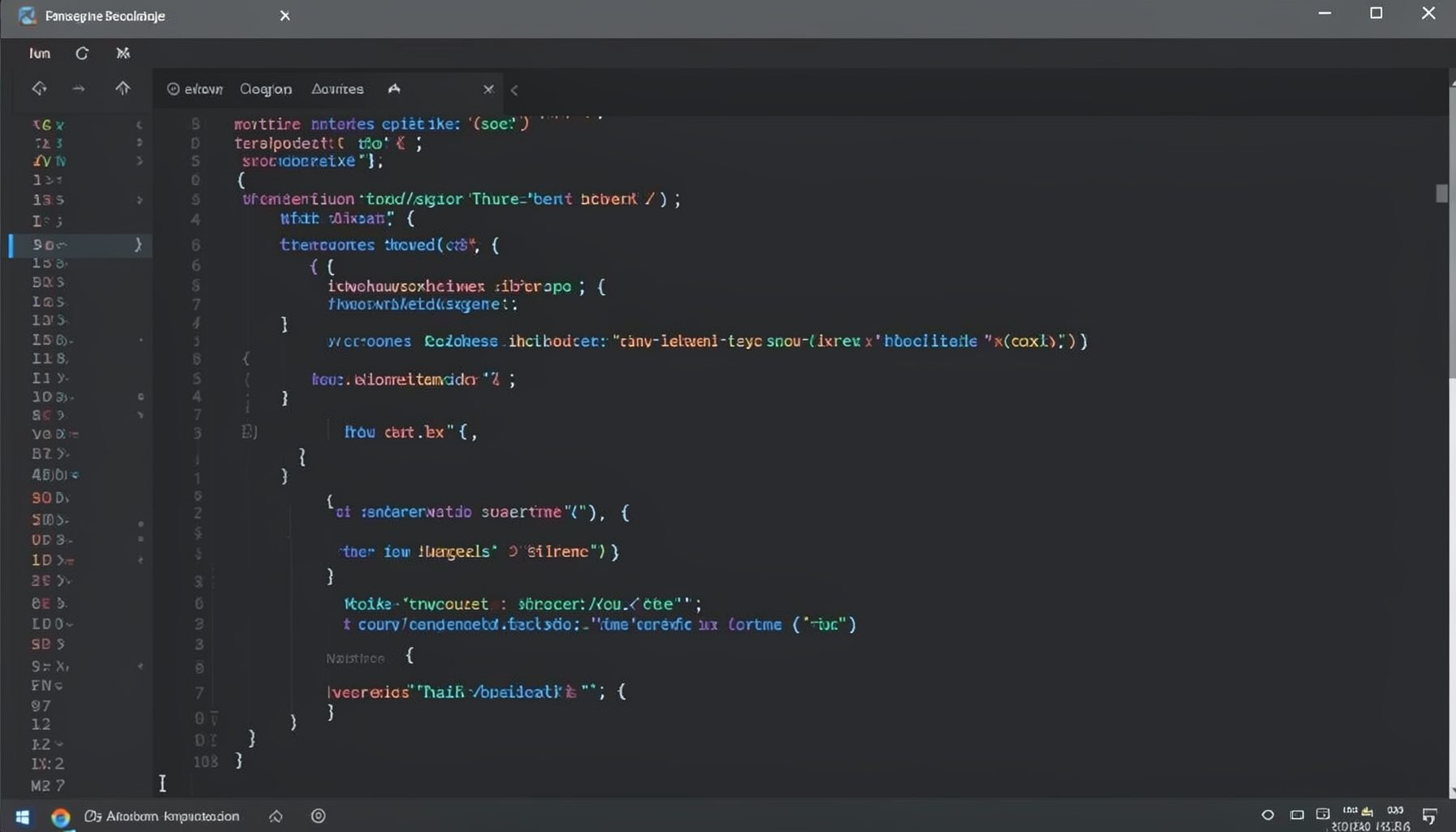
Screen-cast 1: Tab Mode, ECB & More
Covers tab-mode, ECB, Magik Smeller, code folding, visual bookmarks, pragma toggling, moving code, external editor, and MS Explorer.
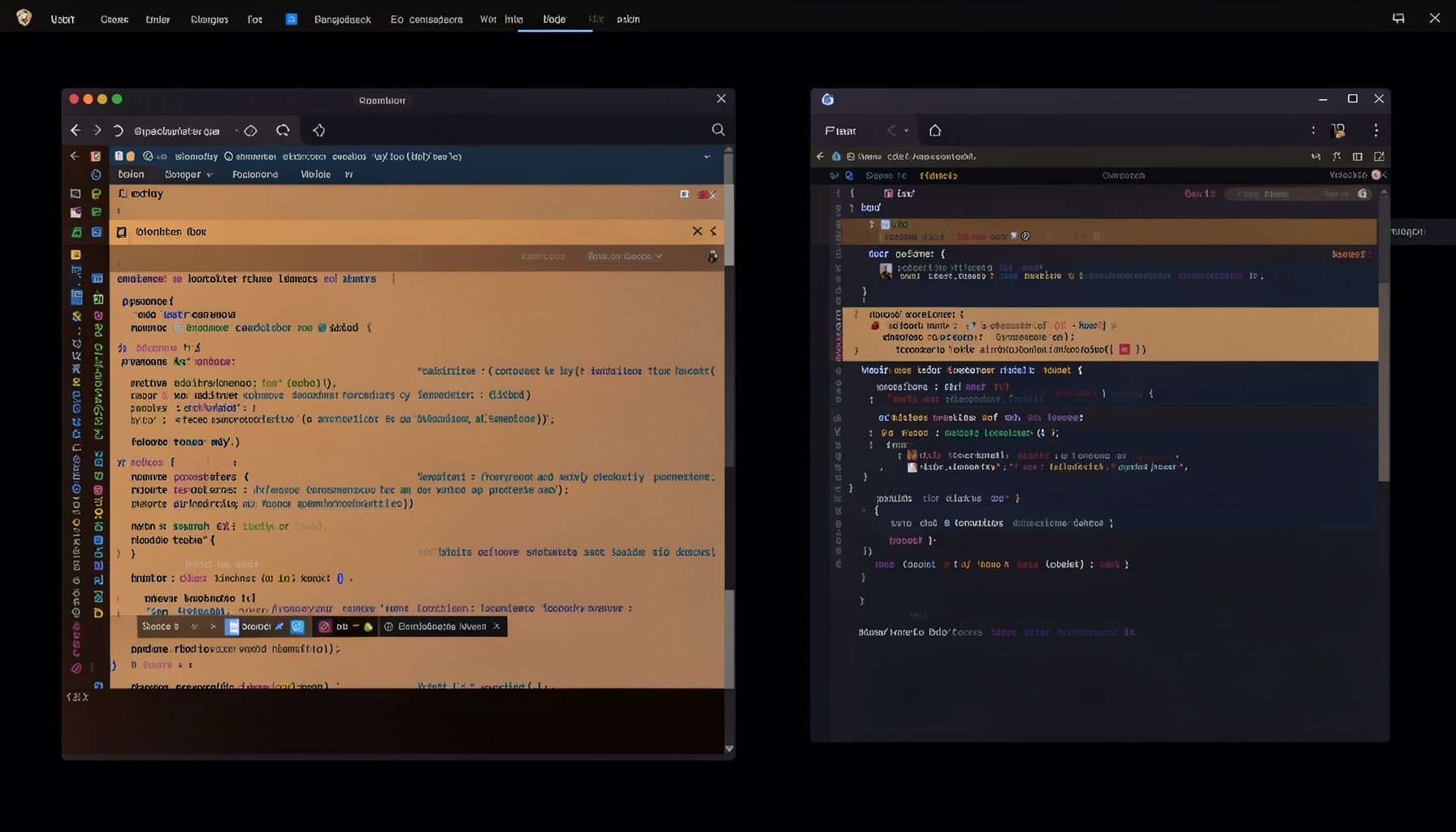
Screen-cast 5: Object Inspection & Deep Print
Inspect a Magik object, prompt for an expression evaluated within a Smallworld session, and display results in a Deep Print buffer.
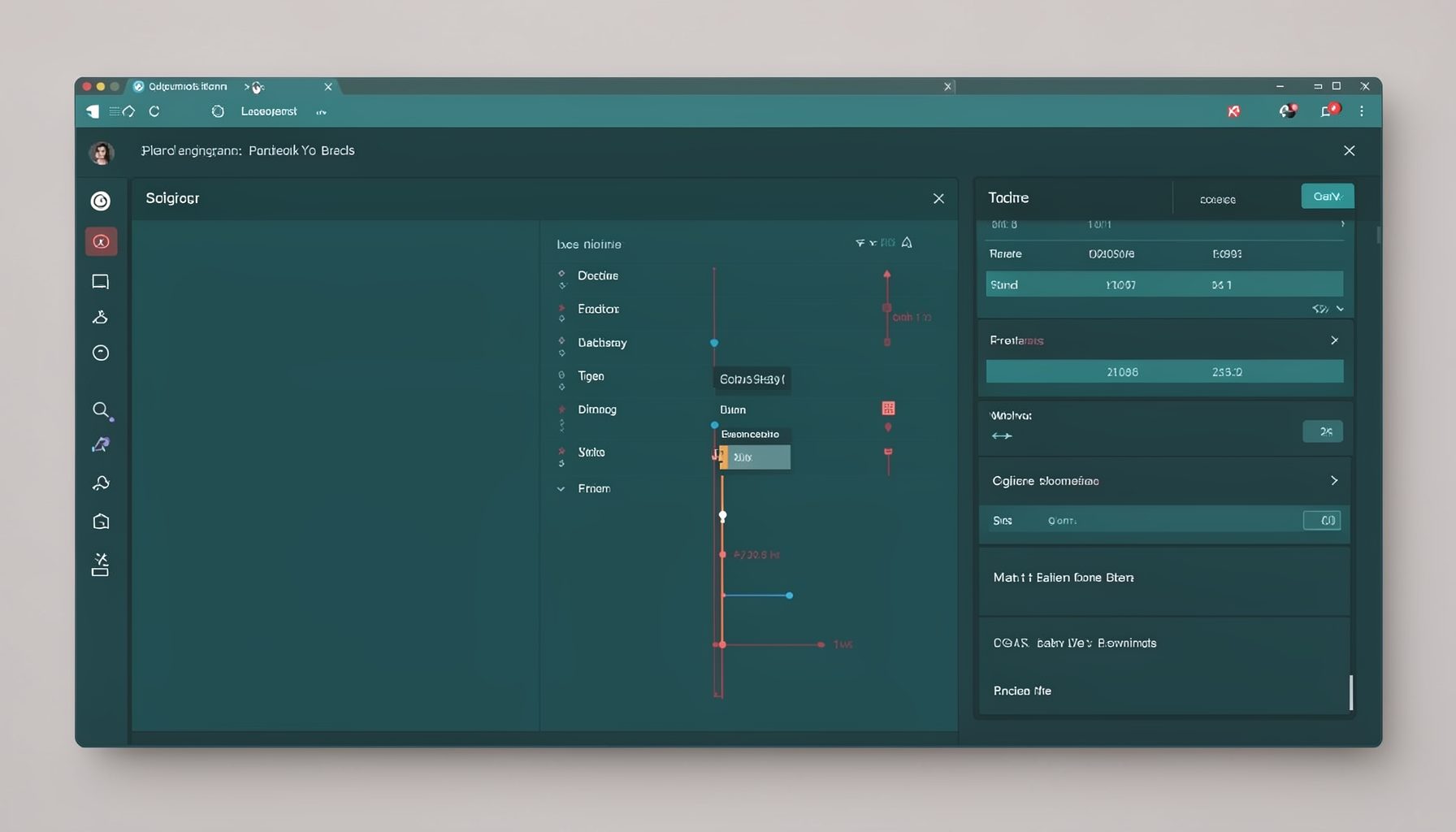
Screen-cast 7: Magik Debugger
Useful tools for application developers: Object Inspector and Magik Debugger with breakpoints and slot/variable monitoring.

Screen-cast 9: Tree Item GUI Control
Tree Item is a GUI control providing extensive facilities for displaying lists with rows, columns, trees, and in-place editing.