Emacs Extensions for
GE Smallworld Magik Development
Screen-casts, tutorials, and productivity tools for Magik programmers who use Emacs. From tab-mode and code folding to the Magik Debugger and object inspector — explore features built by a developer, for developers.
Learn MoreNine screen-casts published between November 2010 and January 2011 — covering everything from ECB mode to the Tree Item GUI control. Read the story behind the project →
Get in Touch
Emacs Dotemacs Configurations For Magik Productivity
A well-structured Emacs dotemacs configuration can turn Magik development from a sequence of repetitive commands into a smooth, discoverable workflow. The right settings keep source files readable, make methods easier to locate, and put inspection tools close to the code that needs attention. For teams maintaining GE Smallworld systems, this can save time across daily maintenance, integration work, and long-running database projects.
Magik has a distinctive object model and a development style that rewards strong editor support. Code navigation, method lookup, collection analysis, debugging, and object inspection all benefit from shortcuts that reflect how Magik programmers actually work. Rather than collecting unrelated snippets, a useful configuration should create a consistent working environment around those tasks.
Australian development teams often maintain systems across several offices, from Melbourne and Sydney to Brisbane, Perth, and Adelaide. A shared Emacs setup helps reduce differences between machines and makes onboarding easier when consultants join a project. It also supports distributed work across Australian Eastern and Western time zones, where a dependable local workflow matters when access to a central Smallworld environment is limited.
The examples below focus on practical configuration patterns rather than a single rigid package. Magik installations, Emacs versions, and project conventions vary, so each setting should be tested against the local runtime. Keep the configuration readable, divide general Emacs preferences from Magik-specific commands, and treat the file as part of the development toolchain rather than a private collection of shortcuts.
Build A Clear Magik Editing Environment
Start by ensuring that Magik buffers use the correct major mode and receive predictable indentation, comment handling, and font-lock support. If a Magik mode is loaded from a local extension directory, add that directory to load-path and use an association rule for the relevant file extensions or naming conventions. A basic pattern might look like this:
(add-to-list 'load-path "~/.emacs.d/site-lisp")
(require 'magik-mode)

(add-to-list 'auto-mode-alist '("\\.magik\\'" . magik-mode))
The exact feature name and file pattern depend on the extension installed in the organisation. The principle is more important than the spelling: opening a Magik source file should activate the same commands, syntax highlighting, and indentation rules every time. Avoid relying on manually selecting a mode, especially when a project contains hundreds of files or is shared by developers in different locations.
Separate Magik customisation into a dedicated file when the configuration grows. Emacs can load a magik-config.el file from the main init.el, allowing general preferences such as backups and completion to remain independent from language-specific commands. This structure is useful for consultants moving between client environments in Sydney or Canberra, since the reusable Magik layer can be copied without overwriting personal settings.
Make Navigation And Folding Immediate
Method navigation is one of the highest-value areas for Magik productivity. Bind commands for jumping to a method definition, finding references, moving between related methods, and returning to previous locations. Emacs’ built-in xref framework can provide a common interface where the Magik extension supplies suitable backend functions. Even when full cross-reference support is unavailable, simple project searches through grep, rg, or occur can make large codebases manageable.
A practical configuration should also preserve navigation history. Settings such as save-place-mode, a visible line number display, and a larger command history make it easier to resume work after switching buffers or reconnecting to a remote development host. A narrow but useful set of key bindings is better than dozens of obscure combinations:
(global-set-key (kbd "C-c m f") #'magik-find-method)
(global-set-key (kbd "C-c m r") #'magik-find-references)
(global-set-key (kbd "C-c m b") #'xref-go-back)

(save-place-mode 1)
(global-display-line-numbers-mode 1)
Replace placeholder command names with those provided by the installed Magik extension. For code folding, enable the package or minor mode supported by the local setup, then choose a single pair of keys for hiding and revealing method bodies. Folding is particularly helpful when reviewing long Magik classes or navigating generated code during an end-of-financial-year release, when developers need a quick view of structure without losing surrounding context.
Configure Debugging And Object Inspection
Debugging becomes much faster when the editor can send the current method, symbol, or buffer directly to the Magik environment. A comint-based interaction mode, a dedicated inferior Magik buffer, or project-specific commands can provide this connection. Bind evaluation commands close to navigation commands so that inspecting a method does not require repeated mouse movement or a search through the menu system.
Useful commands include evaluating the current expression, sending a method to the running image, switching to the Magik listener, and clearing or refreshing the inspection buffer. Where the extension supports it, add commands for placing breakpoints and stepping through execution. Keep destructive actions on less accessible keys, and use explicit prefixes for operations that reload classes or alter a database session.
Object inspection deserves its own small group of commands. Magik developers often need to examine an object’s class, slots, methods, collection contents, or relationships while tracing a production issue. A configuration can standardise the workflow by displaying inspection output in a side window and reusing that window instead of opening a new buffer for every query. This is valuable in remote sessions where network latency can make repeated interface changes frustrating.
For projects that interact with external web services, it is also useful to keep browser-based verification close to the development process. Teams can consult a web testing reference when documenting complementary acceptance checks, while keeping Magik object inspection and Smallworld integration tests in their normal Emacs workflow. The two activities serve different purposes, but both benefit from repeatable commands and clearly named buffers.
Use Completion, Search, And Project Context
Completion should reduce typing without hiding the language’s conventions. Configure completion-at-point or a preferred completion package to use Magik symbols, local methods, and project names where the extension supports them. A modest completion menu is generally easier to trust than a very broad source that offers unrelated symbols from every open project.
Search settings are equally important. Configure recursive project search to ignore generated files, logs, temporary exports, and large data directories. project.el, consult, ripgrep, or a similar tool can make it simple to search method names and class references from the project root. Add a command that identifies the current Magik package or source directory, since many Smallworld deployments organise code through conventions that are not obvious from a single file path.
Buffer naming can prevent confusion when several client environments are open at once. Include the project name or connection context in buffer names for listener, debugger, and inspection sessions. This is especially useful for an Australian consultant working with a Melbourne client in the morning and a Perth-based operations team later in the day. Clear names reduce the risk of sending a command to the wrong runtime.
Version control integration should be part of the same environment. Display the current branch, show changed lines where practical, and make it easy to compare a Magik method with its previous revision. Before a release, use Emacs to inspect the complete change set rather than relying on an editor buffer alone. This supports careful review when public holidays or regional deployment windows compress the available maintenance period.
Keep Configuration Portable And Maintainable
A dotemacs file should fail gracefully when a package or client-specific command is absent. Use with-eval-after-load for optional extensions and guard custom key bindings with fboundp when different Magik environments provide different command sets. This allows a general configuration to load on a laptop, a build host, or a temporary virtual machine without stopping at the first missing dependency.
Store machine-specific paths in variables rather than scattering absolute directories through the file. For example, define the Smallworld installation directory, Magik source roots, and log locations near the top of a dedicated configuration section. Environment variables can then supply local values for developers in Brisbane, Adelaide, or regional offices without forcing everyone to edit the same commands.
Keep a small diagnostic command available. It can report the active major mode, the detected project root, the Magik executable or listener connection, and the paths used for source lookup. When a command works on one workstation but not another, this information gives the team a starting point for troubleshooting. It is far more reliable than comparing screenshots or copying an entire personal Emacs directory.
Finally, document the purpose of each customisation beside the code. Explain whether a setting supports folding, method lookup, debugging, collection analysis, or database exploration. Remove abandoned bindings and test the configuration after upgrading Emacs or the Magik extension. A short, annotated file will survive staff changes and client handovers better than a large collection of unexplained historical workarounds.
A productive setup grows through daily use. Begin with mode activation, navigation, evaluation, inspection, and search; then add completion, folding, and project automation once the fundamentals are stable. Place the resulting configuration under version control, share the reusable Magik portion with the development team, and refine it as real maintenance tasks reveal new friction. Build a dotemacs environment that reflects your Smallworld codebase, record the commands that save time, and make those improvements part of the team’s everyday Magik practice.
Core Features
Tab Mode & ECB
Quick tab switching and Emacs Code Browsing mode for navigating Magik codebases efficiently.
Magik Smeller
Code analysis tool that helps identify potential issues in Magik source files.
Code Folding
Hide/Show mode for collapsing and expanding Magik code blocks to focus on what matters.
Visual Bookmarks
Quick visual bookmarks for jumping between key locations in your Smallworld session buffers.
Object Inspector
Inspect Magik objects and display them in an Emacs Deep Print buffer for detailed examination.
Magik Debugger
Set breakpoints and monitor slots and variables directly from within Emacs.
Development Tools
Direct links between Emacs and the Smallworld Development Tools application, including Click Monitor.
Screen-casts & Tutorials
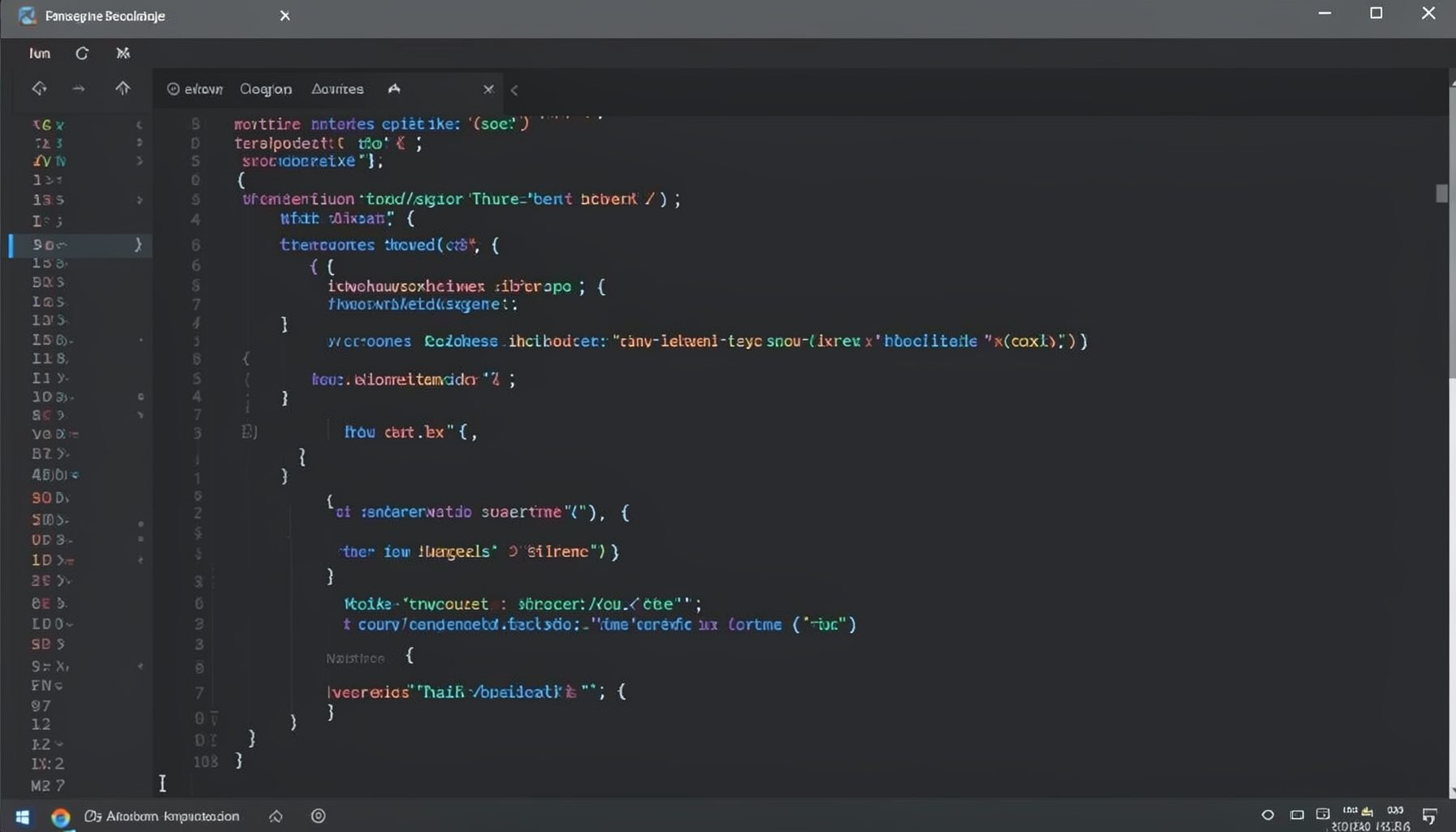
Screen-cast 1: Tab Mode, ECB & More
Covers tab-mode, ECB, Magik Smeller, code folding, visual bookmarks, pragma toggling, moving code, external editor, and MS Explorer.
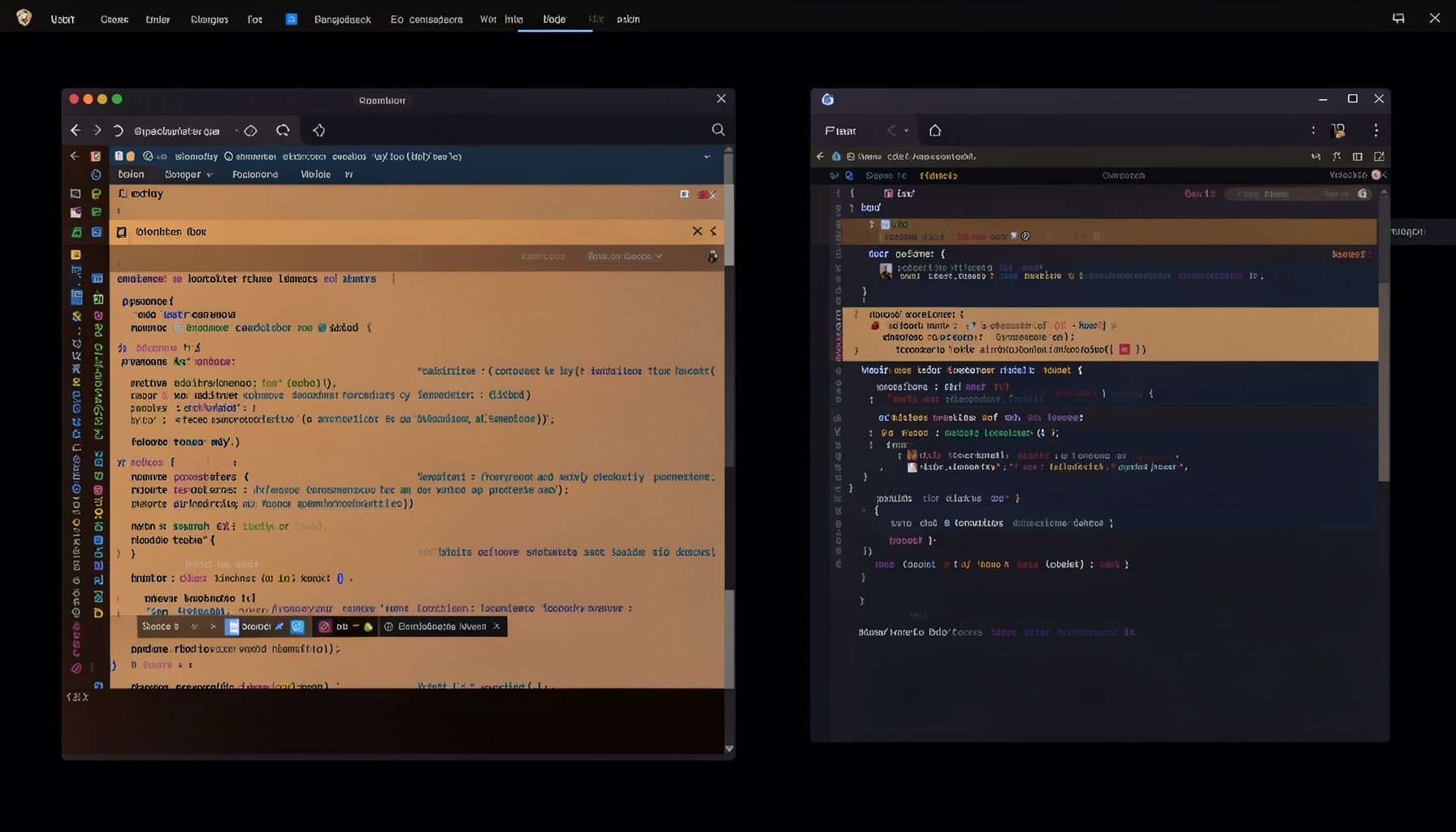
Screen-cast 5: Object Inspection & Deep Print
Inspect a Magik object, prompt for an expression evaluated within a Smallworld session, and display results in a Deep Print buffer.
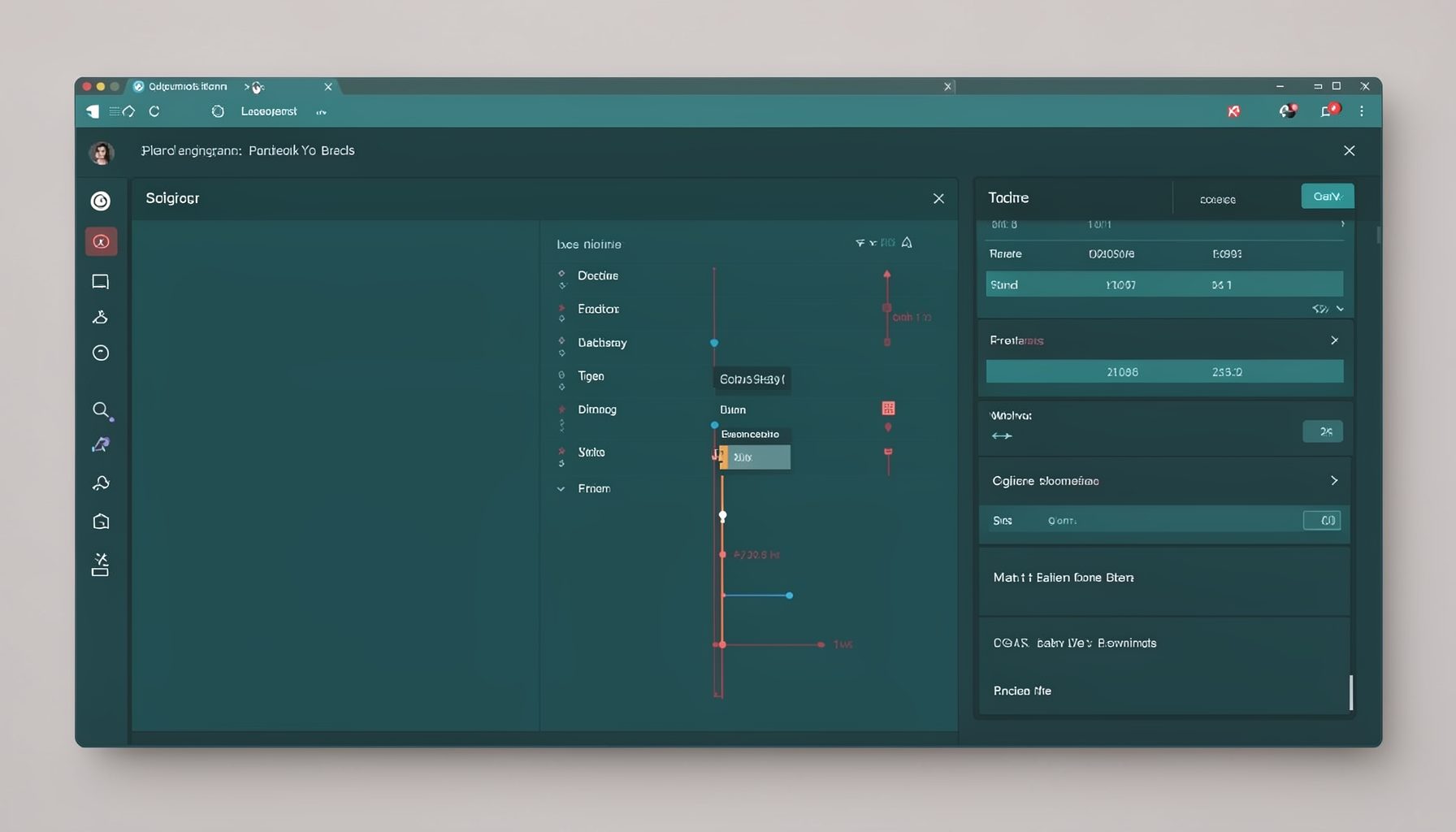
Screen-cast 7: Magik Debugger
Useful tools for application developers: Object Inspector and Magik Debugger with breakpoints and slot/variable monitoring.

Screen-cast 9: Tree Item GUI Control
Tree Item is a GUI control providing extensive facilities for displaying lists with rows, columns, trees, and in-place editing.