Emacs Extensions for
GE Smallworld Magik Development
Screen-casts, tutorials, and productivity tools for Magik programmers who use Emacs. From tab-mode and code folding to the Magik Debugger and object inspector — explore features built by a developer, for developers.
Learn MoreNine screen-casts published between November 2010 and January 2011 — covering everything from ECB mode to the Tree Item GUI control. Read the story behind the project →
Get in Touch
Viewing Magik classes and methods with Emacs speedbar
Emacs speedbar is usually described as a compact file browser, yet it can be more useful to a Smallworld Magik programmer as a persistent map of the code. Large systems spread classes, mixins and methods across package files; a live Smallworld browser shows what exists at runtime, while speedbar can keep source relationships beside the buffer being edited. The two views answer different questions, and using them together is quicker than making either one do every job.
That distinction is valuable for Australian teams. A repository may be shared by developers in Sydney, Melbourne, Brisbane, Adelaide and Perth, while support is handed across AEST, AEDT, ACST and AWST. Someone editing in Brisbane can share the same Emacs setup with a colleague at a client site near Kalgoorlie without sending screenshots of a directory tree. A version-controlled speedbar configuration gives everyone a consistent class-and-method view even when the runtime is remote or a junior developer joins a long-lived system.
The approach below maps Magik declarations into a package, class and method hierarchy, then adds source jumps and debugging context. It deliberately leaves runtime objects, slots and collections to Smallworld’s browser. Speedbar becomes a fast index for the question programmers ask most often during maintenance: which implementation should I open, and is it the one that ran?
Why a class tree beats a file tree
Stock speedbar is good at showing directories, files and, depending on the Emacs version, tag information. A Magik source tree has another shape. Definitions may live in package files, mixins or files generated from a specification, and a method’s useful identity is its qualified class name rather than its filename. A directory containing geometry.magik may hold several classes, while an inherited method may be implemented in another file altogether. The file view can be accurate and still answer the wrong question.
Design the view around the relationships programmers ask about: which package owns a class, which methods belong to it, and where each definition is implemented. Put inherited or mixin entries in a separate branch when their source is known, rather than duplicating them under every descendant. This keeps the panel honest and avoids suggesting that a method shown under a subclass was physically declared there. Smallworld’s browser remains authoritative for runtime inheritance, instances and slots; speedbar is the fast source-level index.
Starting speedbar in a Magik session
Speedbar is part of standard Emacs, although a Magik Emacs setup may load it with project defaults. Start with the package enabled and a modest panel:
(require 'speedbar)
(speedbar-mode 1)
(setq speedbar-window-width 32)
If it is not preloaded, M-x speedbar-mode opens it. On a laptop, a narrow tree beside the editor is usually kinder than one that steals space from Magik code.
Keep the panel in a dedicated window and use speedbar-update after regenerating a package. Movement is deliberately small: speedbar-next, speedbar-prev, speedbar-up and speedbar-down move through the tree, while speedbar-toggle-visibility collapses a branch. If speedbar-follow-mode is enabled, changing the selected item can move the source window, so leave it off until the Magik selection handler is reliable. That avoids the tree jumping away while you are reading a buffer.
Building the class and method index
There are two sensible levels of implementation. The quick one leaves speedbar’s directory backend alone, lists Magik package directories, and relies on tags or a Magik-aware source-navigation command to move between declarations. The richer one creates a semantic tree: a package node contains class nodes, and a class node contains method leaves. The second is worth the effort in a large Smallworld repository because it answers class and method questions without requiring the developer to know the source-file layout.
A parser can begin with the stable _package, _class, _method and _end_method markers, recording each definition’s file and line. It need not understand every Magik expression to produce a useful first release. A generated index might look like this:
sw!demo
  circle
    area
    perimeter
  rectangle
    area
Store the parser and its output with the project, regenerate the output in a build step, and label generated methods. A small backend adapter can feed these records to speedbar while preserving the standard movement and visibility commands. Keep speedbar internals out of the rest of the Emacs configuration, and mark each item as source-backed, inherited or generated so its status is visible.
Navigating to the implementation
Selecting a class should open its definition; selecting a method should open the body and place point at the declaration. Keep the qualified name in the label—circle.area is clearer than area when several classes expose similarly named operations. The selection callback is straightforward: open the indexed file, move to the recorded position, and leave the tree ready for the next choice. A separate method-level search remains useful, but the tree should retain the class-to-method relationship.
Magik programmers often work backwards from a business question: a transaction changes a feature, a collection needs a predicate, or an object rejects a value. In the tree, move from package to class, expand the method branch, and select the closest implementation. Mixins and inherited methods can be visually separated from locally declared methods, while generated code can carry a marker in its label. Use the panel beside the editor, not as a substitute for occur, grep or a language server; speedbar is strongest as a visual index that narrows the source space before normal editing takes over.
Using the tree during debugging
A source tree cannot explain why a running Smallworld system raised an exception, but it can make the answer easier to find. Keep the Magik debugger’s stack trace and the speedbar panel in separate windows. When a frame names sw!demo.circle.area, locate that qualified method in the tree, select it, and compare the reported line with the source currently loaded. A mismatch often means the runtime is using a different revision or deployed package than the one in your working directory.
The companion article on reading Magik stack traces explains how to reduce noise in the trace. The useful division is deliberate: filter the trace to the frames that matter, use a method name to jump back to source, then inspect local variables in the debugger. Speedbar should not draw a second stack; it should make the frames in the first one navigable. Refresh the index after editing a method or changing package structure, and include the revision in the panel when your workflow supports it, so “is this the code that ran?” has a quick answer.
A repeatable team workflow
Start with one package and make the setup reproducible. A new Magik programmer should clone the source, load the same Emacs configuration, generate the class-and-method index and see the same tree as an experienced colleague. Keep the index in the repository or a documented artefact server, rather than one developer’s home directory. That habit matters in Australian organisations with contractors, consultants and internal teams moving between client sites, especially when a support handover happens across a weekend.
The local market reinforces the value of documentation and dependable tools. Australian enterprise, government, transport and resource organisations often maintain long-lived Smallworld systems, with implementation partners supplying training and support. A clear speedbar configuration can therefore become onboarding and handover material, not merely a personal editor trick. HydePark Consulting’s Magik Emacs resources fit that practical, documentation-led approach: teams can teach the workflow and customise it without adding another opaque tool. Use Australian English in the surrounding documentation—organisation, licence as a noun and dates such as 04/06/2025 read as day, month and year—without changing language identifiers. In a Brisbane stand-up, a brisk “no worries, I’ll send the index” is realistic coordination, but the artefact still needs an owner and a refresh time. The same rule applies to a mine near Kalgoorlie or a utility network outside Adelaide: the map must work on a slow connection and remain understandable to the next shift.
Try the setup on one package rather than the entire repository: load Magik Emacs, enable speedbar, point it at a known class, and confirm that selecting a method opens the expected source. Keep the generated index and Emacs configuration under version control, and record which parser produced it. That small experiment gives an Australian support team a concrete baseline it can extend without changing every editor habit at once.
Document and share the working adapter, useful key bindings and any site-specific index command with the project, then use the tree during onboarding, code review and incident support. The immediate action is simple: open the next maintenance ticket, locate its class in the hierarchy and follow the method directly to the implementation that needs attention.
Core Features
Tab Mode & ECB
Quick tab switching and Emacs Code Browsing mode for navigating Magik codebases efficiently.
Magik Smeller
Code analysis tool that helps identify potential issues in Magik source files.
Code Folding
Hide/Show mode for collapsing and expanding Magik code blocks to focus on what matters.
Visual Bookmarks
Quick visual bookmarks for jumping between key locations in your Smallworld session buffers.
Object Inspector
Inspect Magik objects and display them in an Emacs Deep Print buffer for detailed examination.
Magik Debugger
Set breakpoints and monitor slots and variables directly from within Emacs.
Development Tools
Direct links between Emacs and the Smallworld Development Tools application, including Click Monitor.
Screen-casts & Tutorials
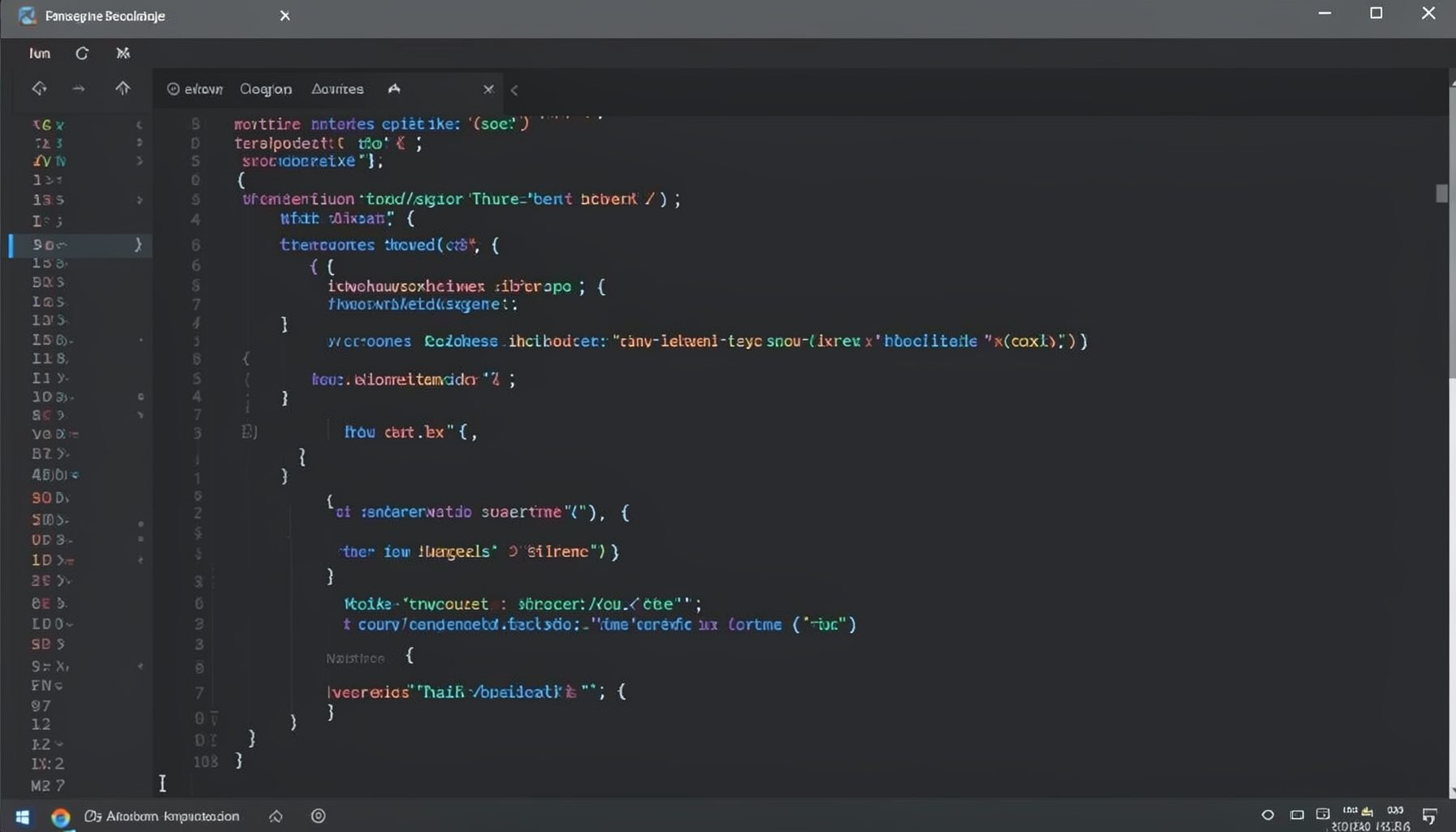
Screen-cast 1: Tab Mode, ECB & More
Covers tab-mode, ECB, Magik Smeller, code folding, visual bookmarks, pragma toggling, moving code, external editor, and MS Explorer.
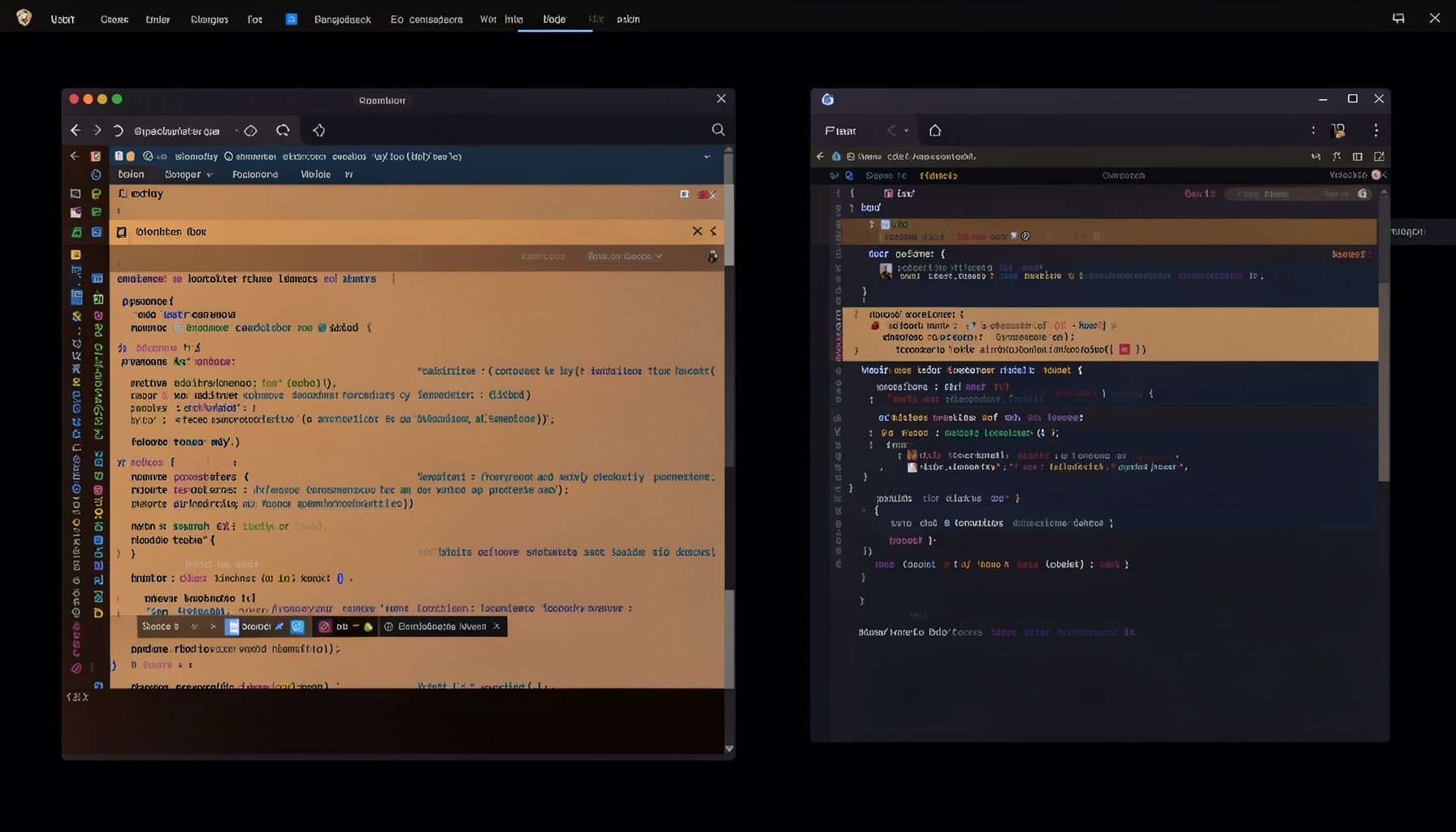
Screen-cast 5: Object Inspection & Deep Print
Inspect a Magik object, prompt for an expression evaluated within a Smallworld session, and display results in a Deep Print buffer.
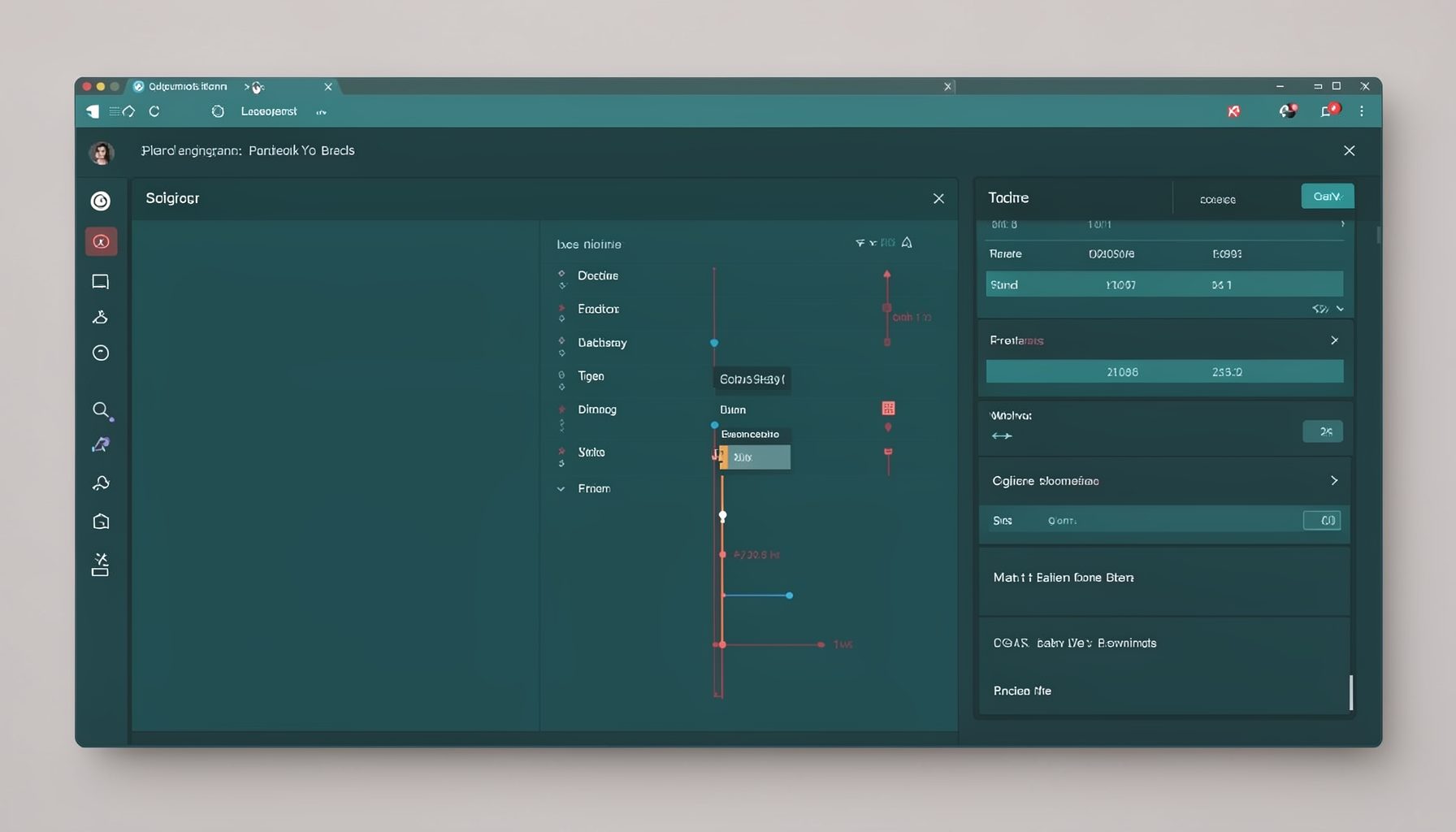
Screen-cast 7: Magik Debugger
Useful tools for application developers: Object Inspector and Magik Debugger with breakpoints and slot/variable monitoring.

Screen-cast 9: Tree Item GUI Control
Tree Item is a GUI control providing extensive facilities for displaying lists with rows, columns, trees, and in-place editing.