Emacs Extensions for
GE Smallworld Magik Development
Screen-casts, tutorials, and productivity tools for Magik programmers who use Emacs. From tab-mode and code folding to the Magik Debugger and object inspector — explore features built by a developer, for developers.
Learn MoreNine screen-casts published between November 2010 and January 2011 — covering everything from ECB mode to the Tree Item GUI control. Read the story behind the project →
Get in Touch
Building a Custom Magik Highlighting Theme for Emacs
Magik developers spend hours each day reading code, and the colour palette around those words shapes how quickly the eye can latch onto a method definition, a collection literal, or a transient warning. Writing a custom syntax highlighting theme for Emacs gives you control over that visual experience, particularly when the default faces feel washed out on the monitors common in Australian engineering offices where ambient light pours through tall north-facing glass.
Emacs has shipped with a powerful font-lock engine for decades, and it remains the foundation on which any language-specific highlighting must rest. Magik, however, has its own grammatical quirks: dynamic method dispatch, slot access syntax, the >> pipe, and a mixture of underscore-prefixed keywords that can clash with the conventions used by the rest of your buffer stack. A well-crafted theme treats each construct with deliberate, consistent colour.
Many Australian Smallworld practitioners work for distribution businesses such as SA Power Networks, Essential Energy, AusNet Services, or TasNetworks. Their teams often request shared colour schemes so that code reviews, screen shares with colleagues in Sydney or Melbourne, and pair sessions during AEST business hours feel familiar regardless of who is presenting. Building your own theme is a small act of consistency that pays off across the team.
This walk-through covers the architecture of an Emacs theme file, the practical steps for declaring faces, the conventions used in the existing magik-mode package, and a few small adjustments that make the theme easier to maintain. By the end, you should be able to load a magik-theme.el file from your init directory and have your buffer light up with colours that match your taste and your team's house style.
Understanding Magik's Syntax and Emacs Font Lock
Emacs font-lock works by applying regular expressions to the buffer and tagging regions with face names such as font-lock-keyword-face, font-lock-string-face, or any custom face you define. The Magik mode that ships with magik-mode already configures most of the regex patterns you need; your theme's job is to decide what each of those faces looks like.
The Magik grammar has several families of token that warrant distinct visual treatment. Keywords like _self, _super, _class, _true, and _false are written with a leading underscore by convention, and they read poorly when coloured the same as ordinary identifiers. Method invocations typically look like object.method_name(arg), while slot access uses >> as in the syntax object >> slot_name. Procedure definitions use _local_, _global_, _method_, _iter_, _proc_, and _block to introduce their area, and these deserve a heavier weight than ordinary words.
Before writing any faces, it helps to know what face names magik-mode actually applies. You can inspect them interactively with M-x describe-face on a highlighted token, or by running M-x font-lock-ensure followed by M-x list-faces-display. A typical Magik buffer will have at least these faces highlighted: magik-method-face, magik-keyword-face, magik-string-face, magik-comment-face, and magik-constant-face — though the exact names vary depending on which version of magik-mode is installed.
One common pitfall is that the theme you build only takes effect inside Magik buffers, which is fine, yet a coherent look across all the file types you edit during a typical day is also worth considering. Many of the developers I have worked with in HydePark Consulting's Brisbane office keep a single dark theme that handles Magik, SQL, Lisp, and JSON reasonably well, then layer file-specific adjustments on top.
Setting Up Your Theme Environment
Every Emacs theme is a regular Elisp file that calls deftheme and then defines a series of face declarations. The conventional location is ~/.emacs.d/themes/ or a path managed by use-package and straight.el. For a Magik-specific theme, a filename like magik-sunset.el or magik-bushland.el — picking a name that nods to the Australian landscape — keeps the file easy to find later.
The skeleton of the theme begins with three lines that almost every Emacs theme shares. The first disables the standard faces so that your declarations take effect cleanly, the second calls deftheme, and the third applies your faces under a chosen name.
(deftheme magik-sunset
  "A warm highlighting palette for Magik mode, inspired by inland dusk.")

(custom-theme-set-faces 'magik-sunset
  `(font-lock-comment-face
    ((t (:foreground "#7c6f64" :italic t))))
  ...)
If you want your theme to load automatically, add a (load-theme 'magik-sunset t) call inside your init.el, or better still, wrap it in a use-package block so the theme only loads when Magik files are open.
While developing the theme, keep an Emacs instance running with (setq font-lock-verbose t) turned on. That variable causes Emacs to log every regex it applies and the face it assigns. The first iteration of any theme will reveal a few surprising matches — for instance, a regex intended for slot access may also catch the >> operator in a C++ snippet you have open. Catching these early saves you hours of cross-referencing later.
For projects that combine Magik with a snippet workflow, the creating-a-magik-snippet-library-with-yasnippet-108ac guide walks through the related task of building a Yasnippet library, which sits naturally alongside a custom theme in a productive Magik setup.
Defining Faces and Keywords
Faces are where the theme becomes visually distinctive. The most useful Magik-specific face names are listed in the table below, along with the typical tokens they receive and the visual treatment that tends to read well on both light and dark backgrounds.
| Face name | Typical token | Recommended treatment |
|---|---|---|
magik-keyword-face |
_self, _super, _class |
Mid-tone blue or violet, bold |
magik-method-face |
identifiers followed by ( |
Slightly brighter than ordinary text, no weight change |
magik-slot-face |
text after >> |
Orange or amber, italic |
magik-string-face |
quoted text | Warm green or sand tone |
magik-comment-face |
# comments and _pragma |
Faded grey, italic |
magik-constant-face |
_true, _false, numbers |
Coral or salmon, semi-bold |
The hex codes shown above are placeholders; the actual values depend on whether your background is light or dark. For dark backgrounds, a palette inspired by the Australian outback — deep blue nights, amber rock, and rust-red sand — reads well after long sessions. For light backgrounds, a softer palette of eucalyptus green, dusty pink, and sandstone beige works better in sun-filled rooms.
When choosing colours, keep contrast ratios in mind. The Australian standard AS 1428 covers many accessibility topics, but for screen content the relevant guidance comes from the Web Content Accessibility Guidelines, which recommend a contrast ratio of at least 4.5:1 for normal text. Run your palette through a tool such as the WebAIM contrast checker to make sure the faces you choose stay readable. The careful sequencing that a good theme requires is a discipline shared with other setup-heavy work, and the same ordered thinking behind thread-safe primitives applies just as well to a well-structured Emacs theme file.
A subtle but useful trick is to vary the weight of faces rather than relying solely on colour. Comments in italic, keywords in bold, and slot access in italic with a slightly different foreground gives the eye multiple signals even on a washed-out projector or a tired laptop display late in the arvo.
Handling Complex Constructs: Method Blocks, Collections, and Strings
Magik collections are written with curly braces and use the syntax {key1, key2, ...} for rope-style collections, or :| ... |: for simple_vector. Strings support double-quoted forms with embedded _unicode escapes, single-quoted forms, and the dollar-quote multi-line form. A good theme treats each of these forms distinctly so that the structure of a collection literal jumps off the page.
The _method, _proc, _block, and _iter keywords introduce executable regions, and the matching _endmethod, _endproc, _endblock, and _enditer keywords terminate them. Many theme authors give the opening keyword a heavier weight than the closing one, which mirrors the way structural indentation guides the reader through the block. If your team favours code folding, you can also assign a background tint to these regions using overlay text properties — but that adds complexity that most teams decide to skip.
String interpolation in Magik uses the ${expression} syntax, and the expression inside the braces can itself contain method calls. A careful theme applies the standard string face to the surrounding quotes and dollar signs, and a distinct face — often a peach or pale orange — to the expression inside. This makes interpolated expressions immediately readable in print() statements and log messages.
Regex patterns for the more exotic Magik tokens are easy to get wrong. The >> slot operator, for example, must not match the >> used in shift-right arithmetic, and the _pragma directive must not match identifiers like pragma_setting. The existing magik-mode package ships with a tested set of regexes; if you are tempted to rewrite them, do so with caution, and always test against a representative corpus of source files drawn from your own team.
A useful workflow is to keep a small theme-test.magik file in your home directory that contains one of every construct you care about — a method definition, a collection literal, a multi-line string, a slot access chain, a comment, and a pragma. When you tweak the theme, reload it with M-x load-theme and read through the test file from top to bottom. The eye picks up inconsistencies in seconds, and you save yourself the embarrassment of pushing a theme that colours keywords inconsistently.
Testing, Refining, and Distributing Your Theme
Once your theme looks right on your own screen, the next step is to test it under realistic conditions. Pull a few large Magik source files from your production repository — anything over a few thousand lines is ideal — and read them with your new theme loaded. Pay attention to long method chains, deeply nested conditionals, and switch statements that exercise multiple _when clauses. These are where most themes fall down, because the visual rhythm of the buffer becomes the only way to navigate dense code.
Australian teams often share themes across the continent, which means your theme will be loaded on monitors of varying quality and in offices lit from the southern sky, the northern sun, or harsh fluorescent tubes. Ask a colleague in Sydney, another in Melbourne, and a third in Perth to load the theme for a week and report back. The east coast team will see it in cooler morning light; the west coast team will see it under harsher afternoon sun. Their feedback will catch issues you cannot see from your own desk.
Distribution can be as simple as committing the .el file to a shared repository and adding a load-theme line to the team's shared init.el. For wider distribution, package the theme as a MELPA recipe, or publish it on a personal Git server with a clear README. If you build a few related themes — perhaps a daylight variant and a dusk variant — publish them together so users can switch with M-x load-theme and pick whichever suits the room they are working in that day.
Finally, treat your theme as a living artefact. As Magik evolves and as magik-mode adds new face names, your file will need updates. A short comment block at the top of the theme listing the Emacs version and the magik-mode version it targets keeps the supported versions clear, and avoids the kind of awkward support conversations that happen when someone in a regional office tries to load the theme on an older Emacs and finds that several face names have been renamed.
You now have a working Magik syntax highlighting theme loaded in your init. When you have a version you are happy with, drop a line to the Magik Emacs readers — HydePark Consulting and the wider Australian Smallworld community are always keen to see what colleagues publish as their house style, and a good theme often sparks the next round of improvements across the field. Share your theme, write up the choices you made, and invite others to fork it — that is how the local Magik ecosystem grows stronger with each iteration.
Core Features
Tab Mode & ECB
Quick tab switching and Emacs Code Browsing mode for navigating Magik codebases efficiently.
Magik Smeller
Code analysis tool that helps identify potential issues in Magik source files.
Code Folding
Hide/Show mode for collapsing and expanding Magik code blocks to focus on what matters.
Visual Bookmarks
Quick visual bookmarks for jumping between key locations in your Smallworld session buffers.
Object Inspector
Inspect Magik objects and display them in an Emacs Deep Print buffer for detailed examination.
Magik Debugger
Set breakpoints and monitor slots and variables directly from within Emacs.
Development Tools
Direct links between Emacs and the Smallworld Development Tools application, including Click Monitor.
Screen-casts & Tutorials
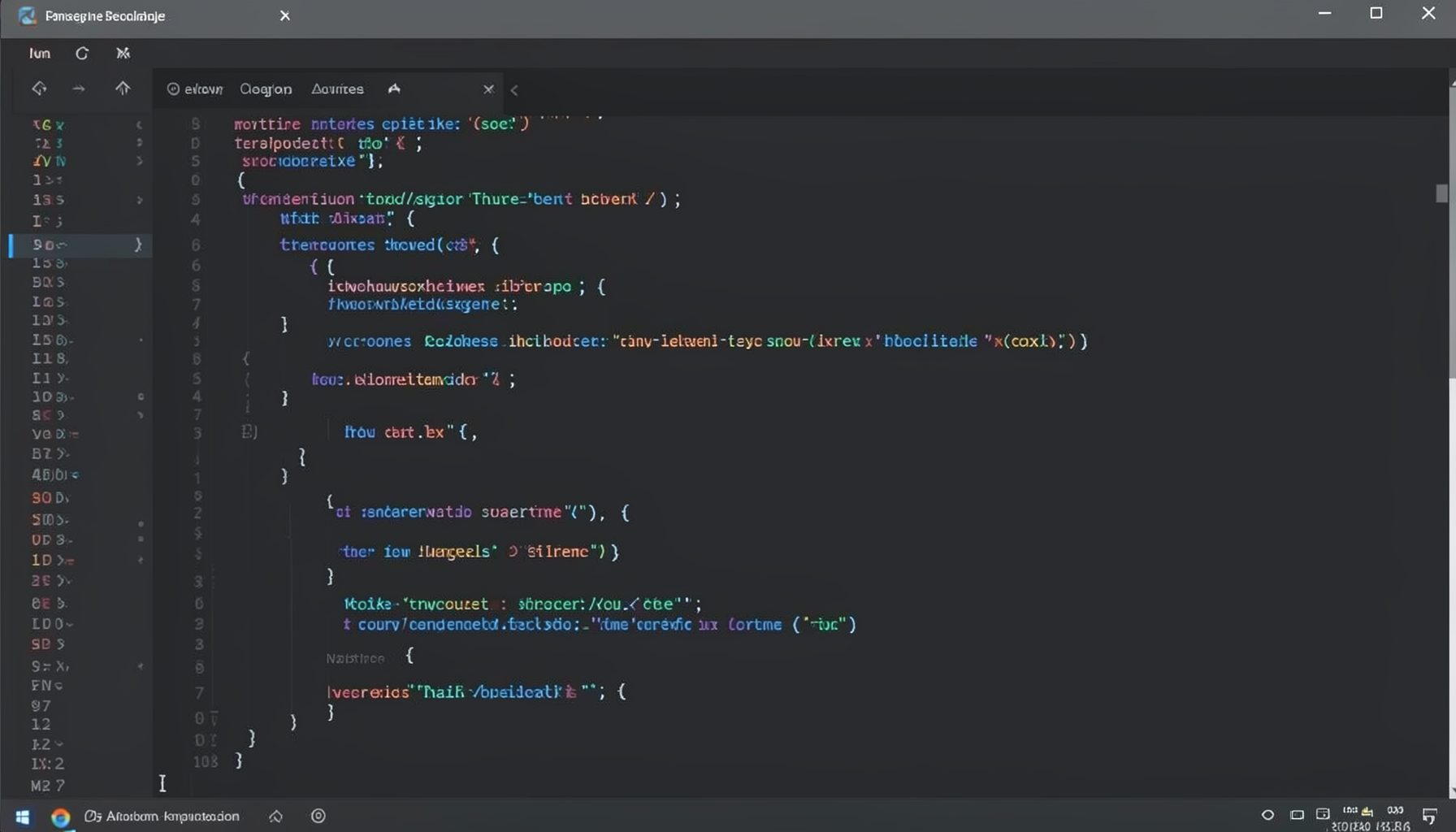
Screen-cast 1: Tab Mode, ECB & More
Covers tab-mode, ECB, Magik Smeller, code folding, visual bookmarks, pragma toggling, moving code, external editor, and MS Explorer.
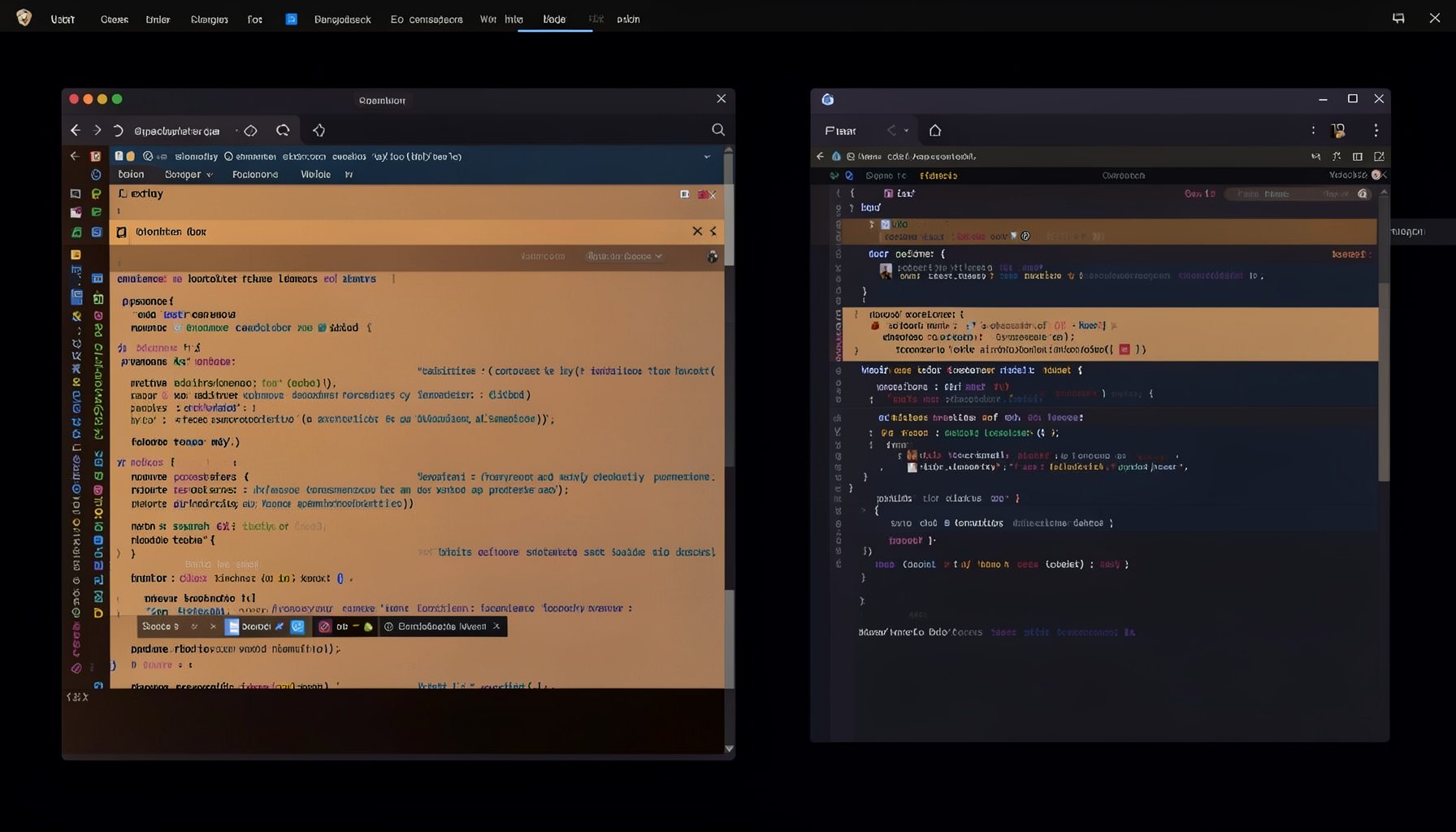
Screen-cast 5: Object Inspection & Deep Print
Inspect a Magik object, prompt for an expression evaluated within a Smallworld session, and display results in a Deep Print buffer.
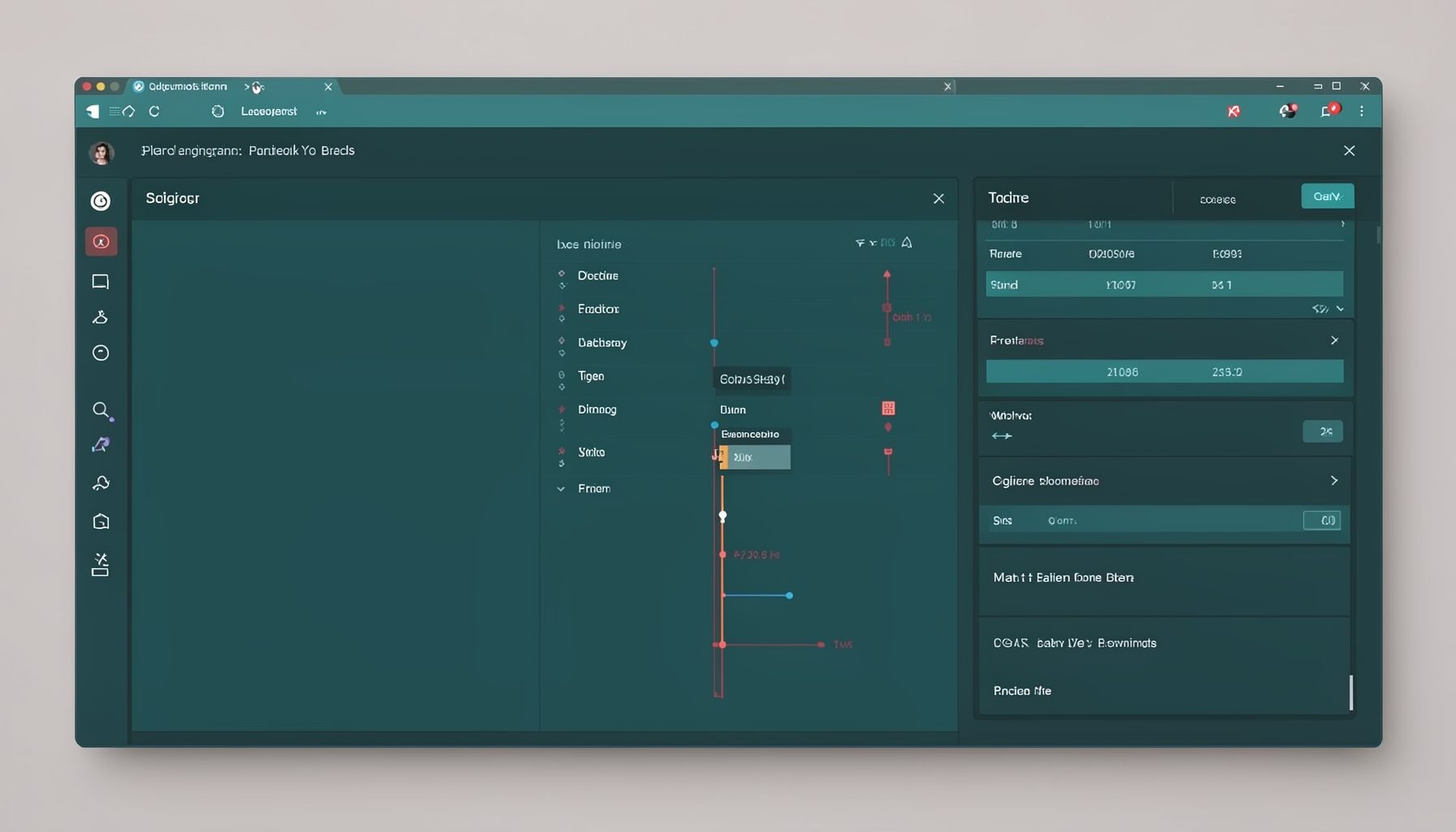
Screen-cast 7: Magik Debugger
Useful tools for application developers: Object Inspector and Magik Debugger with breakpoints and slot/variable monitoring.

Screen-cast 9: Tree Item GUI Control
Tree Item is a GUI control providing extensive facilities for displaying lists with rows, columns, trees, and in-place editing.