Emacs Extensions for
GE Smallworld Magik Development
Screen-casts, tutorials, and productivity tools for Magik programmers who use Emacs. From tab-mode and code folding to the Magik Debugger and object inspector — explore features built by a developer, for developers.
Learn MoreNine screen-casts published between November 2010 and January 2011 — covering everything from ECB mode to the Tree Item GUI control. Read the story behind the project →
Get in Touch
Running a Magik REPL Inside Emacs for Interactive Development
Interactive development is one of the strongest reasons to use Emacs with GE Smallworld’s Magik language. Instead of editing a method, switching to a separate Smallworld window, loading the file and searching through output, you can keep source code, the Magik listener and diagnostic messages in one workspace. This shortens the edit–run–inspect cycle and makes exploratory programming much easier.
A read–eval–print loop (REPL) is especially useful for Magik work involving collections, database records, geometry, application objects and unfamiliar code. The exact command names vary between Magik Emacs packages and Smallworld installations, but the underlying arrangement is consistent: Emacs starts or connects to a Magik process through a comint-style buffer, sends expressions to it and displays the returned values.
Check The Magik And Emacs Environment
Before configuring Emacs, confirm how Magik is launched at your organisation. Some teams start Smallworld from a shell script that sets environment variables, licensing details and product paths. Others use a desktop shortcut, a project launcher or a site-specific command supplied by an administrator. The REPL must inherit the same runtime settings as the working Smallworld environment.
A practical first test is to launch Magik outside Emacs and verify that the listener accepts a simple expression. Check the product release, application configuration, login requirements and database connection. A command that works on a developer workstation in Sydney may fail on a managed virtual desktop in Melbourne because the shell, licence server or network-mounted installation is different.
Your Emacs setup also needs a Magik major mode or an extension that understands Magik syntax. Look for features such as method indentation, symbol navigation, code folding, evaluation commands and a Magik shell buffer. If your site uses a customised mode, read its documentation before adding a second package, since overlapping key bindings can make evaluation unpredictable.
Install And Configure The Magik Editing Mode
Install the Magik mode through your organisation’s approved package process or from the extension source used by your team. Put the package on Emacs’ load path, activate the mode for files with the relevant Magik extension and enable any site-specific configuration required by the Smallworld release.
A typical configuration associates Magik source files with the major mode and defines the executable or launcher used by the inferior process. The executable may be a direct Magik interpreter, a wrapper script or a command that opens a Smallworld image. Keeping the launcher in a separate script is often preferable because environment changes can be made without editing every developer’s Emacs configuration.
(setq magik-program "/path/to/your/magik-launcher")
(add-to-list 'auto-mode-alist '("\\.magik\\'" . magik-mode))
The variable and mode names in this example are representative rather than universal. Use the names provided by your installed extension. On Windows-based Smallworld environments, specify the complete path to the approved batch file or launcher and account for spaces in directory names. On Linux systems commonly used by GIS teams, check executable permissions and the shell selected by Emacs.
Start The Inferior Magik Process
With a Magik buffer open, run the extension’s command for starting an inferior Magik process. It may be named run-magik, magik-start, inferior-magik or something similar. Emacs should create a buffer that behaves like a terminal while retaining command history, process control and integration with the source editor.
When the process starts, wait for the normal Magik prompt before sending code. A prompt may be customised by the Smallworld product or by a local startup file, so do not rely on its exact characters. The important signs are that the process remains active, the listener accepts input and a basic expression returns a value without an error.
If the command starts a plain shell rather than Magik, inspect the launcher and environment first. A missing licence variable, an incorrect working directory or a wrapper that expects a graphical session can all produce this symptom. In a Brisbane office using remote access to a central application server, a process may also be waiting for a display or authentication step that is not visible in the Emacs buffer.
Keep the REPL buffer open during a development session. You can switch between it and source buffers with C-x b, or use the package’s dedicated command to display the process buffer. Giving the buffer a clear name is helpful when several Smallworld versions or project environments are running at once.
Send Expressions, Methods And Regions
The simplest workflow is to place the cursor after a Magik expression and send it to the listener. The mode may provide commands for evaluating the current expression, a method, a selected region or the entire buffer. These commands usually send text to the inferior process and leave the source unchanged, which makes them safe for experimentation.
Begin with small expressions that reveal the runtime state. Inspect an object, ask for its class, examine a collection or call a harmless method. This confirms that Emacs is connected to the intended image before you modify application data. It also exposes issues such as a missing module, an unexpected current package or a startup file that has not been loaded.
Evaluating a complete method is often more reliable than sending arbitrary lines. Magik syntax includes method definitions, private methods, iteration constructs and blocks whose meaning depends on surrounding code. A proper Magik mode can identify method boundaries and send the correct region. If boundary detection is unreliable, select the complete method manually and evaluate the region.
Use a repeatable edit–evaluate–inspect cycle:
- Make one focused change in the source buffer.
- Send the method or expression to the REPL.
- Read the returned value and any diagnostic output.
- Inspect affected objects or collections.
- Repeat before moving to a larger change.
This workflow suits an asset-management team in Perth analysing network objects, as well as a transport project in Sydney testing a method that filters records. The REPL is a development tool, so avoid evaluating destructive database operations until the target environment and transaction behaviour are clear.
Explore Objects And Collections Interactively
Magik’s object model becomes easier to understand when queries can be issued immediately. Use the listener to inspect an object’s class, send messages to it and examine the result. When a method returns an unexpected value, test each part of the expression separately rather than placing a long chain of calls into the editor.
Collections deserve particular attention. Try small samples, check their size, examine element types and verify whether an operation returns a new collection or changes an existing one. Interactive inspection is useful for distinguishing an empty collection from a null-like value, and for finding records that do not contain the attributes assumed by application code.
Emacs extensions may add object inspection commands, method lookup, cross-reference navigation or documentation searches. These features work best when the REPL and source buffer refer to the same loaded image. If you edit a method but an older definition remains active, reload the definition and confirm which method implementation the runtime is using.
For database work, establish a read-only habit during exploration. A query against a development dataset can reveal schema and relationship problems without risking shared information. Teams in Adelaide and Canberra often work with controlled environments and formal release procedures, so document any temporary startup settings or test data changes rather than relying on a local REPL history.
Debug Errors Without Leaving Emacs
When evaluation raises an error, read the complete backtrace in the REPL buffer before changing code. The first visible message may describe the symptom, while the useful detail appears lower in the stack. Keep the error output intact until you have identified the failing method, receiver and argument values.
If the Magik integration supports debugger commands, use them from the process buffer or invoke the package’s source-jump command. A good integration can move from a stack frame to the relevant method, allowing you to inspect source and runtime state in adjacent buffers. If source navigation is unavailable, copy the method name and search the project with M-x project-find-regexp or the mode’s symbol command.
Breakpoints, tracing and object inspection should be used selectively. A breakpoint in a method called thousands of times can make the application appear frozen, particularly through a remote desktop connection. Add a narrow condition, test with a small dataset and remove temporary tracing after the cause is understood.
A useful debugging habit is to preserve the failing input. Store a representative object or a small collection in a local variable when the session allows it, then rerun the method with that value. This is faster than repeatedly navigating the full application workflow and creates a compact test case that can be shared with a colleague in Melbourne, Perth or another project office.
Manage Processes, Versions And Project Sessions
A single Emacs session can contain several Magik processes, but each one must be associated with the correct project and product release. Name buffers clearly and avoid sending code to a similarly named process by accident. This matters when a consultant supports separate utility, rail and land-information projects with different Smallworld customisations.
Keep project-specific launcher files under version control when company policy permits. A launcher can define the release, application configuration, module paths and required environment variables in one place. Do not commit passwords, licence credentials or private network paths. Australian organisations frequently use central identity systems and managed secrets, so let approved infrastructure handle authentication.
Long-running REPL sessions can accumulate changed method definitions, temporary variables and application state. Restart the process when results become difficult to explain, after changing foundational classes or when switching product environments. A fresh session is often quicker than trying to reconstruct which definitions were loaded during a busy afternoon.
Emacs customisation files should remain portable. Use conditional configuration for operating-system differences, keep package versions recorded and document the expected launcher command. A developer working from a home office in Hobart should be able to reproduce the same session behaviour as someone connected to a corporate network in Sydney, subject to approved access controls and licence availability.
Resolve Common Connection And Evaluation Problems
A process that exits immediately usually indicates a launcher, environment or licence problem rather than an Emacs problem. Run the same launcher from a terminal, capture its diagnostic output and compare the environment with the one used by the working Smallworld shortcut. Pay attention to the working directory, path separators, Java or native runtime dependencies and network access to the licence server.
If expressions appear in the REPL but do not execute, check whether the listener is waiting for a continuation prompt. An incomplete block, unmatched delimiter or unfinished method can leave the process waiting for more input. Cancel the current input using the mode’s interrupt command, or restart the process if the state is unclear.
When evaluation reports an undefined method or variable, verify that the required module has been loaded and that the receiver is the expected class. Similar names across application layers can be misleading. Use method navigation and class inspection rather than guessing from a file name, especially in large customisations maintained across multiple Australian project teams.
Encoding and line-ending problems can affect source copied between Windows and Linux hosts. Save files with the encoding expected by the Magik installation, avoid invisible characters in pasted expressions and test a small method before loading a large file. Record the exact error, product release and launcher used when escalating the issue to an internal administrator or HydePark Consulting.
The result is a practical interactive development environment: Emacs provides structured editing and navigation, while the Magik REPL provides immediate execution and inspection. Install the appropriate mode, connect it to the approved launcher, test with harmless expressions and build confidence through small, repeatable evaluations.
For assistance with Magik Emacs configuration, debugging workflows, code navigation or project-specific Smallworld development, contact HydePark Consulting through the Magik Emacs website. Share the relevant product release, operating system, launcher behaviour and error output so the environment can be assessed efficiently and securely.
Core Features
Tab Mode & ECB
Quick tab switching and Emacs Code Browsing mode for navigating Magik codebases efficiently.
Magik Smeller
Code analysis tool that helps identify potential issues in Magik source files.
Code Folding
Hide/Show mode for collapsing and expanding Magik code blocks to focus on what matters.
Visual Bookmarks
Quick visual bookmarks for jumping between key locations in your Smallworld session buffers.
Object Inspector
Inspect Magik objects and display them in an Emacs Deep Print buffer for detailed examination.
Magik Debugger
Set breakpoints and monitor slots and variables directly from within Emacs.
Development Tools
Direct links between Emacs and the Smallworld Development Tools application, including Click Monitor.
Screen-casts & Tutorials
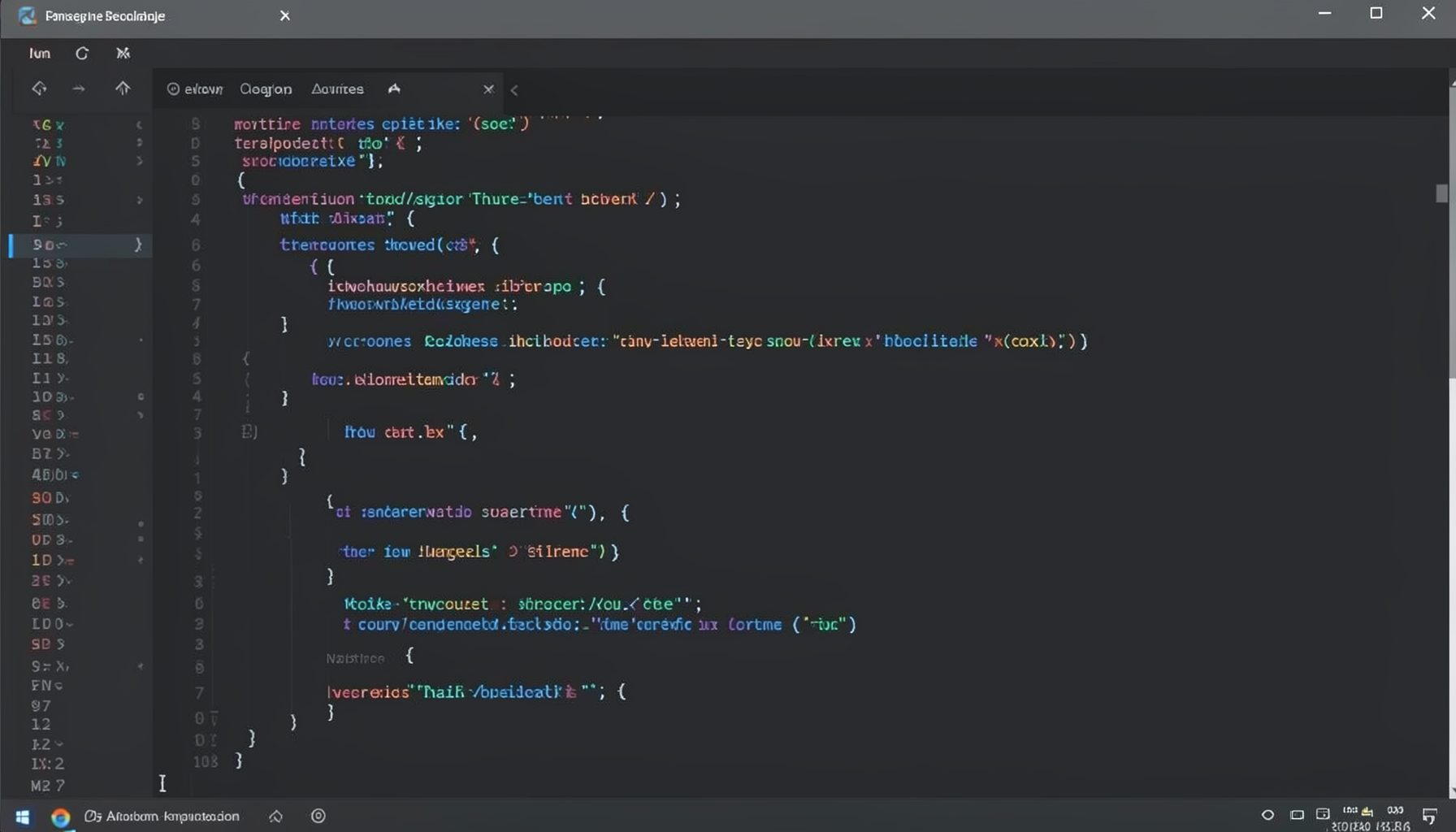
Screen-cast 1: Tab Mode, ECB & More
Covers tab-mode, ECB, Magik Smeller, code folding, visual bookmarks, pragma toggling, moving code, external editor, and MS Explorer.
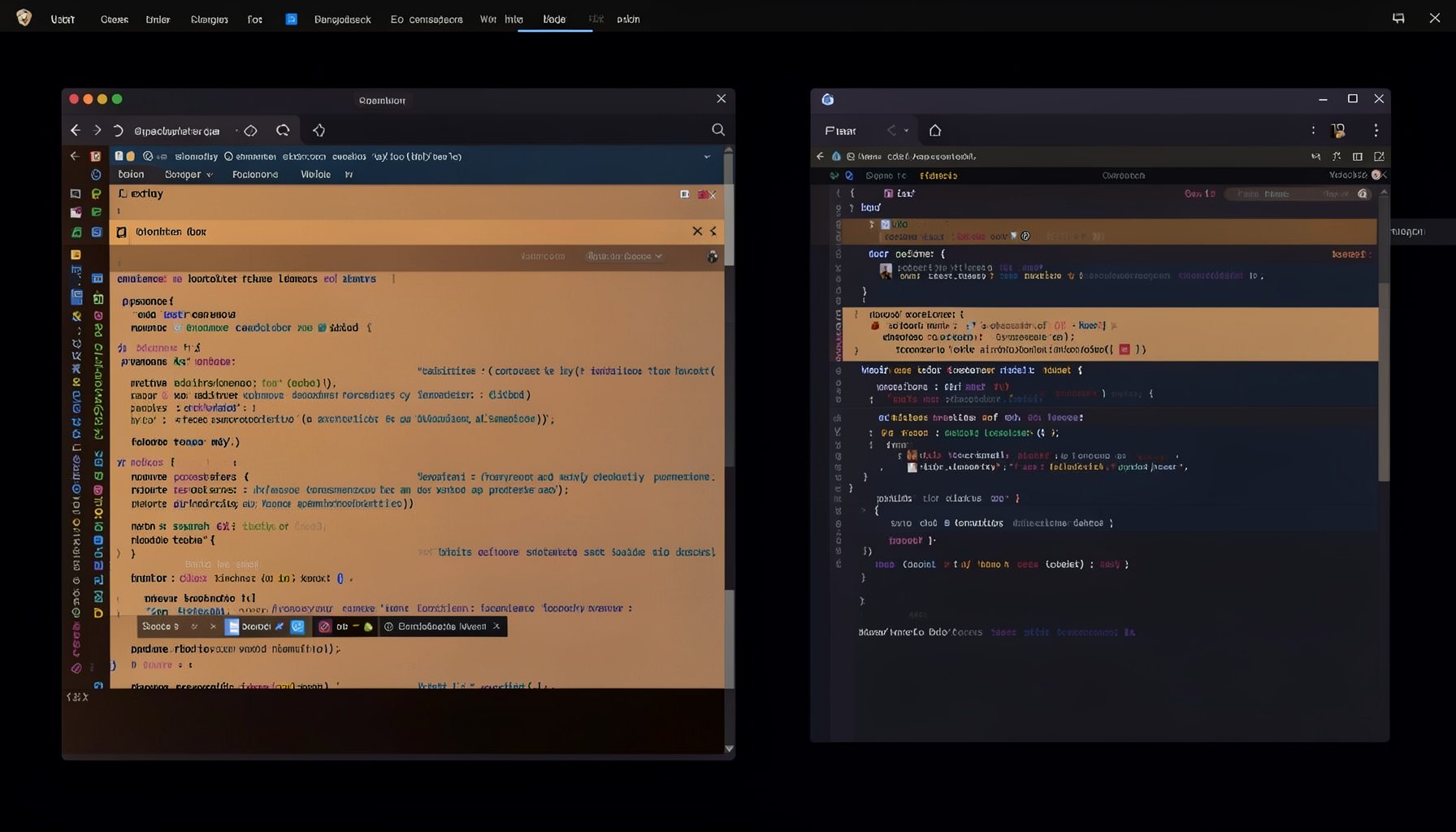
Screen-cast 5: Object Inspection & Deep Print
Inspect a Magik object, prompt for an expression evaluated within a Smallworld session, and display results in a Deep Print buffer.
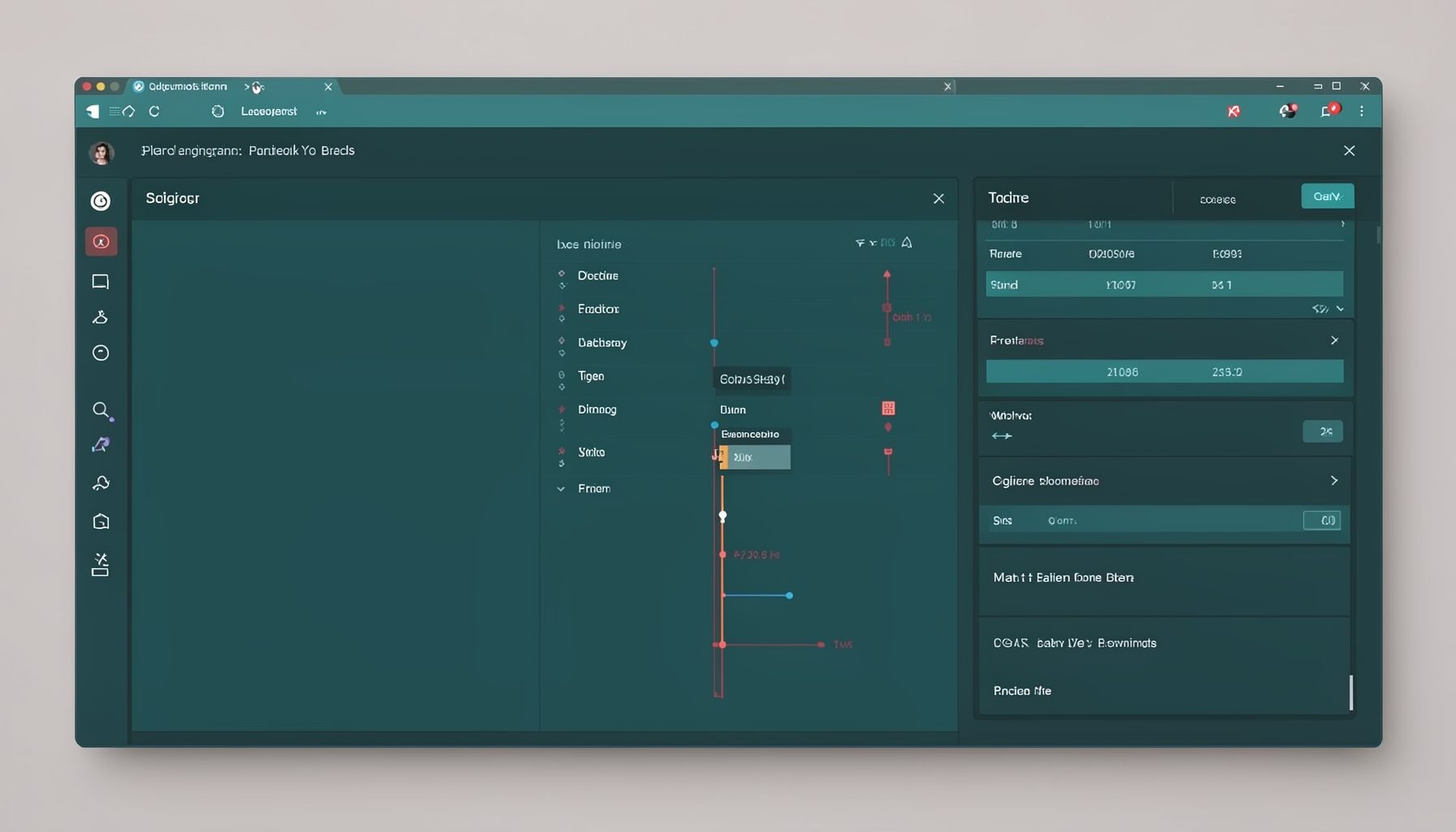
Screen-cast 7: Magik Debugger
Useful tools for application developers: Object Inspector and Magik Debugger with breakpoints and slot/variable monitoring.

Screen-cast 9: Tree Item GUI Control
Tree Item is a GUI control providing extensive facilities for displaying lists with rows, columns, trees, and in-place editing.