Emacs Extensions for
GE Smallworld Magik Development
Screen-casts, tutorials, and productivity tools for Magik programmers who use Emacs. From tab-mode and code folding to the Magik Debugger and object inspector — explore features built by a developer, for developers.
Learn MoreNine screen-casts published between November 2010 and January 2011 — covering everything from ECB mode to the Tree Item GUI control. Read the story behind the project →
Get in Touch
Bookmarking frequent Magik targets in Emacs
GE Smallworld Magik development often involves moving between several places in a short working session: a method definition, the object browser, a debugger entry point, a collection analysis script or a database-related procedure. Repeating file searches for these locations interrupts concentration, particularly when a fix affects several classes or a support case requires rapid comparison of code across releases.
Emacs provides a lightweight way to remember these locations. Its bookmark-set command creates a named pointer to the current position in a buffer, while the corresponding jump command returns you to that position later. Used with a consistent naming scheme, bookmarks become a practical navigation layer for daily Magik work rather than another configuration file to maintain.
Why bookmarks suit a Magik development day
Magik code is distributed across application packages, framework classes and specialised development tools. A developer might begin in a collection method, inspect the same method in the Smallworld debugger, then check a helper procedure in another source file. Keeping a bookmark at each useful source location removes repeated buffer switching and manual searches without introducing a separate indexing system.
A bookmark identifies an editing position, not a live Magik object. That distinction matters when working with dynamic methods: several classes can provide methods with similar names, and the relevant implementation depends on the receiver and runtime context. Bookmarking the actual definition in the correct source buffer gives you a dependable return point, while the object browser and debugger remain tools for examining runtime behaviour.
Bookmarks also help when teams are spread across Australian cities. During daylight saving, Sydney and Melbourne observe AEDT while Brisbane remains on AEST, creating a one-hour scheduling difference for part of the year. A shared release or support discussion may therefore cross an evening handover. Local bookmarks provide a consistent starting point for each developer, although they do not synchronise runtime state or replace agreement about release times.
Prepare Emacs for dependable targets
Emacs includes the required functionality, so no extra package is necessary for a basic bookmark workflow. You can invoke M-x bookmark-set directly, or use the usual C-x r m binding. A small configuration in your Emacs initialisation file makes the storage location and saving behaviour explicit:
(require 'bookmark)

(setq bookmark-file
      (expand-file-name "bookmarks" user-emacs-directory))

(add-hook 'kill-emacs-hook #'bookmark-save)
Here, user-emacs-directory normally corresponds to ~/.emacs.d/, giving you a bookmark file inside your Emacs configuration directory. The shutdown hook is useful when your setup does not already save bookmarks on exit; M-x bookmark-save can also be run manually. Keeping this file separate from your Magik source prevents navigation metadata from being mixed into application code.
Bookmark names and file paths should still receive the same care as other development metadata. For organisations subject to the Privacy Act 1988 and the Australian Privacy Principles, customer identifiers, health information or other personal details should not appear in bookmark names. Even when the bookmark points only to source code, its path may reveal a client or project name. Use a project-level label rather than recording personal information about a case.
Where a licensed Smallworld estate is hosted on an Australian organisation’s internal network, source paths may depend on VPN access or a particular workstation. A bookmark created on one machine can therefore be invalid on another if the file is mounted elsewhere. Confirm that each target is accessible from the workstation where you expect to use the bookmark.
Set bookmarks on useful Magik locations
Begin with a source buffer and place the point immediately before the method definition you want to revisit. Invoking M-x bookmark-set prompts for a bookmark name; that name becomes the label you will recognise later. Names such as smallworld-route-planner or utility-collection-validate are more useful than generic labels such as method1 or todo.
Choose names according to where they will be used. A personal workstation can contain bookmarks for several clients or repositories, so a short organisation or system prefix helps prevent collisions. Within a shared development team, agreement on prefixes also makes spoken requests clearer: “open the transport booking bookmark” becomes more precise when multiple booking components exist.
Magik’s case-insensitive identifiers can make broad text searches less discriminating than expected, especially when methods share names across classes. Bookmark the exact declaration in the relevant buffer rather than assuming that a matching method name identifies the implementation you need. Separate bookmarks can mark a frequently edited method, a nearby debugging entry point and a collection analysis procedure, but avoid creating one for every routine you encounter.
Not every useful Magik target lives in an editable source file. The Smallworld object browser and debugger display live information that cannot be captured as an ordinary Emacs buffer position. To navigate back to a workflow, bookmark the source method or script that establishes the relevant context. For example, keep a bookmark at a saved workspace configuration, or at the Magik procedure used to select and inspect collection data. This records where to begin rather than pretending that the bookmark stores a live object or query result.
Jump to and maintain saved targets
To return to a saved location, invoke C-x r j or M-x bookmark-jump. Emacs prompts for a bookmark name and offers completion when several entries share part of the same prefix. The associated file is opened when necessary, and the point is restored to the recorded location. If you have changed key bindings, the M-x command provides an unambiguous fallback.
Use M-x bookmark-list to review the collection. The listing shows bookmark names and their associated buffers or files, making it easier to notice duplicate labels, obsolete paths and targets that have moved to another repository. A bookmark is stored in Emacs’s bookmark namespace, not inside a particular Magik package, so choosing a meaningful prefix remains important as your working collection grows.
Bookmarks normally survive edits made before their target because Emacs tracks their positions with markers rather than relying only on fixed line numbers. They do not, however, follow a Magik method automatically when that method is renamed or relocated. Nor does a bookmark identify the method’s runtime receiver. When a refactoring changes the file structure, search for the new definition, mark it with the same bookmark name and confirm the replacement rather than silently moving the old target.
If a jump reports that a file cannot be found, check the path before resetting the bookmark. Moving a source tree, changing a repository checkout or working on a machine with different mounts can invalidate local locations. For frequently shared work, bookmark the source file as it exists on each developer’s workstation rather than assuming that an absolute path has the same meaning everywhere.
Coordinate bookmarks across a team
A local bookmark file is convenient for an individual but is not portable project state. If your Emacs configuration directory is under version control, avoid committing a file containing workstation-specific paths unless the team has agreed to that arrangement. A shared convention is often more durable: define standard label prefixes, keep client-specific bookmarks separate, and maintain a short team reference to the source files that everyone should bookmark.
That approach fits environments where access is restricted to internal development hosts. Each developer creates the same meaningful labels against the paths available locally, while the team agrees on what each label represents. If a Magik package is reorganised, the reference can be updated once and each person can refresh the corresponding bookmark. Copying an entire bookmark file between machines may reproduce unusable paths or overwrite unrelated personal entries.
Review the collection after significant refactoring or when a support case involves unfamiliar code. Removing stale entries with M-x bookmark-delete keeps completion manageable, while setting a fresh target under an established name preserves the vocabulary your team already uses. In an Australian enterprise setting, this built-in approach also avoids sending bookmark metadata to an external synchronisation service that may not be approved for the project.
Set three bookmarks during your next Magik session: one frequently edited method, one debugging entry point and one collection analysis procedure. Give each a specific, prefixed name, jump back to it with C-x r j, and repeat the check after your next refactoring.
HydePark Consulting can help Magik teams establish a practical Emacs configuration, a shared bookmark naming convention and documentation that connects source navigation with Smallworld development workflows.
Core Features
Tab Mode & ECB
Quick tab switching and Emacs Code Browsing mode for navigating Magik codebases efficiently.
Magik Smeller
Code analysis tool that helps identify potential issues in Magik source files.
Code Folding
Hide/Show mode for collapsing and expanding Magik code blocks to focus on what matters.
Visual Bookmarks
Quick visual bookmarks for jumping between key locations in your Smallworld session buffers.
Object Inspector
Inspect Magik objects and display them in an Emacs Deep Print buffer for detailed examination.
Magik Debugger
Set breakpoints and monitor slots and variables directly from within Emacs.
Development Tools
Direct links between Emacs and the Smallworld Development Tools application, including Click Monitor.
Screen-casts & Tutorials
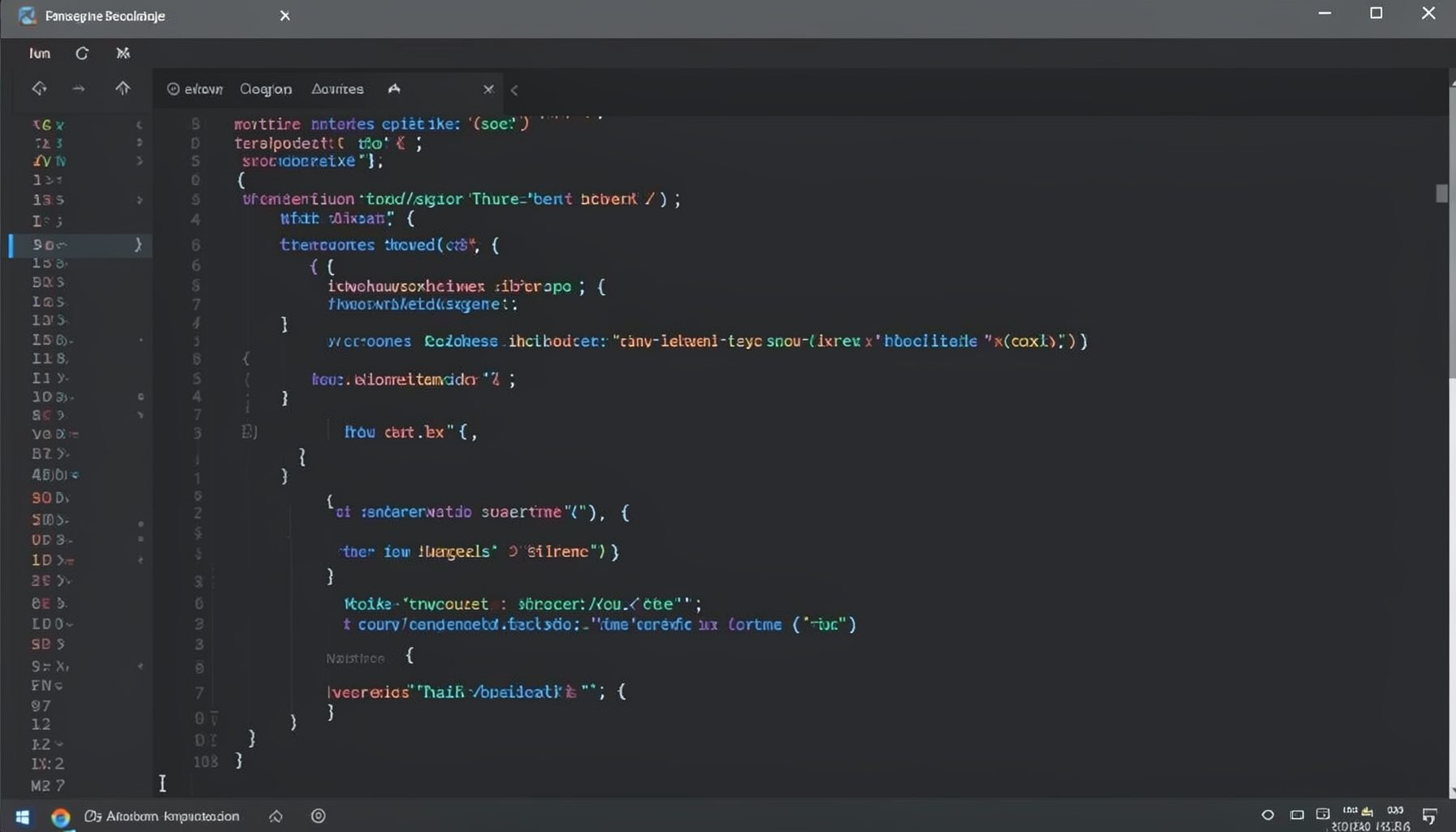
Screen-cast 1: Tab Mode, ECB & More
Covers tab-mode, ECB, Magik Smeller, code folding, visual bookmarks, pragma toggling, moving code, external editor, and MS Explorer.
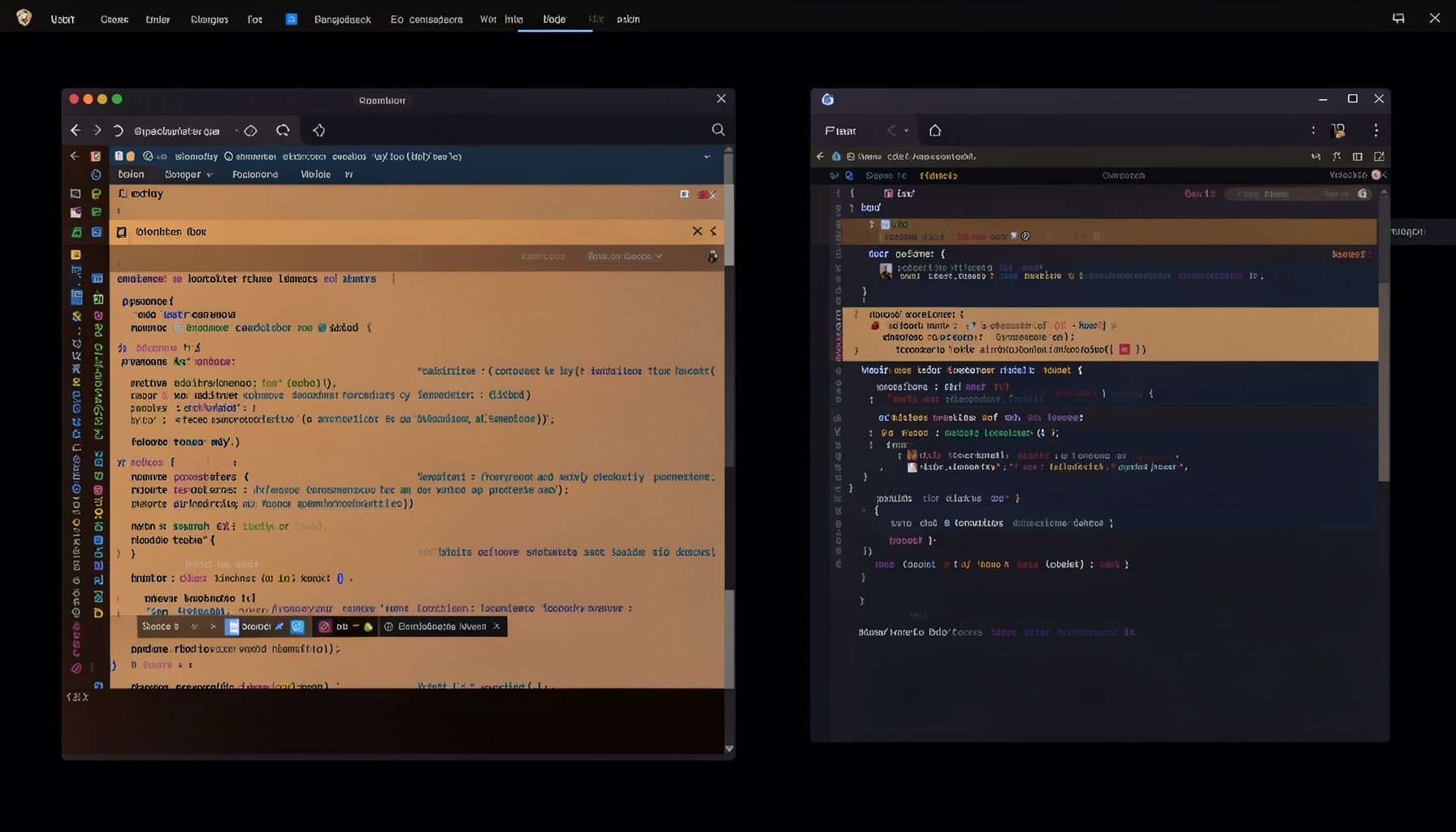
Screen-cast 5: Object Inspection & Deep Print
Inspect a Magik object, prompt for an expression evaluated within a Smallworld session, and display results in a Deep Print buffer.
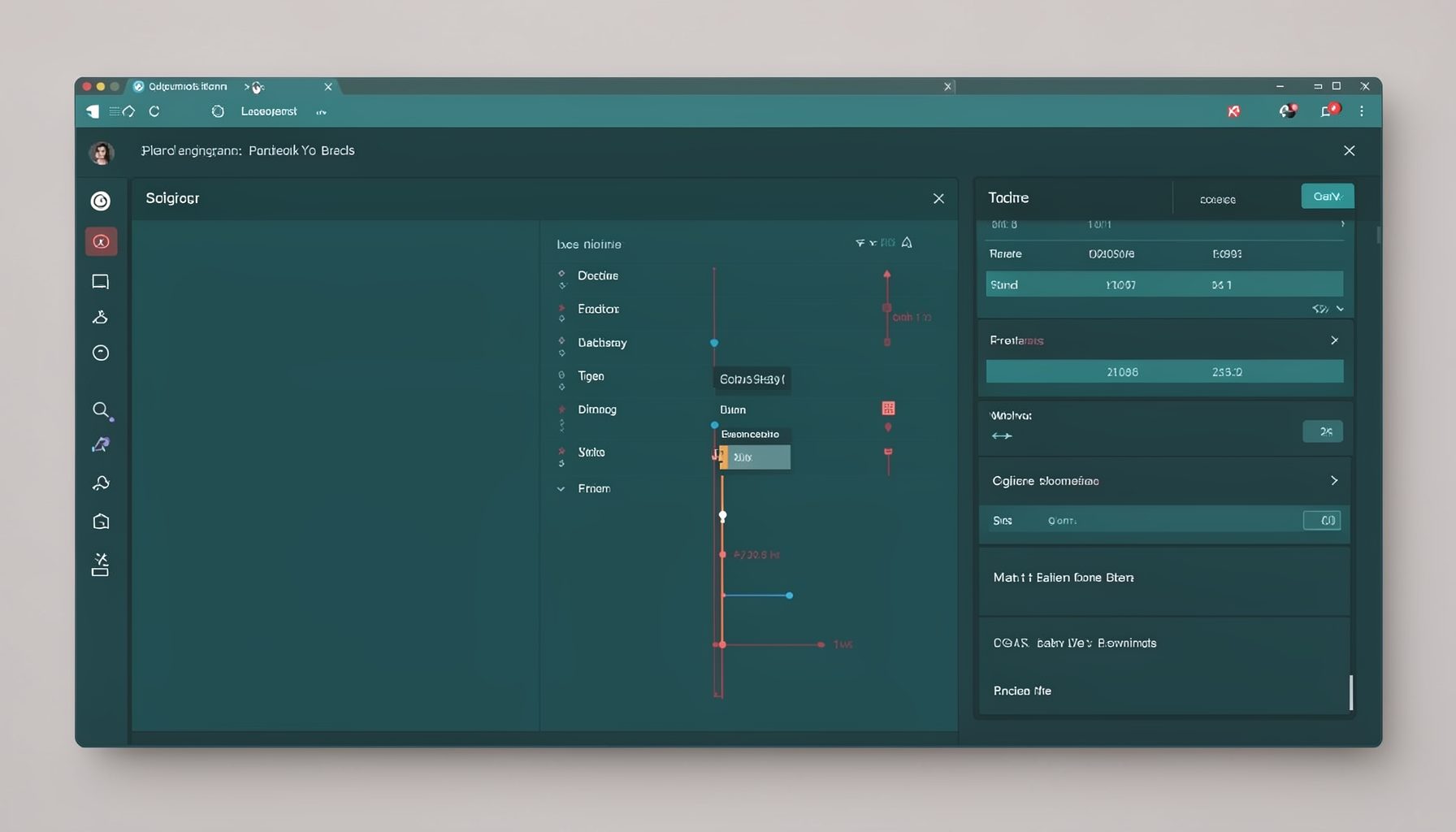
Screen-cast 7: Magik Debugger
Useful tools for application developers: Object Inspector and Magik Debugger with breakpoints and slot/variable monitoring.

Screen-cast 9: Tree Item GUI Control
Tree Item is a GUI control providing extensive facilities for displaying lists with rows, columns, trees, and in-place editing.