Emacs Extensions for
GE Smallworld Magik Development
Screen-casts, tutorials, and productivity tools for Magik programmers who use Emacs. From tab-mode and code folding to the Magik Debugger and object inspector — explore features built by a developer, for developers.
Learn MoreNine screen-casts published between November 2010 and January 2011 — covering everything from ECB mode to the Tree Item GUI control. Read the story behind the project →
Get in Touch
How Emacs Macros Streamline Magik Development Workflows
For Australian Magik developers maintaining GE Smallworld databases at organisations such as Yarra Valley Water, SA Water, or APA Group, daily editing sessions often involve repetitive boilerplate. Whether writing _method definitions, generating transaction blocks, or annotating source files with copyright headers, the same few keystrokes repeat hundreds of times. Emacs, the editor many Smallworld practitioners have chosen for its deep customisation, offers keyboard macros that capture a sequence of key presses and replay them wherever needed. Combined with Magik-mode from the Magik Emacs project, these macros become a quiet powerhouse for keeping codebases clean across geographically dispersed teams.
Keyboard macros differ from elisp functions: you simply record what you would normally type, then save the result under a name or key binding. For teams spread across Melbourne, Brisbane, Perth and Adelaide, where AEST and AEDT time zones complicate synchronous pair programming, this automation is especially valuable. A macro recorded in Sydney can be reused identically in Hobart without rewriting logic. The investment is a few keystrokes the first time, and the payoff persists for years.
This article walks through recording, saving, editing and sharing Emacs macros specifically for Magik source files. Examples target the patterns Magik-mode highlights, such as method banners, _iter, _block, _protect, _if, _elif, _endif, and the .magik file convention used throughout Smallworld version control repositories.
What Emacs keyboard macros actually capture
A keyboard macro is a stored sequence of keys that Emacs replays verbatim, interpreting each step as a real command. Press C-x (, perform any edits, and Emacs remembers every keystroke, including cursor movements, deletions and searches. Press C-x ) to finish recording, and C-x e executes the saved sequence once. Pressing e afterwards repeats the macro as many times as needed. Recording happens at the command loop level, so context-sensitive features such as Magik-mode indentation are respected each time the macro replays.
The distinction between anonymous and named macros matters for Magik projects spanning multiple files. An anonymous macro lives only in the current session, useful for one-off clean-ups. A named macro, stored with name-last-kbd-macro, can be saved to your init file or referenced from a Magik-mode hook. For utilities like Jemena, AusNet Services or Ergon Energy, where dozens of engineers touch the same Magik class definitions, named macros offer a way to automate and standardise boilerplate without heavyweight tooling.
Keyboard macros also interact with universal-argument plumbing. Prepending C-u before C-x e lets you replay the macro a specific number of times, handy when bulk-applying the same comment header to a list of methods. A numeric argument also changes the behaviour of many Magik-mode commands during replay, so a method banner can be tailored by passing a count.
Recording your first macro in a Magik buffer
Open any method file in your Smallworld source tree, for instance a _method user_object.display_name block, and position the cursor above the method definition. Type C-x (, then type the comment banner you want above every method: a copyright line referencing HydePark Consulting if you like, the date, and the method signature. Press C-x ) to stop recording. Move down to the next method, press C-x e, and watch Emacs replay the exact keystrokes, including any newlines and indentation adjustments performed by magik-indent-line.
The first attempt rarely feels polished. If your banner includes a literal date such as 2024, replaying it next year inserts the wrong year. A common pattern is to record M-x insert-current-date inside the macro so the banner always reflects the day the macro runs. For Australian Magik teams observing Australian Public Service digital record-keeping guidelines, accurate date stamping in source files is also helpful for audit trails.
While recording, use C-g to abandon and start over, or C-x C-k e to edit the macro as elisp. The edit-kbd-macro command opens a buffer containing the macro as a kbd-macro form, which you can refine, then install back into your session with C-c C-c. This bridge between recorded keystrokes and editable elisp is what makes Emacs macros particularly pleasant for Magik developers.
Saving named macros and binding them to keys
Once you have a macro worth keeping, give it a memorable name with M-x name-last-kbd-macro. Typical names include magik-method-banner or magik-add-transaction. After naming, invoke it with M-x magik-method-banner, but binding it to a key is far quicker. Inside a magik-mode-hook, add a define-key call that binds the macro to a spare sequence. Many Australian Smallworld developers reserve C-c m prefixed keys for Magik-specific helpers to avoid colliding with global bindings.
Persisting the macro across Emacs restarts requires inserting it into your init file. Use M-x insert-kbd-macro, which prompts for the macro name and inserts an (kmacro-name ...) or (define-kbd-macro ...) form into the current buffer. Move that snippet into your init.el under a (magik-mode-hook ...) lambda so it loads only when editing .magik files. For distributed teams collaborating on Git repositories hosted in Sydney or Brisbane, keeping these snippets under version control in a shared magik-emacs-config repository is a common approach.
A useful habit is to document the bindings in a README so new starters onboarding at Melbourne Water, TasWater or Powercor can ramp up quickly. The C-c m b prefix is popular, with b for banner, t for trans wrapper, c for class header, and i for iteration template.
Editing, debugging and refining recorded macros
Macros sometimes produce surprising results when replayed in a different buffer, especially if the recording relied on context such as indentation level or surrounding text. The C-x C-k prefix opens the keyboard macro command set, including C-x C-k C-n to step through the macro one command at a time. Single-step mode is invaluable when replaying on a long file, where you can watch each magik-indent-line, forward-line and self-insert-command execute and intervene if a step drifts off course.
Refinement usually means trimming redundant movements. A macro that moves forward then deletes the next word often has unnecessary cursor travel. Edit the macro as elisp via edit-kbd-macro, replace forward-char repetitions with a single forward-word, and remove explicit cursor positioning. For Magik files, where indentation is meaningful and tied to _block, _if and _loop constructs, lighter macros mean fewer surprises across files that mix four-space and tab indentation.
Debugging often reveals that a macro depended on transient state such as the mark being set or the point being at the beginning of a line. Wrapping the macro in save-excursion and save-restriction makes it resilient. Although you cannot record those wrappers directly, edit the macro form to surround its commands with (save-excursion ...). Australian Smallworld developers encounter this when bulk-renaming methods during a planned outage at 03:00 AEDT, where any fragility can compound across hundreds of files.
Practical Magik-flavoured macro recipes
A handful of macros automate most day-to-day Magik editing. The first inserts the standard method banner: underscore padding, the _method signature, the _pragma block, and the closing _endmethod. Recorded once, the macro saves roughly thirty keystrokes per method, which adds up over hundreds of methods maintained at organisations like Sydney Water or South East Water. A second macro wraps an existing block of statements inside a _trans ... _endtrans pair, leaving the point correctly indented for the first statement. A third macro rewrites >> chains into multi-line invocations that respect the eighty-character line width enforced by many team style guides.
Another useful macro generates the skeleton of a class file. With point at the top of an empty buffer, the macro types package, the _package declaration, a _global, several _method placeholders and the matching _endclass. Combined with yasnippet or tempel, the macro becomes a one-key class scaffolding tool. For utilities regulated by the Australian Energy Regulator, where every change to a Magik class can affect operational technology, ensuring a consistent skeleton accelerates code review and reduces the risk of structural mistakes slipping through.
A more advanced pattern uses the Magik Emacs magik-goto-method and magik-show-method commands. A macro could search for _if ... _then, navigate to the matching _endif, copy the condition, and paste it above as a comment. Recording as a macro is often quicker than writing elisp, providing a working prototype that can later be hardened into a proper command.
Sharing macros across distributed Australian Smallworld teams
Smallworld consulting in Australia is unusually distributed. HydePark Consulting staff in Sydney may collaborate with utility engineers in Melbourne, Adelaide and regional centres such as Newcastle or Wollongong, often against the backdrop of regulatory reporting deadlines managed under the Privacy Act and the Notifiable Data Breaches scheme. Sharing Emacs macros across these teams needs to be lightweight, documented and resistant to drift. A shared magik-emacs-config Git repository with a clear macros.el file is a sensible baseline, paired with a CONTRIBUTING note that explains how to record, name and submit a macro for review.
Version-controlled macros also help when teams must demonstrate compliance with the Australian Cyber Security Centre's Essential Eight or internal governance controls. A reviewer can audit the exact sequence of commands a macro performs, much harder to do with ad-hoc key combinations. Linking each macro to a README entry that describes its intended use, the buffer modes where it is safe to run, and any known limitations makes onboarding smoother, whether the new starter is sitting in a Brisbane office or working remotely from Hobart. Over time, these macros become part of the institutional memory of Australian Smallworld development, complementing the consulting services HydePark offers and the educational content published on Magik Emacs.
Try recording one macro the next time you notice yourself repeating the same three keystrokes while editing a Magik file. Save it, bind it, share it with a colleague at your nearest Smallworld shop, and post the best ones to the Magik Emacs repository. If you would like hands-on help tailoring Emacs for your utility's Smallworld environment, or want a private workshop for your team in Sydney, Melbourne or anywhere across Australia, reach out to HydePark Consulting through the contact details on Magik Emacs.
Core Features
Tab Mode & ECB
Quick tab switching and Emacs Code Browsing mode for navigating Magik codebases efficiently.
Magik Smeller
Code analysis tool that helps identify potential issues in Magik source files.
Code Folding
Hide/Show mode for collapsing and expanding Magik code blocks to focus on what matters.
Visual Bookmarks
Quick visual bookmarks for jumping between key locations in your Smallworld session buffers.
Object Inspector
Inspect Magik objects and display them in an Emacs Deep Print buffer for detailed examination.
Magik Debugger
Set breakpoints and monitor slots and variables directly from within Emacs.
Development Tools
Direct links between Emacs and the Smallworld Development Tools application, including Click Monitor.
Screen-casts & Tutorials
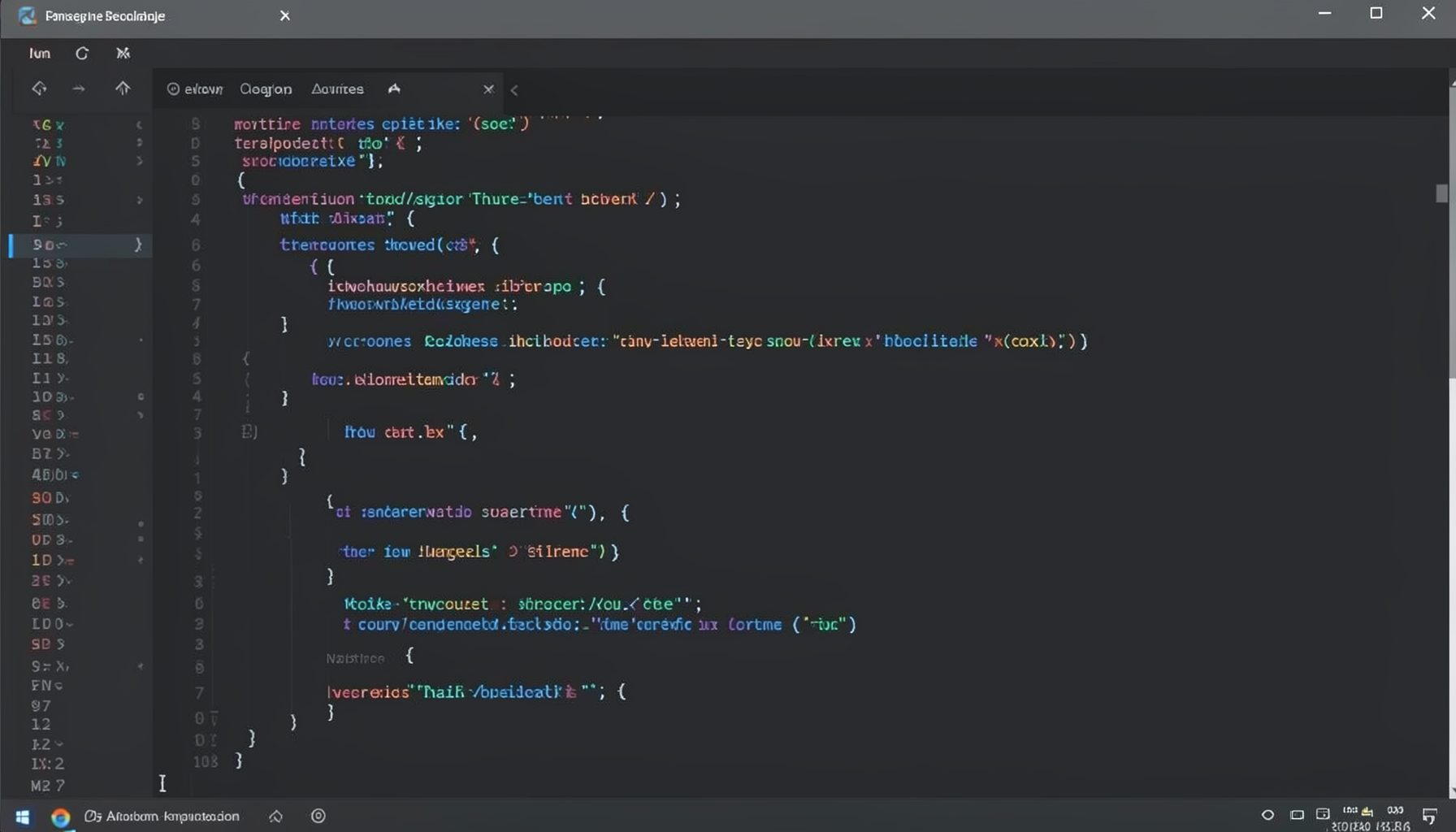
Screen-cast 1: Tab Mode, ECB & More
Covers tab-mode, ECB, Magik Smeller, code folding, visual bookmarks, pragma toggling, moving code, external editor, and MS Explorer.
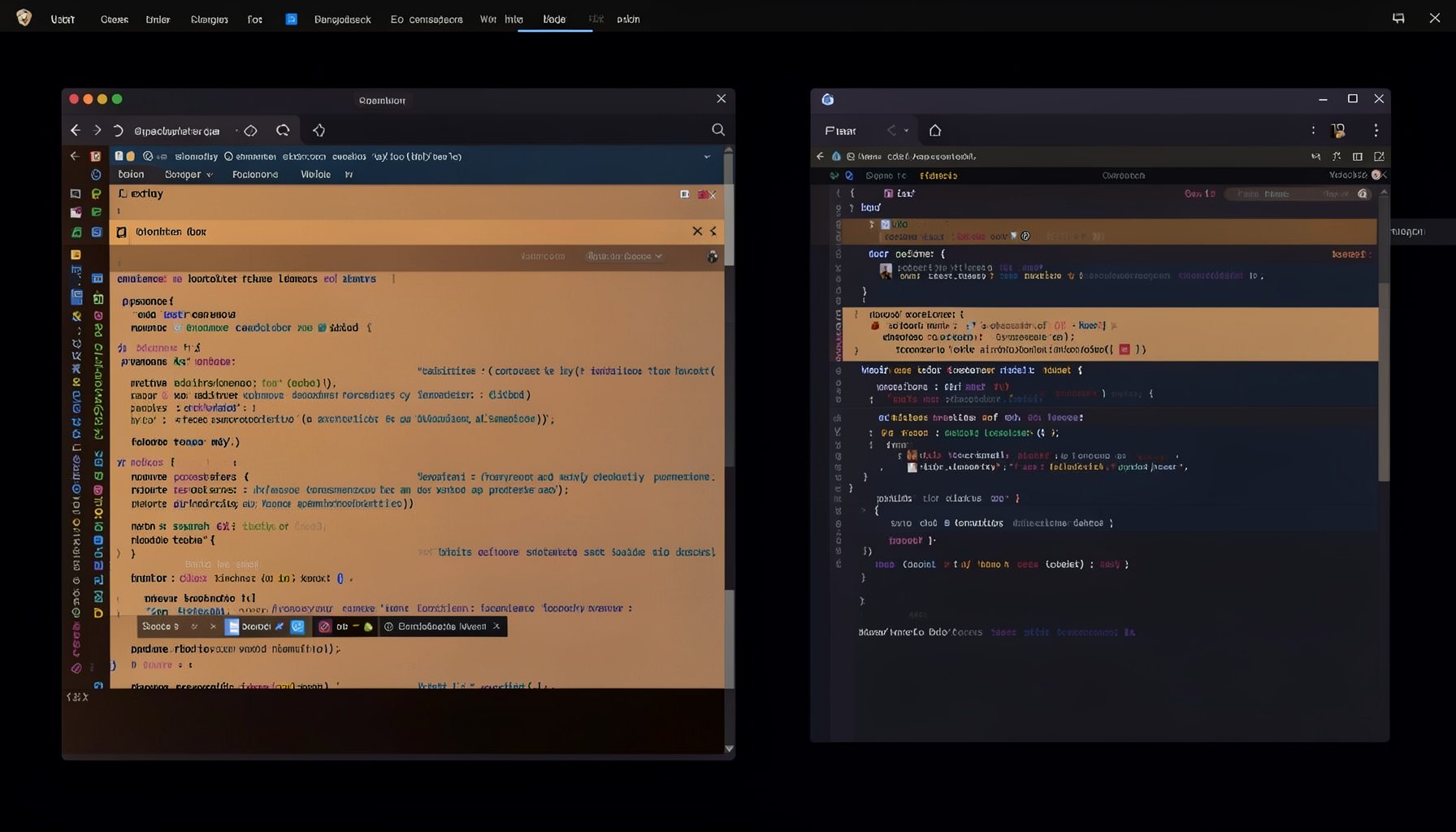
Screen-cast 5: Object Inspection & Deep Print
Inspect a Magik object, prompt for an expression evaluated within a Smallworld session, and display results in a Deep Print buffer.
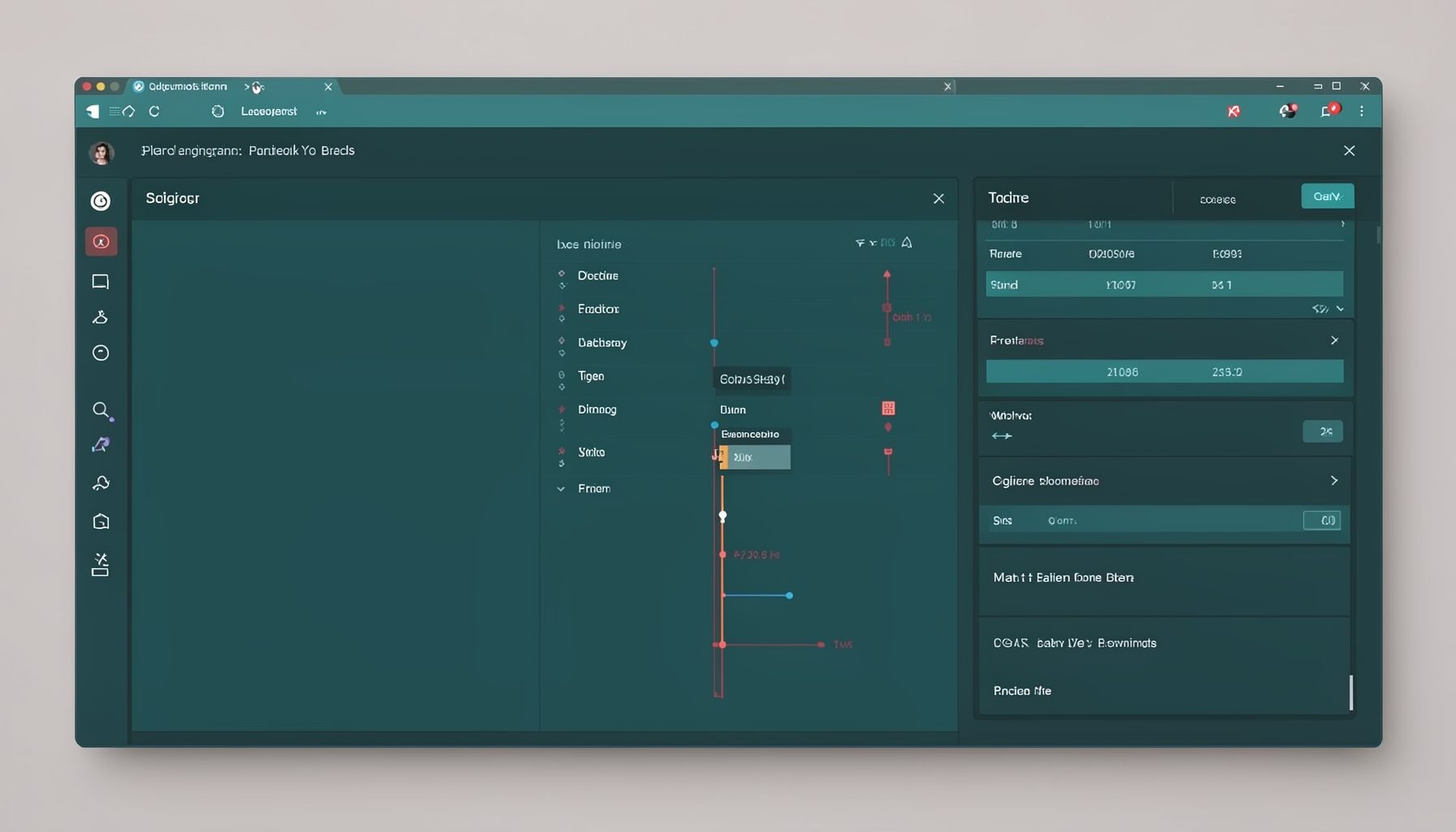
Screen-cast 7: Magik Debugger
Useful tools for application developers: Object Inspector and Magik Debugger with breakpoints and slot/variable monitoring.

Screen-cast 9: Tree Item GUI Control
Tree Item is a GUI control providing extensive facilities for displaying lists with rows, columns, trees, and in-place editing.