Emacs Extensions for
GE Smallworld Magik Development
Screen-casts, tutorials, and productivity tools for Magik programmers who use Emacs. From tab-mode and code folding to the Magik Debugger and object inspector — explore features built by a developer, for developers.
Learn MoreNine screen-casts published between November 2010 and January 2011 — covering everything from ECB mode to the Tree Item GUI control. Read the story behind the project →
Get in Touch
Using Emacs Magit for Magik Git Workflows
Using Emacs Magit to manage Magik Git workflows keeps repository actions close to the code. Instead of switching between a terminal, a browser, and several Emacs windows, Magit presents changes, branches, history, and remote operations through a consistent interface.
Magit is an Emacs interface to Git rather than a replacement for Git. It calls the installed Git executable while adding visual diffs, contextual selections, and keyboard-driven commands. This makes it particularly effective for Smallworld developers who already spend much of the day navigating Magik methods and objects.
A useful Magik workflow should separate source changes from generated Smallworld artefacts. Method edits, configuration files, and carefully reviewed test scripts belong under version control, while collection dumps, temporary exports, credentials, and machine-specific build results should usually remain untracked.
Australian Magik teams may be distributed across Sydney, Melbourne, Brisbane, and Perth. A two- or three-hour time difference, an “arvo” handover, and a no-worries approach to quick questions can help, but clear commits and remote reviews remain the dependable way to coordinate proprietary client work.
Set up Magit for a Magik repository
Install Magit through Emacs Package, normally by running M-x package-install and entering magit. MELPA may need to be configured first if it is not already available. Once installed, open a Magik project with M-x magit-status; press ? for context-sensitive help and q to leave the buffer.
Magit still requires Git and a configured identity. Check user.name and user.email before making the first commit, using a work address that matches the hosting account. For consultancy work, verify whether the repository expects a personal identity, a company identity, or the identity associated with the client project.
Create a focused .gitignore for each Magik codebase. Exclude exported collections, runtime state, generated method output, logs, and local configuration containing passwords or database paths. A .gitattributes file can also standardise line endings and identify binary artefacts, preventing noisy diffs when developers move between operating systems.
Read status and diffs in context
The Magit status buffer divides the repository into untracked, unstaged, staged, stashed, and conflicting changes. This separation is valuable in Magik projects because a working directory may contain an intentional method change alongside an automatically generated Smallworld file. Refresh the view after saving with g g, then use TAB to inspect the selected change.
A Magik diff should be reviewed as carefully as the compiled result. Look for accidental reformatting, duplicated methods, changed package references, and modifications to unrelated object properties. When a diff contains several hunks, Magit can stage or unstage individual portions, making it easier to separate a functional fix from workspace cleanup.
History and attribution are also available without leaving Emacs. Use M-x magit-log to browse commits, M-x magit-show-refs to compare branches, and M-x magit-blame to find the origin of a particular Magik line. These views are useful when investigating an environment-dependent change that entered the branch weeks earlier.
Stage and commit focused changes
Press s to stage a selected file or hunk and u to remove it from the staging area. Magit can edit a hunk before staging it, which is safer than committing an entire Magik file when only one method should change. Avoid staging a directory simply because it appears in status; inspect each file that will enter the commit.
Open the commit prompt with c after checking the staged diff. A strong Magik commit message describes the behavioural change, identifies the relevant Smallworld area, and records any important limitation. Keep unrelated formatting or experimental edits in a separate commit so reviewers can understand the functional change without wading through noise.
Before committing, run the relevant Smallworld tests or compile the affected code in the supported environment. When that is not practical, include the validation performed in the review discussion rather than implying that every path was tested. This is especially helpful when the Magik repository is consumed by consultants working across different Smallworld releases.
Coordinate branches and remote reviews
Use the branch popup, opened with b, to create and switch branches. A descriptive name such as feature/abc-123-collection-search is easier to identify in a pull request than a generic branch number. Keep experimental work on a local branch until it builds and passes the checks expected by the team.
Magit can fetch, pull, and push from its status buffer, while M-x magit-branch provides a fuller view of local and remote branches. Fetch regularly so that the remote-tracking references remain current. Before pushing, confirm that the upstream is correct, especially in repositories containing work for more than one client or environment.
Many Australian enterprises use GitLab or Bitbucket for internal hosting, sometimes alongside GitHub for shared tooling. A merge request should include the Smallworld version, test evidence, deployment constraints, and any requirement for coordinated release. Confidential examples and customer data should be removed even when the hosting service is internal.
Resolve merges without losing work
Use M-x magit-merge for a merge and M-x magit-rebase when replaying private work onto an updated branch. Rebase is convenient for a feature branch that has not been shared, but rewriting a branch used by colleagues can disrupt their history. Coordinate rebased branches with the rest of the team before publishing them.
A conflicted Magik file may contain changes that compile yet still represent incompatible behaviour. Inspect each conflict stage with TAB, resolve the code in its normal editing buffer, and stage the completed file. Pay particular attention to duplicated methods, renamed properties, and changes that rely on different Smallworld versions.
Recovery commands are part of a safe workflow, not an admission of failure. M-x magit-reflog shows previous repository states, M-x magit-reset offers explicit reset choices, and M-x magit-stash temporarily shelves work. Read the impact of each option before confirming it; recovery is much simpler when earlier checkpoints and remote branches still exist.
Choose the right Git interaction
The practical choice is between running Git directly in a shell or using Magit’s visual controls. Both invoke the same repository operations, but Magit makes partial staging, conflict inspection, and branch comparison easier to see.
| Workflow need | Git command | Magit action | Magik-specific benefit |
|---|---|---|---|
| Review repository state | git status |
M-x magit-status |
Separates source edits from generated artefacts |
| Inspect a change | git diff |
Select a change and press TAB |
Focuses attention on relevant method hunks |
| Stage part of a file | git add -p |
Select a hunk and press s |
Prevents unrelated cleanup from entering the commit |
| Create a commit | git commit |
Press c |
Makes the staged Magik diff easy to review first |
| Manage branches | git switch |
Press b |
Shows local and remote references together |
| Recover earlier work | git reset |
M-x magit-reset |
Presents clear reset choices and supports reflog recovery |
Neither interface should replace project-specific safeguards. Magit speeds up the mechanics, while .gitignore, peer review, tests, and correct repository permissions provide the controls around those mechanics.
Make the workflow repeatable
A consistent daily loop starts with M-x magit-status, reviews unstaged changes, stages only the intended Magik edits, and checks the staged diff before committing. Branch operations, fetches, merges, and conflict resolution then remain visible in the same Emacs-based workflow.
Keep commits small enough to explain in a review. Record environment-specific validation in the merge request, and use stashes or worktrees when switching between unrelated tasks. M-x magit-worktree is particularly useful when one branch must be tested against a hotfix without disturbing the current working directory.
For focused Magik-specific advice on Emacs navigation and workflow habits, browse the Magik Emacs guides and turn your next Magik change into a staged, tested, and reviewable commit.
Core Features
Tab Mode & ECB
Quick tab switching and Emacs Code Browsing mode for navigating Magik codebases efficiently.
Magik Smeller
Code analysis tool that helps identify potential issues in Magik source files.
Code Folding
Hide/Show mode for collapsing and expanding Magik code blocks to focus on what matters.
Visual Bookmarks
Quick visual bookmarks for jumping between key locations in your Smallworld session buffers.
Object Inspector
Inspect Magik objects and display them in an Emacs Deep Print buffer for detailed examination.
Magik Debugger
Set breakpoints and monitor slots and variables directly from within Emacs.
Development Tools
Direct links between Emacs and the Smallworld Development Tools application, including Click Monitor.
Screen-casts & Tutorials
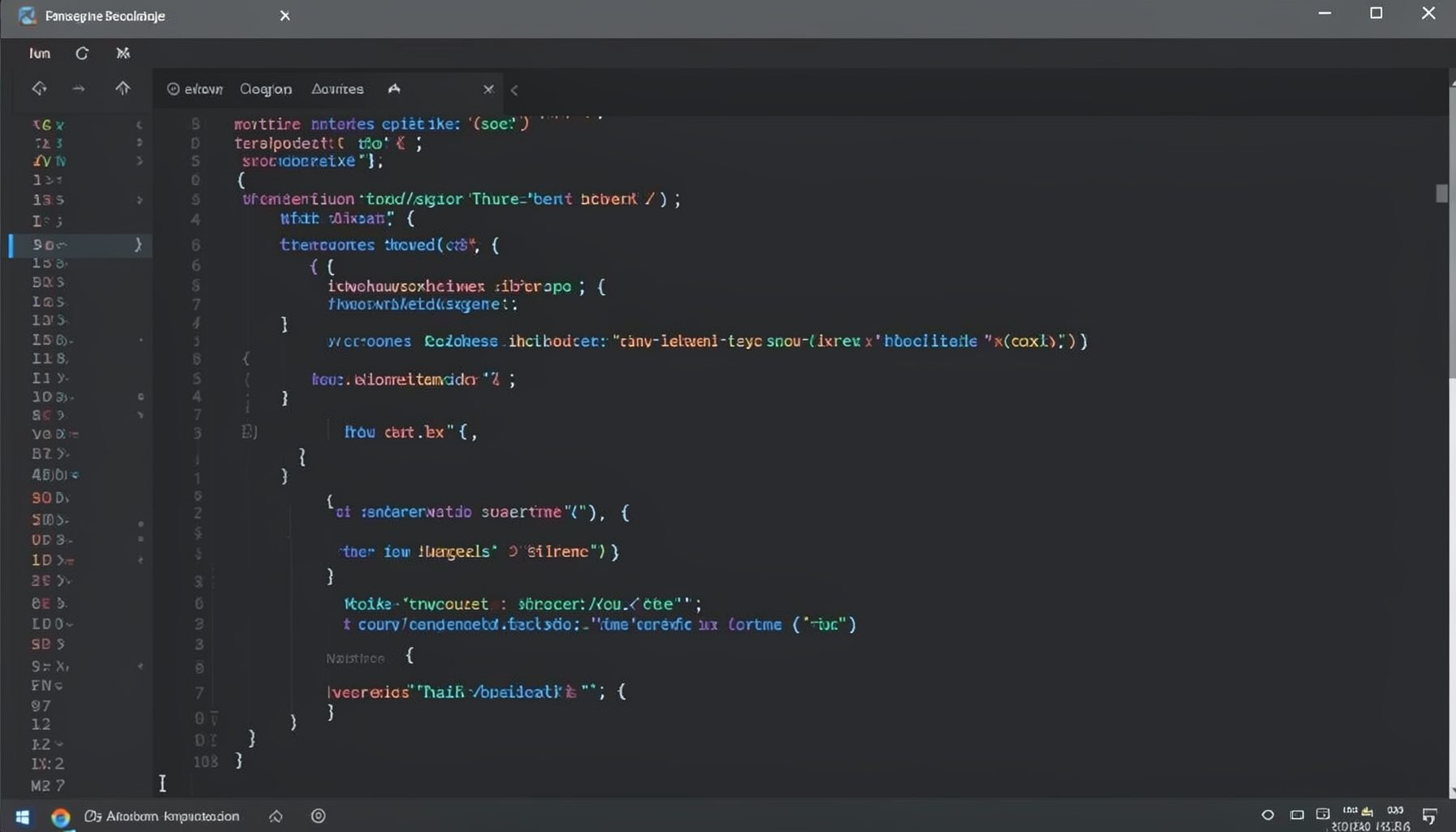
Screen-cast 1: Tab Mode, ECB & More
Covers tab-mode, ECB, Magik Smeller, code folding, visual bookmarks, pragma toggling, moving code, external editor, and MS Explorer.
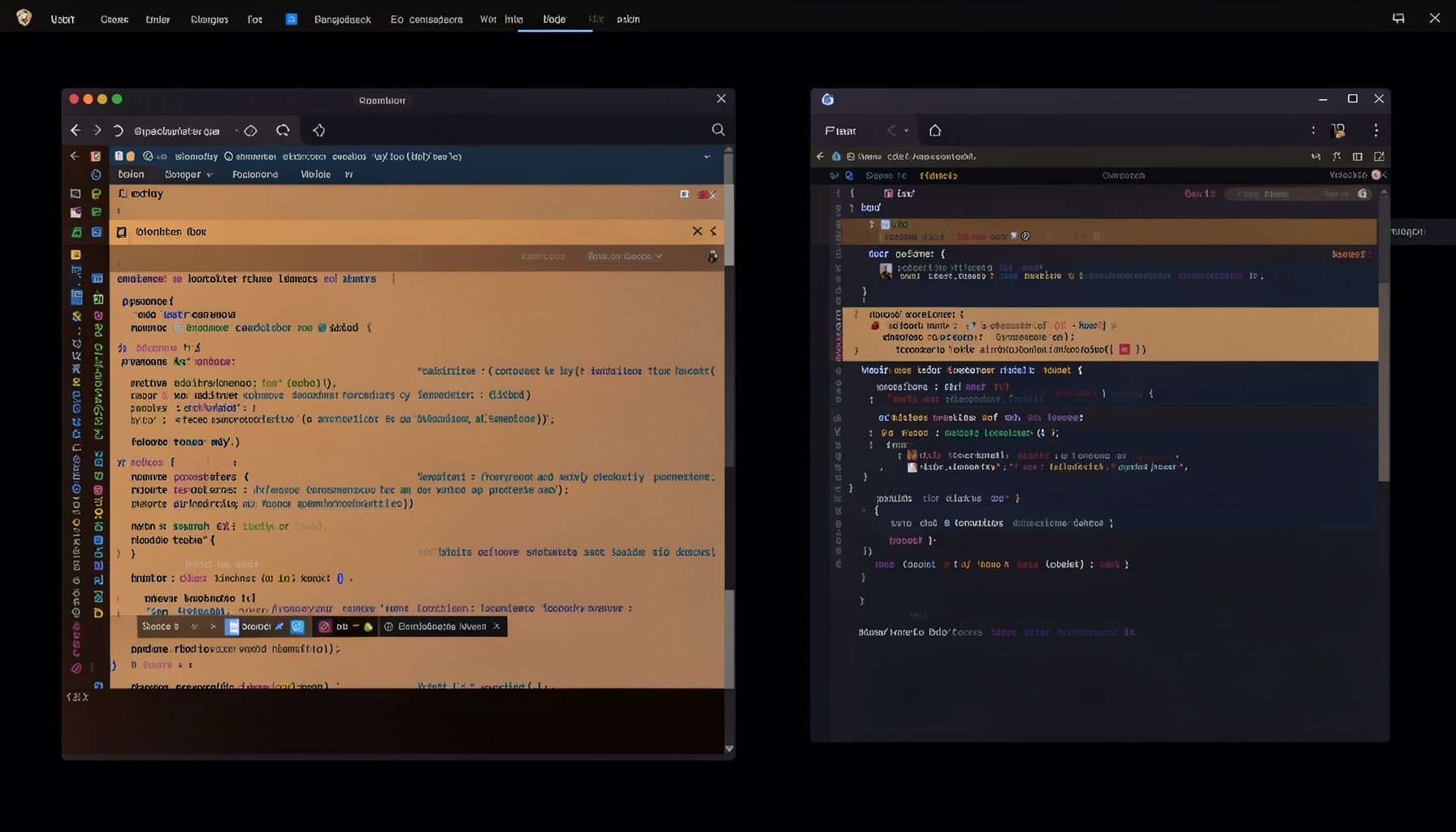
Screen-cast 5: Object Inspection & Deep Print
Inspect a Magik object, prompt for an expression evaluated within a Smallworld session, and display results in a Deep Print buffer.
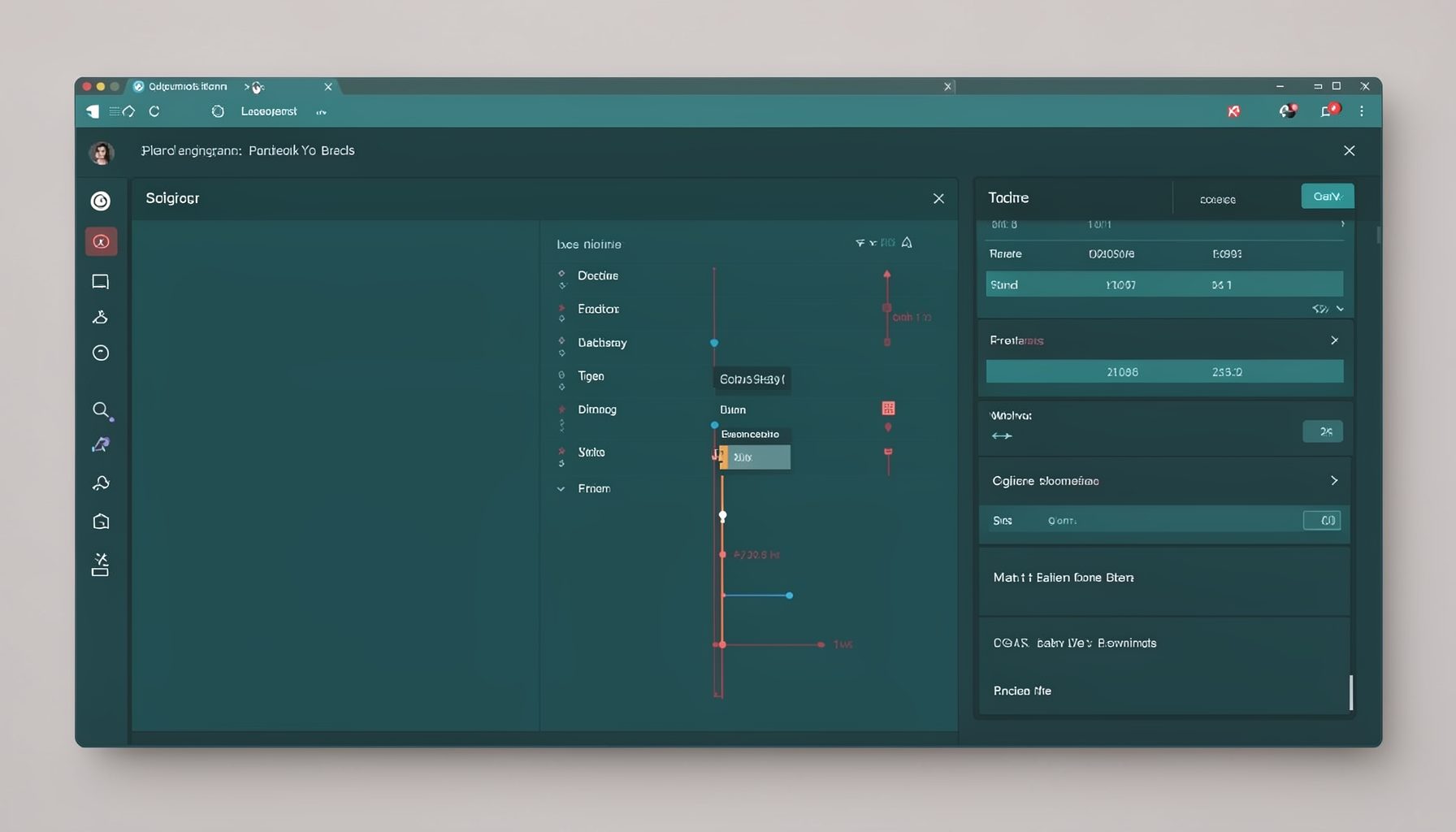
Screen-cast 7: Magik Debugger
Useful tools for application developers: Object Inspector and Magik Debugger with breakpoints and slot/variable monitoring.

Screen-cast 9: Tree Item GUI Control
Tree Item is a GUI control providing extensive facilities for displaying lists with rows, columns, trees, and in-place editing.