Emacs Extensions for
GE Smallworld Magik Development
Screen-casts, tutorials, and productivity tools for Magik programmers who use Emacs. From tab-mode and code folding to the Magik Debugger and object inspector — explore features built by a developer, for developers.
Learn MoreNine screen-casts published between November 2010 and January 2011 — covering everything from ECB mode to the Tree Item GUI control. Read the story behind the project →
Get in Touch
Rectangle Editing for Magik Code in Emacs
Magik code often contains repeated method declarations, slot assignments, inheritance lists, and aligned data that are tedious to edit one line at a time. Emacs rectangle commands provide a practical way to work with these vertical regions, allowing you to insert, delete, copy, replace, and format text across several lines at once.
For developers maintaining GE Smallworld environments, this is especially useful when reviewing long Magik methods or preparing examples for documentation. Whether your workstation is in Melbourne, Sydney, Brisbane, or a smaller regional office, the same column-based editing techniques can reduce repetitive keystrokes and make code changes safer.
Understanding rectangles in Magik source
A rectangle is a vertical slice of text bounded by a starting column and an ending column. It is different from an ordinary region, which follows complete lines and includes text from the beginning of one point to the end of another. Rectangle operations pay attention to character positions, so they are ideal for editing repeated prefixes, aligned values, or a shared section of several Magik statements.
In Emacs, begin by placing the cursor at one corner of the desired block. Activate the mark with C-SPC, move to the opposite corner, and then use a rectangle command. You can also activate rectangle-mark-mode with C-x SPC, which makes the rectangular selection more visible and easier to adjust. The selected area may be narrow, such as the indentation before a method body, or wide enough to include an entire expression.
Consider this Magik fragment:
_method parcel_record.set_status(_status)
  _self.status << _status
_endmethod
If several methods contain a common indentation or a repeated annotation column, a rectangle can change that vertical area without disturbing the rest of each line. This is useful when a Magik file contains aligned declarations generated by a development convention or copied from an existing Smallworld application.
Selecting and changing aligned text
The most familiar rectangle commands are available through the C-x r prefix. C-x r k kills the selected rectangle, C-x r c copies it, and C-x r y yanks the most recently killed rectangle. These commands use the rectangle kill ring, so you can move a column of text from one group of methods to another without selecting complete lines.
To remove a vertical section, select it and press C-x r d, which runs delete-rectangle. Deletion closes the gap on each affected line. If you want to preserve the space while removing the characters, use clear-rectangle with C-x r c only when your key bindings distinguish the relevant command, or invoke it by name with M-x clear-rectangle. Checking the command name through M-x is a reliable habit because custom key maps and Emacs versions can vary.
string-rectangle is particularly handy for Magik maintenance. After selecting a rectangle, run M-x string-rectangle, enter the replacement text, and press Return. Emacs inserts that string into every selected line. For example, selecting the first few columns of several method declarations lets you insert a common comment marker, prefix, or indentation. M-x replace-rectangle can replace the contents of a rectangular area with another string, which is useful for correcting repeated status codes or field labels.
A rectangle does not need to contain text on every line. If the selection reaches beyond the end of a short line, Emacs can still apply an insertion to the relevant column. This makes string-rectangle useful when normalising uneven Magik source, although it is wise to inspect the result before saving a large file.
Inserting indentation and method structure
Magik code is often read through indentation and the visual relationship between _method, its body, and _endmethod. A rectangle can quickly add or remove spaces from a group of lines. Place the mark at the start of the first affected line, extend it down to the final line, and use string-rectangle to insert the required spaces. This is faster than pressing Tab on each line and gives a consistent result across a copied code block.
open-rectangle, available through M-x open-rectangle, inserts blank space instead of replacing existing characters. It is useful when a new argument, comment column, or piece of documentation must be inserted between existing text. For example, if several aligned Magik assignments need a new visual separator, opening a narrow rectangle creates room while retaining the code to the right.
You can also use rectangle-number-lines to add sequential numbers beside a selected block. This is useful for discussing a method with a colleague, preparing a training example, or referring to lines during a code review. Remove the temporary numbering afterwards rather than treating it as source text. A numbered copy can help when explaining a long database query or collection operation to a team in Brisbane or Perth, where developers may be reviewing the same code asynchronously across time zones.
Rectangle editing works best when the buffer uses predictable indentation. Before making a broad change, check whether tabs or spaces are creating the visual columns. A line that looks aligned on screen may occupy a different character position if tabs are involved. Set indent-tabs-mode deliberately, and consider displaying whitespace while preparing a large transformation. This avoids inserting text several characters away from the intended Magik syntax.
Combining rectangles with Magik navigation
Rectangle commands become more powerful when paired with ordinary Emacs navigation. Use M-f and M-b to move through symbols, C-s to locate a method or slot name, and M-x beginning-of-defun or M-x end-of-defun when the active Magik mode supports those definitions. Once you have found the relevant methods, place the rectangle precisely rather than selecting a broad region and relying on a later cleanup.
Suppose several methods contain a temporary diagnostic call:
  _self.debug_message("loading parcel")
  _self.load_attributes()
A rectangle can remove a fixed prefix, replace a repeated message marker, or add a common comment character to each diagnostic line. If the text varies but occupies the same columns, kill-rectangle can still remove the shared area while leaving the individual message content intact. This is often safer than a global search and replace when similar text appears in unrelated methods.
For larger edits, save the buffer first and work in a narrow scope. Rectangle commands are deliberately literal: they do not understand whether the selected characters form a valid Magik expression. After changing a block, use Magik-aware font locking, indentation, method navigation, and compilation or loading checks to catch accidental edits. The core features covered in Emacs development notes can complement rectangle editing by making it easier to inspect the affected methods and move between definitions.
A useful workflow is to make the rectangular change, inspect the surrounding methods, and then use undo-only or ordinary C-/ if the result is wrong. Emacs records rectangle operations as undoable changes, so experimentation is practical. When editing a production Smallworld application, however, make the change in a branch or a disposable copy before applying it across a widely used shared codebase.
Practical patterns for everyday maintenance
One common pattern is adding a shared prefix to several lines. Select the first column through the final line, run string-rectangle, and enter the desired text. This can add a comment marker, a logging prefix, or a documentation label. To align values, select the space before the values and use open-rectangle, then insert the missing text with string-rectangle or ordinary typing.
Another pattern is extracting a vertical list. Use copy-rectangle-as-kill when you want to preserve the original code while placing the selected column elsewhere. This can help collect field names, method arguments, or identifiers from a Magik source file for use in a database query or review note. The copied material retains its row structure, which is valuable when the order of items matters.
Rectangles are also useful for cleaning generated or hand-aligned source. Select unwanted padding and delete it, or replace a repeated alignment marker with a single space. Be cautious around strings and comments: a column that is harmless in one line may be significant inside a quoted value in another. Magik’s syntax and application conventions should guide the selection, rather than the visual appearance alone.
Australian teams often work across offices in Sydney, Melbourne, Adelaide, and Perth, with code reviews scheduled around different working hours and public holidays. A concise rectangular edit can make a small maintenance task easier to explain in a pull request because the change is visibly limited to one column. For consultants supporting the local Smallworld market, this also reduces the time spent on routine formatting while keeping attention on network, land, transport, and utility data models.
Before committing a change, visit each edited method and verify indentation, string contents, and _endmethod placement. Run the project’s normal tests or load checks, and inspect any generated output that depends on the modified code. Rectangle editing is a productivity technique, not a substitute for Magik-aware validation.
Try these commands on a disposable Magik buffer: select a vertical block with C-x SPC, copy it with C-x r c, delete it with C-x r d, and insert a shared prefix with M-x string-rectangle. Once the keystrokes become familiar, apply them to real method maintenance, documentation preparation, and aligned source cleanup in your Emacs workflow.
Core Features
Tab Mode & ECB
Quick tab switching and Emacs Code Browsing mode for navigating Magik codebases efficiently.
Magik Smeller
Code analysis tool that helps identify potential issues in Magik source files.
Code Folding
Hide/Show mode for collapsing and expanding Magik code blocks to focus on what matters.
Visual Bookmarks
Quick visual bookmarks for jumping between key locations in your Smallworld session buffers.
Object Inspector
Inspect Magik objects and display them in an Emacs Deep Print buffer for detailed examination.
Magik Debugger
Set breakpoints and monitor slots and variables directly from within Emacs.
Development Tools
Direct links between Emacs and the Smallworld Development Tools application, including Click Monitor.
Screen-casts & Tutorials
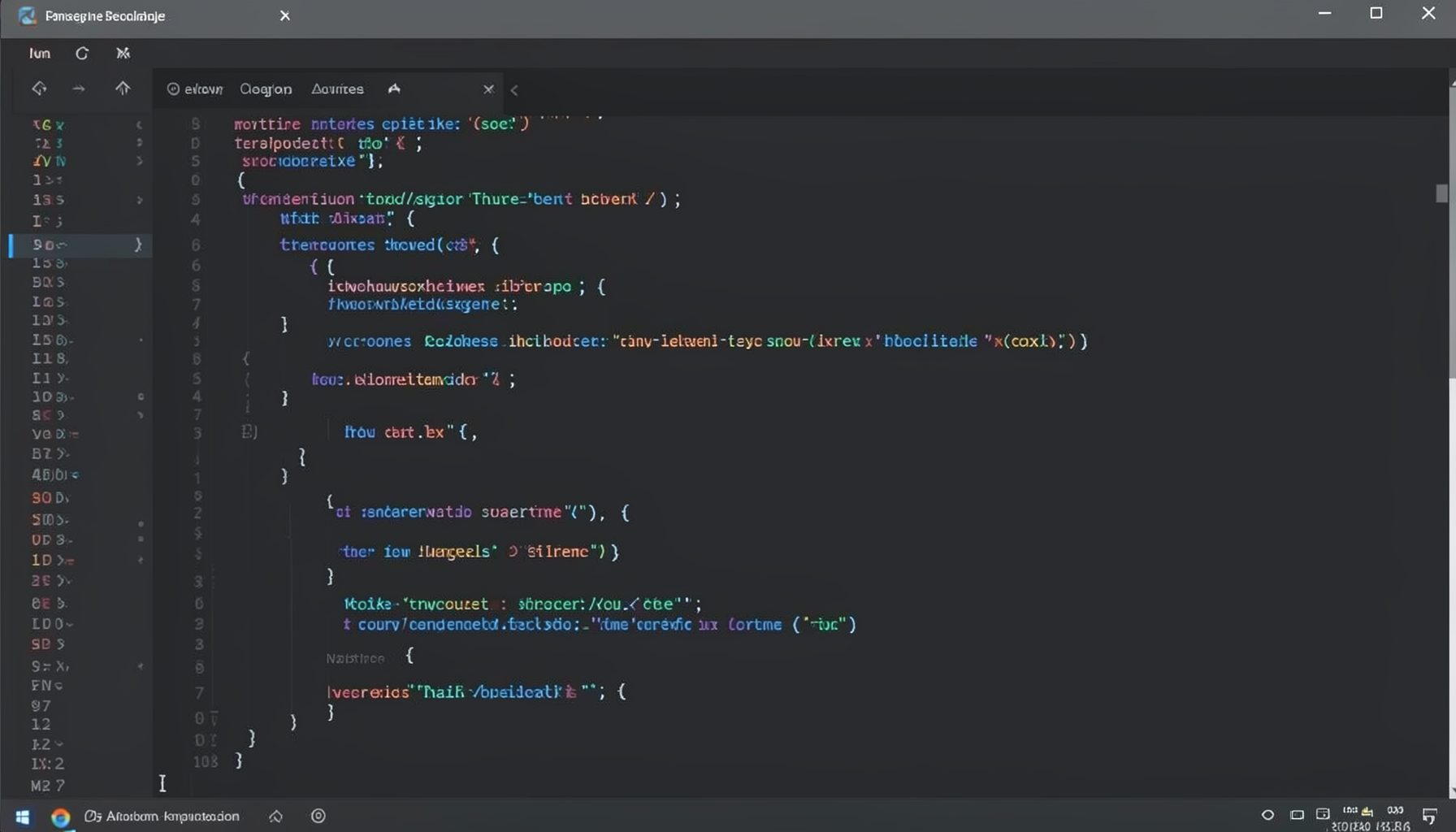
Screen-cast 1: Tab Mode, ECB & More
Covers tab-mode, ECB, Magik Smeller, code folding, visual bookmarks, pragma toggling, moving code, external editor, and MS Explorer.
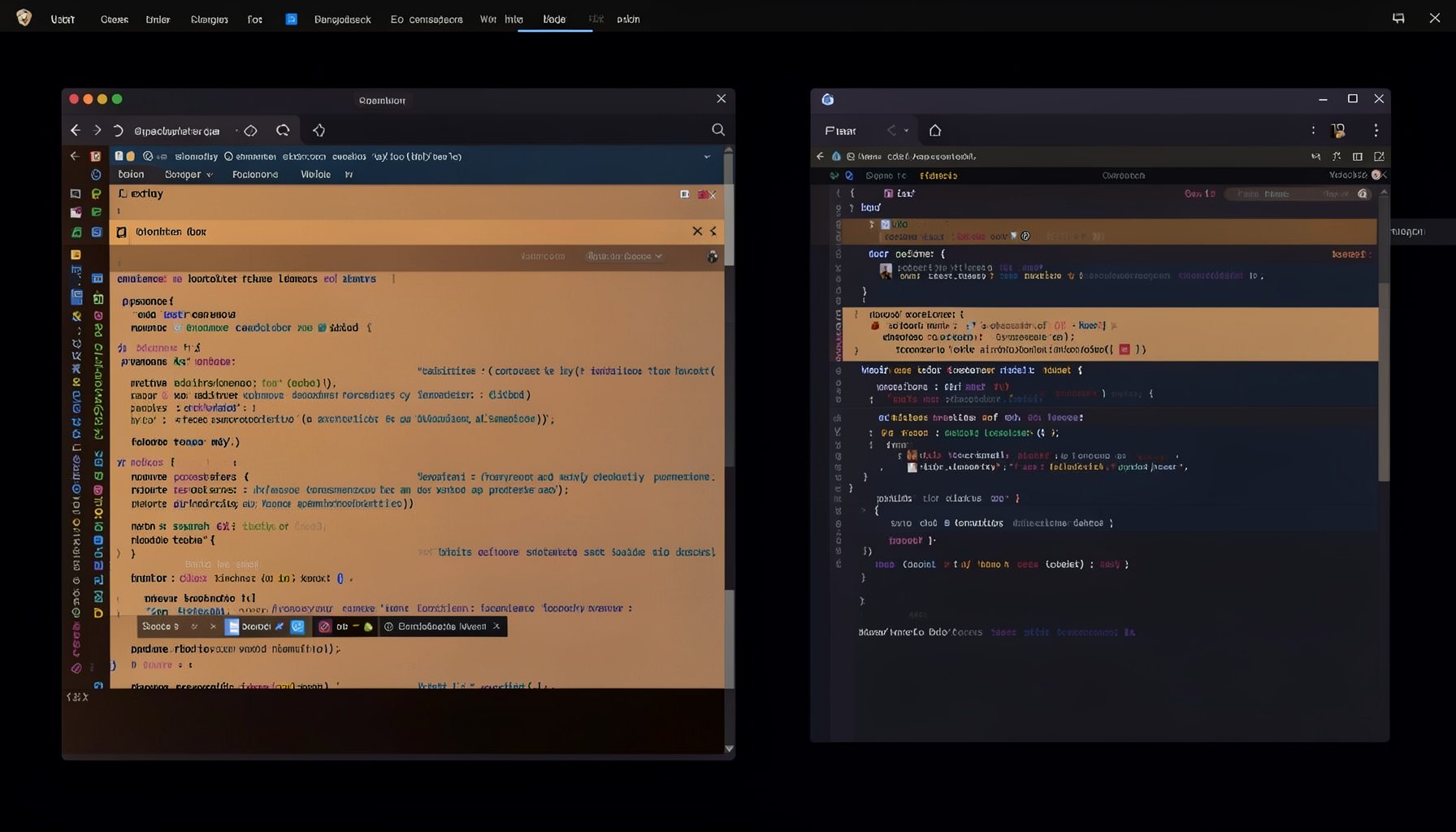
Screen-cast 5: Object Inspection & Deep Print
Inspect a Magik object, prompt for an expression evaluated within a Smallworld session, and display results in a Deep Print buffer.
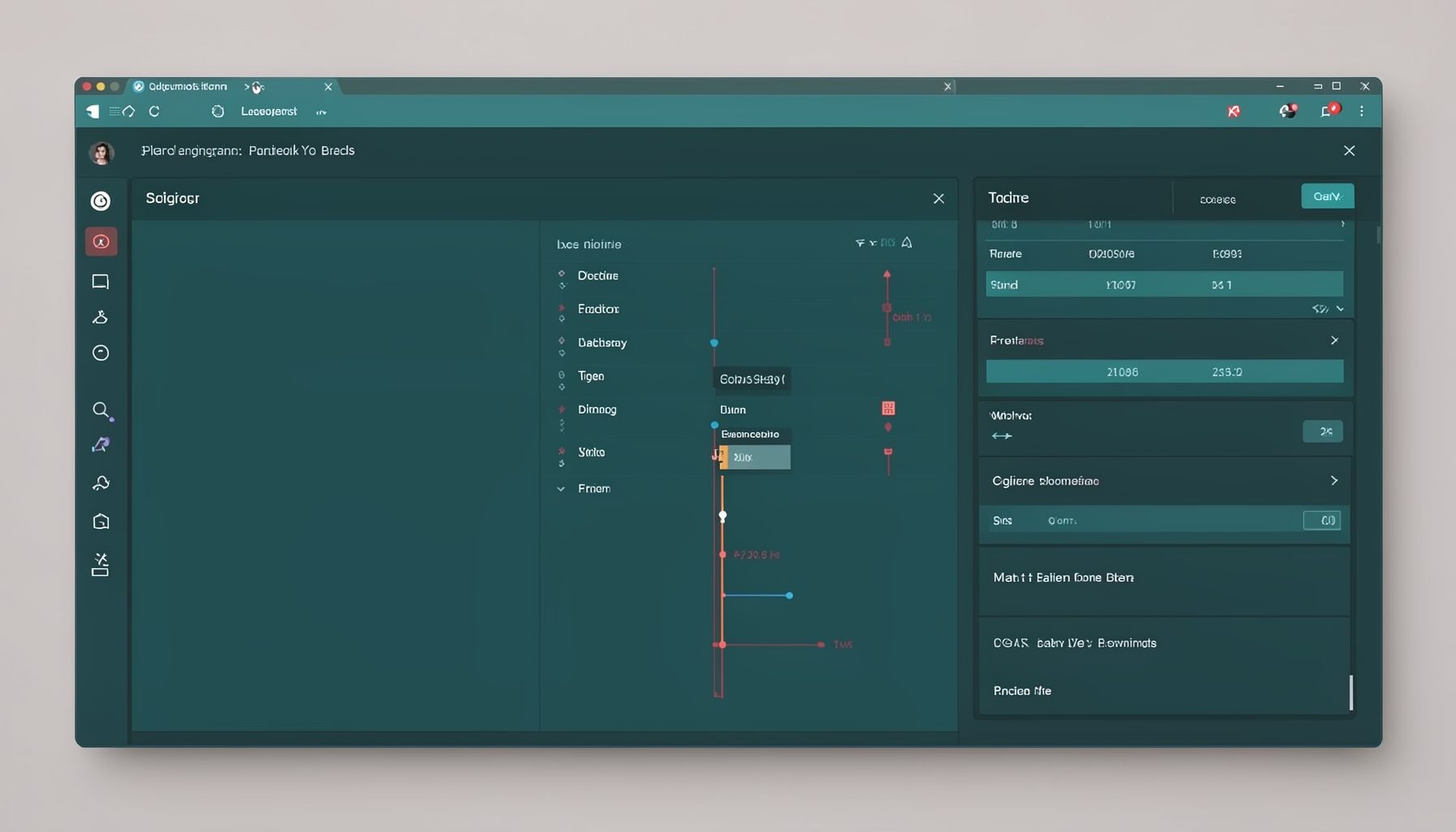
Screen-cast 7: Magik Debugger
Useful tools for application developers: Object Inspector and Magik Debugger with breakpoints and slot/variable monitoring.

Screen-cast 9: Tree Item GUI Control
Tree Item is a GUI control providing extensive facilities for displaying lists with rows, columns, trees, and in-place editing.