Emacs Extensions for
GE Smallworld Magik Development
Screen-casts, tutorials, and productivity tools for Magik programmers who use Emacs. From tab-mode and code folding to the Magik Debugger and object inspector — explore features built by a developer, for developers.
Learn MoreNine screen-casts published between November 2010 and January 2011 — covering everything from ECB mode to the Tree Item GUI control. Read the story behind the project →
Get in Touch
How to use Emacs’ undo tree for Magik development
Magik development often involves small, interdependent changes spread across methods, mixins, subclasses, and database operations. A quick edit to a method can affect object behaviour several calls away, so being able to revisit an earlier state without losing later experiments is a valuable part of a reliable Emacs workflow.
Emacs already has powerful undo commands, but its linear history can become difficult to understand when you undo, make a new edit, and then realise that the abandoned version was useful. Undo Tree presents that history as branches. For Magik programmers, this makes it easier to test alternatives, inspect earlier method implementations, and recover code while debugging without repeatedly reopening files or copying buffers.
| Task | Standard Emacs undo | Undo Tree | Useful Magik situation |
|---|---|---|---|
| Reverse the latest edit | Works well | Works well | Correcting a typo in a method |
| Explore two possible fixes | History becomes less obvious | Separate branches remain visible | Comparing collection-handling approaches |
| Return to an older version | Possible, but can require repeated undo | Select a node in the tree | Restoring behaviour before a debugging change |
| Inspect editing history | Mostly command-based | Visual timeline and branches | Reviewing changes to a long method |
| Preserve history between sessions | Requires additional setup | Can save undo files | Continuing work on a Smallworld customisation |
Why undo history matters in Magik
A Magik method can contain domain logic that is difficult to recreate from memory. When investigating a problem in a Smallworld application, you might change a condition, add temporary inspection code, alter a collection traversal, and then adjust the same method again. Those edits form a branching experiment, even if Emacs presents them as a simple sequence of commands.
Undo Tree records the alternatives created by that process. Suppose an original method uses an iterator and you try one fix based on a list, then another based on a sw:collection. If you undo the first fix and type the second, ordinary undo makes the first version harder to reach. Undo Tree keeps both paths, allowing you to return to the earlier implementation and compare the results.
This is particularly useful when working with object inspection or debugger output. A change that appears wrong in one test may behave correctly with another object state. Rather than treating every failed experiment as discarded work, you can navigate back to the relevant point and inspect exactly what the buffer contained before the experiment began.
The feature does not understand Magik semantics. It does not know whether a change affects inheritance, method lookup, or database state. Its value is more practical: it gives you a dependable record of buffer changes while you apply your own Magik knowledge.
Installing and configuring Undo Tree
Undo Tree is commonly installed as the undo-tree package. With a package manager such as use-package, a basic configuration can look like this:
(use-package undo-tree
  :ensure t
  :bind (("C-x u" . undo-tree-visualize)
         ("C-x U" . undo-tree-redo))
  :config
  (global-undo-tree-mode 1)
  (setq undo-tree-auto-save-history t))
If you prefer to explore related editing tools before choosing a configuration, the Emacs extensions collection provides a useful place to review additions for a Magik-focused Emacs setup. Install the package first, then enable it in a test configuration or on a non-critical project buffer.
The default visualiser is usually opened with C-x u, which runs undo-tree-visualize. You can also invoke it with M-x undo-tree-visualize. In the visualiser, the left side shows the undo graph and the right side shows the text associated with the selected state. Cursor movement selects a point in the history, while ordinary navigation keys let you inspect the available branches.
History files deserve some care. Undo Tree can save buffer history between Emacs sessions, but those files may contain source code or sensitive configuration details. Store them in a controlled directory and add that directory to .gitignore. A typical configuration is:
(setq undo-tree-history-directory-alist
      `(("." . ,(expand-file-name "undo/" user-emacs-directory))))
This keeps history away from the working tree and reduces the risk of accidentally committing generated files to a project repository.
Reading the visual history
The visualiser usually displays the current branch with a marker such as x or X, depending on the selected state. Older states appear along the graph, and a branch is created when you move backwards and then edit the buffer. The exact characters can vary with the Emacs version and display settings, but the principle remains the same: each node represents a recoverable buffer state.
When working on a Magik method, select a node and read the text pane before restoring it. Look for the complete method boundary, including _method and _endmethod, rather than judging a change from one line alone. A modification to a local variable or iterator may only make sense alongside the declaration, the collection being traversed, and the return path.
The visualiser is also helpful for separating meaningful edits from incidental ones. Emacs may record small changes made while navigating, inserting debug output, or correcting indentation. Select several nearby nodes to identify the point at which behaviour changed. Mark that state mentally or document it in a commit message before continuing.
For a focused view, use the visualiser while the relevant Magik buffer is active. If several buffers are open for related classes, switch to the correct source buffer before invoking the command. Undo history belongs to a buffer, so a branch in one method file cannot directly restore the contents of another file.
Applying branches while developing
A productive pattern is to establish a known-good state before experimenting. Save the Magik file, run the relevant test or debugger session, and then make one coherent change. If the result is not useful, open the undo tree and return to the previous state. If you edit from that older state, Emacs creates a new branch instead of destroying the original experiment.
For example, imagine a method that filters features before adding them to a collection. You could first change the predicate, run a test, and then try a different predicate. Undo Tree lets you retain both implementations. Select each branch, copy a useful fragment if necessary, and then settle on a clean version rather than repeatedly undoing and retyping the same code.
Temporary debugging changes are another strong use case. You might add a call that prints an object, inspect a slot, or insert a conditional around a suspicious operation. Once the cause is understood, return to the state immediately before the diagnostic code. This avoids leaving trace statements in a method, especially when the code is being prepared for review or deployment.
Use undo branches for source edits, not for assuming that external Magik actions can be reversed. A database update, file write, transaction, or remote service call is not undone when you restore the buffer. Before testing a risky change, understand whether the operation is read-only and use the appropriate Smallworld development environment or transaction controls.
Recovering code without losing useful work
A common mistake is to use repeated C-/ or C-x u until the desired text appears, then continue editing immediately. That can make the route back to a later state unclear. The visualiser provides a safer approach: locate the desired node, inspect it, and decide whether to restore the whole state or copy only the required lines.
When comparing two versions of a method, keep the differences narrow. One branch might contain a change to method arguments, while another changes collection processing. Restoring an entire old state could remove a valid fix that was made later. In that situation, use the visualiser to identify the branch, then copy the relevant code into the current version or use a diff command to examine the change.
Emacs also provides commands for navigating undo-tree states from Lisp. The visual interface is usually easiest while learning, but keyboard-driven workflows can be faster once the pattern is familiar. Bind a convenient command for opening the tree, and retain a separate binding for redo if your normal editing style depends on moving forward through a branch.
If the history appears missing, check whether the buffer was replaced, reverted from disk, or opened under a different filename. Undo information is associated with the Emacs buffer and its saved history file. A file reload or major editing operation can change what is available. Saving regularly and using version control remain essential; Undo Tree is a local editing aid, not a substitute for commits.
Fitting Undo Tree into Australian project work
Magik teams in Australia often work across long distances and mixed arrangements: a developer in Melbourne may collaborate with a client in Perth, while a consultant in Brisbane joins a remote debugging session with a Sydney office. Network access through an NBN connection may be perfectly adequate, but a local undo history is still valuable when a remote development environment is slow or a shared session becomes difficult to follow.
Consulting work also tends to involve multiple client configurations and carefully controlled release windows. A developer may spend the morning on a council or utility customisation, then switch to support work in the arvo. Keeping Undo Tree history in a private local directory helps preserve short-lived experiments without placing them in a client repository or confusing them with approved source changes.
Use clear project boundaries. Configure history storage so files from different clients do not collide, and avoid saving history when the source contains credentials or regulated information. Australian organisations can have strict requirements around infrastructure, public-sector data, and access from overseas-hosted services, so confirm the project’s storage policy before enabling persistent history broadly.
Undo Tree fits best beside Git or another source-control system. Commit a stable Magik change with a meaningful message, then use Undo Tree for the experimental edits that happen before the next commit. A practical team habit is to keep the working tree readable, remove temporary inspection code before review, and rely on commits for shared recovery while using the undo graph for personal exploration.
Configure Undo Tree in a small test buffer, practise creating and switching between branches, and then apply it to a real Magik method. Bind the visualiser to a command you can remember, save a known-good state before debugging, and keep generated history outside the repository. With those habits in place, branching edits become easier to inspect, compare, and recover during everyday Emacs development.
Core Features
Tab Mode & ECB
Quick tab switching and Emacs Code Browsing mode for navigating Magik codebases efficiently.
Magik Smeller
Code analysis tool that helps identify potential issues in Magik source files.
Code Folding
Hide/Show mode for collapsing and expanding Magik code blocks to focus on what matters.
Visual Bookmarks
Quick visual bookmarks for jumping between key locations in your Smallworld session buffers.
Object Inspector
Inspect Magik objects and display them in an Emacs Deep Print buffer for detailed examination.
Magik Debugger
Set breakpoints and monitor slots and variables directly from within Emacs.
Development Tools
Direct links between Emacs and the Smallworld Development Tools application, including Click Monitor.
Screen-casts & Tutorials
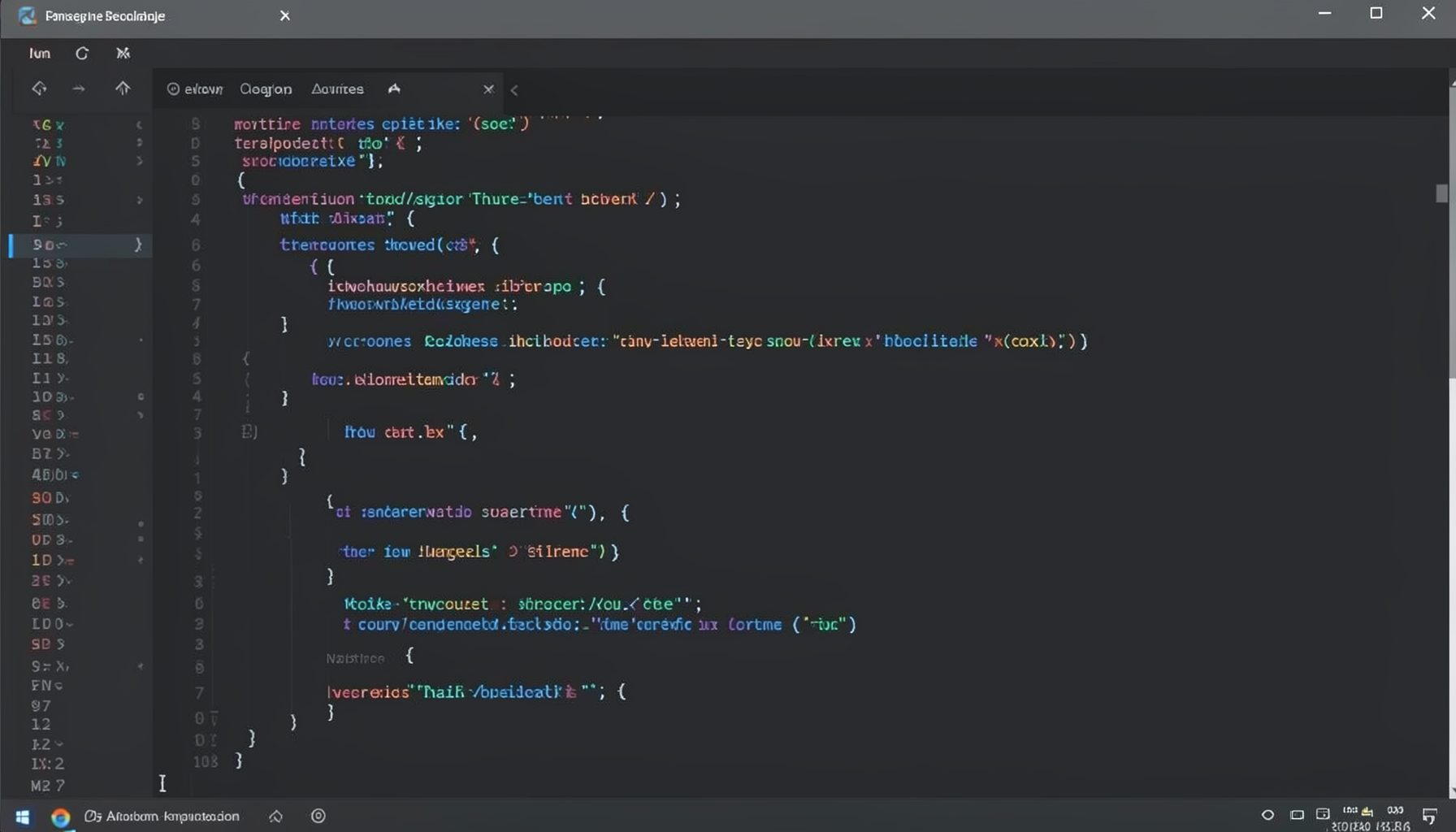
Screen-cast 1: Tab Mode, ECB & More
Covers tab-mode, ECB, Magik Smeller, code folding, visual bookmarks, pragma toggling, moving code, external editor, and MS Explorer.
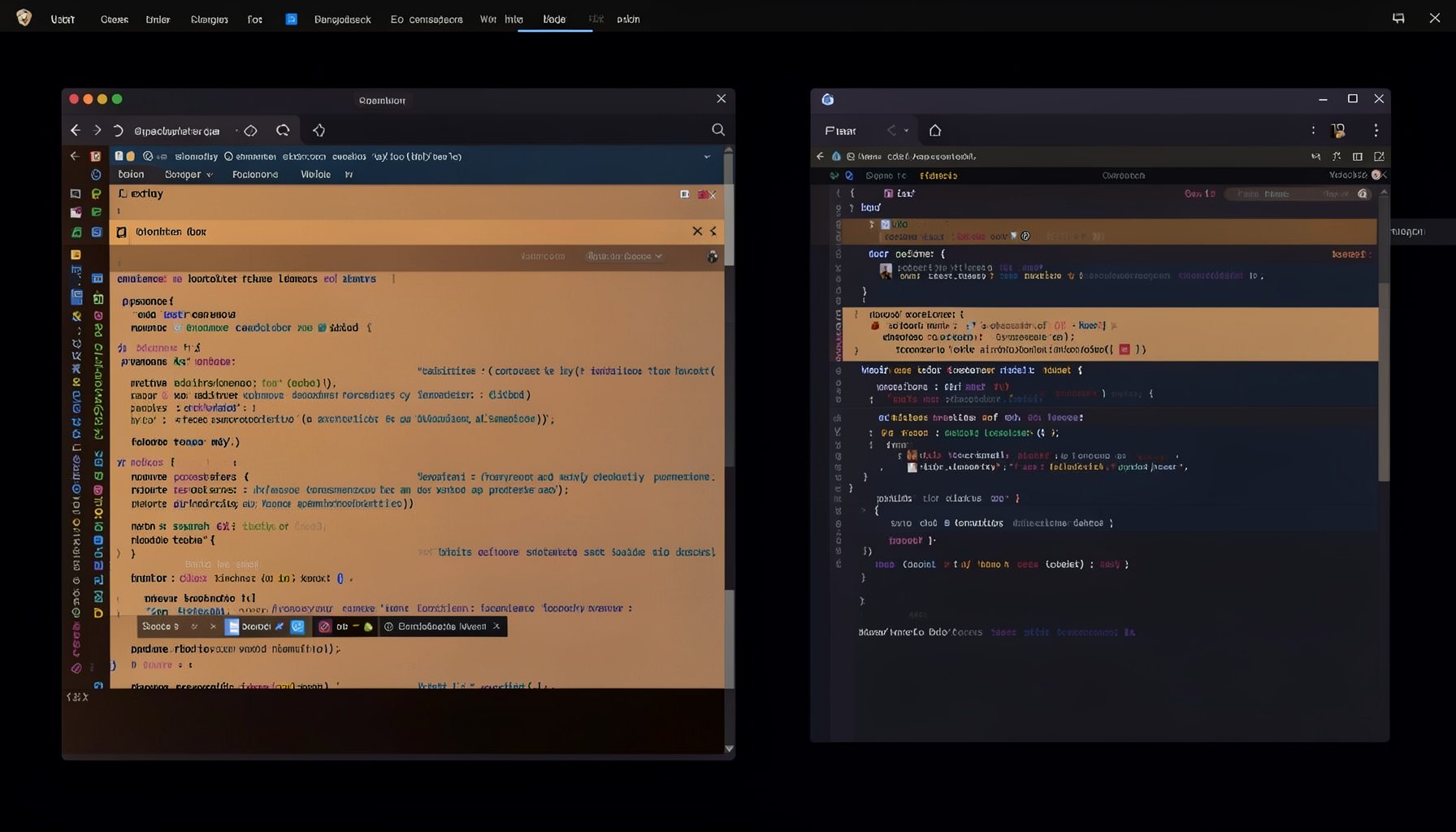
Screen-cast 5: Object Inspection & Deep Print
Inspect a Magik object, prompt for an expression evaluated within a Smallworld session, and display results in a Deep Print buffer.
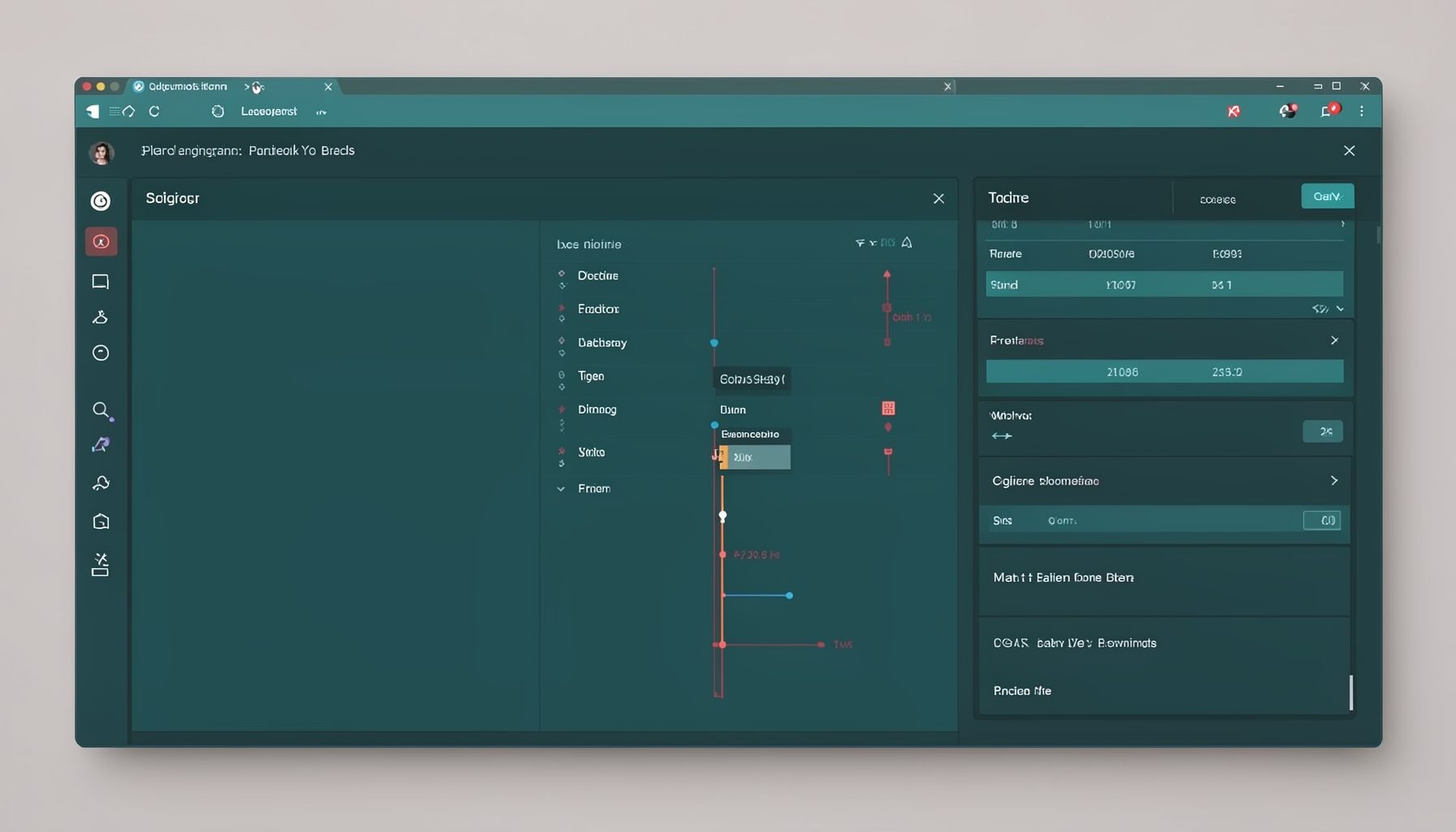
Screen-cast 7: Magik Debugger
Useful tools for application developers: Object Inspector and Magik Debugger with breakpoints and slot/variable monitoring.

Screen-cast 9: Tree Item GUI Control
Tree Item is a GUI control providing extensive facilities for displaying lists with rows, columns, trees, and in-place editing.