Emacs Extensions for
GE Smallworld Magik Development
Screen-casts, tutorials, and productivity tools for Magik programmers who use Emacs. From tab-mode and code folding to the Magik Debugger and object inspector — explore features built by a developer, for developers.
Learn MoreNine screen-casts published between November 2010 and January 2011 — covering everything from ECB mode to the Tree Item GUI control. Read the story behind the project →
Get in Touch
Make Magik Files Easier to Navigate with Emacs Outline Mode
Large Magik source files can become difficult to scan once they contain dozens of methods, helper routines, pragmas, and collection-processing utilities. The code may be logically organised, yet finding the method that handles a network feature or database query can still involve a long sequence of searches.
Emacs’ outline-mode provides a lightweight way to turn that source layout into a navigable document. It can recognise method declarations and section comments, hide implementation details, and expose the structure of a file through familiar commands such as C-c @ C-t and C-c @ C-a.
For Magik developers working across Smallworld configurations, custom applications, and support scripts, this is especially useful when files are shared between a local workstation and a distributed team. A consultant in Melbourne, a utility project in Brisbane, and a support engineer working remotely from Perth can all use the same folding conventions without changing the Magik code itself.
| Approach | Best use | What becomes visible | Main trade-off |
|---|---|---|---|
Plain outline-mode |
Browsing one source file | Methods and section headings | Takes over the current major mode |
outline-minor-mode |
Keeping Magik editing features | Foldable headings within Magik mode | Requires local configuration |
| Comment headings only | High-level file organisation | Modules, data access, public APIs | Methods need separate navigation |
| Method declarations plus comments | Detailed source navigation | Sections and individual methods | Needs a carefully tuned regular expression |
Why Magik Files Benefit from Folding
A Magik file often has a clear conceptual structure even when that structure is not represented by directories or separate modules. A group of methods may manage a class, another group may handle database interaction, and later sections may provide collection analysis or debugging helpers.
Reading every line is rarely necessary during maintenance. When investigating an issue in a Smallworld application, the useful information is usually the method name, its class, and the surrounding section. Folding allows the implementation body to disappear while those landmarks remain visible.
This is valuable in Australian project environments where a developer may move between a long-running utilities engagement and a shorter configuration job. Local codebases can contain years of accumulated methods, naming conventions, and operational workarounds. A compact outline reduces the time spent scrolling through inherited code.
The feature also works well with Emacs’ incremental search. Search can locate a method, while outline visibility can restore the broader context around it. The two tools complement each other rather than requiring a new Magik-specific navigation system.
Choosing Between Major and Minor Mode
outline-mode is a major mode. Enabling it gives the buffer outline behaviour, but it can replace the mode that provides Magik syntax highlighting, indentation, compilation commands, and other language-specific features. That is usually inconvenient for daily development.
outline-minor-mode is generally the better choice for Magik source. It adds folding and outline navigation to the existing Magik major mode. The buffer continues to behave like a Magik file while method declarations and section comments become collapsible headings.
A minimal buffer-local setup can look like this:
(defun my-magik-outline-setup ()
  (setq-local outline-regexp
              "^[ \t]*\\(?:#\\{1,3\\}[ \t]+\\|_method\\_>\\)")
  (setq-local outline-level #'my-magik-outline-level)
  (outline-minor-mode 1))

(defun my-magik-outline-level ()
  (cond
   ((looking-at "[ \t]*###") 3)
   ((looking-at "[ \t]*##") 2)
   ((looking-at "[ \t]*#") 1)
   (t 2)))
The setup can be attached to the major mode with a hook once the appropriate Magik mode name is known in the local Emacs installation. The exact hook varies between packages, so it is sensible to inspect the value of major-mode in a Magik buffer before adding the configuration permanently.
Designing Headings That Emacs Can Read
The most reliable outline headings are deliberately simple. A comment convention such as the following gives the file a three-level hierarchy:
# Network feature operations
## Validation
### Geometry checks

_method validate_feature()
  ...
_endmethod
The regular expression recognises one to three hash marks followed by whitespace, along with lines beginning with _method. The custom outline-level function assigns lower numbers to broader headings. In outline terminology, level one is the highest visible section, while level three is a more detailed subsection.
Magik comments and method syntax can vary across installations and team conventions. Some codebases may use a different comment marker or place method declarations after indentation. The expression should therefore reflect the actual files being edited rather than assuming that every project follows the same formatting.
It is usually better to recognise method starts than _endmethod lines. Folding a method from its declaration to the next heading is more useful than displaying both boundaries as separate entries. Control structures such as _if, _for, and _loop should generally remain ordinary code; treating every language keyword as an outline heading creates a noisy and shallow navigation tree.
Adding Method Declarations to the Outline
Method headings provide the most practical navigation level for a Magik programmer. A source file can contain broad comment sections, while each _method declaration supplies an entry for direct movement between routines.
For example:
# Database access
## Feature retrieval

_method gis_record.fetch_by_id(id)
  ...
_endmethod

_method gis_record.load_attributes()
  ...
_endmethod

## Collection analysis

_method gis_record.summarise_values(values)
  ...
_endmethod
With the earlier configuration, the comments define levels one to three and method declarations appear at level two. This keeps the method list readable without making every routine appear equal to a top-level chapter.
If a project uses method declarations with unusual spacing or macros around the declaration, the expression may need adjustment. Testing is straightforward: place the cursor on a suspected heading and run M-x outline-forward-same-level. If Emacs skips the declaration, the regular expression is not matching it.
A more specialised configuration can assign methods to a deeper level by extending the level function. For example, methods could be level three while ## comments remain level two. That arrangement is useful when a file contains several classes or public API areas, but excessive hierarchy can make the outline harder to scan.
Useful Commands for Daily Navigation
Outline commands are available under the C-c @ prefix in standard Emacs configurations. C-c @ C-t hides or reveals the entire outline, and C-c @ C-a shows all text. C-c @ C-c cycles the visibility of the current subtree, which is useful when examining one method without expanding an entire file.
C-c @ C-f and C-c @ C-b move between headings at the same level. C-c @ C-n and C-c @ C-p move to the next or previous heading, while C-c @ C-u moves up to a parent heading. These commands make it possible to inspect a class or functional area without relying on repeated page-down operations.
Many developers add shorter key bindings for frequent actions:
(with-eval-after-load 'outline
  (define-key outline-minor-mode-map (kbd "C-c C-t")
    #'outline-hide-body)
  (define-key outline-minor-mode-map (kbd "C-c C-a")
    #'outline-show-all))
The exact bindings should fit the existing Magik editing setup, particularly if C-c combinations already belong to a debugger or Smallworld command. On a busy support day, predictable keys matter more than a large collection of custom commands.
Keeping Folding Compatible with Magik Editing
Outline folding changes visibility, not the underlying buffer text. It does not parse Magik methods, validate syntax, or understand object classes. Syntax highlighting, indentation, compilation, and debugging continue to come from the Magik mode and related Emacs packages.
This separation is useful when diagnosing a production issue or reviewing a patch. A developer can hide method bodies to compare the file’s architecture, then reveal one implementation before using Magik evaluation or a debugger. Folding also avoids the risk of editing generated source merely to make it easier to browse.
There are a few practical details worth checking. The outline expression should be anchored at the beginning of a line so that a comment inside a method is not mistaken for a top-level section. The comment style should be consistent enough that headings remain visible after automatic formatting. Generated files may also need a separate setup if their method declarations use a different layout.
For teams working across Australian time zones, shared conventions reduce friction. A Sydney developer handing a change to a Perth colleague should not need to explain a personal folding scheme. Keeping section comments short, using stable heading levels, and documenting the Emacs configuration alongside the project’s developer notes makes the behaviour portable.
Organising Real Magik Projects
A useful file structure usually follows the responsibilities of the code rather than the order in which methods were added. A Smallworld integration file might begin with public operations, continue with validation, then cover persistence and collection utilities. Another file might group map display behaviour, event handling, and diagnostic methods.
Comment headings can make those boundaries explicit:
# Public operations
## Import workflow

# Validation
## Attribute checks

# Persistence
## Database updates

# Diagnostics
## Logging and inspection
The headings should describe stable concepts, not temporary work items. “Import workflow” is likely to remain meaningful; “Fix for ticket 4821” will age quickly. Method names can carry the detailed technical information while section comments explain why related routines belong together.
This approach suits consulting teams that support utilities, transport, resources, and local government systems. A client may have a large, established Smallworld environment, while a consultancy maintains extensions across several sites. A predictable outline makes code review and handover faster without imposing a new build system or repository layout.
Use folding as a navigation aid rather than a substitute for sound file organisation. If one file contains unrelated classes, hundreds of methods, or generated and handwritten code together, outline mode will expose that complexity but cannot remove it. Its strongest result comes when headings reflect the real responsibilities of the Magik source.
Troubleshooting Outline Behaviour
When headings do not appear, first check the exact text of a method declaration or comment. Whitespace, capitalisation, alternate comment syntax, and wrapper macros can all prevent a match. M-x describe-variable RET outline-regexp shows the active expression, while evaluating outline-minor-mode interactively confirms whether the mode is enabled.
If every comment becomes a heading, narrow the expression so it requires one to three hash marks followed by whitespace. If method bodies are treated as separate headings, remove _endmethod from the expression. If all headings appear at the same level, inspect the outline-level function and verify that it is looking at the same prefixes matched by outline-regexp.
A common source of confusion is visibility state. Hidden text is still present, and commands such as search may find a match inside a folded method even though the lines are not currently displayed. C-c @ C-a is a quick way to restore the complete buffer before reviewing search results or comparing changes.
Save the configuration in version-controlled Emacs setup files when a team depends on it. HydePark Consulting-style support work often involves several machines, client environments, and remote sessions. A small, documented setup is easier to reproduce than a collection of local customisations remembered by one developer.
Add the folding configuration to your Magik editing environment, open a representative source file, and use C-c @ C-t to inspect its high-level shape. Then move through methods with the outline commands and refine the heading pattern until the structure reflects the way your team reads Magik code.
Core Features
Tab Mode & ECB
Quick tab switching and Emacs Code Browsing mode for navigating Magik codebases efficiently.
Magik Smeller
Code analysis tool that helps identify potential issues in Magik source files.
Code Folding
Hide/Show mode for collapsing and expanding Magik code blocks to focus on what matters.
Visual Bookmarks
Quick visual bookmarks for jumping between key locations in your Smallworld session buffers.
Object Inspector
Inspect Magik objects and display them in an Emacs Deep Print buffer for detailed examination.
Magik Debugger
Set breakpoints and monitor slots and variables directly from within Emacs.
Development Tools
Direct links between Emacs and the Smallworld Development Tools application, including Click Monitor.
Screen-casts & Tutorials
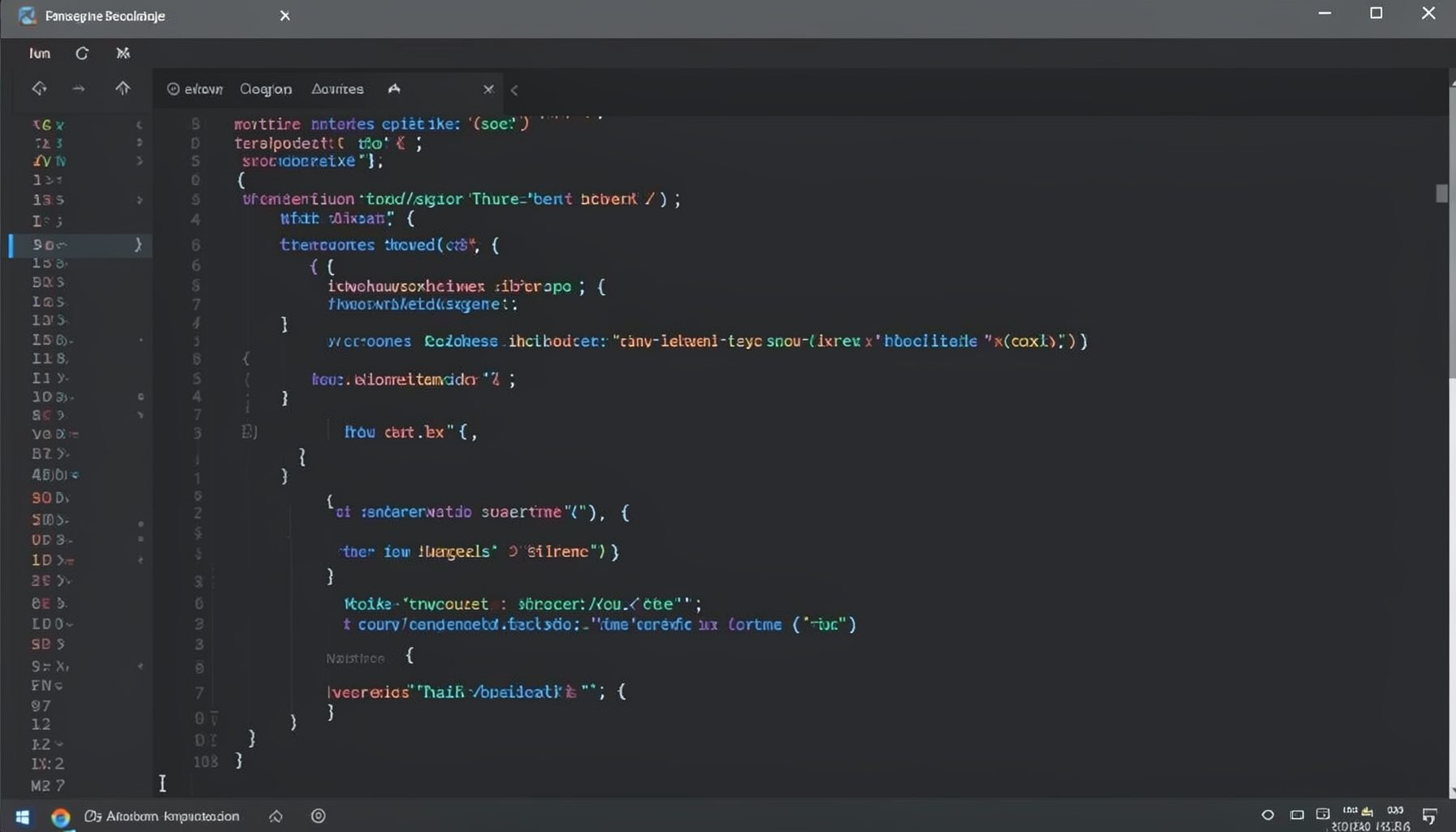
Screen-cast 1: Tab Mode, ECB & More
Covers tab-mode, ECB, Magik Smeller, code folding, visual bookmarks, pragma toggling, moving code, external editor, and MS Explorer.
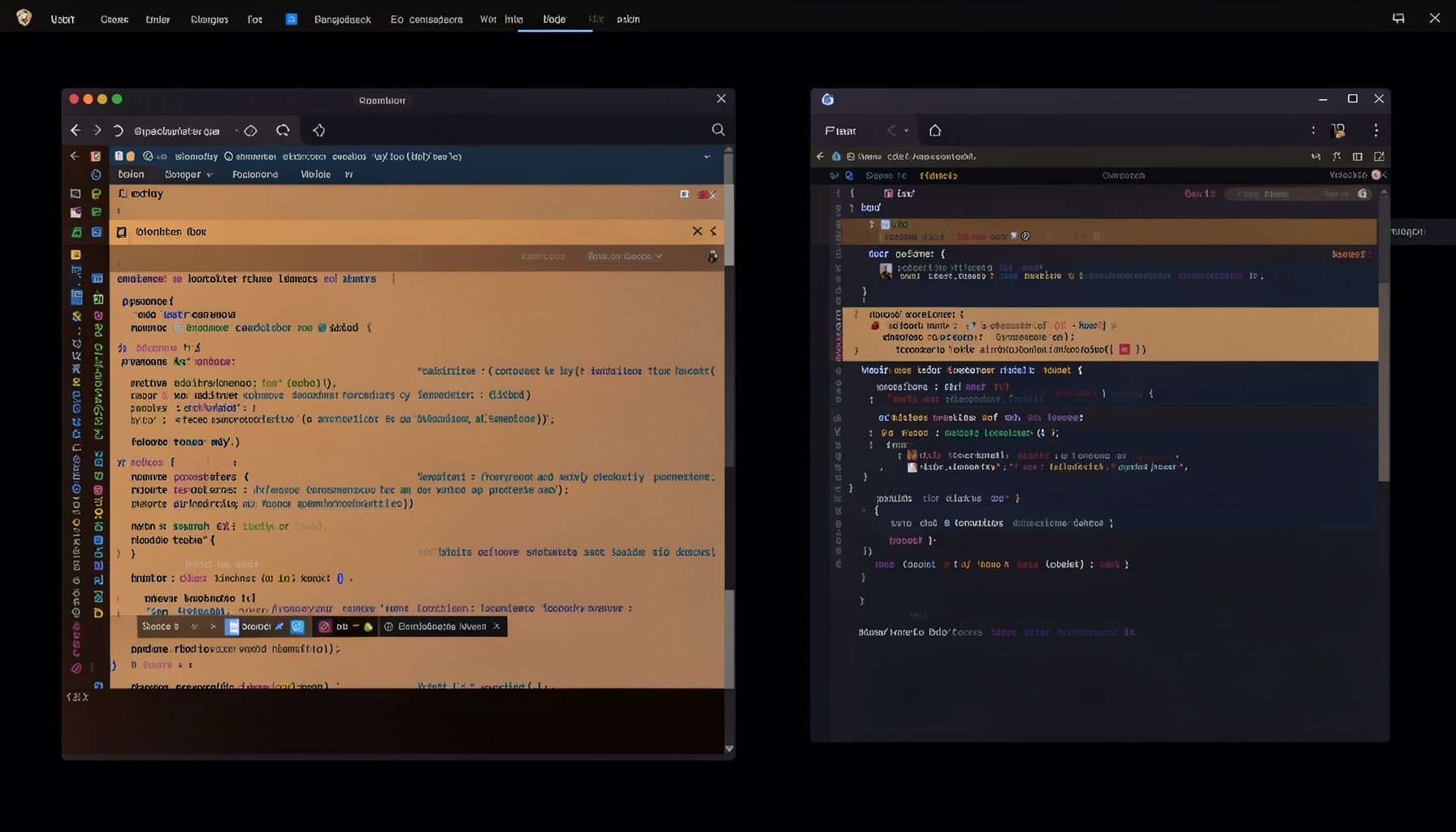
Screen-cast 5: Object Inspection & Deep Print
Inspect a Magik object, prompt for an expression evaluated within a Smallworld session, and display results in a Deep Print buffer.
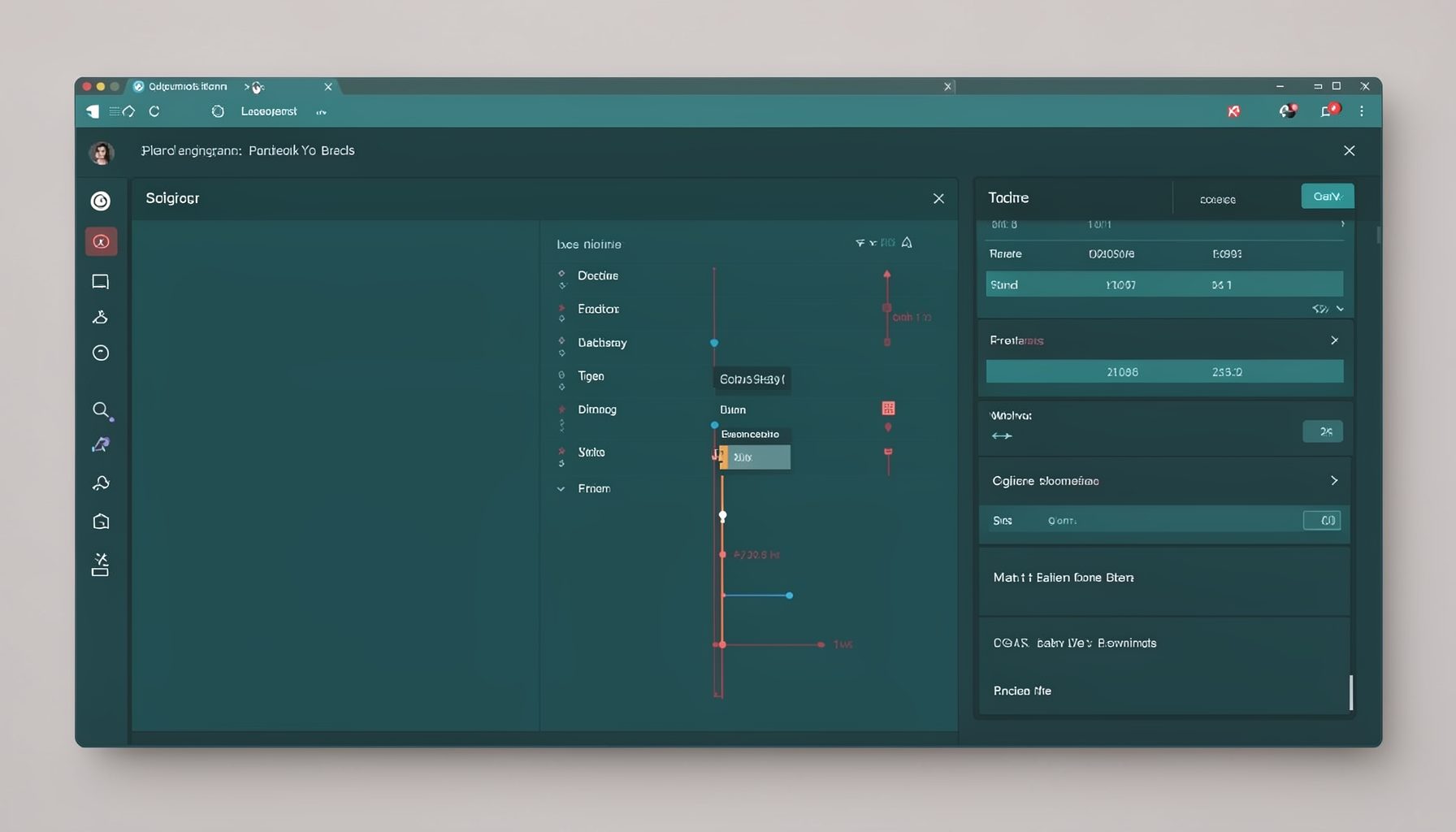
Screen-cast 7: Magik Debugger
Useful tools for application developers: Object Inspector and Magik Debugger with breakpoints and slot/variable monitoring.

Screen-cast 9: Tree Item GUI Control
Tree Item is a GUI control providing extensive facilities for displaying lists with rows, columns, trees, and in-place editing.