Emacs Extensions for
GE Smallworld Magik Development
Screen-casts, tutorials, and productivity tools for Magik programmers who use Emacs. From tab-mode and code folding to the Magik Debugger and object inspector — explore features built by a developer, for developers.
Learn MoreNine screen-casts published between November 2010 and January 2011 — covering everything from ECB mode to the Tree Item GUI control. Read the story behind the project →
Get in Touch
Magik keyword highlighting for custom Emacs words
Magik source code often combines the language’s formal vocabulary with terminology created by a particular GE Smallworld project. Reserved words and built-in calls already receive colour from a Magik major mode in Emacs, while names such as TENANT_ID, CUSTOMER_RECORD and MIGRATION_STATE can remain visually ordinary. Highlighting those project terms as extra keywords improves scanning without changing Magik or turning every repeated identifier into noise.
A dependable setup belongs in Emacs’ font-lock layer, not in the Magik parser. It should run only in Magik buffers, preserve the mode’s existing rules and remain easy to revise when a site adds terminology. This approach uses standard Emacs Lisp and sits comfortably beside code folding, debugging, object inspection and collection analysis.
Why Magik projects need custom words
Font highlighting and language semantics are different. A reserved Magik keyword has meaning to the compiler, whereas a user-defined word is still an ordinary identifier. Adding the latter to a keyword face is therefore a visual convention: it says “this term matters to the project”, without changing name resolution or making the word illegal elsewhere.
That distinction prevents a practical problem. Teams often have an agreed vocabulary for migration states, customer records, tenancy boundaries or validation failures. In a long method, those terms can appear among calls, local variables and collection operations. A distinct face gives reviewers a quick route through the important nouns, especially during debugging or inspection of a Smallworld collection.
For Australian teams in Sydney and Melbourne, this is particularly useful in utilities, mining and customer-service systems that use Smallworld workflows. Names tied to billing or record retrieval can carry unfamiliar local rules. For organisations subject to Australian Privacy Act or AUSTRAC obligations, visible data-flow terminology can help reviewers, although colour itself is never a compliance control.
Inspect the active font-lock setup
Open a representative Magik file and evaluate font-lock-keywords with M-:. The result is a buffer-local list of matching rules, normally including the mode’s reserved words, comments, strings and type names. Also check font-lock-mode and the Magik mode’s own keyword variable. Names differ between packages, but the standard Emacs functions do not.
Do not edit font-lock-keywords as though it were a permanent setting. A mode refresh or major-mode restart can rebuild it. Use M-x describe-mode to identify the installed Magik mode, then inspect font-lock-add-keywords with M-x describe-function. Its buffer argument accepts nil for the current buffer, which makes it suitable for a mode hook.
Check the mode and Emacs versions before copying configuration from another workstation. For a second opinion on editor conventions, the Emacs and Magik notes provide a useful external cross-check. A short reproduction in a scratch buffer will show whether a problem belongs to your keyword rule or to the Magik mode itself.
Compare the extension methods
The practical options differ in scope and maintenance cost. Choose according to whether you need one buffer, a stable personal default or a separately maintained project profile.
| Approach | Best fit | Main advantage | Main limitation |
|---|---|---|---|
font-lock-add-keywords |
Personal or project extension | Preserves built-in rules and targets one buffer | Requires a small hook or setup function |
| Extend the Magik mode’s keyword variable | Package-wide default | Keeps configuration close to the mode | Reset behaviour depends on the installed package |
Replace font-lock-keywords |
Temporary diagnostics only | Gives exact control over the final list | Can remove comments, strings and package rules |
| Define a derived Magik mode | Separate production and migration vocabularies | Makes each profile explicit | More code to maintain when the mode changes |
For most cases, font-lock-add-keywords offers the best balance. It adds a matcher while retaining the existing rules, and its optional case-fold argument can make matching insensitive to case. Editing the mode’s public keyword variable can be cleaner when that package guarantees the variable, but changing the buffer’s complete rule list is brittle because it removes protection for the rest of the mode.
A derived Magik mode is worth the extra maintenance only when a team needs two visibly different vocabularies. It keeps the distinction explicit, yet every future change to syntax highlighting must be copied into the new mode. For one shared list, the mode-hook function is simpler to audit and easier for another Australian maintainer to review.
Build a reusable keyword definition
The most maintainable implementation keeps the words in one custom variable, builds an exact regular expression from that list and registers the matcher from magik-mode-hook. Put the following in your Emacs initialisation file after the Magik mode is available:
(require 'font-lock)

(defcustom magik-user-keywords
  '("CURRENT_USER" "TENANT_ID" "VALIDATION")
  "Extra words to highlight as keywords in Magik buffers."
  :group 'font-lock
  :type '(repeat string))

(defun magik-user-keyword-regexp ()
  "Return an exact, symbol-bounded regexp for user keywords."
  (concat
   "\\<\\(?:"
   (mapconcat #'regexp-quote magik-user-keywords "\\|")
   "\\)\\>"))

(defun magik-highlight-user-keywords ()
  "Highlight `magik-user-keywords` in the current Magik buffer."
  (when magik-user-keywords
    (font-lock-add-keywords
     nil
     `((,(magik-user-keyword-regexp) . font-lock-keyword-face)))
    (font-lock-ensure)))

(add-hook 'magik-mode-hook #'magik-highlight-user-keywords)
regexp-quote makes each configured term literal, so a dot or another regular-expression character cannot broaden the match. The \\< and \\> anchors use Emacs symbol boundaries, which is useful for names containing underscores: TENANT_ID is treated as one identifier rather than a loose collection of fragments. The matcher remains case-sensitive by default, which suits a deliberate uppercase Magik convention.
The list can be changed with customize-set-variables or setq, and customize will present it as a repeatable string option. Keep the default small and purposeful. A long list of generic terms such as DATA, VALUE or STATUS will colour large portions of a file and make the genuinely project-specific words harder to notice.
Apply the setup in an Australian team
Reload the initialisation file, or restart Emacs, and open a Magik file. font-lock-ensure reapplies the rules when needed. If you change the list in an already open buffer, leave Magik mode and enter it again so the previous matcher is discarded. Test names in ordinary code, strings and comments, because font-lock is a presentation layer and rule order can affect what is seen in non-code contexts.
Project-specific lists can live in a small settings file loaded before the relevant buffers. A one-off buffer can use setq-local followed by magik-highlight-user-keywords, which keeps the change out of the global default. This matters for Australian development groups spread across Brisbane, Perth, Sydney and Melbourne: a tenant vocabulary used on one programme should not silently colour unrelated work. Coordinate release notes in local business hours, accounting for Brisbane’s AEST, Perth’s AWST and Melbourne’s daylight-saving changes.
For a distinct appearance, inherit from font-lock-keyword-face in a custom face rather than hard-coding a colour. That choice remains legible with light and dark themes and on shared screens. Use bold or another restrained attribute only when the custom words need to stand apart from built-in Magik keywords.
Verify the result and put it into practice
Verification should cover both appearance and scope. Confirm that each intended word receives the face, that a longer identifier containing the same letters does not, and that reopening the file reproduces the result. M-: (font-lock-keywords) shows what the buffer actually has, while M-: (font-lock-ensure) asks Emacs to apply it. These checks matter when the same buffer is used for method navigation and collection review.
If highlighting disappears, first restore the last known good initialisation file and leave Magik mode with M-x fundamental-mode, then re-enter it with M-x magik-mode. Inspect the hook, keyword list and any project settings file. Do not “repair” the problem by replacing font-lock-keywords; that can hide the real conflict and disturb strings, comments and built-in tokens. A small magik-user-keywords list also makes it easy for another maintainer to see exactly what was added.
Teams using Magik Emacs across an Australian Smallworld estate can turn this into a shared handover item by recording the tested Emacs version, Magik mode package and approved project vocabulary. HydePark Consulting can help standardise that setup while leaving room for site-specific terms. Open one representative Smallworld method now, add the words your team actually uses, and move the verified configuration into the shared Emacs profile.
Core Features
Tab Mode & ECB
Quick tab switching and Emacs Code Browsing mode for navigating Magik codebases efficiently.
Magik Smeller
Code analysis tool that helps identify potential issues in Magik source files.
Code Folding
Hide/Show mode for collapsing and expanding Magik code blocks to focus on what matters.
Visual Bookmarks
Quick visual bookmarks for jumping between key locations in your Smallworld session buffers.
Object Inspector
Inspect Magik objects and display them in an Emacs Deep Print buffer for detailed examination.
Magik Debugger
Set breakpoints and monitor slots and variables directly from within Emacs.
Development Tools
Direct links between Emacs and the Smallworld Development Tools application, including Click Monitor.
Screen-casts & Tutorials
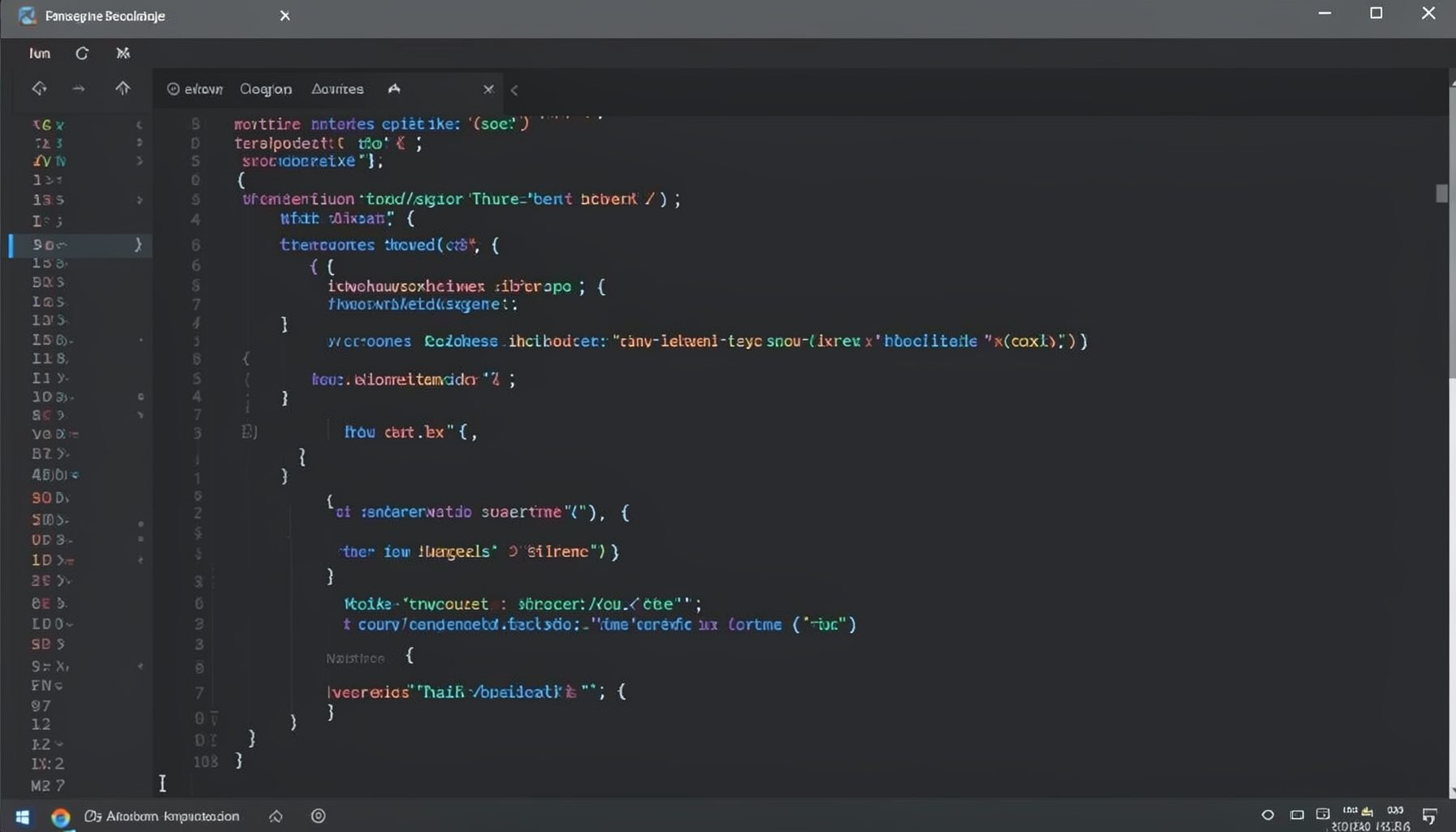
Screen-cast 1: Tab Mode, ECB & More
Covers tab-mode, ECB, Magik Smeller, code folding, visual bookmarks, pragma toggling, moving code, external editor, and MS Explorer.
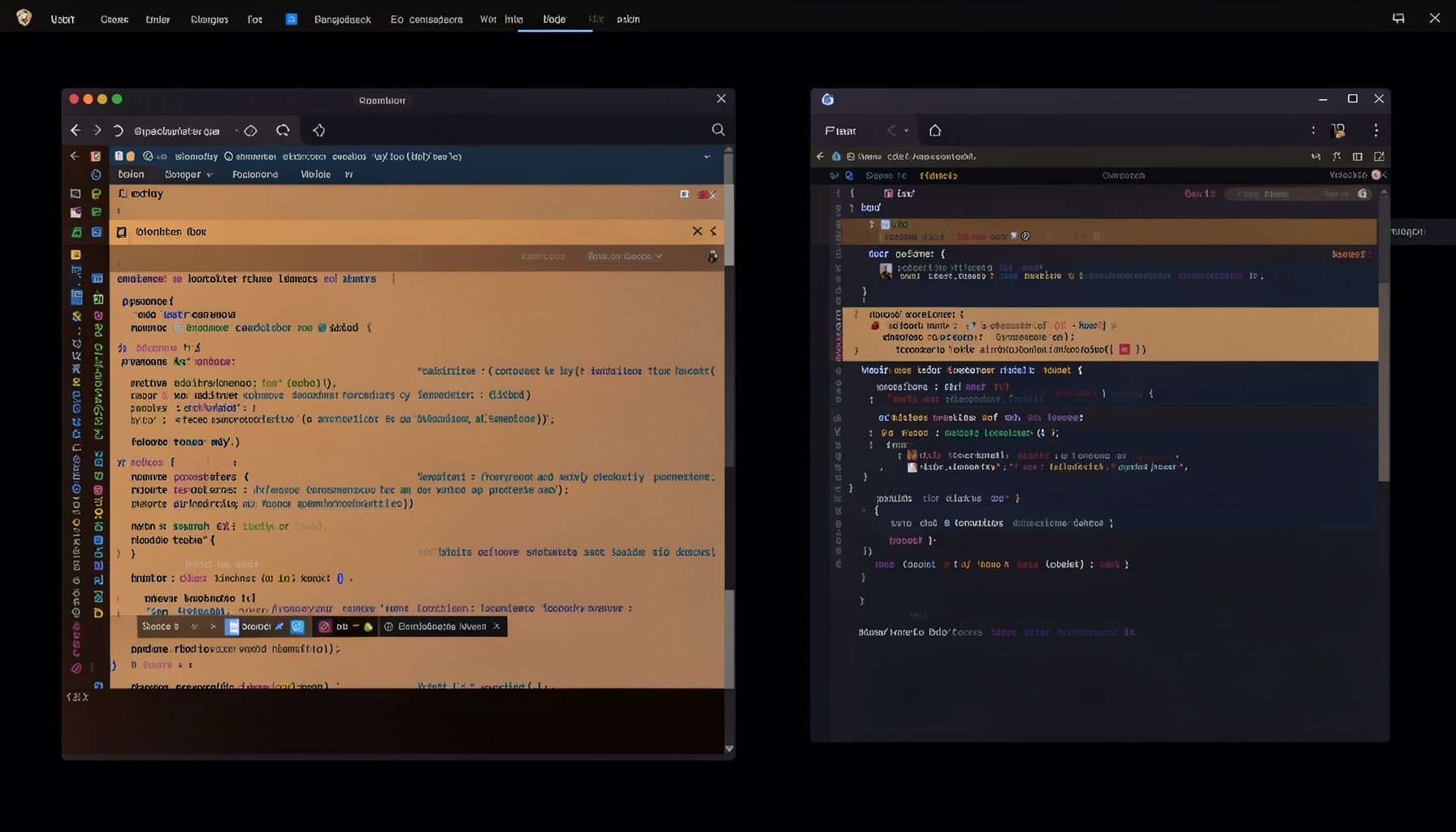
Screen-cast 5: Object Inspection & Deep Print
Inspect a Magik object, prompt for an expression evaluated within a Smallworld session, and display results in a Deep Print buffer.
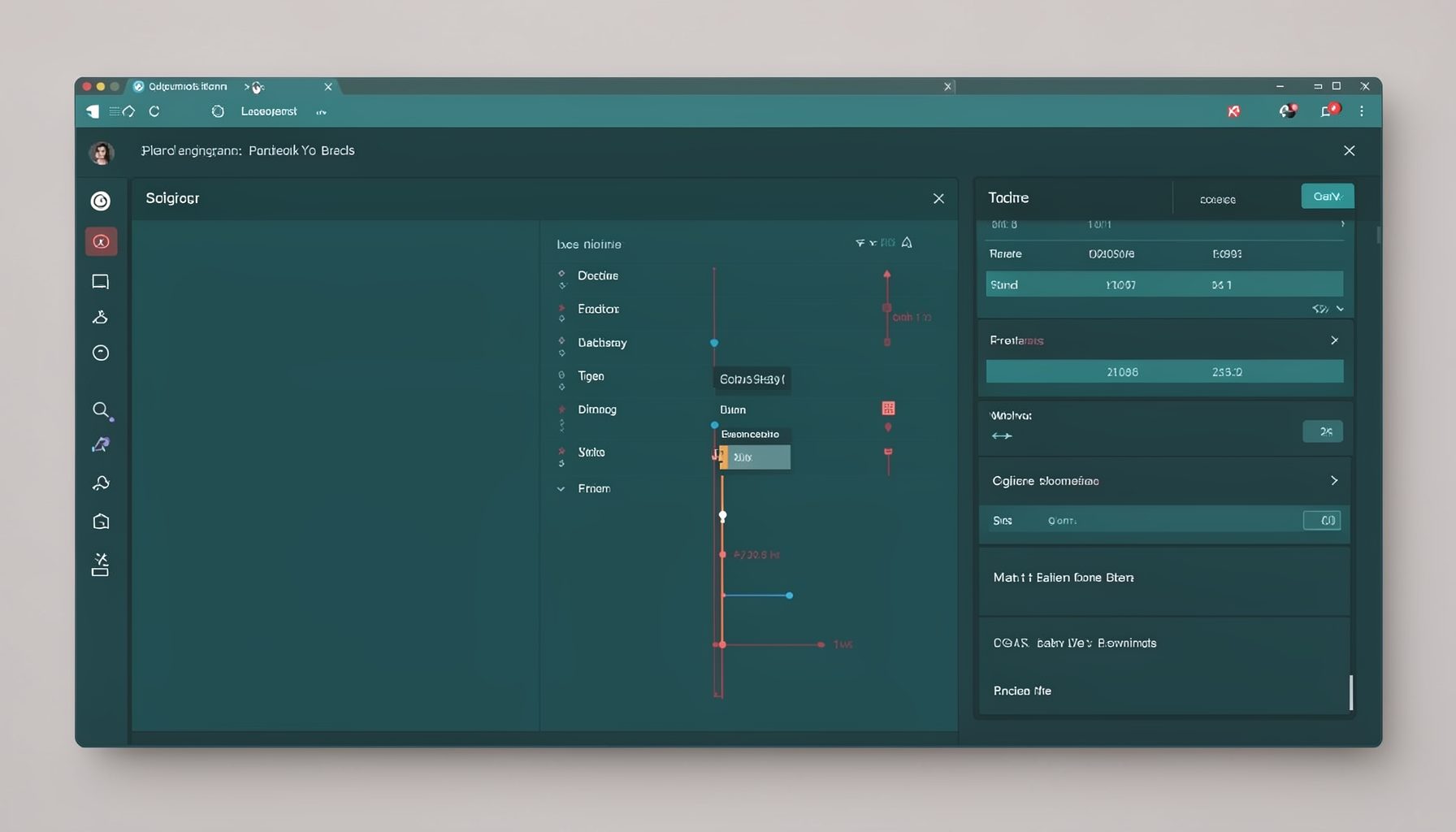
Screen-cast 7: Magik Debugger
Useful tools for application developers: Object Inspector and Magik Debugger with breakpoints and slot/variable monitoring.

Screen-cast 9: Tree Item GUI Control
Tree Item is a GUI control providing extensive facilities for displaying lists with rows, columns, trees, and in-place editing.