Emacs Extensions for
GE Smallworld Magik Development
Screen-casts, tutorials, and productivity tools for Magik programmers who use Emacs. From tab-mode and code folding to the Magik Debugger and object inspector — explore features built by a developer, for developers.
Learn MoreNine screen-casts published between November 2010 and January 2011 — covering everything from ECB mode to the Tree Item GUI control. Read the story behind the project →
Get in Touch
Magik parser errors and line numbers in Emacs
Magik parser errors become far more useful when Emacs can carry the diagnostic back to the offending source line. Raw compiler output can name a file and line, yet next-error still refuses to jump when the message format is not recognised. The usual fix is not to rewrite the parser; it is to teach Emacs how the Smallworld compiler presents syntax diagnostics, then verify that each message resolves to a real Magik buffer.
Parser errors should also be kept separate from later compiler and runtime failures. A parser rejects malformed syntax before a method or procedure can run; a semantic error may refer to a valid expression with the wrong type, while a runtime fault occurs during execution. Each category has a different source location, and a line number only helps when the diagnostic belongs to the compilation stage you are actually debugging.
For Australian Magik teams, that distinction becomes practical when development is split across Sydney, Melbourne, Brisbane and Perth. Teams supporting mining, utility and council estates often compare output from several environments, while local Windows desktops may see the same repository through mapped drives or UNC shares. A line is therefore only useful if Emacs can also find the file, account for the local working directory and preserve the path used by the compiler.
Reading the diagnostic trail
Start by preserving one complete diagnostic, including the filename, line number and text that follows it. A simplified Smallworld compiler message might resemble site_model.magik:184: syntax error: unexpected token; the exact punctuation varies by release and error type, so use real output as the source of truth. For orientation, the About Magik Emacs page explains the extension and HydePark Consulting’s broader context.
The reported line identifies where the parser became aware of the problem, not necessarily where the mistake began. An unclosed string, missing bracket or invalid token can make the parser complain several lines later. Treat the location as a precise entry point, then read the preceding method, procedure or collection definition rather than changing the first suspicious word in isolation.
Path handling is another source of confusion in Australian offices. A project developed in Melbourne may be tested against a server used by a Perth operations team, and a Z:\work\... path can be meaningful on one Windows account but unresolved in Emacs on another. Sydney and Melbourne daylight-saving changes, Brisbane’s unchanged clocks and Perth’s UTC+8 timestamps add context to logs, but they do not alter the parser’s source line.
Connecting Emacs to Magik errors
Emacs does not need a special navigation model for compiler output; compilation mode already provides it. When your Magik Emacs installation exposes M-x magik-compile, use that command so its output remains associated with the current Magik buffer. If it does not, run M-x compile, enter the Smallworld compilation command for the environment and let Emacs create the usual *Compilation* buffer.
Compilation mode reads each diagnostic through compilation-error-regexp-alist. A rule names a regular expression, the capture group containing the filename and the capture group containing the line number. If those groups cannot be found, Emacs still displays the text, but it cannot create a source marker or make M-x next-error visit a location. Generic C and GCC patterns may recognise familiar file:line: output while missing a Magik-specific variation.
For copied messages, open the output buffer and run M-x compilation-mode. When Emacs asks which file the output belongs to, choose the Magik source file if the diagnostics contain line numbers alone. A line-only pattern is useful for a focused compile, yet it is less reliable for a batch build containing several files because every diagnostic could otherwise be attached to the same source.
Matching Magik diagnostic formats
Inspect the rules already supplied by Magik Emacs before adding your own. M-x customize-variable RET compilation-error-regexp-alist shows the active patterns, and compiler output can be checked with M-x compilation-parse-errors. A practical rule for the common file.magik:line: shape looks like this:
(require 'compile)

(add-to-list 'compilation-error-regexp-alist
             '("\\([^ \t\n]+\\.magik\\):\\([0-9]+\\):" 1 2))

(add-to-list 'compilation-error-regexp-alist
             '("\\([^ \t\n,]+\\.magik\\),[[:space:]]*[Ll]ine[[:space:]]+\\([0-9]+\\)" 1 2))

(add-to-list 'compilation-error-regexp-alist
             '("^[[:space:]]*[Ll]ine[[:space:]]+\\([0-9]+\\)" nil 1))

(add-to-list 'compilation-error-regexp-alist
             '("at[[:space:]]+[Ll]ine[[:space:]]+\\([0-9]+\\)" nil 1))
The first rule captures the path in group 1 and the line in group 2. The second handles a comma followed by line, and the last two handle diagnostics that provide only a line number. Adjust the literal spelling, punctuation and filename extension to the Smallworld release in use; a rule that is too broad can classify ordinary compiler prose as an error, while one that is too narrow will leave a useful diagnostic inert.
Keep project paths resolvable as well as recognisable. Set compilation-default-directory to the project root, add relevant directories to compilation-search-path, and ensure that mapped drives are available in the Emacs session. For a remote build, place the source directory on compilation-search-path or open the workspace over TRAMP so next-error has somewhere to visit. These steps matter in Australian teams whose build server, office share and developer workstation do not use identical paths.
Jumping from compiler output to source
Once a rule matches, navigate from the compilation buffer with M-x next-error or C-x o. Emacs opens the recognised file and positions point on the reported line; M-x previous-error moves back through the diagnostic sequence. C-u before next-error can select a later error in a long list. If the source file opens but the location is wrong, check the capture groups before changing the Magik code.
When navigation stops, separate parsing from file discovery. M-x compilation-parse-errors shows whether the message was parsed, while M-x describe-mode confirms that the output buffer is in compilation mode. If Emacs reports that it cannot find the file, the regex probably worked but the path is wrong. Add the compiler’s working directory to compilation-search-path or adjust a drive prefix in the matching expression.
Keep the diagnostic buffer while investigating. g recompiles, and C-c C-k stops a long-running compile when required. A clean second run is useful after correcting a missing delimiter because Magik may report several downstream errors from one malformed construct. Removing stale markers also prevents an old line number from being mistaken for the result of the latest edit.
Several common diagnostic shapes support different levels of navigation:
| Diagnostic shape | Matching rule | Navigation result | Practical limitation |
|---|---|---|---|
file.magik:184: |
Capture filename and 184 |
Opens the file at line 184 | The path must exist on the Emacs host |
file.magik, line 184 |
Capture filename and number | Opens the named file | Punctuation must match exactly |
Line 184 |
Capture the number only | Uses the associated compilation file | Unsuitable for mixed-file batches |
Error detected at line 184 |
Capture the number only | Uses the associated file | File context is absent from the message |
| Message without a number | No useful source match | Remains in the output buffer | The reporter must supply a location |
Make the fix repeatable across the team
A dependable workflow links the message back to a repeatable edit. Compile the smallest relevant method, jump to the first reported line, inspect the preceding syntax and correct one root cause before recompiling. Record the exact diagnostic shape in the team’s Emacs setup so new developers do not have to rediscover it. For Australian support work, include the day-first date, such as 04/07/2026, and preferably an unambiguous ISO timestamp such as 2026-07-04T09:30+10:00; otherwise a valid-looking log can become ambiguous when teams operate across states.
The diagnostic shapes also show why copying a generic expression blindly can waste time. A filename-and-line rule can reopen any listed source file, while a line-only rule should be reserved for output known to concern the current buffer. If a Smallworld release changes its wording, capture one sample, add a narrow rule and test it against both matching and non-matching lines.
Make the setup concrete now: add the verified Magik pattern to your Emacs configuration, run one intentionally failing compile, and press M-x next-error until the reported line opens in the correct source buffer. Share the tested rule with the Australian development team so every workstation reaches the same diagnostic location without relying on a personal patch.
Core Features
Tab Mode & ECB
Quick tab switching and Emacs Code Browsing mode for navigating Magik codebases efficiently.
Magik Smeller
Code analysis tool that helps identify potential issues in Magik source files.
Code Folding
Hide/Show mode for collapsing and expanding Magik code blocks to focus on what matters.
Visual Bookmarks
Quick visual bookmarks for jumping between key locations in your Smallworld session buffers.
Object Inspector
Inspect Magik objects and display them in an Emacs Deep Print buffer for detailed examination.
Magik Debugger
Set breakpoints and monitor slots and variables directly from within Emacs.
Development Tools
Direct links between Emacs and the Smallworld Development Tools application, including Click Monitor.
Screen-casts & Tutorials
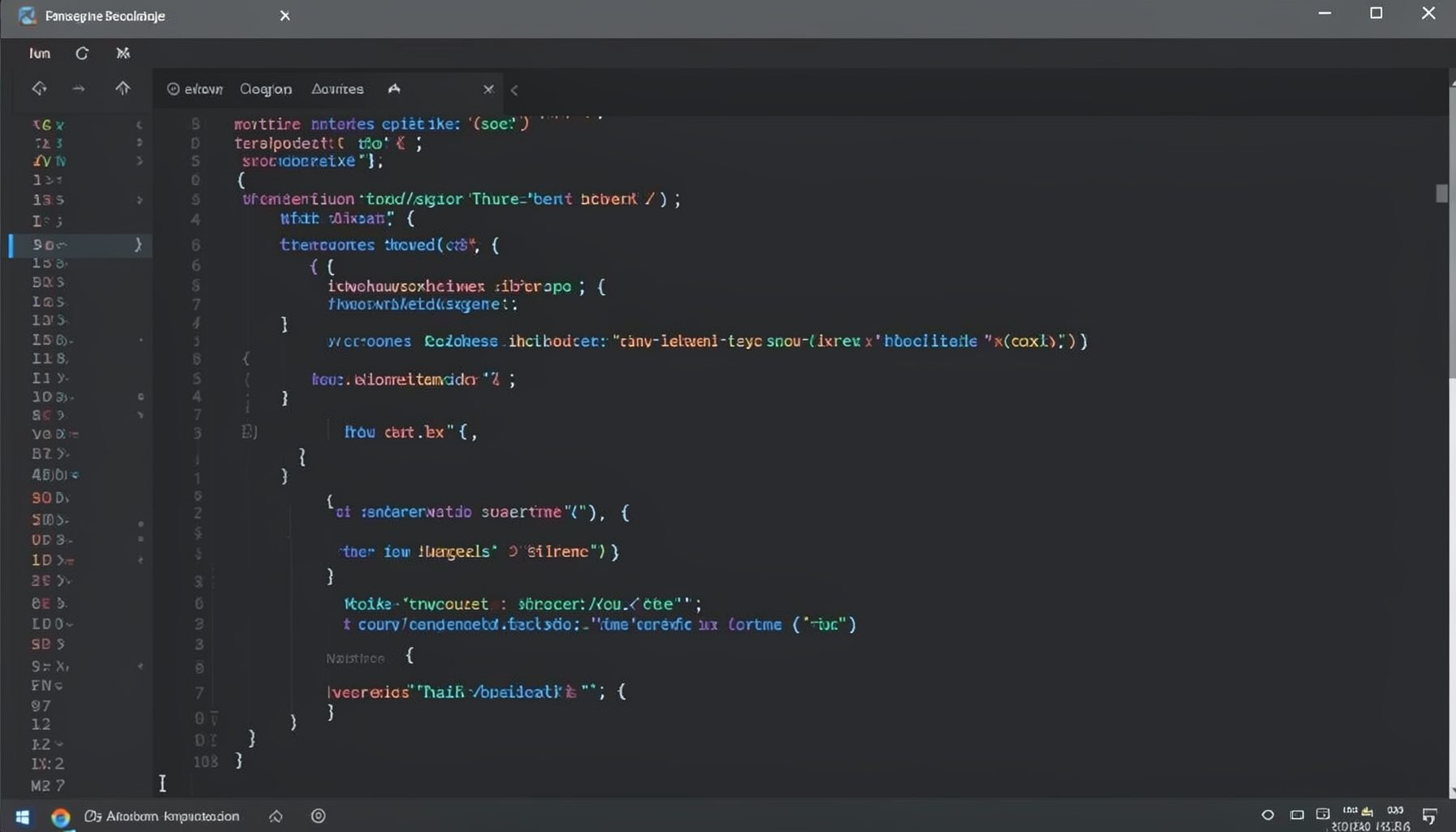
Screen-cast 1: Tab Mode, ECB & More
Covers tab-mode, ECB, Magik Smeller, code folding, visual bookmarks, pragma toggling, moving code, external editor, and MS Explorer.
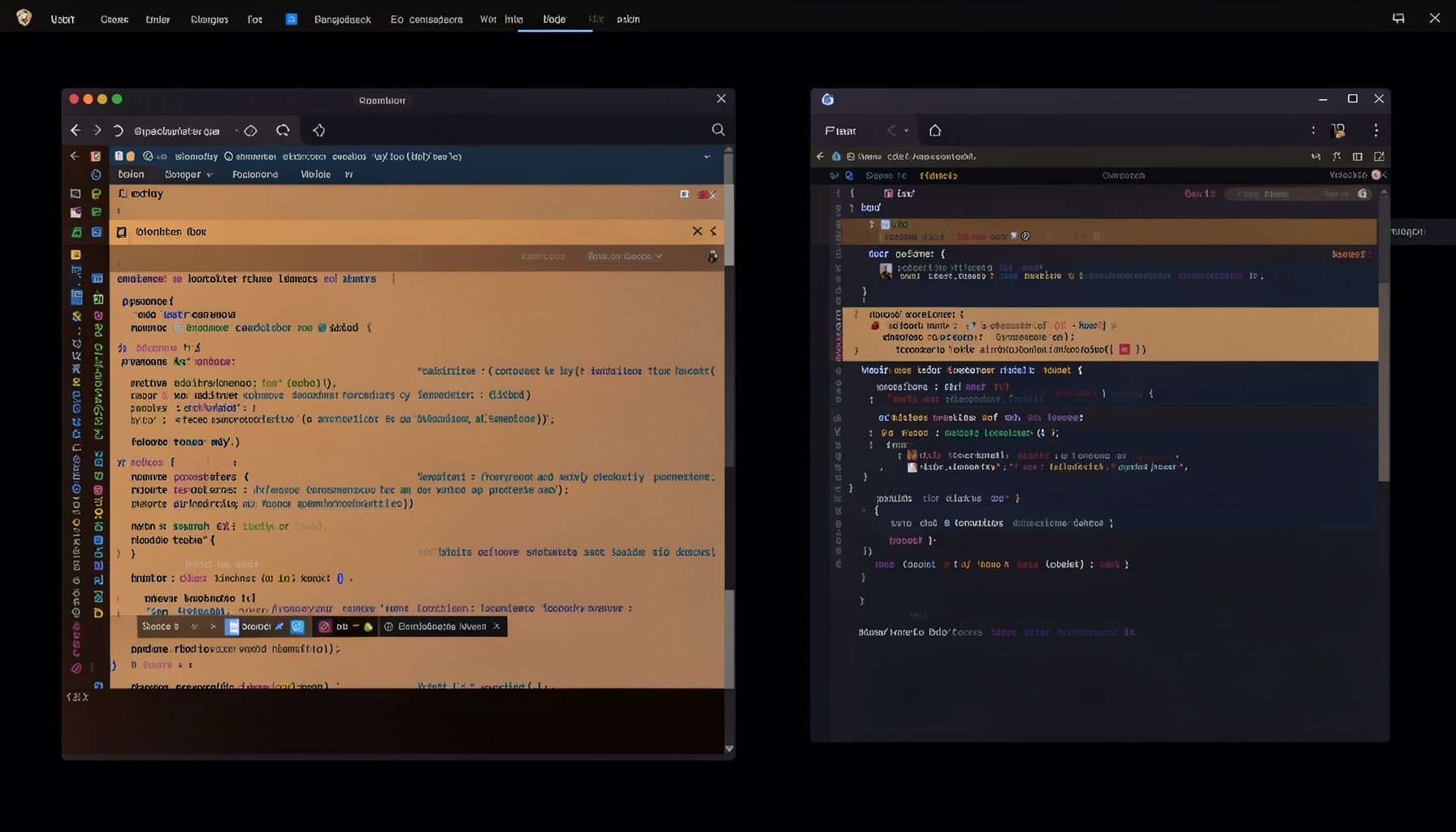
Screen-cast 5: Object Inspection & Deep Print
Inspect a Magik object, prompt for an expression evaluated within a Smallworld session, and display results in a Deep Print buffer.
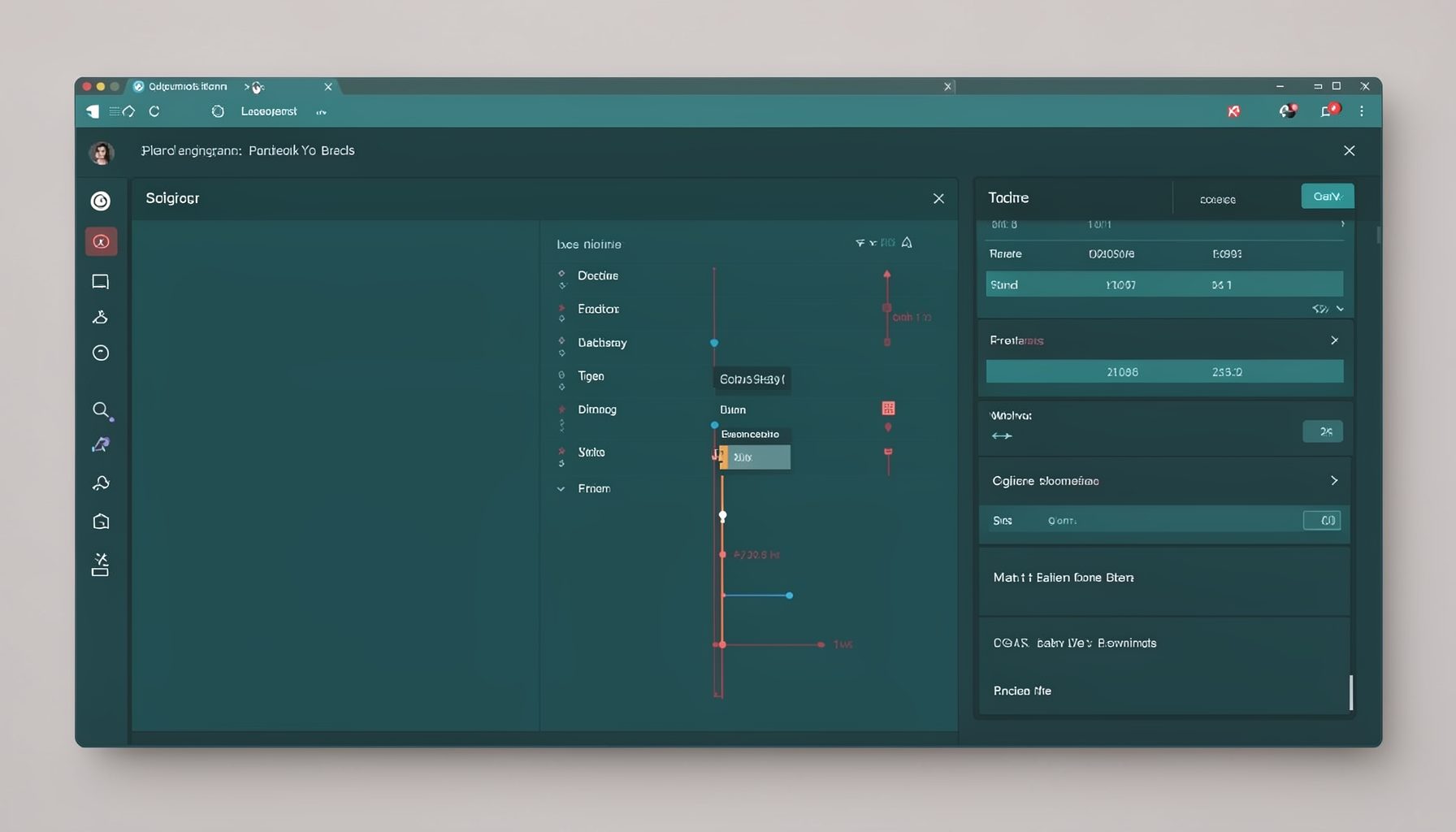
Screen-cast 7: Magik Debugger
Useful tools for application developers: Object Inspector and Magik Debugger with breakpoints and slot/variable monitoring.

Screen-cast 9: Tree Item GUI Control
Tree Item is a GUI control providing extensive facilities for displaying lists with rows, columns, trees, and in-place editing.