Emacs Extensions for
GE Smallworld Magik Development
Screen-casts, tutorials, and productivity tools for Magik programmers who use Emacs. From tab-mode and code folding to the Magik Debugger and object inspector — explore features built by a developer, for developers.
Learn MoreNine screen-casts published between November 2010 and January 2011 — covering everything from ECB mode to the Tree Item GUI control. Read the story behind the project →
Get in Touch
Work Faster With Magik Sessions In Emacs
Magik development often involves a live Smallworld environment: load a method, inspect an object, query a collection, adjust a database setting, and test the result without restarting the entire application. Emacs’s comint library provides a practical bridge between that interactive runtime and the editor. It presents a command-line process in a buffer while adding history, prompt awareness, editable input, and convenient ways to send code.
A session buffer is different from a normal source buffer. Source files remain suitable for review and version control, while the session preserves temporary experiments, printed values, stack traces, and object inspection results. This division is useful when investigating a transport network in Melbourne, a utility dataset in Perth, or a large council mapping installation in Brisbane.
The exact command used to start Magik depends on the Smallworld release, site scripts, operating system, and project configuration. The Emacs side can remain relatively stable. Once comint knows how to launch or attach to the runtime and recognise its prompt, Magik programmers can build a responsive REPL workflow around it.
What Comint Adds To A Magik Workflow
comint is the Emacs library behind many interactive programming modes. It starts an inferior process, displays its standard input and output in a buffer, and handles communication between the buffer and the process. The word “inferior” refers to a process controlled by Emacs, not to the quality or role of the program being run.
For Magik, this means a session buffer can behave like a persistent command window. You can type an expression, press RET, and see the result in context. Previous commands remain available through history, and a failed expression can be edited and resubmitted without copying it from a terminal. Long-running sessions also retain valuable diagnostic output for later inspection.
The session is stateful. Variables assigned during an experiment, loaded modules, selected databases, and modified objects may remain available until the runtime exits or the relevant state is reset. That makes the buffer useful for exploratory programming, but it also means results should be treated as session-specific evidence rather than automatically repeatable tests.
A good workflow keeps production changes in Magik source files and uses the comint buffer for discovery and verification. Once an expression proves useful, move it into a method, test fixture, or script. This avoids turning an interactive buffer into the only record of a crucial operation.
Starting And Connecting To A Session
The simplest setup launches the same Magik command that a developer would use in a terminal. A generic Elisp function might look like this:
(require 'comint)

(defcustom my-magik-command "/path/to/your/magik-launcher"
  "Command used to start the Magik runtime."
  :type 'string)

(defun my-magik-session ()
  (interactive)
  (let ((buffer (get-buffer-create "*Magik Session*")))
    (unless (comint-check-proc buffer)
      (apply #'make-comint-in-buffer
             "Magik" buffer
             my-magik-command nil nil))
    (pop-to-buffer buffer)
    (with-current-buffer buffer
      (comint-mode))))
Replace the launcher with the approved project command, wrapper script, or Smallworld startup program. If the runtime needs switches, database names, login options, or an environment file, add them after the program name in make-comint-in-buffer. Keeping those details in a project-specific variable is safer than embedding site credentials or machine-specific paths in shared configuration.
Some teams start Smallworld first and then use a Magik command window supplied by the application. In that case, comint can still be useful if the runtime exposes a shell process or if an Emacs package supplies a connection command. The important distinction is between launching a fresh interpreter and connecting to an already configured application session. A fresh process may lack the open database, loaded modules, or application context needed to reproduce a defect.
On a managed Australian project, paths and launch procedures can differ between a Sydney office, a Melbourne development laptop, and a client environment hosted in Perth. Store local values in .dir-locals.el, an ignored custom file, or an environment variable. This lets a shared Emacs configuration describe the workflow without assuming that every developer has the same drive letters, container paths, or network mounts.
Sending Code Without Losing Context
A comint buffer accepts ordinary text, but it needs to know where user input begins and where the process prompt ends. The prompt is identified through comint-prompt-regexp. If this expression is wrong, commands may be sent into old output, prompts may be treated as editable text, or navigation commands may behave unpredictably.
Set the expression to match the prompt produced by the local Magik runtime rather than copying a pattern from an unrelated shell. For example:
(defun my-magik-comint-setup ()
  (setq-local comint-prompt-regexp "^[[:space:]]*Magik>[[:space:]]*")
  (setq-local comint-input-sender
              #'comint-simple-send))

(add-hook 'comint-mode-hook #'my-magik-comint-setup)
The prompt shown here is illustrative. Inspect the actual characters printed by your session, including punctuation, continuation markers, and any package or application prefix. A prompt that changes between normal input and a continuation line may require a broader regular expression.
When a Magik editing mode provides commands for sending a line, region, method, or buffer, those commands should target the current comint process. Sending a complete method is often more reliable than sending a visually selected fragment, since Magik syntax can depend on method boundaries and indentation. For small investigations, send a single expression and wait for the next prompt before issuing a dependent command.
Use comint-magic-space and history navigation where appropriate, but be careful with automatic expansion features inherited from shell modes. Magik syntax may contain characters that a shell would interpret specially. The session should transmit Magik source as input to the interpreter, not transform it as if it were a Unix command line.
Reading Output And Inspecting Objects
Interactive output is most useful when it remains legible. Long collection dumps, geometry values, and object descriptions can overwhelm a buffer quickly. Set a sensible comint-buffer-maximum-size, enable scrolling behaviour that suits your work, and save significant output to a log when investigating a production issue.
(defun my-magik-session-options ()
  (setq-local comint-buffer-maximum-size 100000)
  (setq-local comint-scroll-to-bottom-on-output 'this)
  (setq-local comint-scroll-show-maximum-output t))
The right limit depends on the investigation. A small value keeps routine sessions responsive; a larger value helps when analysing a complicated database or a batch import. Avoid relying on the live buffer as the sole audit trail. Copy reproducible commands into a source file and record environment details separately, especially when client data is involved.
Object inspection works well as a gradual process. Start with the object’s class or printed representation, then inspect relevant attributes, collection sizes, keys, or relationships. Narrowing the query before printing every element reduces noise and makes it easier to spot a meaningful value in a comint buffer.
This approach is valuable in sectors common to the Australian market, including water utilities, mining infrastructure, local government, and transport planning. A developer examining a large asset collection in Adelaide or a regional network in Queensland can use the session to test assumptions against live data while keeping exploratory commands separate from deployed code.
Debugging And Navigating Live Code
A live session shortens the path between an error and a useful observation. After a failure, retain the stack trace, identify the method and receiver involved, then inspect the receiver directly. If the runtime offers debugger commands or an interactive break loop, comint preserves the dialogue in the same buffer, allowing you to review earlier input while deciding what to evaluate next.
Method navigation in the source editor complements this process. Find the method named by the error, inspect callers and related implementations, then send a focused expression back to the session. This cycle is faster than repeatedly restarting an application and manually reproducing every setup step.
Use separate session buffers for separate contexts. Names such as *Magik Dev*, *Magik Test Database*, and *Magik Client Investigation* make it harder to evaluate a destructive command in the wrong environment. Session names also help when a team works across a local test database, a shared integration system, and an overnight batch environment.
A useful safety practice is to display the current database, application mode, or project identifier immediately after starting a session. Make that check part of the routine before changing records. Australian teams working across AEST, ACST, and AWST should also record timestamps with an explicit zone when correlating session output with scheduled jobs or service logs.
Keeping The Setup Reliable For Teams
A shared configuration should separate stable editor behaviour from local runtime details. The repository can contain functions for starting a session, prompt handling, source-to-process commands, and key bindings. Individual developers can provide the executable path and connection arguments through environment variables or a private customisation file.
Key bindings should reflect actions that happen frequently. For example, a project may bind one command to start the session and another to send the current method. Avoid creating a large collection of shortcuts before the basic process is reliable. Prompt detection, correct working directories, and predictable error handling matter more than a densely customised interface.
Test the setup with a small checklist: start a clean process, evaluate a harmless expression, send a method from a Magik buffer, trigger a controlled error, inspect an object, and restart the session. Verify that commands sent after an error reach the new prompt rather than being appended to the diagnostic text. Check that the configuration works when the process exits unexpectedly as well.
The comparison below separates common working styles and shows where comint provides the greatest advantage:
| Working style | Strength | Limitation | Best use |
|---|---|---|---|
| Terminal session | Closely matches existing site procedures | Source and output are separated | Startup, administration, quick checks |
| Emacs comint buffer | History, editable input, persistent output, editor integration | Requires prompt and process configuration | Daily exploration and debugging |
| Script or batch run | Repeatable and suitable for automation | Slower for small experiments | Regression checks and scheduled work |
| Fully integrated Magik mode | Rich navigation and send-code commands | Depends on package and release details | Method development in a mature setup |
| Separate application debugger | Strong runtime context | Less convenient for source editing | Deep breakpoints and application faults |
Treat the comint session as part of the development toolchain rather than as a disposable terminal replacement. Document the launch command, required environment variables, prompt format, and safe test expression in the project’s developer notes. That documentation reduces onboarding time for a new engineer joining a Canberra government project or a distributed team supporting clients across Australia.
Configure one clean session, verify that code can travel from a Magik buffer to the live interpreter, and record the small project-specific details that make it repeatable. Magik Emacs users can then explore objects, diagnose failures, and validate methods with less context switching while keeping durable changes in version-controlled source. Explore the session features and consulting resources on Magik Emacs to build that workflow around your own Smallworld environment.
Core Features
Tab Mode & ECB
Quick tab switching and Emacs Code Browsing mode for navigating Magik codebases efficiently.
Magik Smeller
Code analysis tool that helps identify potential issues in Magik source files.
Code Folding
Hide/Show mode for collapsing and expanding Magik code blocks to focus on what matters.
Visual Bookmarks
Quick visual bookmarks for jumping between key locations in your Smallworld session buffers.
Object Inspector
Inspect Magik objects and display them in an Emacs Deep Print buffer for detailed examination.
Magik Debugger
Set breakpoints and monitor slots and variables directly from within Emacs.
Development Tools
Direct links between Emacs and the Smallworld Development Tools application, including Click Monitor.
Screen-casts & Tutorials
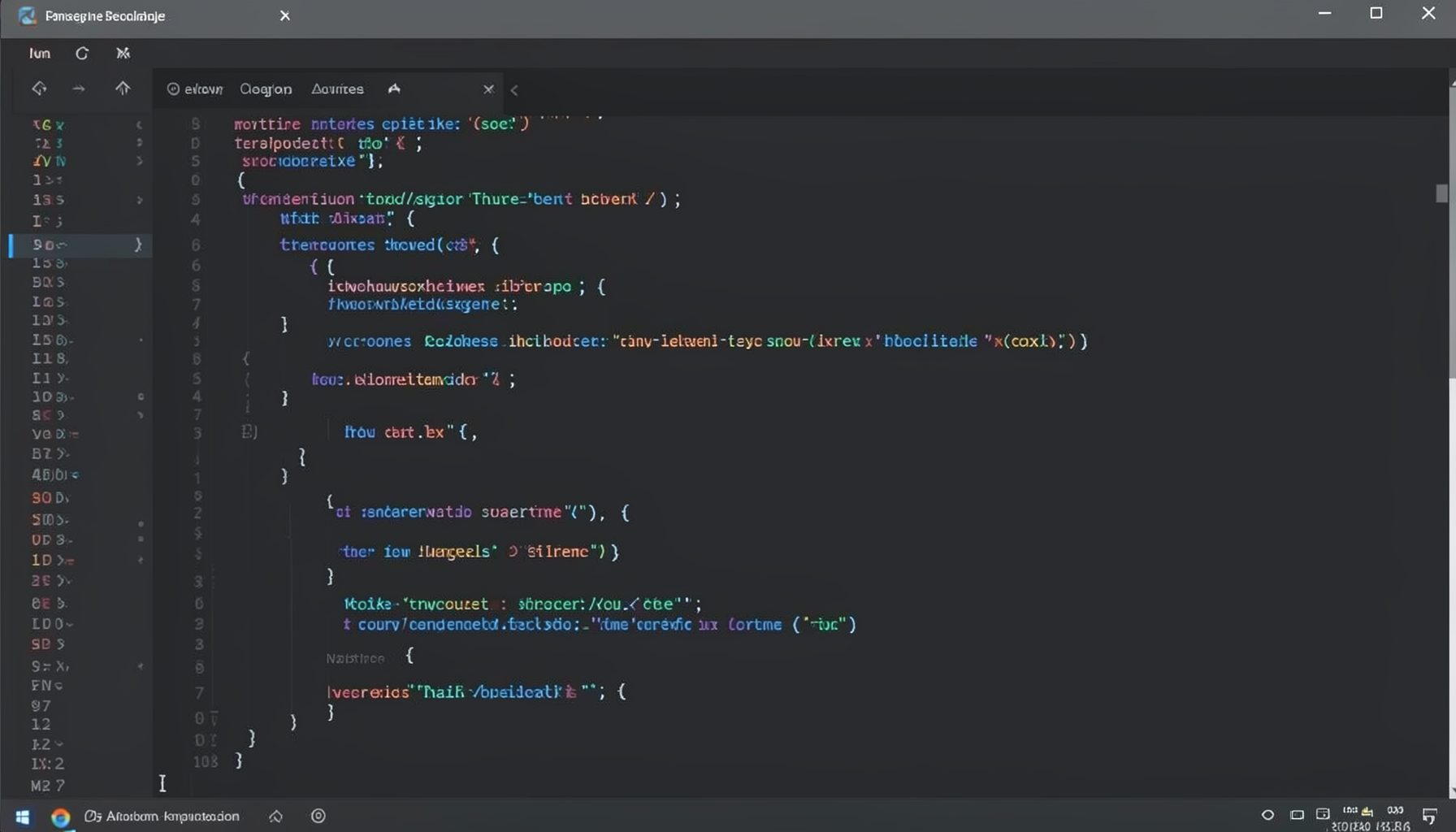
Screen-cast 1: Tab Mode, ECB & More
Covers tab-mode, ECB, Magik Smeller, code folding, visual bookmarks, pragma toggling, moving code, external editor, and MS Explorer.
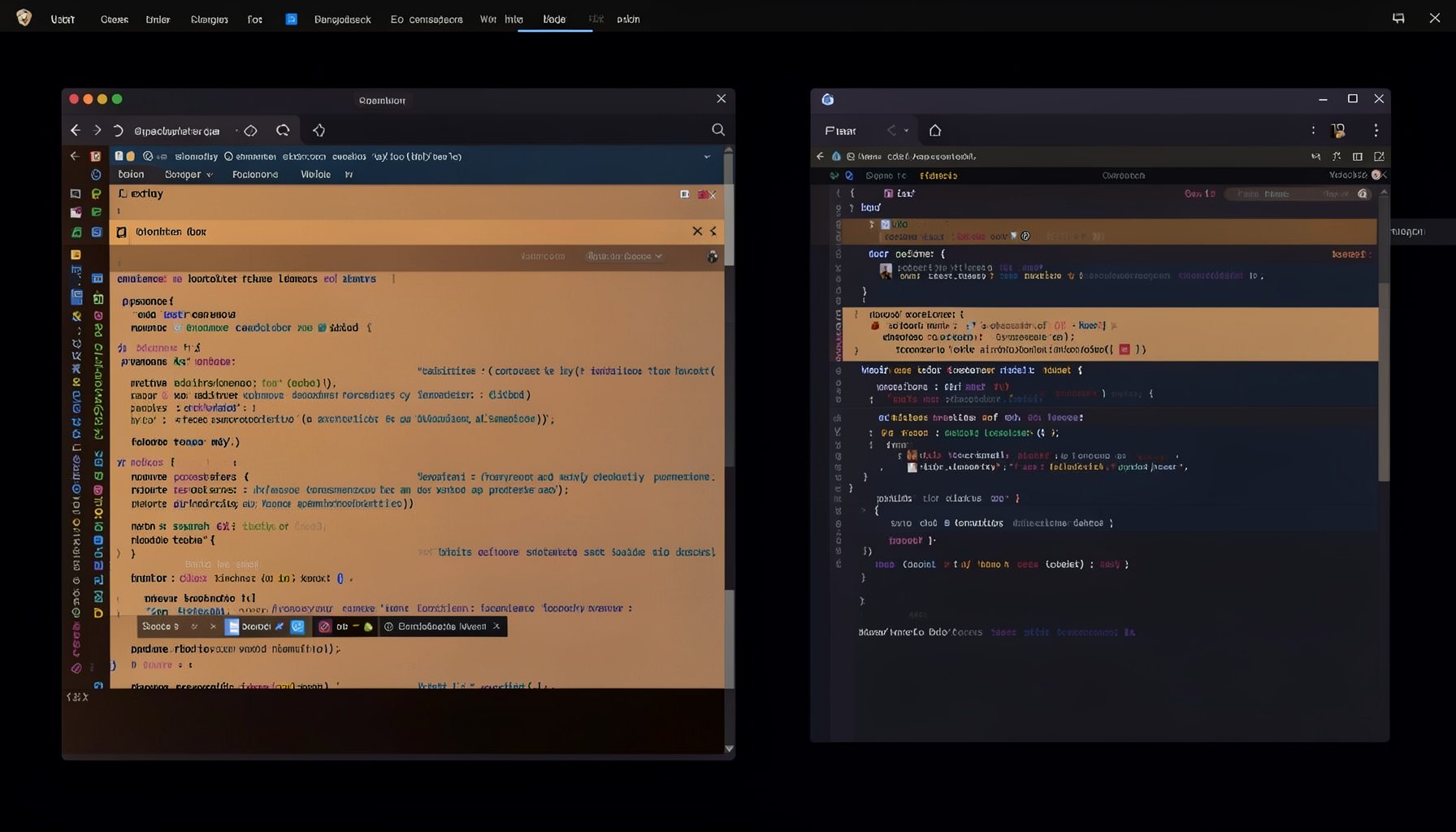
Screen-cast 5: Object Inspection & Deep Print
Inspect a Magik object, prompt for an expression evaluated within a Smallworld session, and display results in a Deep Print buffer.
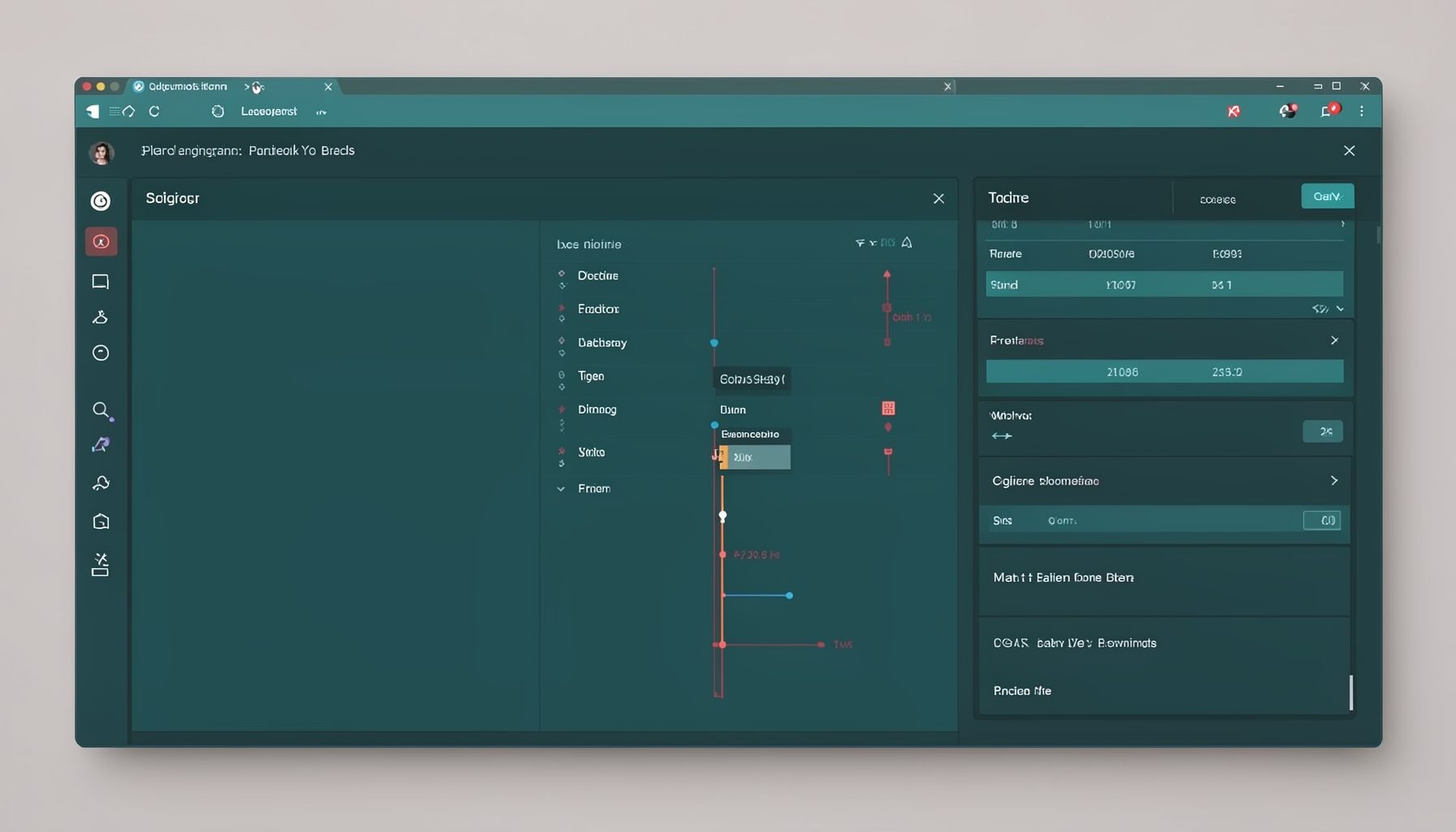
Screen-cast 7: Magik Debugger
Useful tools for application developers: Object Inspector and Magik Debugger with breakpoints and slot/variable monitoring.

Screen-cast 9: Tree Item GUI Control
Tree Item is a GUI control providing extensive facilities for displaying lists with rows, columns, trees, and in-place editing.