Emacs Extensions for
GE Smallworld Magik Development
Screen-casts, tutorials, and productivity tools for Magik programmers who use Emacs. From tab-mode and code folding to the Magik Debugger and object inspector — explore features built by a developer, for developers.
Learn MoreNine screen-casts published between November 2010 and January 2011 — covering everything from ECB mode to the Tree Item GUI control. Read the story behind the project →
Get in Touch
Navigate Magik source files faster with Imenu and Speedbar
Large Magik codebases can be difficult to traverse when a single source file contains years of maintenance work, several related classes, and a long sequence of methods. Searching for a method name is useful, but it often takes several steps to understand where that method sits within a class or package. Emacs provides a faster alternative through Imenu and Speedbar, especially when Magik-aware syntax support is configured correctly.
Imenu gives you a searchable index of definitions in the current buffer, while Speedbar provides a persistent overview of files and symbols. Used together, they create a practical navigation layer for Smallworld development. This is valuable for consultants and in-house GIS teams working across distributed Australian projects, where source trees may be shared between offices in Sydney, Melbourne, Brisbane, or Perth.
How Imenu understands Magik structure
Imenu builds an index from recognisable source constructs and displays them in the menu bar or through a completion prompt. In a Magik buffer, a useful index can include classes, methods, private methods, and other definitions identified by the active Magik major mode. Selecting an entry moves point directly to its declaration, removing the need to scroll through a long file or repeat a broad text search.
The usual command is M-x imenu. If the Magik mode adds Imenu support, Emacs presents a list of relevant definitions. You can type part of a class or method name to narrow the results, which is particularly effective when a file contains many methods with similar names. Adding Imenu to the menu bar with imenu-add-to-menubar can suit occasional users, while completion-based access is generally quicker for developers who keep their hands on the keyboard.
Magik method names often communicate both the receiver and the operation, so an index can become a compact map of an object’s behaviour. A developer inspecting a collection class might jump directly to iteration, lookup, or conversion methods, then return to the class declaration without losing the original context. This style of navigation is more useful than a flat list of matching lines because it preserves the program’s conceptual structure.
Making Imenu reliable in a working buffer
The quality of an Imenu index depends on the major mode recognising the syntax and on Emacs knowing when to refresh the index. If a newly added method does not appear, try rescanning the buffer or invoking Imenu again after saving. Settings such as imenu-auto-rescan can help keep the index current, although very large files may benefit from deliberate rescanning rather than continuous updates.
A practical first check is the active major mode. The mode line should show the expected Magik mode rather than plain text or a generic programming mode. Syntax highlighting, indentation, comment handling, and Imenu are often connected: if method declarations are not highlighted correctly, the index may also fail to identify them. Confirming the file extension association and loading the Magik Emacs package before opening source files can resolve several apparent navigation problems.
Teams with a customised coding style may need to extend Imenu’s patterns. Magik files can contain project-specific conventions for generated methods, mixins, or documentation blocks. An imenu-generic-expression entry can be added when the standard mode does not recognise a useful declaration form. This should be tested against real project files, since an overly broad regular expression can create duplicate or noisy entries.
For code stored on a network share or accessed through a remote development setup, index refresh speed also matters. A Melbourne developer connecting to a repository hosted in another state may notice delays when Emacs repeatedly reads a large file. Keeping local working copies, limiting unnecessary rescans, and using version control to inspect recent changes can make navigation feel substantially more responsive.
Using Speedbar as a persistent code map
Speedbar opens a dedicated frame or window containing files, directories, and available symbols. It is useful when moving between several Magik files because the directory view remains visible while the editing window changes. M-x speedbar starts it, and clicking a file or definition takes you to the associated location. Depending on the configured back-end, Speedbar can obtain symbols from Imenu, tags, or other Emacs indexing facilities.
Imenu is usually best for a focused search inside the current buffer. Speedbar is better for maintaining spatial awareness across a source tree. A developer can keep a package directory open in Speedbar, expand the class file, inspect its method list, and then move to a sibling implementation without repeatedly opening file prompts. This is especially helpful in GIS applications where a user-facing tool may depend on several related Magik classes and configuration files.
Speedbar is also useful during debugging. After a backtrace identifies a method, the file can be opened at the relevant definition, while the surrounding symbol list remains available for examining callers, helper methods, or nearby state-management code. The workflow reduces the mental cost of switching between a debugger buffer, source files, and object inspection commands.
On modern laptops, a separate Speedbar frame may be less convenient than a side window. Emacs window-management commands can place Speedbar beside the source buffer, leaving enough width for method names without shrinking code excessively. Developers working on a smaller screen during a site visit or while travelling between offices may prefer opening Speedbar only when needed and closing it after locating the target definition.
A practical workflow for Magik projects
Begin by opening the main source file and invoking Imenu to establish whether the Magik definitions are indexed correctly. Search for the class or method by name, jump to it, and use the usual Emacs commands to save the location in a mark or bookmark. When the investigation spans multiple files, open Speedbar and expand the relevant package directory. This gives you a repeatable route from a high-level component to its implementation details.
A useful sequence during maintenance work is to start with the method named in a ticket, inspect the receiver’s class, and then follow related methods through Imenu. If the method delegates to another object, use Speedbar to open that object’s source file. For collection or database analysis, this makes it easier to compare the method that retrieves data with the method that filters, groups, or formats it.
Australian teams often work across different time zones, with Perth, Adelaide, Brisbane, Melbourne, and Sydney developers collaborating during overlapping but imperfect hours. A predictable navigation setup reduces the need for lengthy screen-sharing explanations. A colleague can refer to a class and method name in a review note, and another developer can locate the exact definition quickly even when the repository contains several similarly named files.
Source navigation also supports safer changes. Before editing a method, inspect nearby definitions and the class hierarchy where available. Check whether a private helper is reused elsewhere, and use version-control searches to identify callers. This matters in regulated or public-sector GIS work, where a small change to an address, asset, or planning workflow can affect operational records and must be reviewed carefully.
Troubleshooting and refining the setup
When Imenu is empty, check the buffer’s major mode, file association, and package loading order first. Restarting Emacs may hide the real cause, so M-x describe-mode and inspection of the relevant Magik mode configuration are more informative. If only some declarations are missing, compare their formatting with a method that appears correctly. Differences in indentation, generated syntax, or declaration style often reveal why the parser or regular expression did not match.
If Speedbar shows files but no symbols, its indexing source may not be connected to the active Magik mode. Check whether the mode supplies Imenu data or whether the project relies on tags or Semantic. A tags-based setup can be effective for a stable codebase, while Imenu is often more immediate for the current file. Large repositories may benefit from generating tags as part of a build or checkout process, provided the tags are refreshed when source files change.
Keep navigation settings in the same Emacs configuration used by the team where practical. Shared setup improves onboarding and makes screen-casts or internal documentation easier to follow. It is also worth documenting local paths and remote file access separately, since a configuration that works on a Sydney workstation may need adjustments for a Linux build host or a Perth office network.
Australian project environments may also impose data-handling requirements. If source files or test fixtures contain personal information, teams should apply the safeguards expected under the Privacy Act 1988 and their organisation’s security policy. Fast navigation should support responsible development rather than encourage copying sensitive data into temporary buffers, unsecured notes, or unapproved remote tools. The same care applies to public-sector systems governed by state information-management rules and contractual controls.
A small amount of configuration usually produces the best result: reliable Magik syntax support, a useful Imenu index, a convenient Speedbar position, and key bindings that match existing Emacs habits. Developers who prefer keyboard navigation can bind Imenu to a short command and use completion. Developers who work visually across many files may keep Speedbar docked as a narrow project browser. Both approaches provide a faster route through Magik source without changing the language or project layout.
Try Imenu on a representative Magik file, then add Speedbar when your task crosses class or package boundaries. For help integrating Magik navigation into an existing Emacs setup, contact HydePark Consulting about the available extensions, tutorials, and consulting support. A consistent navigation workflow can turn source exploration from a slow search exercise into a direct path from class, to method, to the code that needs attention.
Core Features
Tab Mode & ECB
Quick tab switching and Emacs Code Browsing mode for navigating Magik codebases efficiently.
Magik Smeller
Code analysis tool that helps identify potential issues in Magik source files.
Code Folding
Hide/Show mode for collapsing and expanding Magik code blocks to focus on what matters.
Visual Bookmarks
Quick visual bookmarks for jumping between key locations in your Smallworld session buffers.
Object Inspector
Inspect Magik objects and display them in an Emacs Deep Print buffer for detailed examination.
Magik Debugger
Set breakpoints and monitor slots and variables directly from within Emacs.
Development Tools
Direct links between Emacs and the Smallworld Development Tools application, including Click Monitor.
Screen-casts & Tutorials
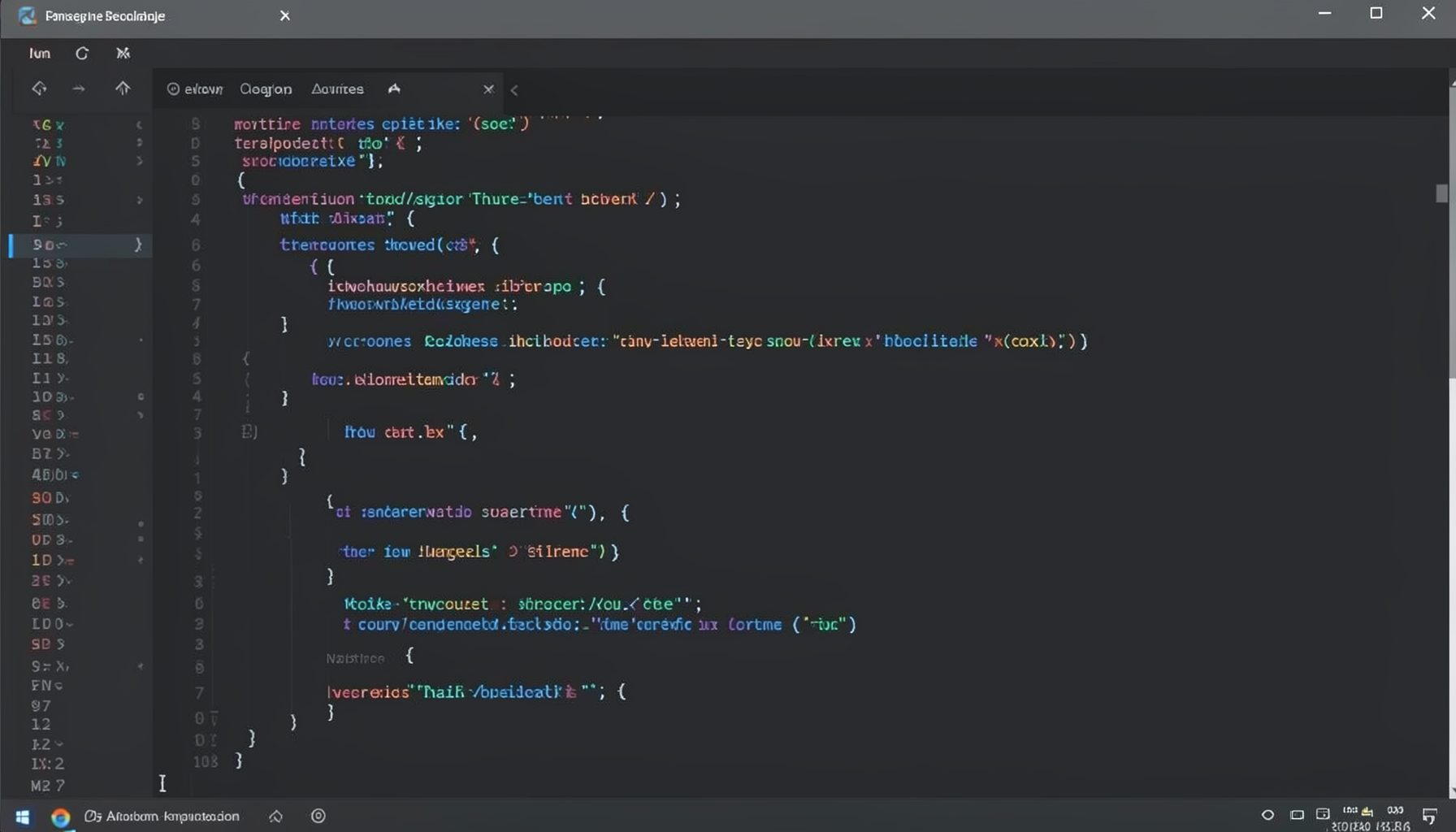
Screen-cast 1: Tab Mode, ECB & More
Covers tab-mode, ECB, Magik Smeller, code folding, visual bookmarks, pragma toggling, moving code, external editor, and MS Explorer.
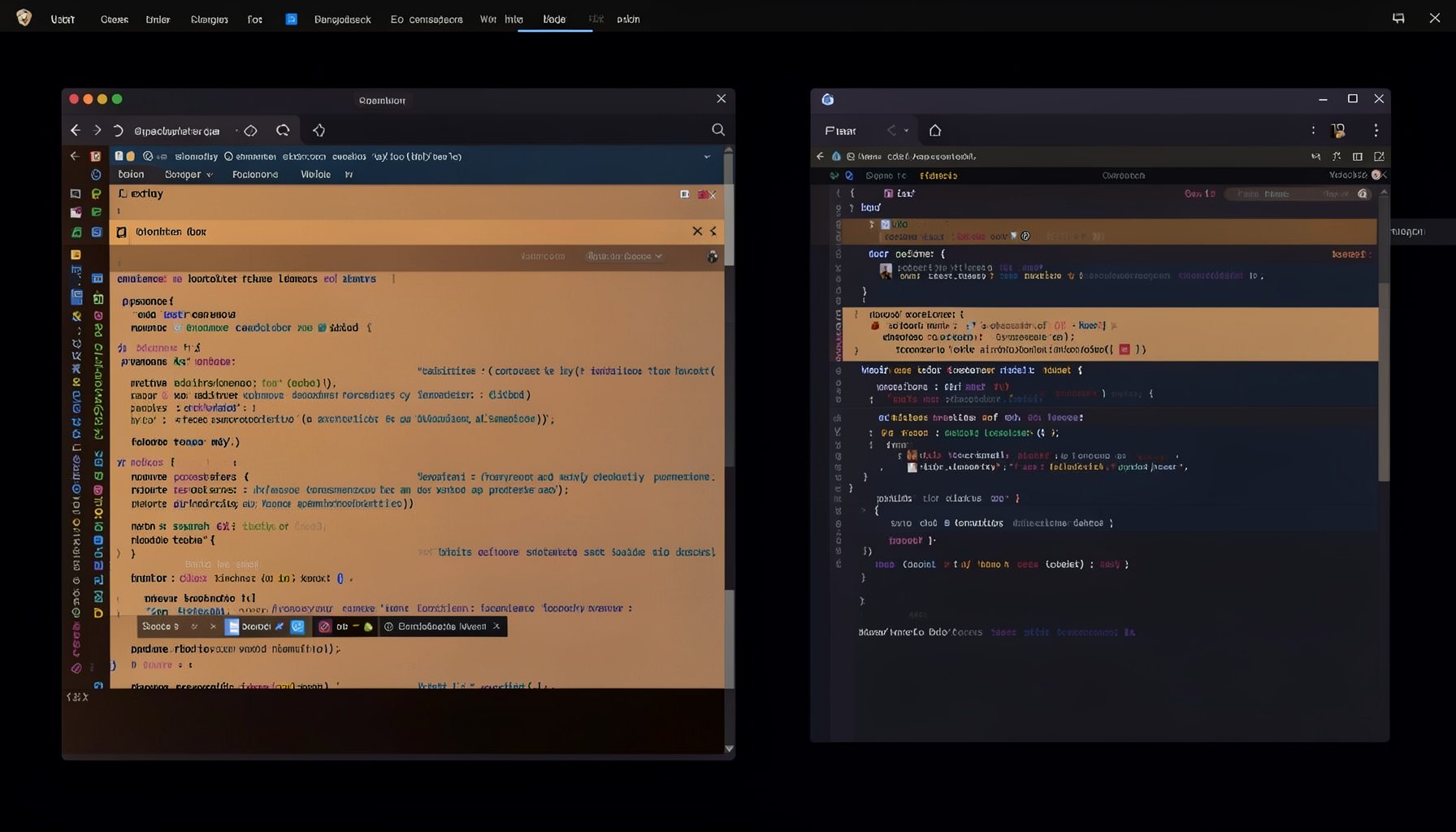
Screen-cast 5: Object Inspection & Deep Print
Inspect a Magik object, prompt for an expression evaluated within a Smallworld session, and display results in a Deep Print buffer.
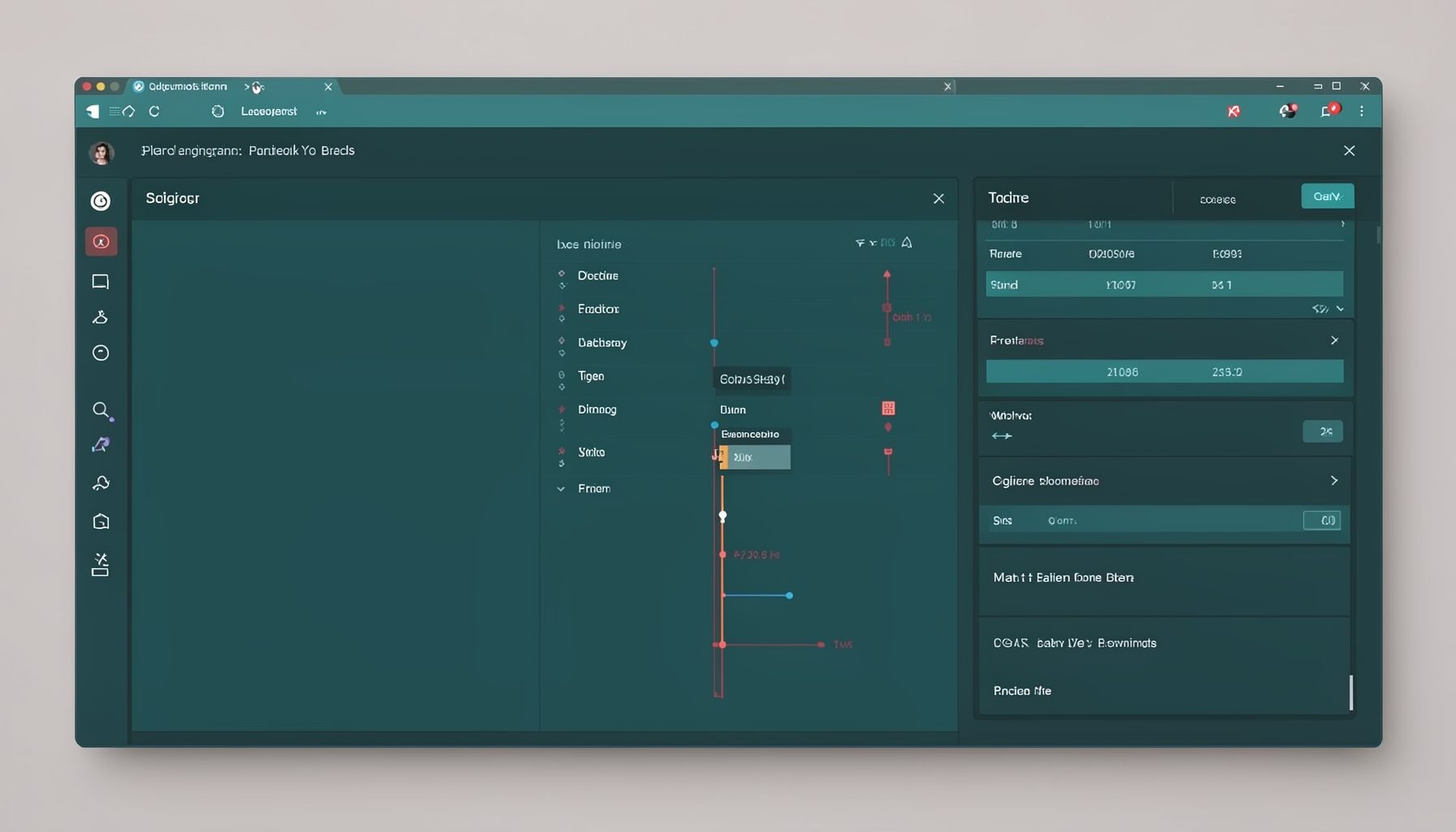
Screen-cast 7: Magik Debugger
Useful tools for application developers: Object Inspector and Magik Debugger with breakpoints and slot/variable monitoring.

Screen-cast 9: Tree Item GUI Control
Tree Item is a GUI control providing extensive facilities for displaying lists with rows, columns, trees, and in-place editing.