Emacs Extensions for
GE Smallworld Magik Development
Screen-casts, tutorials, and productivity tools for Magik programmers who use Emacs. From tab-mode and code folding to the Magik Debugger and object inspector — explore features built by a developer, for developers.
Learn MoreNine screen-casts published between November 2010 and January 2011 — covering everything from ECB mode to the Tree Item GUI control. Read the story behind the project →
Get in Touch
Recording Magik Screen-Casts with Emacs Video Tools
A well-made screen-cast can make Magik development far easier to understand. A viewer can see a method being edited, a workspace being inspected, a debugger being opened, and a collection being queried in the same order that the task occurs at the keyboard. For a specialised language such as GE Smallworld Magik, that visual context often explains more than a long code listing.
Emacs provides a practical control centre for this work. It can launch Magik, manage source buffers, call shell commands, organise notes, and work with tools such as FFmpeg for screen capture and video conversion. With a repeatable recording setup, developers can produce short training clips, internal documentation, release demonstrations, and technical screen-casts without leaving their familiar editor.
Choosing A Recording Workflow
The most reliable workflow separates the recording into three parts: preparation, capture, and editing. During preparation, arrange the Magik environment, open the relevant source files, clear distracting buffers, and decide which commands will be demonstrated. During capture, record a focused sequence rather than trying to explain an entire feature in one take. Editing then removes pauses, mistakes, and private information.
For Magik demonstrations, the desktop is often more informative than the source buffer alone. A useful recording may include the Emacs window, a Magik listener, the inspector, and a Smallworld application window. Set a sensible layout before pressing record so that the viewer can follow method navigation and object inspection without watching windows move around.
A script can make the demonstration repeatable. Store sample objects, test collections, and setup commands in a dedicated Magik file. Use predictable names and reset the workspace between takes. This matters when a screen-cast is recorded for a client in Melbourne one week and reused by a development team in Perth several months later.
Preparing Emacs For Screen Capture
Emacs works best as the launchpad for the recording environment. Keep the Magik source in one frame, the listener or console in another, and supporting notes in a narrow buffer. Hide unrelated packages, notifications, and personal paths. A clean frame also makes font scaling easier for viewers watching on a laptop or joining a remote training session over an Australian NBN connection.
Increase the text size before capture rather than relying on video zoom. A readable font, strong contrast, and visible line numbers help viewers identify a method or compiler message. Avoid excessively small modelines and status information. If the demonstration depends on code folding, method navigation, or object inspection, make the relevant commands visually obvious through deliberate cursor movement and brief pauses.
Emacs can also coordinate the surrounding tools. A shell buffer can invoke FFmpeg, inspect output files, or convert a recording after the take. Keyboard macros are useful for repeating setup actions, while bookmarks and registers can return the cursor to important methods. A small set of dedicated key bindings reduces the temptation to demonstrate unrelated editor features.
Before recording, disable pop-up notifications, mail alerts, and chat overlays. Check that the selected frame does not expose client names, server addresses, credentials, or proprietary datasets. This is especially important for consulting teams handling infrastructure or transport projects under confidentiality agreements.
Capturing The Magik Session
The screen capture should follow a clear technical path. Start with the problem, open the relevant Magik method, show the command or inspection step, and finish with a visible result. A viewer should understand why a command was run and what changed afterwards. For example, a demonstration of collection analysis might create a small sample collection, inspect its contents, apply a filter, and show the resulting object state.
Use a microphone only when narration adds value. Spoken explanations can clarify Magik terminology, but poor audio quality will undermine an otherwise sharp recording. A USB microphone positioned close to the speaker is usually preferable to a laptop microphone in a reflective room. Record a short audio test before the main take and listen for fan noise, keyboard clicks, and room echo.
FFmpeg is a flexible capture and encoding tool for Linux, macOS, and Windows environments. It can record a selected display or window, combine video with audio, and convert the result into a browser-friendly format. The exact input settings vary by operating system, so treat the command as part of the local recording configuration rather than copying a single command unchanged.
An Emacs shell buffer can launch the capture command and display its progress. Some users prefer a separate terminal because it keeps recording controls outside the captured Emacs frame. Either approach works if the recording indicator, command history, and private paths are kept out of the final image.
Editing Demonstrations With Emacs Tools
Editing does not need to turn a technical screen-cast into a polished marketing video. The primary goals are clarity, accurate timing, and a useful file size. Remove long pauses while Magik starts, repeated failed commands, and moments spent searching for a buffer. Keep enough context around an error to show how it was diagnosed and corrected.
A common workflow is to record a high-quality master file, then use FFmpeg to create a compressed MP4 for distribution. H.264 video with AAC audio remains a practical choice for browsers, presentations, and learning platforms. Keep the master in a lossless or lightly compressed format when storage permits, because repeated transcoding can make text blurry.
Terminal-based editing is effective for straightforward cuts and conversions. More complex work may benefit from a graphical editor, particularly when adding callouts, cropping several windows, or balancing narration. Emacs still helps by holding the edit notes, timestamps, command examples, and final Magik snippets alongside the project.
Text overlays should support the demonstration rather than compete with it. Label a Magik class, method, or command when the screen becomes busy. If a command is typed quickly, show it again in an accompanying code listing. Captions are valuable for viewers in shared offices, on public transport, or working across different accents and audio conditions.
Designing A Repeatable Screen-Cast Series
A collection of short videos is easier to maintain than one long recording. Separate subjects such as code folding, debugger control, object inspection, method lookup, and database analysis. Each clip can then answer one practical need and link naturally to written documentation on Magik Emacs.
Use a consistent opening frame, font size, cursor style, and audio level. The viewer should recognise that a new clip belongs to the same technical series. A stable structure also helps a consultant prepare a demonstration quickly for a client workshop in Sydney, Canberra, or Brisbane without rebuilding the recording environment each time.
Keep source files and recording notes under version control where appropriate. A simple directory may contain the Magik example, a transcript, the FFmpeg command, a thumbnail, and the final video. Do not commit real project data or credentials. Synthetic examples are usually sufficient to demonstrate collection operations and object relationships.
Record against a known software version. Magik environments, Emacs packages, operating systems, and Smallworld installations can differ between organisations. Put the version details in the description or a companion note. This makes an older screen-cast easier to assess when a viewer is working with a legacy deployment or a newer internal configuration.
Handling Audio, Privacy, And Distribution
Privacy checks should be part of the workflow, not an afterthought. Inspect the entire captured desktop for email previews, browser tabs, customer identifiers, local usernames, and cloud synchronisation messages. A blurred section is helpful, but a clean demonstration workspace is safer than relying on post-production masking.
Australian teams often work across several time zones, from Perth to Sydney and Melbourne, while collaborating with overseas vendors. Captions, written commands, and an accurate transcript make asynchronous viewing practical. They also reduce the need for a developer to repeat the same explanation during separate sessions.
Consider how the video will be delivered. An internal knowledge base may accept a larger MP4, while a client portal may impose upload limits. A short low-resolution preview can accompany a full-quality download. Check licensing and client permissions before publishing recordings that show commercial software, proprietary interfaces, or project-specific workflows.
The final review should verify that every command works as shown, the audio is synchronised, and the video begins and ends cleanly. Ask a colleague who knows Magik but did not participate in the recording to follow the steps. Their ability to reproduce the result is a better measure of quality than visual polish alone.
Comparing Recording Approaches
Different projects call for different levels of control. A quick internal explanation may need only a desktop recorder, while a reusable training series benefits from scripted setup, separate audio, and FFmpeg-based encoding. Emacs remains useful in each case because it keeps the code, notes, commands, and recording workflow close together.
| Approach | Best use | Strengths | Limitations |
|---|---|---|---|
| Simple desktop recorder | Quick internal walkthrough | Fast to start and easy to operate | Fewer options for repeatable encoding |
| FFmpeg controlled from Emacs | Technical tutorials and repeatable captures | Scriptable, flexible, and efficient | Requires platform-specific setup |
| Emacs plus terminal workflow | Developer-focused demonstrations | Keeps commands, source, and logs together | Less convenient for complex visual edits |
| Full video editor after capture | Polished courses and client material | Strong trimming, captions, and overlays | Takes more time and produces extra project files |
| Short scripted Magik examples | Product and feature explanations | Reproducible results with minimal private data | May omit behaviour found only in live systems |
A sensible default is to prepare the Magik example in Emacs, capture the desktop and audio with a dependable recorder, and use FFmpeg for conversion and delivery. Add a full editor only when the screen-cast needs substantial annotation or multiple media tracks. This keeps the process manageable for a small Australian consultancy while preserving a professional result.
A recording setup becomes especially valuable when it is documented. Note the screen dimensions, frame rate, microphone, operating system, Emacs configuration, and encoder settings. A future contributor can reproduce the environment instead of guessing why one video is crisp and another shows unreadable code.
Build your next Magik screen-cast around one task, one reproducible example, and one visible outcome. Use Emacs to prepare the code and coordinate the tools, capture with consistent settings, and review the final file from a learner’s perspective. HydePark Consulting’s Magik Emacs resources can support developers who want practical guidance on editor extensions, debugging, inspection, navigation, and related consulting work.
Core Features
Tab Mode & ECB
Quick tab switching and Emacs Code Browsing mode for navigating Magik codebases efficiently.
Magik Smeller
Code analysis tool that helps identify potential issues in Magik source files.
Code Folding
Hide/Show mode for collapsing and expanding Magik code blocks to focus on what matters.
Visual Bookmarks
Quick visual bookmarks for jumping between key locations in your Smallworld session buffers.
Object Inspector
Inspect Magik objects and display them in an Emacs Deep Print buffer for detailed examination.
Magik Debugger
Set breakpoints and monitor slots and variables directly from within Emacs.
Development Tools
Direct links between Emacs and the Smallworld Development Tools application, including Click Monitor.
Screen-casts & Tutorials
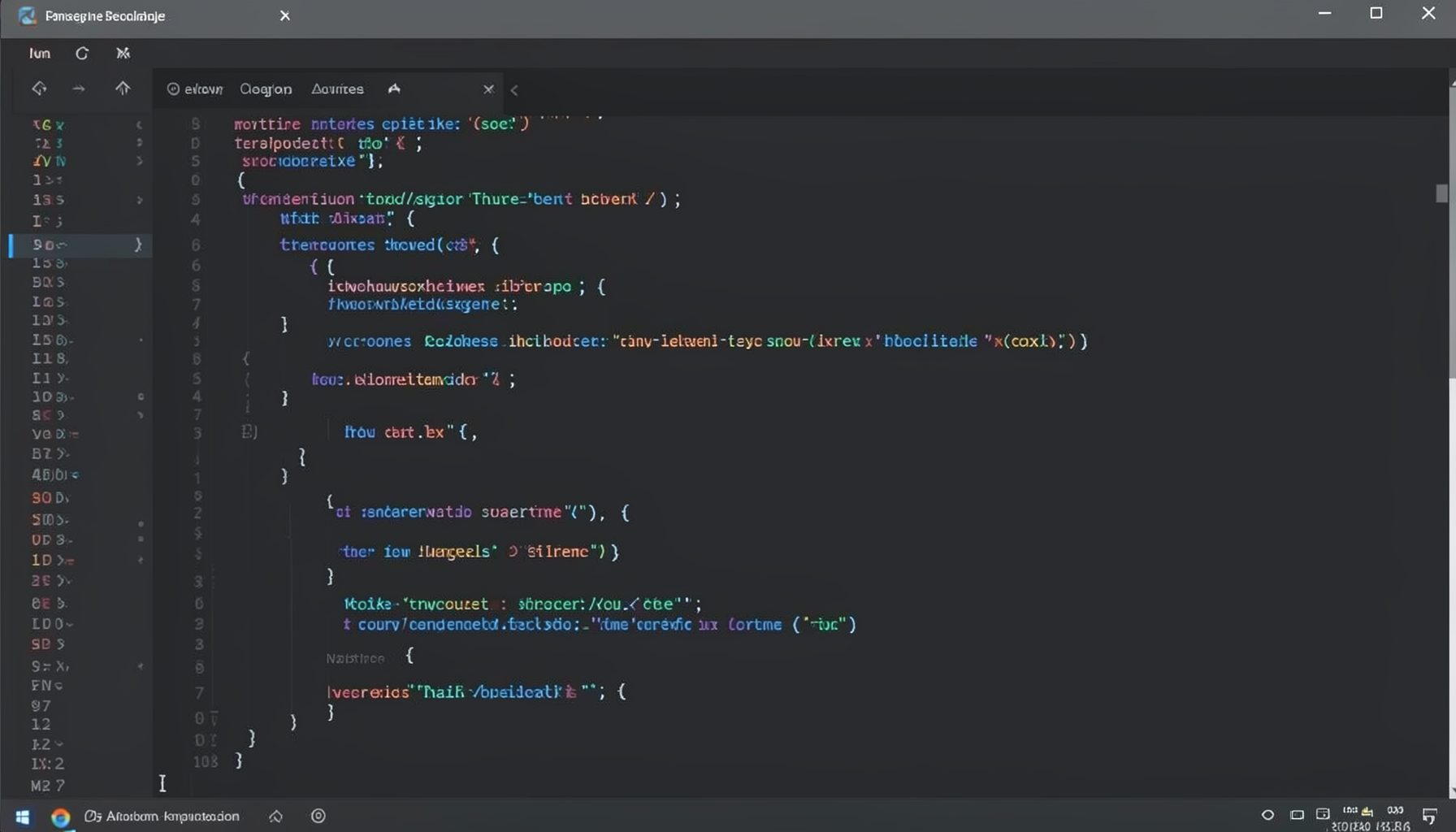
Screen-cast 1: Tab Mode, ECB & More
Covers tab-mode, ECB, Magik Smeller, code folding, visual bookmarks, pragma toggling, moving code, external editor, and MS Explorer.
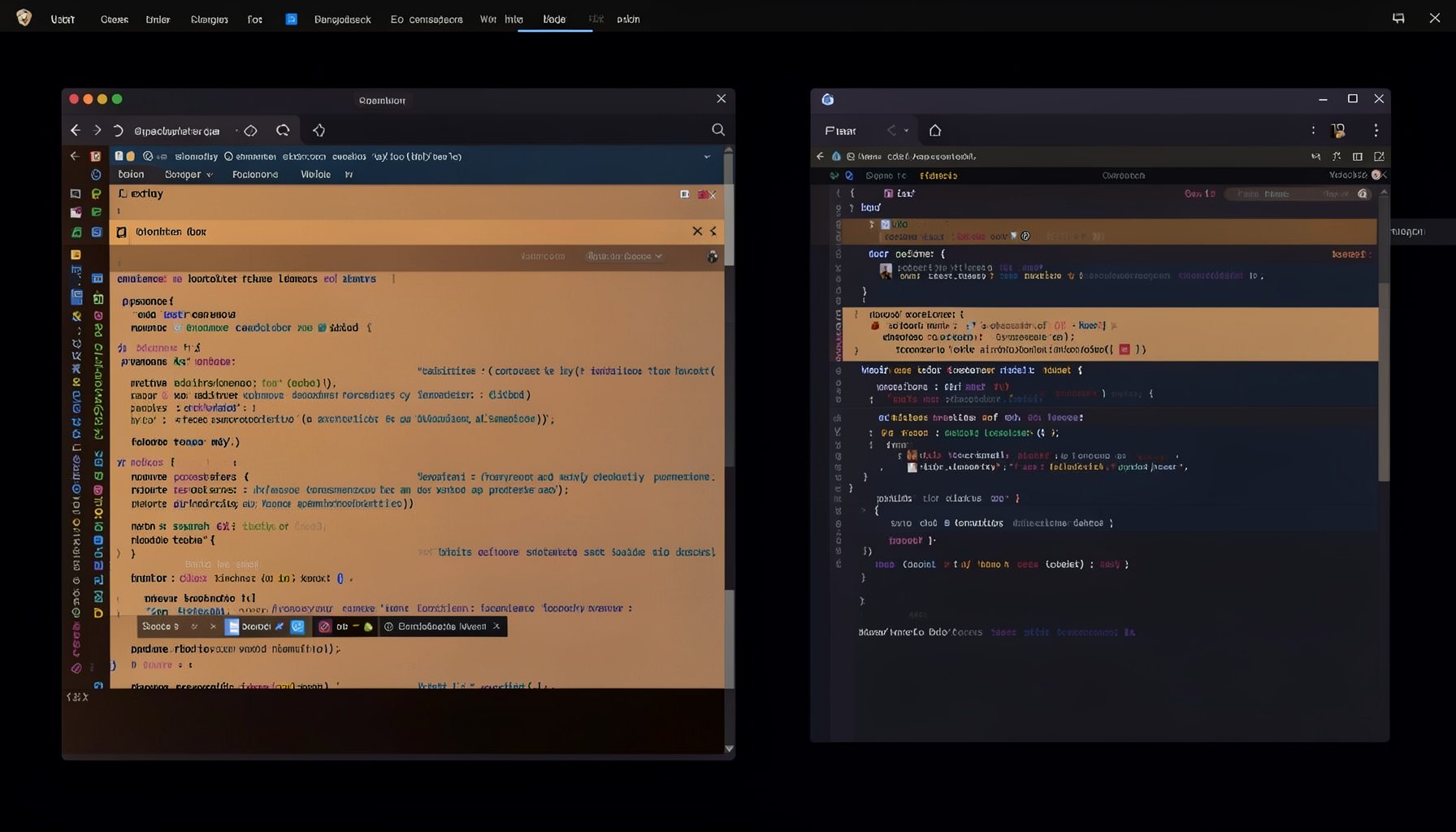
Screen-cast 5: Object Inspection & Deep Print
Inspect a Magik object, prompt for an expression evaluated within a Smallworld session, and display results in a Deep Print buffer.
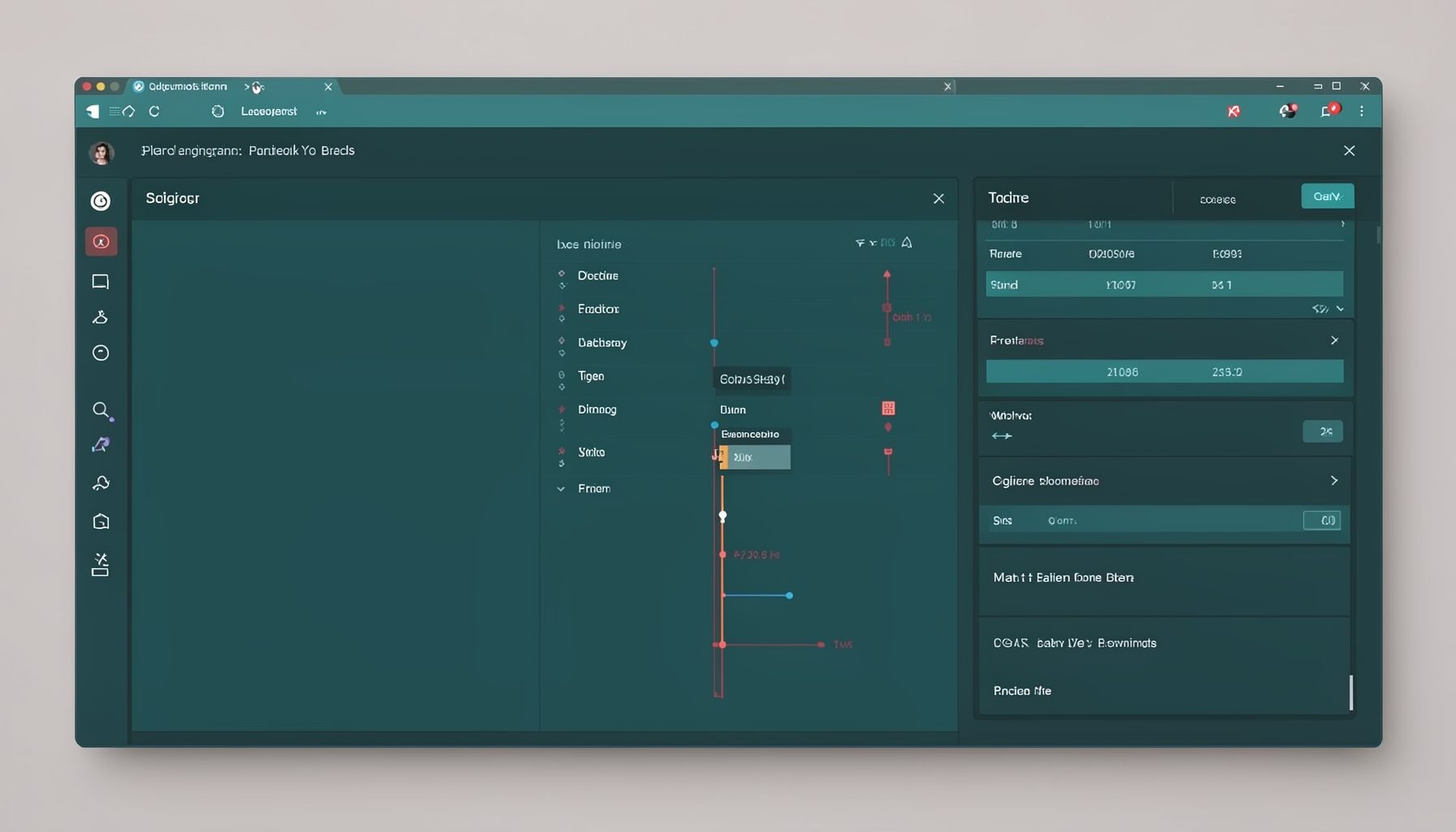
Screen-cast 7: Magik Debugger
Useful tools for application developers: Object Inspector and Magik Debugger with breakpoints and slot/variable monitoring.

Screen-cast 9: Tree Item GUI Control
Tree Item is a GUI control providing extensive facilities for displaying lists with rows, columns, trees, and in-place editing.