Emacs Extensions for
GE Smallworld Magik Development
Screen-casts, tutorials, and productivity tools for Magik programmers who use Emacs. From tab-mode and code folding to the Magik Debugger and object inspector — explore features built by a developer, for developers.
Learn MoreNine screen-casts published between November 2010 and January 2011 — covering everything from ECB mode to the Tree Item GUI control. Read the story behind the project →
Get in Touch
Using Emacs Eshell to Run Magik Commands Seamlessly
For developers working with GE Smallworld’s Magik language, the command line is often part of the daily workflow. Starting a session, loading configuration, testing a method, examining collections and checking database results can involve several separate tools. Emacs’ eshell brings many of those actions into the same editor used for writing and navigating Magik code.
Eshell is an Emacs-based command shell rather than a traditional terminal emulator. It can run operating-system commands, use Emacs functions, redirect output and provide short aliases for repetitive tasks. With a small amount of configuration, it becomes a practical launchpad for Magik utilities and Smallworld development commands, particularly when your project has consistent scripts and environment settings.
Why Eshell Suits Magik Development
Eshell works well beside Magik source buffers because it keeps commands, output and code navigation inside Emacs. You can run a project script, inspect its output, open a reported source file and return to the shell without switching between multiple desktop windows. This is useful when tracing a method call across several Magik packages or checking how a collection is populated.
The shell is also extensible through Emacs Lisp. A command can call find-file, search buffers or trigger a compilation-style process. That gives Magik programmers a way to combine source browsing with operational tasks such as loading a workspace, rebuilding generated files or running a database query script.
There is one important distinction: eshell is not a full terminal emulator. Interactive programs that expect terminal control sequences or a continuously attached console may behave poorly. For a long-running Magik prompt, a comint buffer or a dedicated Smallworld integration may be more appropriate. Eshell is strongest as a command launcher, script runner and lightweight project console.
Preparing the Magik Environment
Before adding aliases, make sure Emacs receives the same environment as the Smallworld installation. The executable path, product variables, licence settings and workspace variables need to be available to the Emacs process. On a managed desktop, this may come from a startup script, a Windows shortcut, a login profile or a project-specific batch file.
You can inspect the environment from eshell with commands such as:
echo $PATH
echo $SMALLWORLD_HOME
echo $MAGIK_WORKSPACE
The variable names differ between installations, so use the names defined by your organisation. If Emacs was launched before those variables were set, updating a shell profile may not be enough; restart Emacs or set the values inside the session.
Eshell can define values directly:
setenv SMALLWORLD_HOME /opt/smallworld
setenv MAGIK_WORKSPACE ~/projects/network_workspace
cd $MAGIK_WORKSPACE
On Windows, quote paths containing spaces and use the path format expected by the installed tools. Australian utilities and government projects often have separate development, test and production environments, so avoid placing production credentials or connection strings in a shared Emacs configuration file.
Building Short Commands and Aliases
Aliases remove repeated typing from common Magik tasks. An alias might change to a workspace, start a loader, run a test script or invoke a project wrapper with the correct arguments. In eshell, aliases can be created interactively or stored in the eshell aliases file.
A simple example might look like this:
alias swdev cd ~/projects/smallworld-dev
alias magik-test ./scripts/run-magik-tests.sh
alias magik-load ./scripts/load-magik.sh
The exact wrapper names are project-specific. A wrapper is often safer than embedding a long vendor command because it can select the correct product installation, licence configuration and workspace before invoking Magik. It also provides a stable interface when a site upgrades its Smallworld release.
For a persistent setup, configure the aliases file location in Emacs and keep the relevant definitions under version control where appropriate:
(setq eshell-aliases-file
      (expand-file-name "eshell/aliases" user-emacs-directory))
Use aliases for stable actions rather than every possible option. A short command such as magik-test roads is easier to remember and review than a large command line containing platform-specific paths. Team members in Brisbane, Melbourne or Perth can then use the same project command even if their local installation directory differs.
Running Magik Scripts Reliably
The most dependable way to run Magik through eshell is usually a non-interactive script or project wrapper. The wrapper starts the correct executable, loads required modules and passes a Magik file or expression. This avoids relying on an interactive prompt that may need terminal input or special startup behaviour.
For example, a project may provide a script like:
./tools/magik-run.sh scripts/check_network.magik
From eshell, run it normally:
magik-run scripts/check_network.magik
If the process should continue while you use Emacs, place & at the end:
magik-load workspace/load_all.magik &
Use asynchronous execution carefully. A background process can keep writing output after you have moved to another buffer, and two loaders may compete for the same workspace or database connection. For destructive operations, prefer a foreground command so that failures are visible before the next command is started.
Output can be saved for later examination:
magik-test network_suite.magik > test-results.log
A log file makes it easier to compare runs, attach evidence to a ticket or send results to a colleague working in Sydney while you are based in Adelaide. Add timestamps in the wrapper if a process may run for several minutes, particularly when testing large spatial datasets.
Connecting Output With Source Navigation
Eshell output becomes more useful when it contains file names and line numbers that Emacs can recognise. If a Magik checker or project script reports diagnostics in a consistent format, run it through compile or compilation-start rather than treating the output as plain text. Emacs can then make errors clickable in a compilation buffer.
A lightweight command can start a project check:
(defun my-magik-check ()
  (interactive)
  (compile "./tools/magik-run.sh scripts/check_network.magik"))
The command does not need to replace eshell. You can launch it from an eshell buffer with an Emacs command, or keep it as a keyboard shortcut for frequent checks. The benefit is that a failed method, malformed expression or missing resource can lead directly to the relevant source location.
For ad hoc output, eshell still provides useful search and buffer operations. Save a long result to a file, open it with find-file, and use ordinary Emacs search commands. When inspecting Magik collections, format diagnostic output with clear labels and one object per line where possible. Dense output is difficult to scan in a terminal and even harder to compare between test runs.
If a script emits a Magik backtrace, preserve the complete output rather than copying only the final error. The earlier frames often show whether the problem began in a method, a database adapter, a workspace initialiser or a custom application package.
Inspecting Collections and Database Results
Magik development often involves examining collections, records and spatial objects rather than simply checking a return code. Eshell can launch small diagnostic scripts that print collection sizes, selected attributes or query summaries. This is particularly helpful when a full graphical client would take too long to start for a quick check.
Keep diagnostic scripts narrowly focused. One script might report the number of features returned by a query; another might print identifiers and status values; a third might test whether a named module is loaded. Small scripts are easier to run from an alias and less likely to alter the workspace accidentally.
A useful pattern is to accept arguments from the command line:
magik-inspect roads --class road --limit 20
The wrapper can translate those options into the appropriate Magik invocation. Since command-line argument handling varies between Smallworld releases and local frameworks, keep that translation in the script rather than depending on eshell to understand Magik syntax directly.
Be careful with quoting. Magik expressions may contain spaces, parentheses or quotation marks that are meaningful to both eshell and the underlying operating system. Passing a file containing the expression is generally more reliable than placing a complex expression directly on the command line. It also makes the diagnostic operation reviewable in version control.
Managing Interactive Sessions
Some Magik workflows need an interactive session. You may want to load a module, evaluate several expressions, inspect an object and then continue working in the same process. Eshell can start the executable, but it may not provide the terminal behaviour that the interactive prompt expects.
For this workflow, use eshell to move to the right workspace and launch a process in a suitable Emacs buffer. Depending on the installation, this may involve make-comint, comint-run or a project-specific command. The resulting buffer provides a persistent prompt while eshell remains available for file operations and one-shot scripts.
A practical split is to use eshell for setup and automation, then use a comint buffer for exploration. For example, eshell can set the workspace, run an initialisation script and start a log capture. The interactive buffer can then handle object inspection and method experiments without repeatedly rebuilding the environment.
This approach also helps when a Smallworld session requires a licence or database connection. Start one controlled session, record its startup output and avoid launching several copies from different Emacs buffers. In Australian consulting teams, where a single project environment may serve staff across Canberra, Newcastle and regional offices, predictable session management can prevent unnecessary licence and connection contention.
Comparing Eshell With Other Magik Consoles
Eshell is most valuable when it complements, rather than replaces, the other tools in a Magik development environment. A dedicated IDE integration may provide richer symbol navigation or debugging. A native terminal may handle interactive processes more faithfully. Eshell’s advantage is the connection to Emacs commands, buffers, aliases and project files.
The right choice depends on the task. Use a repeatable wrapper for automated checks, a comint session for interactive evaluation and a debugger for stepping through complex execution. Keeping these roles distinct makes the workflow easier to maintain when a Smallworld version, operating system or project workspace changes.
| Task | Eshell | Native terminal | Comint or Magik integration |
|---|---|---|---|
| Run Magik wrapper scripts | Very suitable | Suitable | Suitable |
| Create project aliases | Simple and editor-integrated | Shell-dependent | Usually limited |
| Interactive Magik prompt | May be limited | Often suitable | Usually best |
| Open source locations from errors | Strong with compilation tools | Depends on terminal tools | Strong when integrated |
| Manage Emacs buffers and files | Excellent | Requires switching tools | Excellent |
| Reproduce team commands | Good with versioned wrappers | Depends on shell setup | Depends on integration |
Start with one safe command: launch a read-only Magik diagnostic from eshell, capture its output and make the result easy to inspect. Then add aliases for workspace setup, testing and collection analysis. HydePark Consulting’s Magik and Emacs resources can provide further direction for extending this pattern into code navigation, debugging and project-specific automation.
Build a small, documented eshell toolkit around your own Smallworld environment, keeping credentials out of aliases and putting complex logic in tested scripts. With that foundation, Magik commands become easier to repeat, inspect and share across Australian development teams.
Core Features
Tab Mode & ECB
Quick tab switching and Emacs Code Browsing mode for navigating Magik codebases efficiently.
Magik Smeller
Code analysis tool that helps identify potential issues in Magik source files.
Code Folding
Hide/Show mode for collapsing and expanding Magik code blocks to focus on what matters.
Visual Bookmarks
Quick visual bookmarks for jumping between key locations in your Smallworld session buffers.
Object Inspector
Inspect Magik objects and display them in an Emacs Deep Print buffer for detailed examination.
Magik Debugger
Set breakpoints and monitor slots and variables directly from within Emacs.
Development Tools
Direct links between Emacs and the Smallworld Development Tools application, including Click Monitor.
Screen-casts & Tutorials
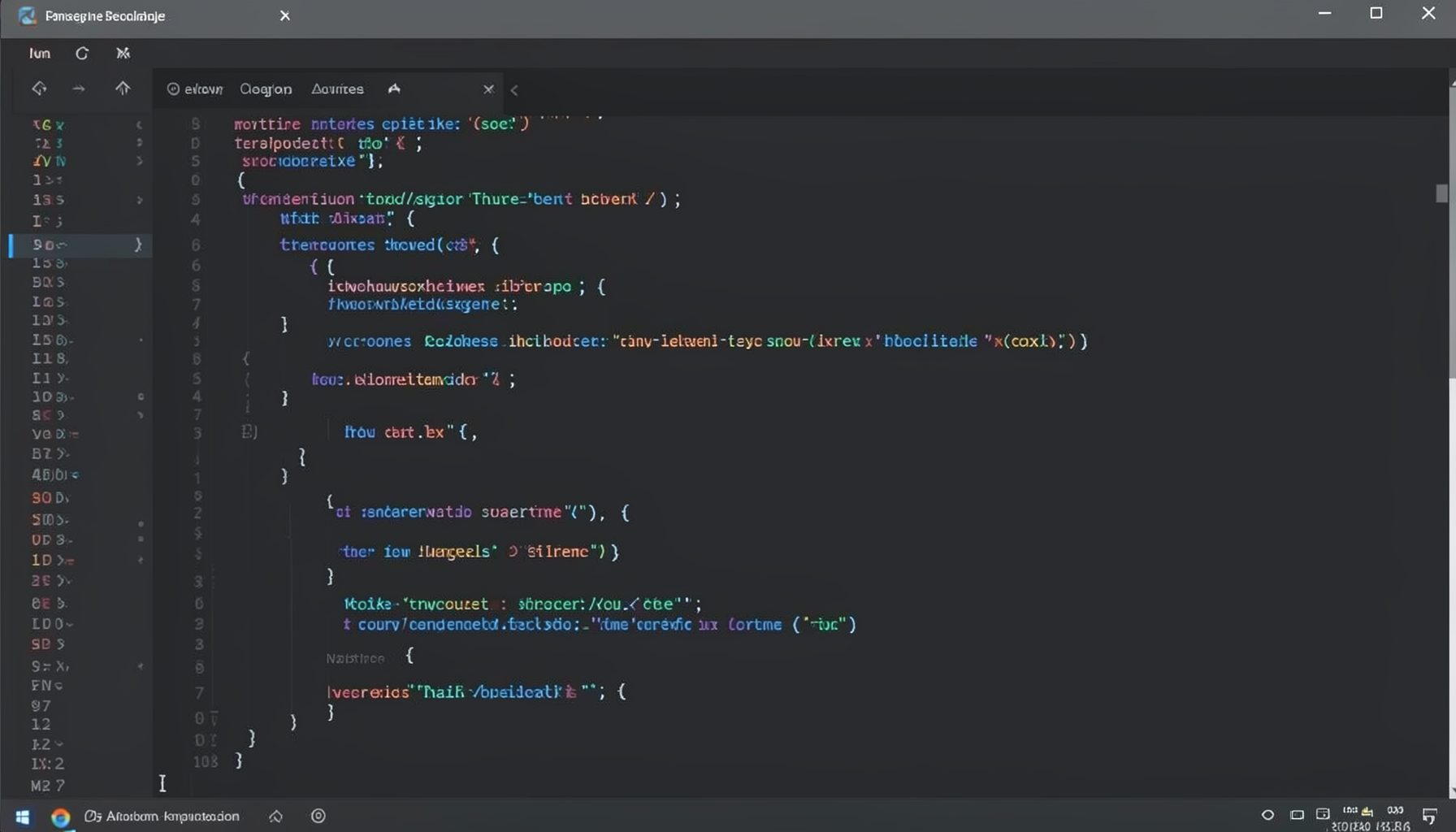
Screen-cast 1: Tab Mode, ECB & More
Covers tab-mode, ECB, Magik Smeller, code folding, visual bookmarks, pragma toggling, moving code, external editor, and MS Explorer.
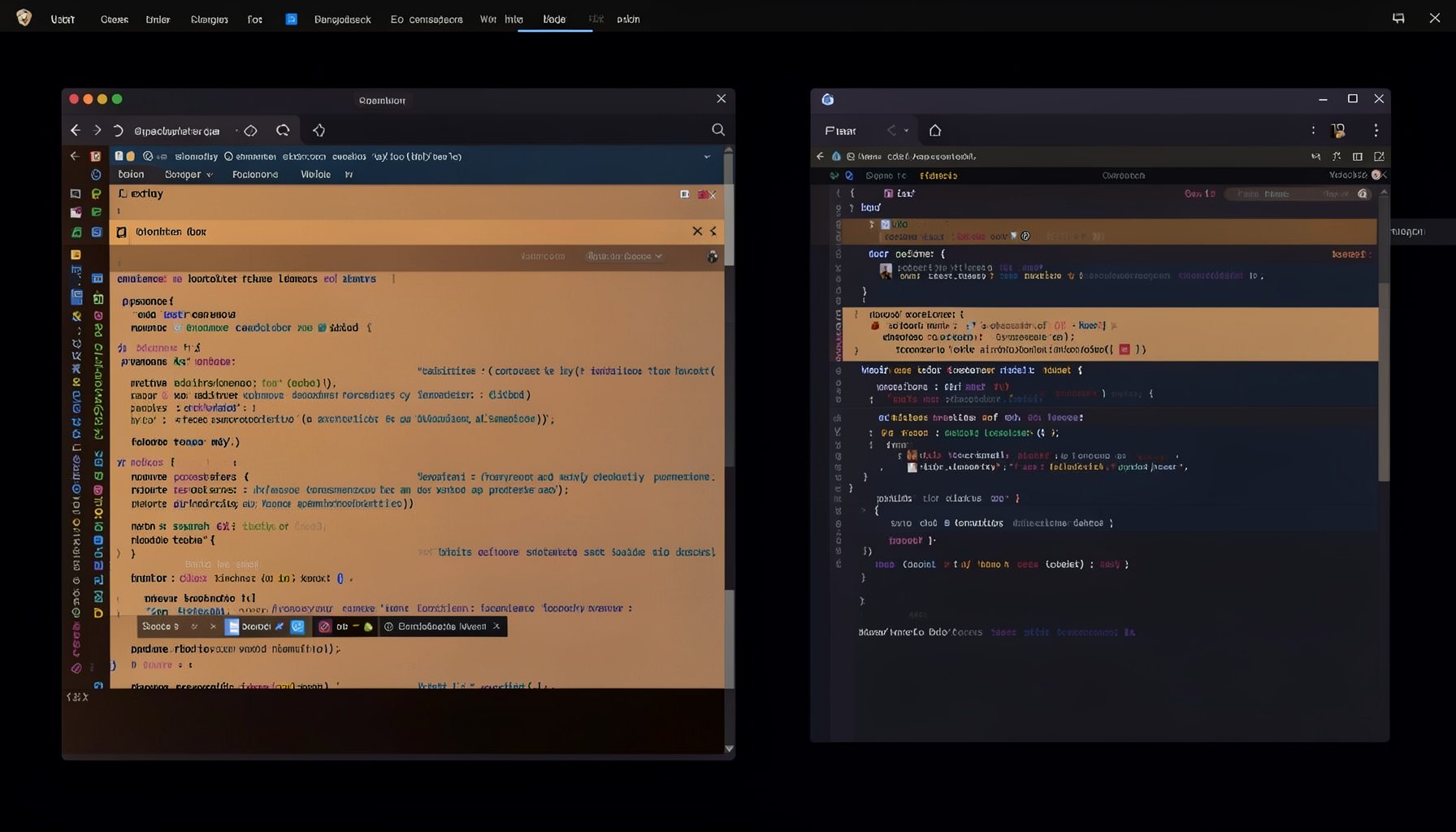
Screen-cast 5: Object Inspection & Deep Print
Inspect a Magik object, prompt for an expression evaluated within a Smallworld session, and display results in a Deep Print buffer.
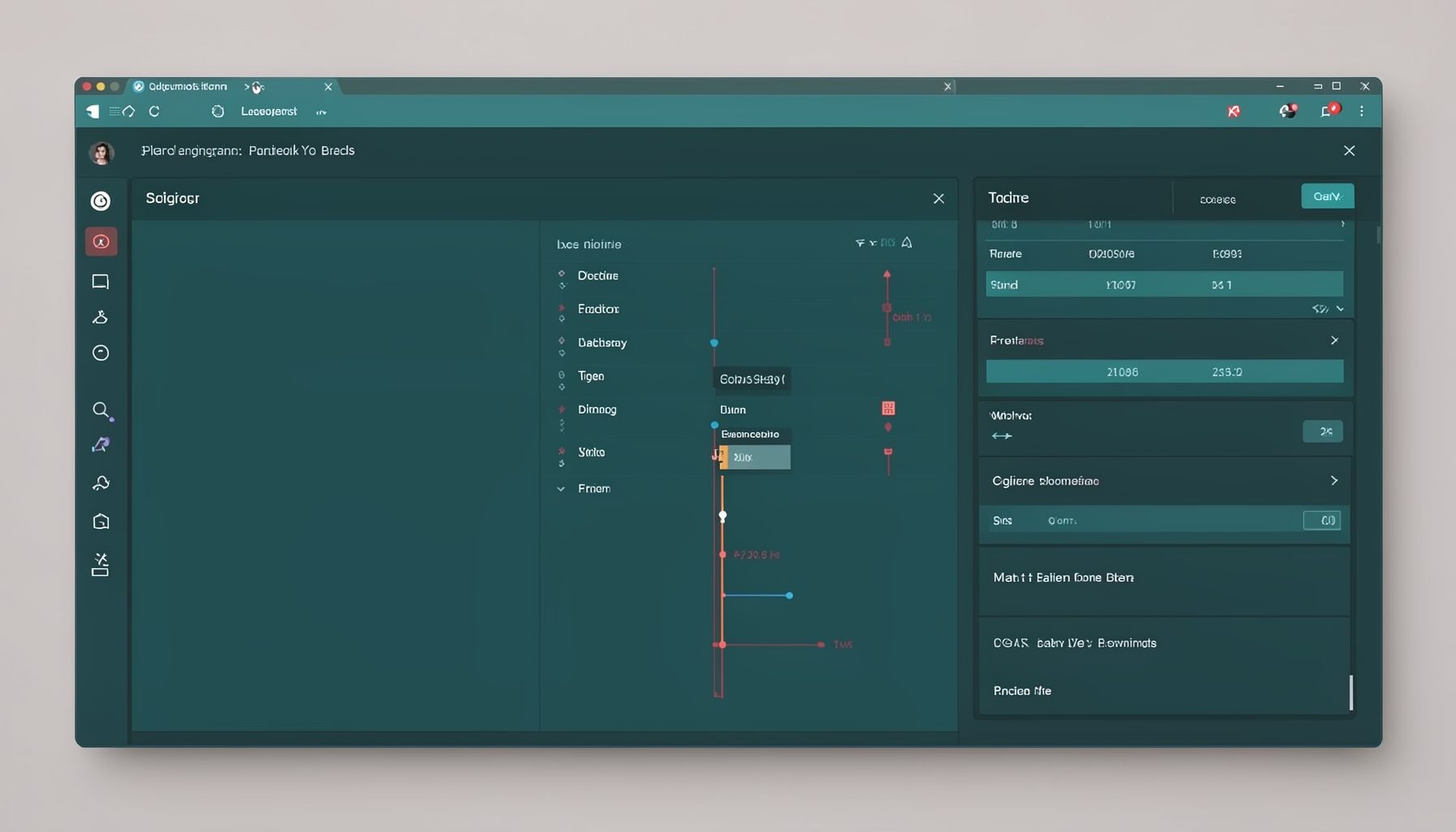
Screen-cast 7: Magik Debugger
Useful tools for application developers: Object Inspector and Magik Debugger with breakpoints and slot/variable monitoring.

Screen-cast 9: Tree Item GUI Control
Tree Item is a GUI control providing extensive facilities for displaying lists with rows, columns, trees, and in-place editing.