Emacs Extensions for
GE Smallworld Magik Development
Screen-casts, tutorials, and productivity tools for Magik programmers who use Emacs. From tab-mode and code folding to the Magik Debugger and object inspector — explore features built by a developer, for developers.
Learn MoreNine screen-casts published between November 2010 and January 2011 — covering everything from ECB mode to the Tree Item GUI control. Read the story behind the project →
Get in Touch
Finding Magik Methods And Variables With Helm Or Ivy
Large Magik applications often spread business rules across hundreds of methods, mixins, packages, and application-specific modules. When a developer needs to locate a method implementation, inspect a variable reference, or trace a collection-related operation, repeatedly browsing directories is slow and unreliable. Emacs Helm and Ivy provide faster alternatives by turning project search into an interactive, filterable workflow.
For Australian teams maintaining GE Smallworld systems, this matters during support work as much as during new development. A utility project in Melbourne, a council deployment in Brisbane, or a network application supported from Perth can contain years of Magik code. With the right search commands, developers can move from a business concept to the relevant method, inspect nearby definitions, and return to the code without losing their place.
Why Interactive Search Fits Magik Development
Magik source code does not always follow the naming conventions found in mainstream languages. A method may be defined on a class, inherited through a mixin, or invoked through a variable whose concrete type is not immediately obvious. A plain filename search can find text, but it does not provide a useful way to narrow hundreds of matches by method name, package, directory, or recently visited file.
Helm and Ivy add an interactive completion layer to that search. Helm presents candidates in a persistent results buffer, making it convenient to compare paths, match counts, and snippets. Ivy provides a compact minibuffer interface with live narrowing, actions, and integration with commands such as counsel-rg, counsel-git-grep, and swiper. Both tools can sit above ripgrep, Git grep, or Emacs’s built-in grep facilities.
A practical Magik workflow usually starts with a broad search for a symbol, then narrows by directory or source file. Searching for method_name can reveal definitions and calls, while a more specific pattern such as _method followed by a class or method name helps isolate declarations. Search results can then be opened in another window, with the match positioned at the exact line.
Preparing A Reliable Magik Search Workflow
Install a completion package that matches the rest of the Emacs configuration. Helm users commonly combine helm-mode with helm-grep or a ripgrep integration. Ivy users often use ivy-mode, counsel, and swiper, with counsel-rg providing fast project-wide searches. The external rg executable is valuable for large Smallworld repositories because it respects .gitignore files and is generally faster than recursive Elisp-based searching.
A minimal Ivy setup might look like this:
(use-package ivy
  :config
  (ivy-mode 1))

(use-package counsel
  :after ivy
  :bind (("C-c s r" . counsel-rg)
         ("C-c s f" . counsel-find-file)
         ("C-c s b" . counsel-buffer-or-recentf)))
For Helm, a simple configuration can expose project files and grep searches without replacing every standard Emacs command:
(use-package helm
  :bind (("C-c h f" . helm-find-files)
         ("C-c h g" . helm-do-grep-ag)
         ("C-c h b" . helm-mini)))
The exact Helm command can vary with the installed Helm version and whether ag or rg is being used. The important design choice is to keep a predictable prefix for search commands. A developer supporting a Sydney-based operations team may use these bindings repeatedly during an incident, so discoverability and consistency are more useful than a highly customised but unfamiliar interface.
Exclude generated files, compiled artefacts, logs, and exported data from the search scope. In a Magik workspace, this may mean ignoring build directories, temporary images, session files, and locally generated documentation. A clean search result gives method navigation more value than a raw search across every file on disk.
Searching For Method Definitions And Calls
Magik method declarations commonly include _method, followed by a receiver and method name. The precise formatting depends on the project’s coding style, so a literal text search is often safer than assuming one universal regular expression. In Ivy, run M-x counsel-rg, enter a method name, and select the project directory. Add a regular expression when you need to distinguish declarations from calls.
For example, a search pattern such as this can locate many method declarations:
_method[[:space:]]+.*(gis_record|network_feature)
A project may use different receiver syntax or line wrapping, so inspect a few existing files before refining the expression. Searching only for _method and a symbol can miss definitions split over several lines. Conversely, searching for the method name alone can return comments, documentation, test data, and unrelated variables.
Helm is useful when the search produces several plausible definitions. Its persistent candidate buffer allows developers to move through matches, preview files, and compare surrounding code. Ivy’s counsel-rg is efficient when the desired result is known and the user wants to type additional characters to narrow the list immediately. swiper is particularly useful once the relevant file is open, because it searches the current buffer while preserving the normal editing context.
Create small wrapper commands for recurring Magik searches. For example:
(defun my/magik-method-search ()
  (interactive)
  (counsel-rg "_method" nil nil))

(defun my/magik-variable-search ()
  (interactive)
  (counsel-rg "\\_<[A-Za-z][A-Za-z0-9_]*\\_>" nil nil))
The variable command above is intentionally broad and is best treated as a starting point. A better project-specific command searches for a known variable, a naming prefix, or a declaration form used by the team. Variables representing records, geometries, collections, and database queries often have naming patterns that can be captured with a narrower regular expression.
| Task | Helm Approach | Ivy Approach | Useful Result |
|---|---|---|---|
| Find a method name across the project | helm-do-grep-ag or a Helm ripgrep command |
counsel-rg |
Matching definitions and calls |
| Search the current file | Helm buffer or grep action | swiper |
Fast local navigation |
| Open a known source file | helm-find-files |
counsel-find-file |
File and directory completion |
| Review recent Magik files | helm-mini or helm-recentf |
counsel-recentf |
Quick return to active work |
| Search Git-tracked source | Helm Git grep integration | counsel-git-grep |
Results limited to repository files |
| Inspect a candidate before opening | Helm persistent preview | Ivy action or preview package | Context around the match |
Finding Variables Across Classes And Collections
Variable discovery requires more judgement than method discovery. A variable may be assigned in one method, passed into another, and later used as a collection, geometry, or database object. Text search can identify references, but it cannot prove the variable’s runtime type or show every path through the application.
Use Helm or Ivy to search for assignments first. Depending on local style, useful patterns may include a variable followed by <<, a declaration convention, or a distinctive prefix such as the_, a_, or tmp_. Search for the variable name without punctuation as a second step. This separates likely assignment sites from method calls and comments.
For a variable called parcel_set, searches might include:
parcel_set[[:space:]]*<<
and then:
parcel_set
The first search finds assignments, while the second shows consumers. In collection-heavy Magik code, this distinction helps identify where a list, property list, range, or application-specific collection is created before it is filtered or iterated. Developers can then inspect methods that call collection operations and follow the data flow through the source.
Use multiple search roots when a repository contains framework code and custom application code. Begin with the project’s own modules, then widen the search to shared libraries or the Smallworld installation when inheritance or a framework method is involved. Keeping those roots separate reduces noise and avoids accidentally editing vendor code.
Australian projects often have long-lived GIS customisations for electricity, water, transport, and local government. A variable name may occur in code maintained by several contractors across Melbourne, Adelaide, or regional offices. Consistent project directories and Git-tracked source make interactive search substantially more effective than relying on a developer’s memory of which workstation contains a particular implementation.
Improving Navigation From Search Results
Search is most useful when it leads directly into code inspection. Configure Helm and Ivy actions so that a result can be opened in the current window, another window, or another frame. A separate window is useful for comparing an inherited method with an overriding method, while the current-window action keeps short investigations uncluttered.
Use line and column information in grep results to jump directly to the match. Once inside the file, standard Emacs commands such as M-., xref-find-definitions, and xref-find-references may help, provided the Magik mode and project indexing support them. When language-aware cross-reference support is incomplete, Helm or Ivy remains the dependable fallback because it searches the actual source text.
A useful sequence is to search for a method name, open the most likely declaration, inspect its receiver and superclass context, then search for callers. Next, locate assignments to important variables and examine the methods that consume them. This process produces a practical call-path approximation even when a full Magik language server or static analyser is unavailable.
Keep search history working for you. Helm retains previous candidates and actions in a way that supports repeated investigation. Ivy’s minibuffer history lets developers recall earlier patterns and edit them rather than typing them again. This is valuable during production support, when a developer may search for a method, switch to a related variable, and return to the original symbol several times.
Keeping Search Safe In Team Environments
Search configuration should reflect the security and operating practices of the project. Australian organisations covered by the Privacy Act 1988 may handle customer addresses, network assets, service records, or other sensitive information inside GIS exports and logs. Keep those files outside the normal source tree where possible, and exclude them from recursive searches. Local search with rg is preferable to copying proprietary code into an external web service or cloud indexing tool without approval.
Repository conventions also matter. Add suitable ignore rules for generated outputs and document the expected search root in the project README. A team working across Sydney and Brisbane may have different local paths, while a Perth-based support team may access source through a controlled remote environment. Portable commands that start from the current Git project are easier to maintain than hard-coded workstation paths.
Be careful with case sensitivity and file encodings. Magik codebases assembled over many years can contain mixed naming styles and legacy encodings. Start with case-insensitive search when investigating a concept, then use exact matching when preparing a refactor. Review results from comments and documentation before replacing a symbol, since a global edit can affect examples or operational notes without changing executable code.
For consulting teams, shared search commands can become part of the delivery standard. A small library of commands for method declarations, variable assignments, database access, and collection operations gives new developers a repeatable way to understand an unfamiliar application. It also reduces the time required to support clients under Australian business hours, where a clear local workflow can be important during utility or council service windows.
Install Helm or Ivy alongside a suitable Magik mode, configure project-aware ripgrep searches, and build a few commands around the naming patterns used in your codebase. HydePark Consulting can help Magik teams refine Emacs workflows, improve method and variable navigation, and support broader Smallworld development practices. Use interactive search as a daily coding tool rather than an emergency lookup utility, and large Magik repositories become considerably easier to understand and maintain.
Core Features
Tab Mode & ECB
Quick tab switching and Emacs Code Browsing mode for navigating Magik codebases efficiently.
Magik Smeller
Code analysis tool that helps identify potential issues in Magik source files.
Code Folding
Hide/Show mode for collapsing and expanding Magik code blocks to focus on what matters.
Visual Bookmarks
Quick visual bookmarks for jumping between key locations in your Smallworld session buffers.
Object Inspector
Inspect Magik objects and display them in an Emacs Deep Print buffer for detailed examination.
Magik Debugger
Set breakpoints and monitor slots and variables directly from within Emacs.
Development Tools
Direct links between Emacs and the Smallworld Development Tools application, including Click Monitor.
Screen-casts & Tutorials
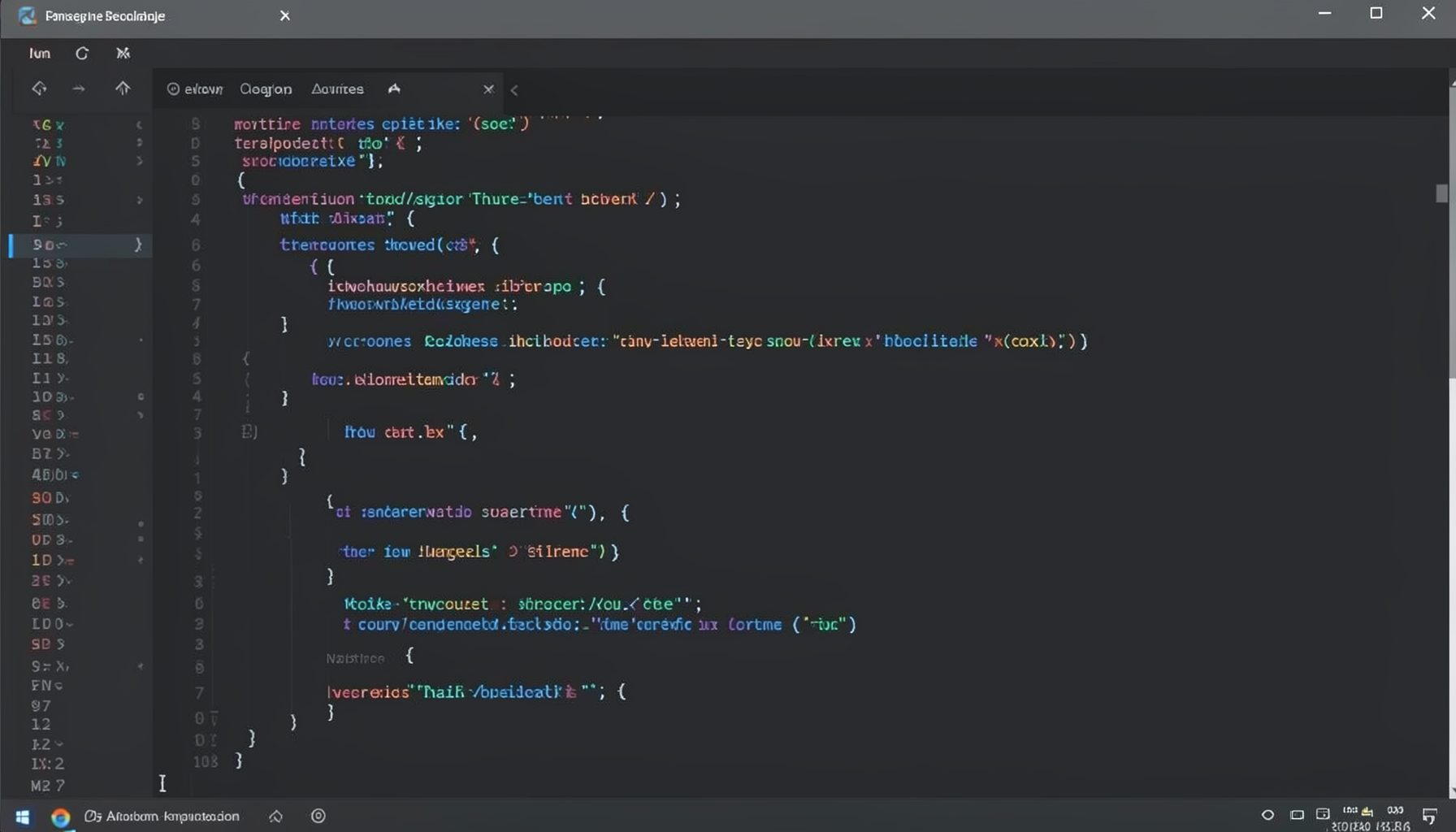
Screen-cast 1: Tab Mode, ECB & More
Covers tab-mode, ECB, Magik Smeller, code folding, visual bookmarks, pragma toggling, moving code, external editor, and MS Explorer.
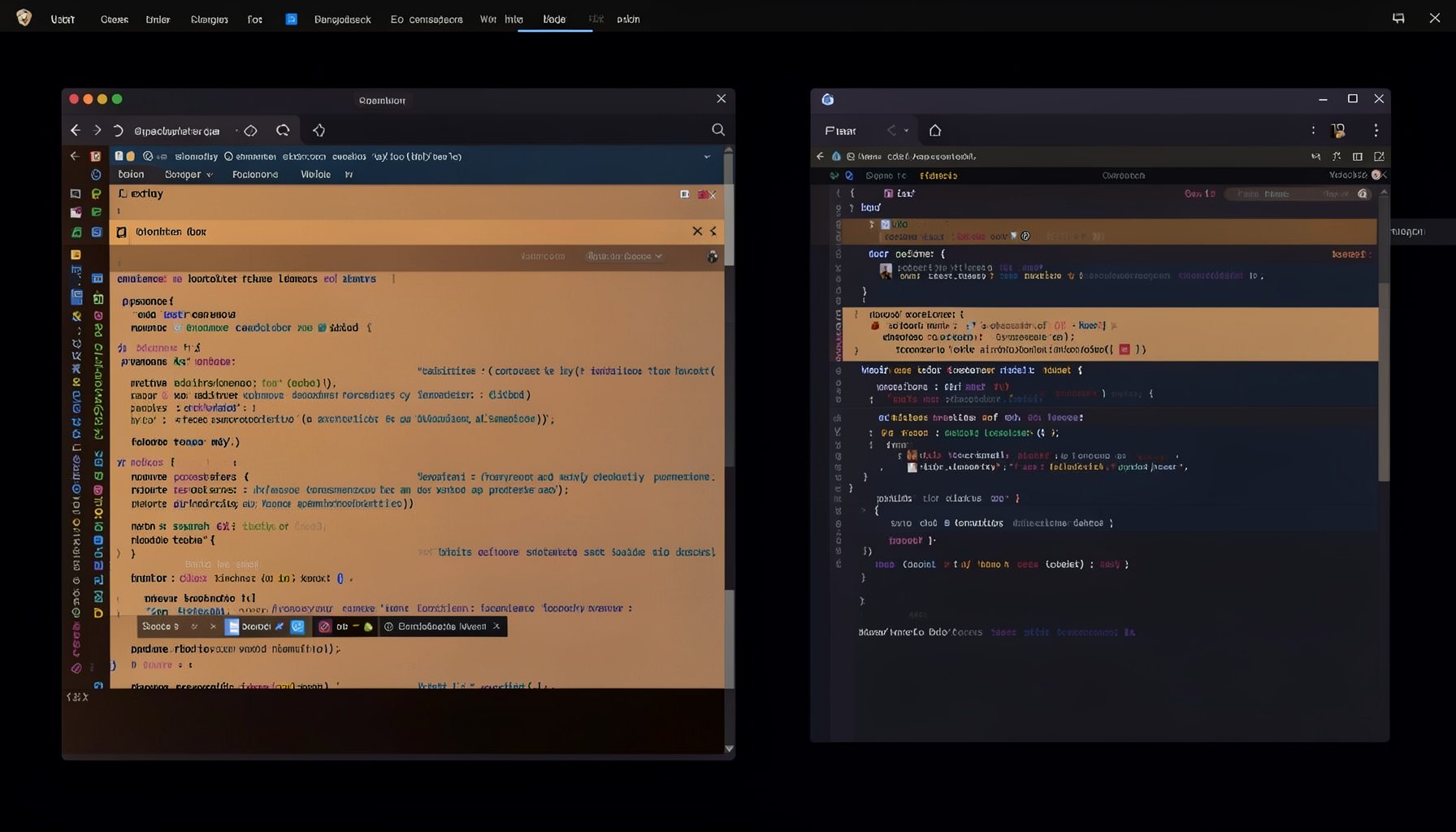
Screen-cast 5: Object Inspection & Deep Print
Inspect a Magik object, prompt for an expression evaluated within a Smallworld session, and display results in a Deep Print buffer.
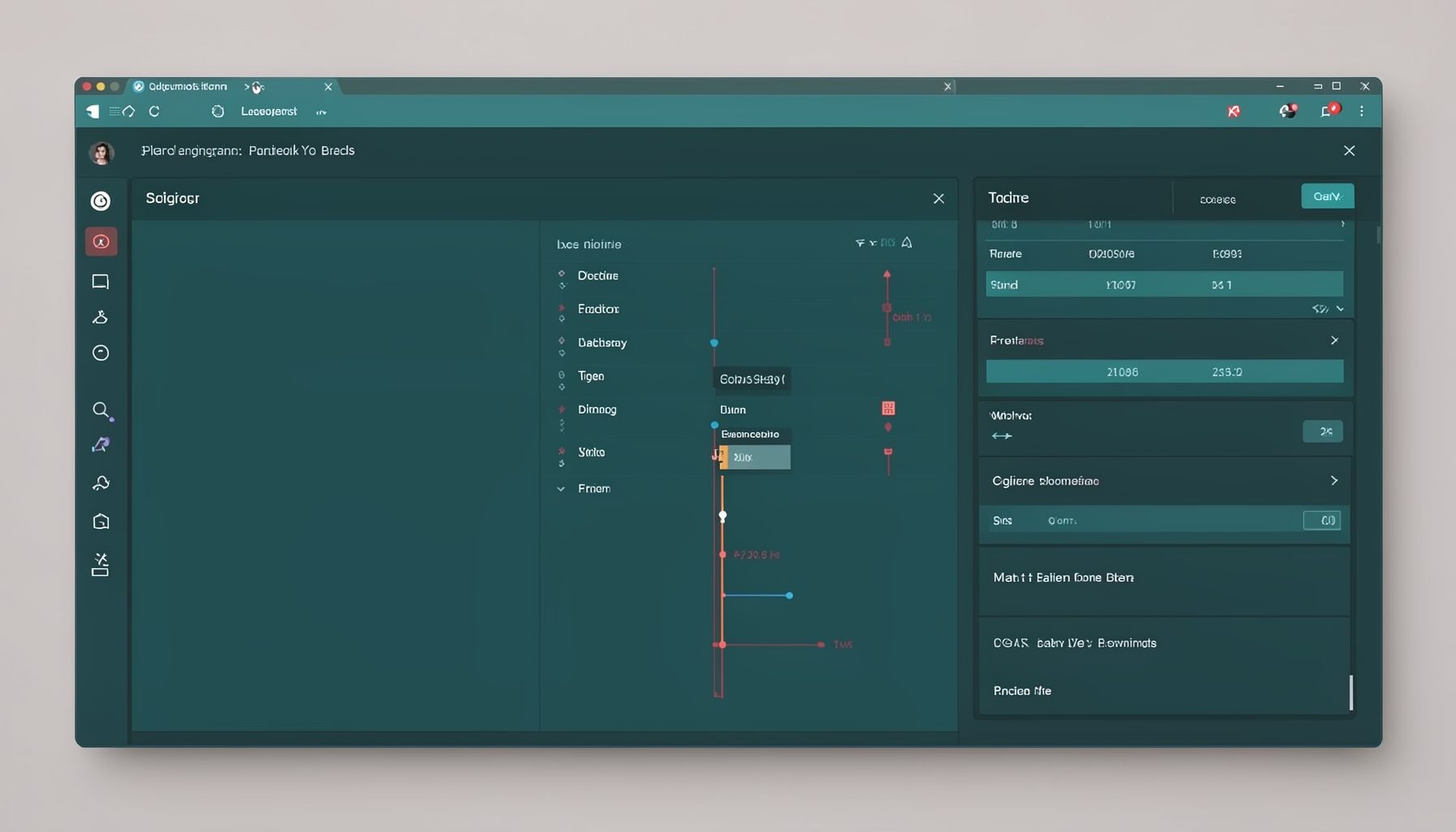
Screen-cast 7: Magik Debugger
Useful tools for application developers: Object Inspector and Magik Debugger with breakpoints and slot/variable monitoring.

Screen-cast 9: Tree Item GUI Control
Tree Item is a GUI control providing extensive facilities for displaying lists with rows, columns, trees, and in-place editing.