Emacs Extensions for
GE Smallworld Magik Development
Screen-casts, tutorials, and productivity tools for Magik programmers who use Emacs. From tab-mode and code folding to the Magik Debugger and object inspector — explore features built by a developer, for developers.
Learn MoreNine screen-casts published between November 2010 and January 2011 — covering everything from ECB mode to the Tree Item GUI control. Read the story behind the project →
Get in Touch
Use Emacs hydra to create Magik command menus
Magik development often moves between source editing, compilation, method lookup, debugging and inspection of Smallworld objects. Repeating those actions through separate keybindings slows the feedback loop, especially when a developer is already working in a terminal or remote client session. An Emacs hydra replaces that scatter of shortcuts with a compact command menu that keeps the keyboard as the primary interface.
hydra is an Emacs Lisp package for building transient prefix menus. Its heads group related commands, its body exposes individual actions, and a configurable hint line shows the currently available keys. Because the menu stays within the Emacs frame rather than opening a separate application window, a Magik programmer can choose an action without losing the code, object or stack trace already on screen.
For Australian teams in Sydney and Melbourne, a shared menu is also a handover aid: a developer can move between a workstation, a client-hosted GE Smallworld environment and a training room without relearning shortcuts. Brisbane colleagues remain on AEST, or UTC+10, throughout the year, whereas Sydney and Melbourne alternate between AEST and AEDT. The menu itself is unaffected by those clocks, but consistent commands still reduce confusion during local support and training.
Understand Hydra's command structure
hydra uses a deliberately small vocabulary. A dispatcher opens the menu, a head names a group such as Code, Navigate or Debug, and the body contains the actual key bindings. The hint line can show the body keys while the menu is active, so the user does not need to memorise every shortcut before entering it.
For Magik, this structure maps neatly onto everyday tasks. Compilation and code folding belong together; method navigation and caller lookup form another cluster; debugging, breakpoint management and object inspection can remain separate heads. The same arrangement works for a source file, a Magik transcript or a specialised editor.
Keep the first menu deliberately task-oriented rather than comprehensive. A useful hydra answers “what can I do here?” without becoming a catalogue of every Emacs command. Clear labels and stable key positions also make the menu easier to explain during pairing or a screen share.
Define a first Magik menu
A minimal Magik menu can be declared directly in Emacs Lisp. The following example groups three plausible heads and uses illustrative command names. Replace those names with the interactive functions exposed by your Magik package or local wrappers before enabling the menu.
(require 'hydra)

(defhydra magik-menu (:hint {body})
  "Magik command menu"
  ("Code"
   ("Fold region" magik-fold-region)
   ("Unfold region" magik-unfold-region)
   ("Indent buffer" magik-indent-buffer))
  ("Navigate"
   ("Goto method" magik-goto-method)
   ("Find callers" magik-find-callers))
  ("Inspect"
   ("Object inspector" magik-inspect-object)
   ("Debug buffer" magik-debug-buffer)))

(global-set-key (kbd "C-c m") magik-menu/body)
The defhydra form creates the magik-menu dispatcher and its body keymap. The :hint {body} option tells hydra to display the available body actions, while C-c m provides one consistent entry point. The body keymap lets the prefix remain associated with the menu, so related actions can be dispatched without introducing another layer of prefix keys.
The command names are examples, not universal Smallworld APIs. A given installation may name its compilation entry differently, and object inspection may require a live client connection. Use M-x describe-function to confirm a command before binding it, then keep only actions that are meaningful in the current editing context.
Connect actions to Magik safely
Not every useful action is a single Emacs function. Starting the Smallworld object inspector may require a selected object, a collection context or credentials for a remote environment. Wrap such operations in an interactive defun, perform the environment checks inside the wrapper and report a clear error with message. hydra should dispatch the operation, not conceal its preconditions.
Small wrappers also make a menu portable. A wrapper can call the same Magik IDE function during development, use a read-only query in a test environment or open a saved transcript when no connection is available. This separation keeps the Emacs configuration readable and gives the support team a safer default.
Use heads to change context, not to create a deep maze of prefixes. A top-level Debug head can expose stepping, stack navigation and breakpoint toggles, then return to the main menu. If an action needs several parameters, collect them in a small dialogue before returning to the buffer.
Compare Hydra with other keymaps
Several Emacs mechanisms can launch related commands. The right choice depends on whether the priority is speed, hierarchy or visible guidance. A direct binding is quickest for one action; a nested prefix keymap suits a fixed hierarchy; and hydra is strongest when related Magik actions should remain discoverable.
| Approach | Entry point | Feedback | Strongest use |
|---|---|---|---|
| Direct keybinding | One command | No menu | A frequent shortcut |
| Nested prefix keymap | Prefix followed by a subkey | Usually silent | A small, fixed hierarchy |
which-key assistance |
An existing prefix keymap | Delayed hints for the next layer | Discovering conventional bindings |
hydra |
One transient dispatcher | Visible body hints and labelled heads | Grouped Magik workflows |
An ordinary prefix keymap can be faster for expert users because it adds no visual layer. It can also become difficult to remember after several nesting levels. which-key can improve such a map by showing its next layer after a pause, but it does not provide the same grouped dispatcher semantics. hydra keeps the interaction visible and replaces a fixed tree with labelled heads, at the cost of some interface configuration and testing.
Shape menus around Magik workflows
Debugging benefits from grouping because the workflow changes quickly. One action may set a breakpoint, the next may show the call stack, and another may inspect a method in context. A Debug head can keep those bindings adjacent while the Compile head handles a separate build action. Clear head labels prevent a dangerous command from looking like an ordinary editing shortcut.
Object inspection and collection analysis can follow the same pattern. Bind commands that open the current object inspector, refresh its properties, display the method that created an item or launch a collection browser. These launchers are usually safer than embedding every query in Emacs Lisp because the Smallworld environment continues to control connection state and result handling.
Treat any action with database or production impact as higher risk. Prefer read-only defaults, descriptive labels and separate support menus that are not loaded into ordinary development sessions. A visible command palette is not a substitute for permissions, change control or confirmation.
Share menus across Australian teams
Keep the definition in a version-controlled Emacs configuration file rather than copying it between workstations. Load hydra through the team’s approved package setup, store the defhydra expression in a dedicated Magik file and add that file to init.el or the relevant early-init.el. Pinning the dependency and reviewing the configuration alongside Magik code makes updates traceable.
Rollout can then be tracked through the MyEasyProjects workflow so that menu changes, ownership and release notes remain visible to the delivery team. For HydePark Consulting and other Australian practices supporting different client Smallworld versions and local Emacs conventions, a shared definition lets Sydney and Melbourne developers begin with the same actions even when their project repositories are separate.
Give the menu a plain-language guide that records what each head contains, which actions need a live Smallworld session and what every key does. Use Australian English in labels so the interface reads naturally to local developers, and distinguish menus approved for a client-hosted system from those used only in a development workspace. A concise handover note is often more useful than a long catalogue of possible customisations.
Start with a small working menu
Begin with one or two heads and a handful of actions used every day, such as compilation, folding and method navigation. Test each command in the buffer types it supports, confirm that the hint text matches the actual key positions and remove entries that depend on an unavailable service. Add more heads only after the basic menu feels stable.
Install hydra through your approved Emacs package setup, define magik-menu, bind it to C-c m and exercise the compile, fold and method-navigation actions in a non-production Magik workspace today. Then share the working keymap with the rest of your delivery team and record its first expansion into the project backlog.
Core Features
Tab Mode & ECB
Quick tab switching and Emacs Code Browsing mode for navigating Magik codebases efficiently.
Magik Smeller
Code analysis tool that helps identify potential issues in Magik source files.
Code Folding
Hide/Show mode for collapsing and expanding Magik code blocks to focus on what matters.
Visual Bookmarks
Quick visual bookmarks for jumping between key locations in your Smallworld session buffers.
Object Inspector
Inspect Magik objects and display them in an Emacs Deep Print buffer for detailed examination.
Magik Debugger
Set breakpoints and monitor slots and variables directly from within Emacs.
Development Tools
Direct links between Emacs and the Smallworld Development Tools application, including Click Monitor.
Screen-casts & Tutorials
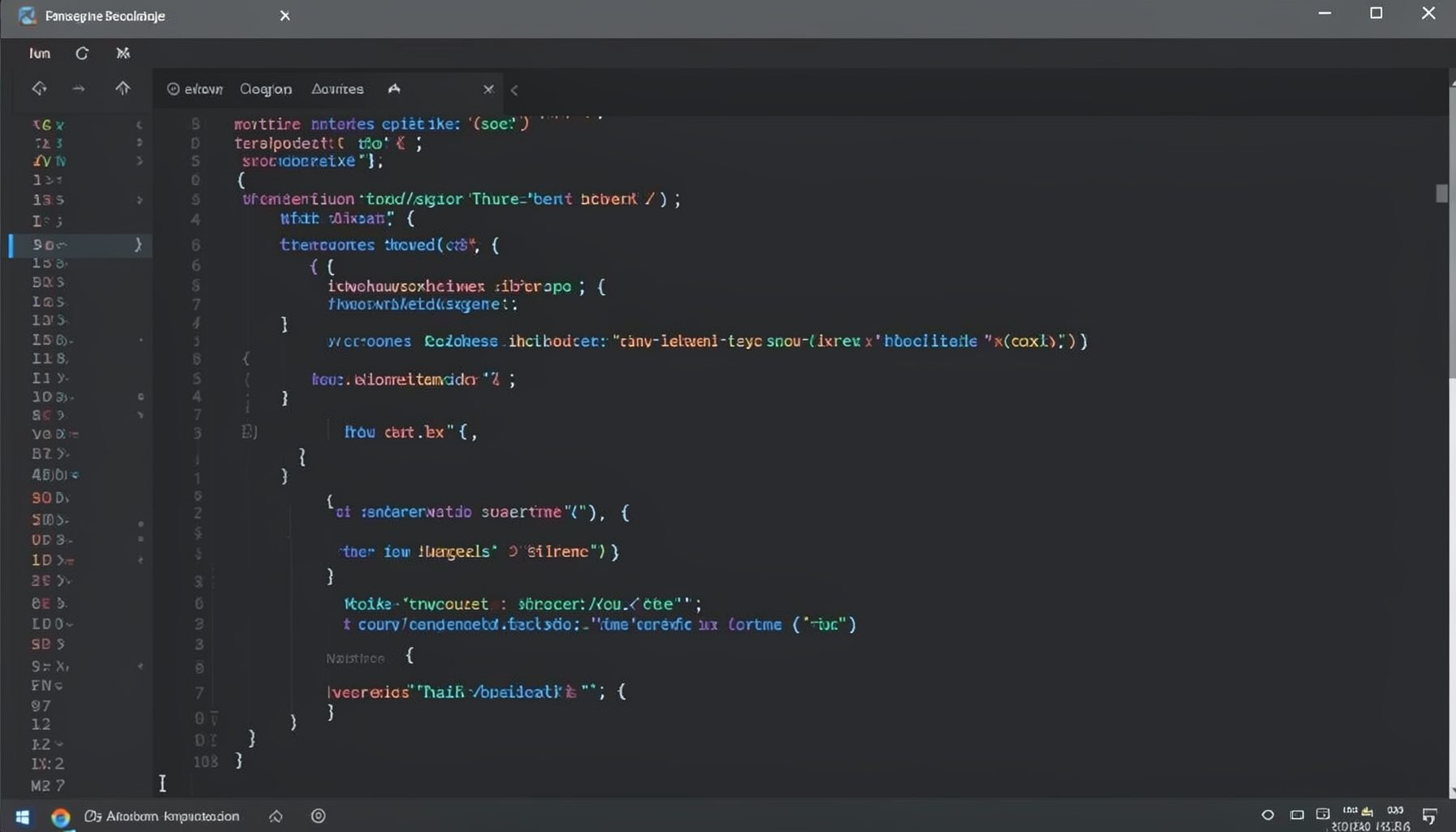
Screen-cast 1: Tab Mode, ECB & More
Covers tab-mode, ECB, Magik Smeller, code folding, visual bookmarks, pragma toggling, moving code, external editor, and MS Explorer.
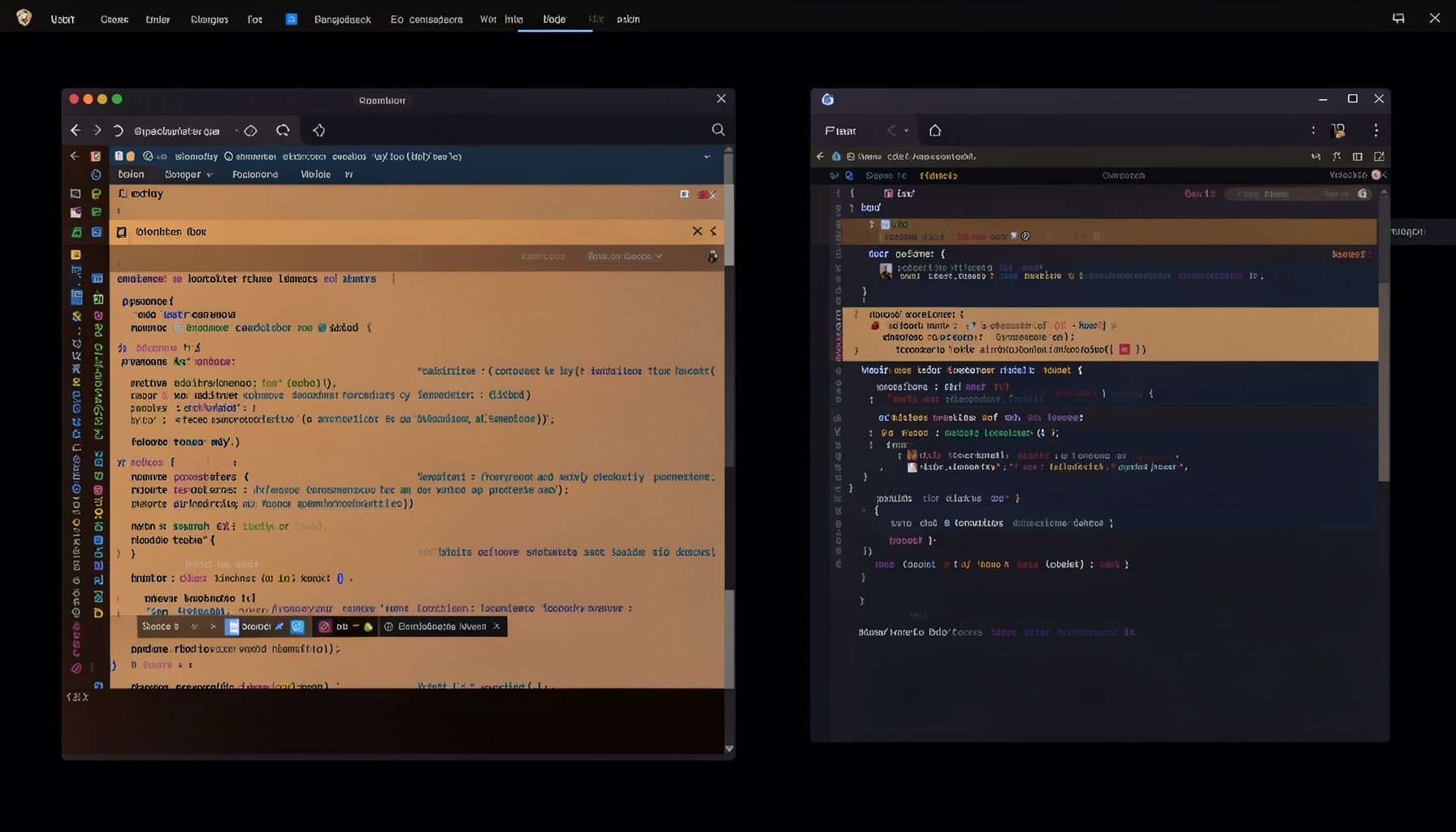
Screen-cast 5: Object Inspection & Deep Print
Inspect a Magik object, prompt for an expression evaluated within a Smallworld session, and display results in a Deep Print buffer.
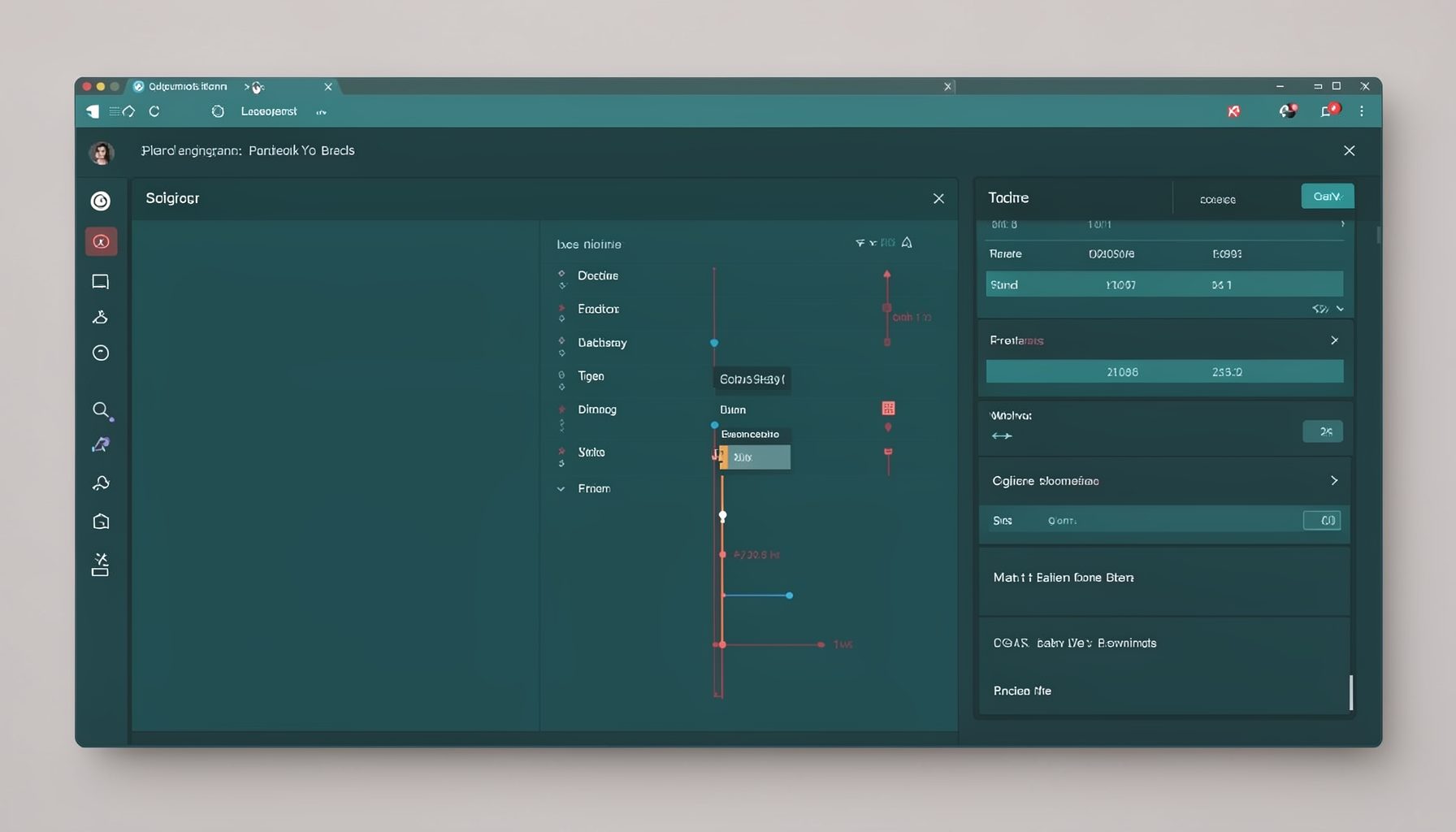
Screen-cast 7: Magik Debugger
Useful tools for application developers: Object Inspector and Magik Debugger with breakpoints and slot/variable monitoring.

Screen-cast 9: Tree Item GUI Control
Tree Item is a GUI control providing extensive facilities for displaying lists with rows, columns, trees, and in-place editing.