Emacs Extensions for
GE Smallworld Magik Development
Screen-casts, tutorials, and productivity tools for Magik programmers who use Emacs. From tab-mode and code folding to the Magik Debugger and object inspector — explore features built by a developer, for developers.
Learn MoreNine screen-casts published between November 2010 and January 2011 — covering everything from ECB mode to the Tree Item GUI control. Read the story behind the project →
Get in Touch
Edit Remote Magik Code With Emacs TRAMP
GE Smallworld environments often keep Magik source on servers rather than on a developer’s local workstation. That arrangement suits shared runtimes, controlled databases, and established operational processes, but it can make everyday editing feel disconnected from the tools programmers prefer. Emacs TRAMP closes that gap by allowing a local Emacs session to open, inspect, and save files over SSH.
With TRAMP, a remote Magik file behaves much like a local buffer. You can use Magik syntax highlighting, code folding, method navigation, search commands, and Emacs keyboard shortcuts while the actual source remains on the server. The approach avoids repeatedly downloading files, editing copies, and transferring them back into a Smallworld environment.
A reliable setup matters in Australian development teams, where staff may work from Sydney, Melbourne, Brisbane, or Perth while connecting to infrastructure hosted in another city or in a private data centre. Network latency, VPN policies, privacy obligations, and server access controls all affect the experience. The right TRAMP configuration keeps remote editing practical without weakening operational discipline.
Understanding TRAMP In A Magik Environment
TRAMP stands for Transparent Remote Access, Multiple Protocol. It gives Emacs a file-name syntax that describes how to reach a remote path. The simplest SSH form is:
/ssh:username@server:/path/to/file.magik
For example:
/ssh:alex@smallworld-dev.example:/opt/smallworld/application/methods/example.magik
When Emacs visits this path, TRAMP opens an SSH connection, reads the file, and sends changes back when you save. The Magik major mode still operates inside the local Emacs process, so features such as indentation, font locking, folding, and method movement remain available if the mode recognises the .magik file.
The remote host needs a working SSH server and a shell that TRAMP can use. Your account also needs permission to read and write the relevant source directory. TRAMP is not a replacement for version control, deployment tooling, or a Smallworld runtime; it is a transport layer that makes remote files accessible through Emacs. Treat the server as the source of truth and use the same review and release process applied to other code changes.
Opening And Saving Remote Magik Files
Use C-x C-f in Emacs and enter a TRAMP path. After the connection succeeds, inspect the mode line to verify that Emacs has selected the expected Magik editing mode. If it has opened the file as plain text, check the file extension, the mode association, and the configuration of the Magik extension installed in your Emacs environment.
A useful association might look like this:
(add-to-list 'auto-mode-alist '("\\.magik\\'" . magik-mode))
The exact mode function depends on the Magik package you use. Some teams maintain a local mode, while others use an Emacs extension that adds syntax support and navigation for Smallworld Magik. Confirm the package’s documented mode name before adding the association.
Saving with C-x C-s writes the buffer back through TRAMP. Emacs may create backup files, lock files, or temporary files in ways that are inconvenient on a controlled application server. You can adjust those behaviours for remote files:
(setq backup-directory-alist
      `(("." . ,(expand-file-name "backups/" user-emacs-directory))))

(setq create-lockfiles nil)
Disabling lock files globally may conflict with a team’s editing policy, so a project-specific setting can be safer. Keep backups somewhere that is protected and included in your normal workstation backup process. Avoid leaving editor-generated files in a Smallworld source tree where build scripts or deployment checks might discover them.
Making SSH Authentication Predictable
Public-key authentication is generally the smoothest way to use TRAMP. Store the host alias, user name, port, and identity file in ~/.ssh/config:
Host sw-dev
    HostName dev.smallworld.example
    User alex
    Port 22
    IdentityFile ~/.ssh/id_ed25519
You can then open a file with:
/ssh:sw-dev:/opt/smallworld/application/methods/example.magik
The alias keeps long server names out of Emacs and gives your team a consistent vocabulary. Use ssh sw-dev in a terminal first. If ordinary SSH cannot connect without errors, TRAMP will usually fail as well. Host-key verification, VPN access, multifactor authentication, and bastion requirements must be resolved at the SSH level.
Some organisations require a jump host before application servers can be reached. TRAMP supports multi-hop paths, although the exact syntax can vary with the Emacs version and SSH configuration. A common pattern is:
/ssh:gateway|ssh:sw-dev:/opt/smallworld/application/methods/example.magik
An SSH ProxyJump entry may be easier to maintain:
Host sw-dev
    HostName 10.20.30.40
    User alex
    ProxyJump gateway
Keep private keys protected with appropriate file permissions and, where available, an SSH agent. Australian consultancies working with utility, transport, government, or planning clients may face strict privileged-access controls. Do not copy production keys to a laptop simply to make remote editing convenient, and do not store credentials in an Emacs configuration committed to a shared repository.
Configuring Emacs For Better Remote Performance
TRAMP performs extra work because file operations are translated into remote shell commands. Directory browsing, file metadata checks, backups, and version-control detection can all create network traffic. On a fast office connection this may be barely visible; on a home connection or a VPN between Perth and an east-coast data centre, the delay can become noticeable.
Keep remote directories focused. Open the project directory you need rather than browsing a large filesystem root. You can also reduce unnecessary version-control checks in remote buffers:
(setq vc-handled-backends nil)
That setting disables Emacs version-control integration globally, so it is better to configure it conditionally if local repositories are important. Another option is to use a project-specific Emacs configuration or disable VC checks only for particular remote paths.
TRAMP provides caching and connection controls that can be tuned when diagnosing slow access. The following settings are useful starting points:
(setq tramp-verbose 1)
(setq remote-file-name-inhibit-cache nil)
Set tramp-verbose to a higher value temporarily when investigating a failure, then return it to a quiet level. Logs can contain host names, paths, and command details, so handle them as operational information. If the session becomes stale after a VPN change, use M-x tramp-cleanup-this-connection or M-x tramp-cleanup-all-connections, then reconnect.
Emacs package versions also matter. Keep TRAMP aligned with the Emacs version where possible, particularly when the operating system provides an older bundled release. Test configuration changes against a development server before applying them to a shared Smallworld environment.
Using Magik Navigation And Inspection Remotely
Once a remote .magik file is open in the correct mode, TRAMP does not prevent normal source navigation. Search for method definitions, move between methods, fold implementation bodies, and use buffers that show related source files. Magik programmers can combine these facilities with grep, occur, xref, or the navigation commands provided by their Emacs extension.
Project-wide search deserves special care. Running a search command against a remote directory may invoke many separate file operations. When the source tree is large, prefer a remote rg or grep command executed on the server, or narrow the search to the package and class currently under investigation. This reduces transfer overhead and avoids waiting for Emacs to inspect irrelevant files.
Runtime inspection is a separate concern. TRAMP can edit the source used by a Smallworld session, but it does not automatically attach Emacs to the Magik runtime or provide a debugger. Use the debugging and object-inspection tools supported by your Smallworld installation, then return to the remote source buffer to make a focused change. If the runtime loads compiled or cached forms, follow the site’s established reload procedure rather than assuming that saving a file immediately changes the running application.
A practical workflow is to inspect a stack trace, navigate to the relevant method, fold surrounding implementation details, edit the smallest safe region, and save. Keep a local Magik scratch buffer for notes or experiments, while preserving production-like source on the remote host.
Managing Permissions, Safety, And Australian Requirements
TRAMP uses the permissions of the remote account. If a file is owned by another service account, saving may fail even though reading works. Avoid solving this by routinely connecting as root. Instead, ask for a suitable development group, controlled deployment directory, or narrowly scoped privilege mechanism. For files that genuinely require elevated access, TRAMP can use sudo-based paths, such as:
/sudo:root@sw-dev:/etc/smallworld/example.conf
The account still needs permission to invoke sudo, and the command may be audited. Use elevated editing sparingly, especially on production servers.
Australian organisations must consider the Privacy Act 1988 and the Australian Privacy Principles when remote access could expose personal information. Magik source may contain database credentials, customer identifiers, service locations, or embedded test data. A developer working from home in Adelaide or from a co-working space in Melbourne should use approved VPN access, full-disk encryption, screen locking, and secure networks. Do not paste sensitive production data into logs, scratch buffers, or issue trackers.
Client contracts may impose additional data-hosting or access conditions. A project team in Sydney might connect to a Queensland-hosted environment, while a Perth consultant may access systems located on the east coast. Geographic distance is less important than the organisation’s approved architecture, but it can affect latency and outage planning. Follow the client’s identity, logging, retention, and incident-reporting rules, and apply the Essential Eight controls where they form part of the organisation’s security baseline.
Building A Repeatable Remote Editing Workflow
Start by documenting the server alias, remote source root, required VPN, authentication method, and Magik mode used by the project. Put harmless Emacs defaults in your personal configuration, while keeping project-specific commands in a version-controlled setup that other developers can inspect. This makes onboarding easier when a team member joins from Canberra or changes from office work to a remote arrangement.
Use a development host for direct TRAMP editing and keep production access separate. Before saving, check the current branch or deployment state, inspect the buffer’s file path, and confirm that the target server is the intended environment. After saving, review the diff using the project’s normal version-control tools. A remote edit should still pass code review, testing, and release approval.
When TRAMP reports an error, test the connection in stages. Run ordinary SSH, check the remote shell, verify the file permissions, and inspect *tramp/...* buffers or the TRAMP debug log. Common causes include an incorrect host alias, an interactive shell banner that disrupts command parsing, expired VPN access, a changed host key, or a remote command missing from PATH.
Keep a short recovery procedure available for the team: disconnect stale sessions, reconnect through the approved gateway, reopen the file, and compare the buffer with the server version before saving. This avoids overwriting changes made by another developer while the original connection was unavailable.
TRAMP gives Magik programmers a direct, controlled way to combine Emacs productivity with server-based Smallworld development. Configure SSH carefully, keep remote operations narrow, protect sensitive environments, and treat every save as part of the project’s normal engineering process. Explore the Magik and Emacs resources on Magik Emacs for practical guidance on code folding, method navigation, debugging, object inspection, and remote development workflows, then apply the approach on a non-production server before expanding it across your team.
Core Features
Tab Mode & ECB
Quick tab switching and Emacs Code Browsing mode for navigating Magik codebases efficiently.
Magik Smeller
Code analysis tool that helps identify potential issues in Magik source files.
Code Folding
Hide/Show mode for collapsing and expanding Magik code blocks to focus on what matters.
Visual Bookmarks
Quick visual bookmarks for jumping between key locations in your Smallworld session buffers.
Object Inspector
Inspect Magik objects and display them in an Emacs Deep Print buffer for detailed examination.
Magik Debugger
Set breakpoints and monitor slots and variables directly from within Emacs.
Development Tools
Direct links between Emacs and the Smallworld Development Tools application, including Click Monitor.
Screen-casts & Tutorials
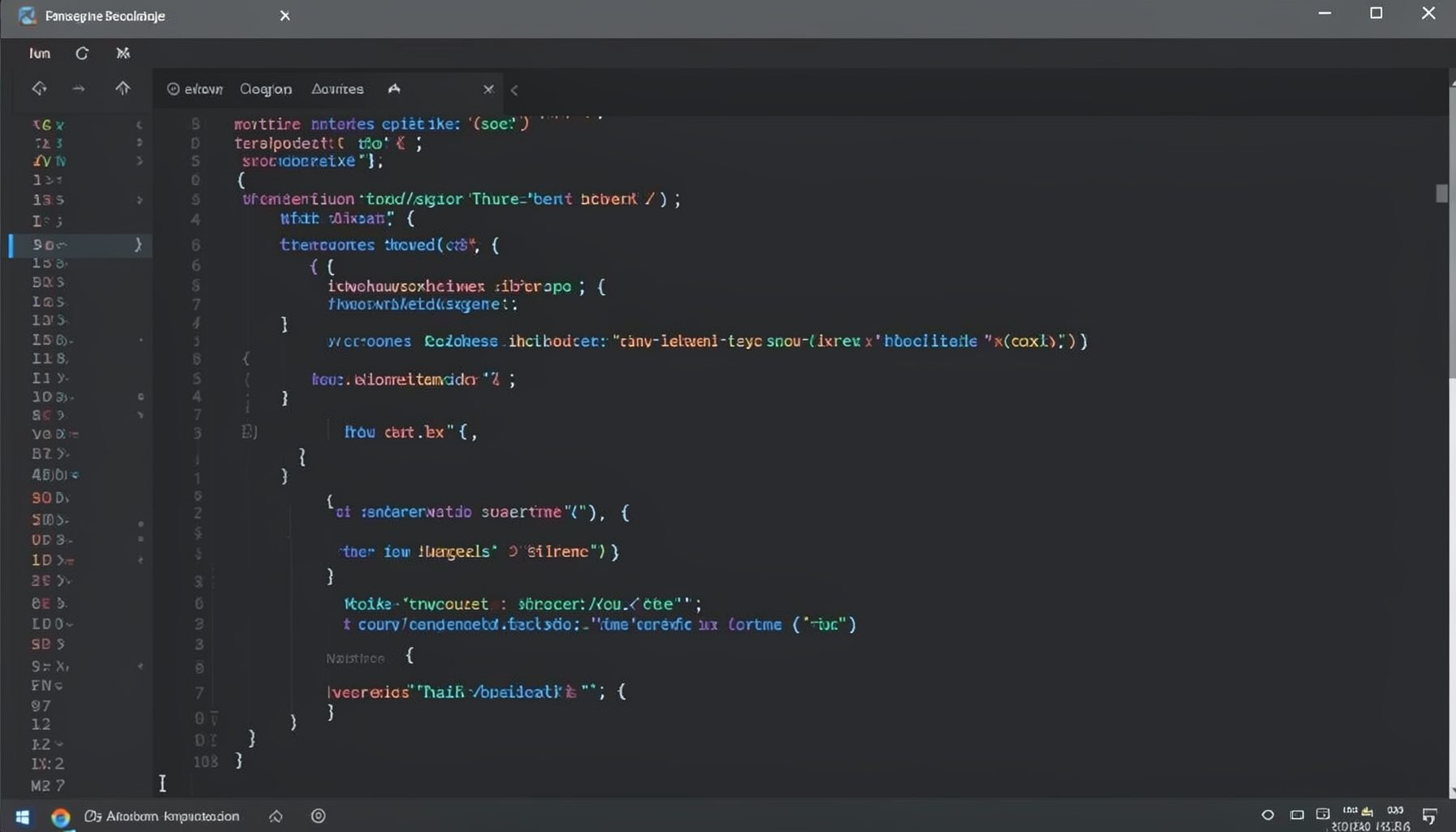
Screen-cast 1: Tab Mode, ECB & More
Covers tab-mode, ECB, Magik Smeller, code folding, visual bookmarks, pragma toggling, moving code, external editor, and MS Explorer.
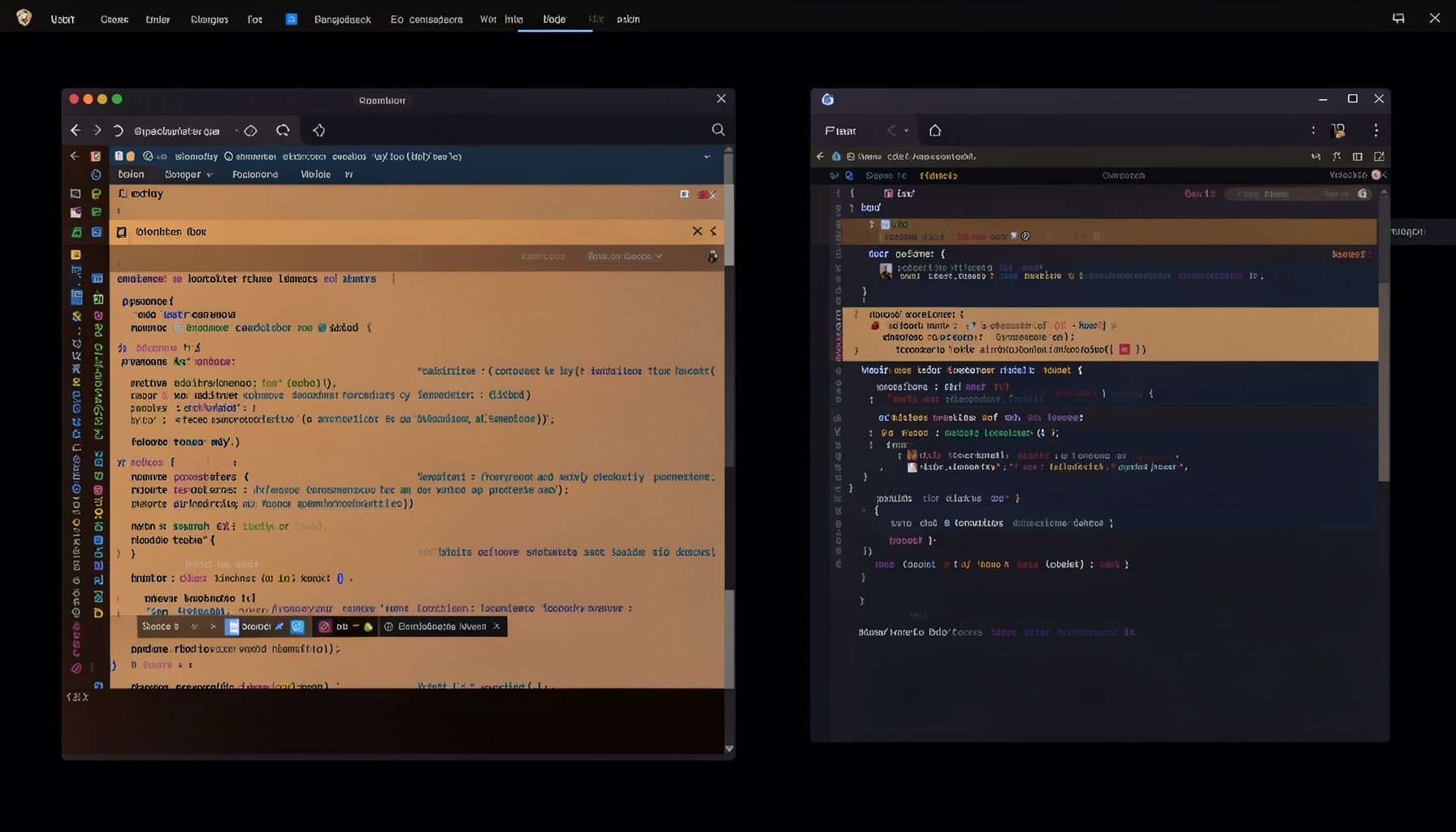
Screen-cast 5: Object Inspection & Deep Print
Inspect a Magik object, prompt for an expression evaluated within a Smallworld session, and display results in a Deep Print buffer.
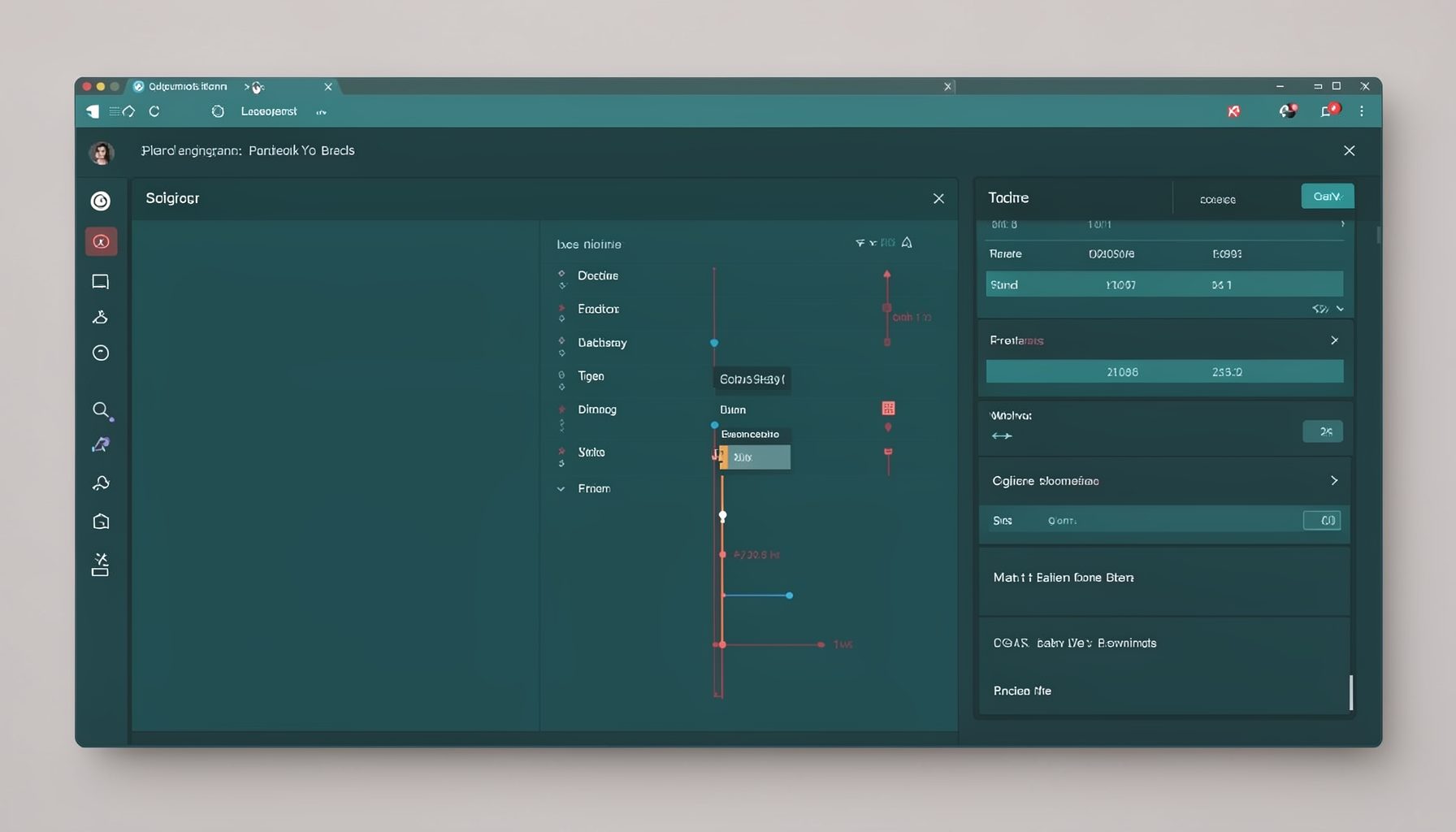
Screen-cast 7: Magik Debugger
Useful tools for application developers: Object Inspector and Magik Debugger with breakpoints and slot/variable monitoring.

Screen-cast 9: Tree Item GUI Control
Tree Item is a GUI control providing extensive facilities for displaying lists with rows, columns, trees, and in-place editing.