Emacs Extensions for
GE Smallworld Magik Development
Screen-casts, tutorials, and productivity tools for Magik programmers who use Emacs. From tab-mode and code folding to the Magik Debugger and object inspector — explore features built by a developer, for developers.
Learn MoreNine screen-casts published between November 2010 and January 2011 — covering everything from ECB mode to the Tree Item GUI control. Read the story behind the project →
Get in Touch
Version Control for Magik Projects with Magit in Emacs
Many Magik developers working on GE Smallworld databases spend their day bouncing between object inspectors, session buffers, and collection browsers. Adding proper version control used to mean leaving Emacs entirely. Magit changes that by bringing Git into the same buffer where you already write, debug, and refactor Smallworld code. For teams scattered across Sydney, Melbourne, and regional hubs like Newcastle, having a fast, keyboard-driven interface to Git reduces friction before a five o'clock AEST build window.
The Australian utilities sector has long relied on Smallworld for network modelling, and engineers maintaining those models increasingly want the version control hygiene that mainstream software engineers enjoy. Magik projects often contain thousands of .magik files alongside configuration, world data, and script bundles. Treating them like ordinary source code is now standard practice inside organisations such as Sydney Water and AusNet Services. Doing it well requires tooling that respects how Magik developers already work, and that is precisely where Magit shines.
For developers in Brisbane or Perth collaborating with colleagues in other time zones, Magit's staging interface and log buffer become a single source of truth. There is no need to switch to a terminal when a quick amend, rebase, or interactive add can be done with a handful of keystrokes. Combined with a proper .dir-locals.el and a few well-chosen hooks, Magit turns Emacs into a complete Git workstation tailored to Magik repositories.
Magit ships with most modern Emacs distributions and is available as a package everywhere else. Whether you run Emacs on macOS during your morning commute from Parramatta, on Linux inside a corporate VM, or on Windows for legacy compatibility, the installation steps are identical. That portability explains why it has become the de facto Git interface for Magik teams across Australia.
Why Magit Fits Magik Development Workflows
Magik is a dynamic, object-oriented language tied to the Smallworld virtual machine, which means the files you commit tell only part of the story. Database state, session snapshots, and product definitions often live alongside source. Magit's ability to stage hunks, not just whole files, lets you isolate a method change in a module from an accidental edit to a debug statement. This granularity matters when a reviewer in Adelaide needs to understand what is changing in a GIS network model before approving a pull request.
The buffer-based nature of Emacs also means you can view a Magit status window side-by-side with a Magik source buffer, a REPL, and a compilation log. For Australian teams operating under regulatory oversight from bodies such as the Australian Energy Regulator, the ability to review a diff in the same frame as the related Smallworld object definition reduces the risk of unintended schema changes slipping into production.
Magit speaks fluent Git under the hood. It exposes virtually every Git feature through interactive commands rather than a simplified abstraction. When a Magik programmer needs to perform an interactive rebase before a code review, or cherry-pick a hotfix from a colleague in Canberra, the tools are right there without context switching.
Setting Up Magit Inside Your Emacs Configuration
A typical Magik developer using Spacemacs, Doom Emacs, or a hand-rolled configuration will install Magit from MELPA. The minimal setup in an init.el is straightforward:
(use-package magit
  :ensure t
  :bind ("C-x g" . magit-status))
Binding C-x g to magit-status is conventional, but many Australian Magik developers prefer binding it under their leader key. In Doom Emacs this looks like (map! :leader "g" #'magit-status), while in a vanilla configuration a global-set-key is sufficient.
Git needs to know your name and email, and in a corporate environment that is usually supplied through a .gitconfig. Some Australian utilities integrate commit signing with internal certificate authorities, which Magit respects automatically. If your team uses commit message templates, place a .gitmessage file at the repository root and configure Git to point at it; Magit populates the buffer for you.
It is also worth setting magit-repository-directories so Magit can discover your Smallworld repositories automatically. For teams juggling multiple .git folders, this single variable saves the kind of repetitive navigation that adds up across a workday dominated by AEST meetings.
Core Magit Commands for Daily Smallworld Work
The most common entry point is magit-status, bound here to C-x g. From that buffer you can press s to stage a file, u to unstage, c to commit, b to switch branches, and M to merge. For Magik repositories, the workflow often begins with a quick review of modified .magik files using the diff viewer, which highlights method definitions and global procedure changes clearly.
When you commit, Magit opens an editor buffer pre-filled with the staged diff in a hidden section. Many Australian teams adopt a convention where the subject line references the Smallworld object or product affected, followed by a body that explains the change in business terms. A subject like gas_valve: fix pressure attribute calculation reads well in a git log browsed from a Melbourne office during a morning stand-up.
For unstaging and staging individual hunks, the keys are u, s, and S which stages all hunks matching a regex. This is handy when a Magik file contains multiple method definitions and you want only one of them in the current commit. The k and K keys let you discard hunks or files entirely, occasionally necessary when an experimental change goes wrong during a debugging session connected to live Smallworld.
Branching Strategies for Utility Mapping Teams
Branching models in Magik projects vary, but a common pattern across Australian utilities is trunk-based development with short-lived feature branches. Because Smallworld code is tightly coupled to schema versions, long-running branches become painful to merge. Magit's branch manager, opened with b b, makes creating, checking out, and deleting branches a two-key affair.
For teams that follow Gitflow, the b b command offers typed branch prefixes such as feature/, hotfix/, and release/. When a hotfix needs to be rushed into a production GIS environment at two in the afternoon AEDT, the ability to create a branch, commit, push, and open a merge request without leaving Emacs is invaluable. Magit also handles remote tracking branches cleanly, with P p pushing the current branch to its upstream and F f fetching from a configured remote, regardless of whether the connection traverses the National Broadband Network or a corporate VPN.
Handling Magik File Conflicts and Merge Resolution
Conflicts in Magik files are common because the language uses indentation-sensitive block syntax in many modules and a mixture of whitespace styles across legacy codebases. When a merge or rebase produces conflicts, Magit opens the conflicted file with conflict markers, and you can use the ediff workflow integrated into Emacs to resolve them visually.
The recommended approach is to enter the ediff merge buffer via Magit's resolve action, then step through hunks with n and p, choosing A or B as appropriate. For complex merges involving Smallworld method bodies edited simultaneously in Sydney and Perth, ediff's three-way view is far clearer than any terminal-based merge tool. Once all conflicts are resolved, pressing q exits ediff and you return to Magit to stage the resolution and continue.
Hooking Magit into Flycheck and Compilation Tools
One of the strengths of running Magit from inside Emacs is that the rest of your editing environment is available. A common pain point for Magik developers is keeping compilation errors visible while reviewing a diff before committing. By combining Magit's pre-commit hooks with Flycheck, you can ensure any syntax or semantic issue is flagged before a commit lands. A detailed walkthrough of this integration is available in Flycheck integration guide.
Magit's ability to run arbitrary Git hooks means you can wire in project-specific checks. For example, a pre-commit hook can call a Magik script that validates object references against a baseline schema. Magit surfaces the hook's output in a popup buffer, making it easy to see why a commit was rejected and what needs fixing.
Comparing Magit with Other Git Clients for Magik
Tool selection matters less for occasional Git users than for developers who commit several times a day. For Magik programmers, the comparison below highlights the trade-offs across common options.
| Tool | Interface | Emacs Integration | Magik-Aware Features |
|---|---|---|---|
| Magit | Buffer-based, keyboard-driven | Native | Excellent via hooks and diff viewers |
| Git CLI | Terminal | None | None |
| GitKraken | GUI | None | Limited |
| VS Code Git | Editor panel | None | Decent via extensions |
| SourceTree | GUI | None | None |
Magit is the only tool in this comparison that meets Magik developers where they already are. The CLI is always available as a fallback, but switching out of Emacs to push a branch interrupts the flow state that careful Magik refactoring requires. GUI tools are visually appealing but cannot interact with the Smallworld session buffers or REPL the way Magit can.
For Australian teams considering a migration to Magit, the path is gentle. Start by binding magit-status to a comfortable key, use it for staging and committing only, and gradually adopt the more advanced features like rebasing, bisecting, and worktrees. Within a few weeks most developers stop reaching for the terminal altogether.
If your team is ready to bring proper version control discipline to a Magik codebase, Magit is the obvious next step. Install it today, bind it to a key you will remember, and let the buffer teach you the rest. HydePark Consulting also offers hands-on workshops tailored to Smallworld teams, so reach out through the Magik Emacs website to book a session.
Core Features
Tab Mode & ECB
Quick tab switching and Emacs Code Browsing mode for navigating Magik codebases efficiently.
Magik Smeller
Code analysis tool that helps identify potential issues in Magik source files.
Code Folding
Hide/Show mode for collapsing and expanding Magik code blocks to focus on what matters.
Visual Bookmarks
Quick visual bookmarks for jumping between key locations in your Smallworld session buffers.
Object Inspector
Inspect Magik objects and display them in an Emacs Deep Print buffer for detailed examination.
Magik Debugger
Set breakpoints and monitor slots and variables directly from within Emacs.
Development Tools
Direct links between Emacs and the Smallworld Development Tools application, including Click Monitor.
Screen-casts & Tutorials
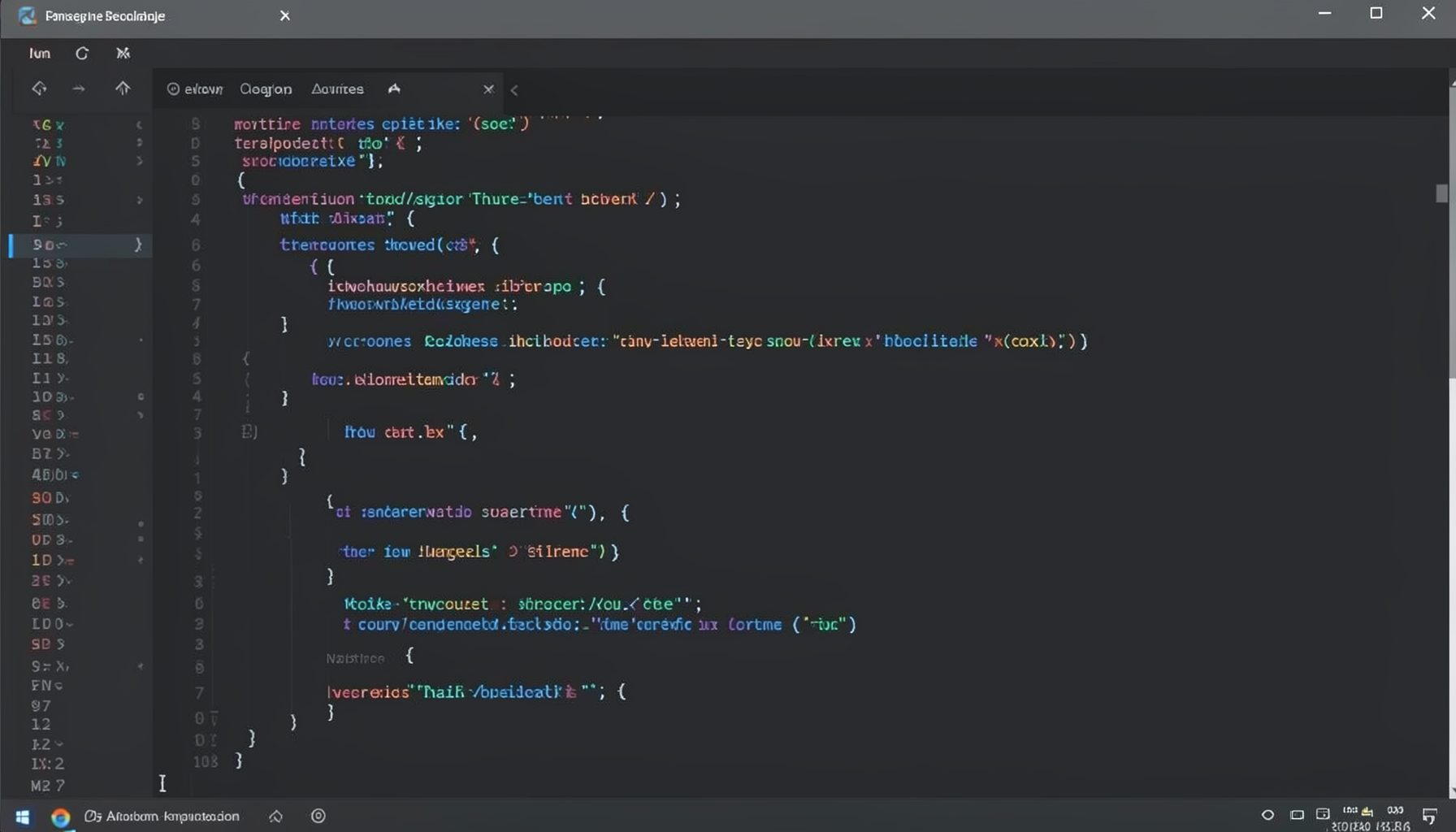
Screen-cast 1: Tab Mode, ECB & More
Covers tab-mode, ECB, Magik Smeller, code folding, visual bookmarks, pragma toggling, moving code, external editor, and MS Explorer.
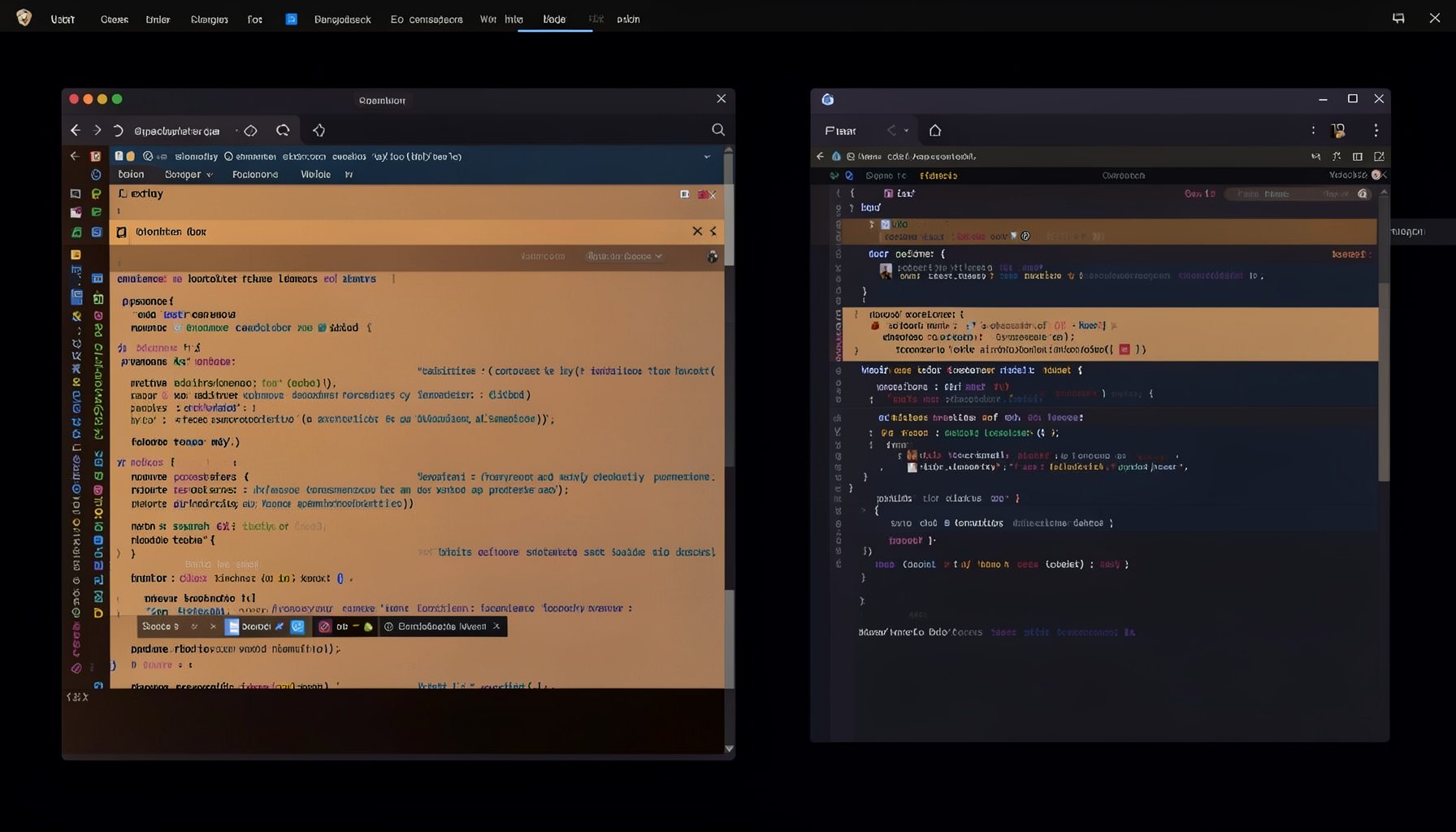
Screen-cast 5: Object Inspection & Deep Print
Inspect a Magik object, prompt for an expression evaluated within a Smallworld session, and display results in a Deep Print buffer.
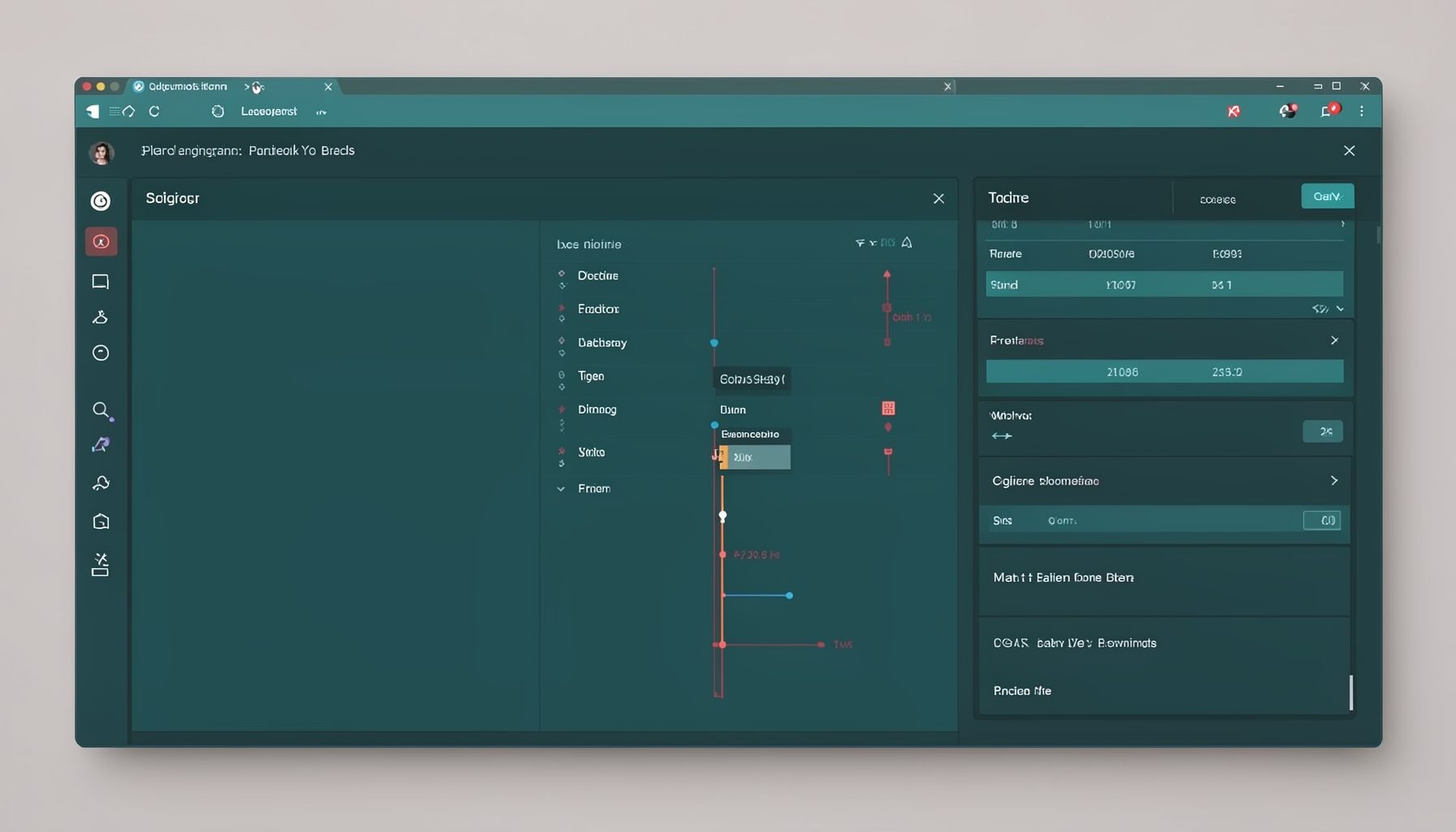
Screen-cast 7: Magik Debugger
Useful tools for application developers: Object Inspector and Magik Debugger with breakpoints and slot/variable monitoring.

Screen-cast 9: Tree Item GUI Control
Tree Item is a GUI control providing extensive facilities for displaying lists with rows, columns, trees, and in-place editing.