Emacs Extensions for
GE Smallworld Magik Development
Screen-casts, tutorials, and productivity tools for Magik programmers who use Emacs. From tab-mode and code folding to the Magik Debugger and object inspector — explore features built by a developer, for developers.
Learn MoreNine screen-casts published between November 2010 and January 2011 — covering everything from ECB mode to the Tree Item GUI control. Read the story behind the project →
Get in Touch
An Emacs cheatsheet for common Magik tasks
Magik programmers spend much of their day moving between source files, compiler output, runtime objects and transaction tools. Emacs can connect those activities into one keyboard-driven workflow, reducing the time lost to window switching and repeated mouse actions. The most useful commands are often standard Emacs functions, while Magik-aware extensions add language structure, indentation and navigation around methods, packages and collections.
This reference assumes that Magik mode is installed and loaded. Bindings can vary between Emacs releases and Magik package versions, so M-x apropos RET magik RET is a reliable way to discover extension commands before assigning them shortcuts. Commands below follow Australian English conventions, such as “colour” and “organisation”. A developer in Melbourne or Sydney may edit on a laptop while a Smallworld server runs in Brisbane, and teams spread across Australian Eastern Time and Australian Central Standard Time should label recorded demonstrations with the relevant zone.
Navigate Magik code confidently
Start with M-x magik-mode when a .magik buffer is not recognised. Keep the file in Magik mode rather than a generic text mode so indentation and structural commands understand the language. The active mode stays associated with the buffer, and C-x b then becomes the quickest way to return to a recently used method file.
Magik methods usually have _method and _endmethod boundaries. M-x forward-sexp and M-x backward-sexp move across complete expressions, while C-M-a and C-M-p traverse balanced lists. For a larger routine, select a form with M-x mark-sexp; a region operation then applies only to that expression. These motions are less disruptive than searching for punctuation by hand.
Use M-. to jump to a definition and M-x xref to locate references. When the first jump does not resolve, generate or refresh the project index rather than repeating the search. M-x complete-at-point completes a symbol at the cursor, and M-x apropos RET magik RET reveals specialised navigation commands supplied by the installed Magik mode. Bind the few commands you use daily instead of memorising the entire command set.
Format, fold and review methods
Automatic formatting is most useful after a method has been edited heavily. Magik mode supplies language-aware indentation; M-x indent-region formats a selected region, and C-M-\ is the standard keyboard equivalent for the current region. Set the preferred indentation once in the Magik mode hook, then use the same operation locally and repository-wide to keep diffs predictable.
Use M-x check-parens before compiling when brackets have been pasted or deleted. It catches unbalanced parentheses without leaving Emacs, although it does not replace the Magik compiler’s semantic checks. If a method’s body is arranged awkwardly, select just that body and reindent it; avoid reformatting the entire file when only one block changed.
Code folding keeps large packages manageable. M-x fold-buffer folds suitable regions, M-x unfold-all restores them, and M-x hs-toggle works with hide-show mode for a region placed at the cursor. Fold around a complete method, leave its declaration visible, and use M-x unfold-all before a broad search. These habits make object-oriented source easier to scan without hiding compiler output.
Compile, debug and inspect objects
Run a build through M-x compile, or use the Magik compiler command exposed by your extension, such as M-x magik-compile where that name is available. Emacs collects the result in a compilation buffer; M-x next-error moves to the next diagnostic and opens the relevant source location. This keeps error-to-edit navigation consistent, whether the failure concerns syntax, a missing method or a runtime value.
For debugging, launch the debugger supplied with the Smallworld installation, connect it to the Magik process and set a breakpoint before the suspect call. Inspect local variables and call stacks at that point rather than adding print statements everywhere. The Magik package may provide debugger and object-inspection entry points under their own names; find them with M-x apropos RET magik RET and bind the ones that match your site’s release.
Object inspection is useful after a method returns an unexpected value. Open the package’s inspector, evaluate the object under examination and check its attributes against the expected Smallworld type. _write remains a quick fallback for a small value inside a method, but the inspector gives better context for collections, views and other complex objects. Keep the runtime buffer beside the source buffer with C-x o for rapid comparison.
Examine collections and databases
Magik collections are key-based data structures, so begin analysis by confirming the key type, value type and number of entries. The .size property gives an entry count, while membership checks reveal whether a particular key is present. Compare that count with a database query restricted to the same records; a mismatch often indicates an incomplete filter rather than a fault in the collection itself.
Use the Smallworld transaction manager to browse data and inspect query plans before loading large results into memory. Start with a narrow filter, check the returned rows in the database browser, and then reproduce that scope in Magik. For collection analysis, sample representative keys and values, record unusual entries, and test transformations on a copy. This prevents an exploratory script from becoming a production data-quality problem.
Keep database work separate from application code. Store connection details in the local environment, avoid embedding credentials in source files, and use read-only transactions where the task allows. Many Australian Smallworld deployments run behind controlled networks, so an on-site database may be reachable only through an approved VPN. Confirm the target before every exploratory query, especially when a script will later be reused by another team.
Capture useful screen casts
Not every debugging session needs prose. A short screen cast can demonstrate how an extension behaves, how a collection is inspected or which keyboard sequence completes a task. Emacs video tools can record the editor, selected windows and narration. The Magik Emacs walkthrough on recording Magik screen casts is a practical companion when you need a repeatable capture-and-explain workflow.
Prepare the demonstration in an Org buffer with M-x org-mode. List the starting state, the command to run and the expected result, then record only the essential interaction. Hide irrelevant buffers, enlarge the source window and increase the font before starting. Capturing at 1920 by 1080 pixels with a steady frame rate is usually clear enough for training while keeping the file manageable.
Review the recording before sharing it, and trim dead time rather than speeding up everything. Remove customer identifiers, server names and confidential paths from both the image and narration. For distributed Australian teams, say whether a time in the recording is AEDT, ACST or AWST, and attach the relevant transcript. A concise recording is easier to search, translate and reuse in a technical library.
Standardise your editing workflow
Put Magik mode in init.el through the package’s documented loading instructions, then set indentation and key bindings in the Magik mode hook. Use M-x customize for personal preferences and keep work-specific settings in a separate file. This separation prevents a workstation tweak from changing a shared Smallworld project configuration and makes your Emacs setup straightforward to reproduce.
Use C-x b to switch buffers, C-x o to show the other window and C-x 1 to return to a single-window view. M-x dired gives a directory overview, and C-x d opens the same facility with a bound key. For larger repositories, use C-x p for project commands and define the project root once. Consistent buffer names, including the Smallworld partition where relevant, prevent accidental work in the wrong environment.
Build a short review loop: M-x check-parens, M-x indent-region, compile, then M-x next-error to inspect the first failure. Add a Magik-specific check only when it has a clear place in that loop. When a consulting engagement or internal support team needs shared defaults, maintain a small configuration file and document the required Emacs version instead of distributing an opaque dump. HydePark Consulting’s Magik Emacs resources can support that local training and documentation effort.
Bookmark this reference and practise the commands in a scratch Smallworld method, adding only the bindings that fit your daily tasks. Keep the source, compilation and inspection buffers open, record one short example of a difficult workflow, and share the result with your team. Magik Emacs tutorials, extension news and screen-cast guidance provide the next practical step when a command or setup detail needs checking.
Core Features
Tab Mode & ECB
Quick tab switching and Emacs Code Browsing mode for navigating Magik codebases efficiently.
Magik Smeller
Code analysis tool that helps identify potential issues in Magik source files.
Code Folding
Hide/Show mode for collapsing and expanding Magik code blocks to focus on what matters.
Visual Bookmarks
Quick visual bookmarks for jumping between key locations in your Smallworld session buffers.
Object Inspector
Inspect Magik objects and display them in an Emacs Deep Print buffer for detailed examination.
Magik Debugger
Set breakpoints and monitor slots and variables directly from within Emacs.
Development Tools
Direct links between Emacs and the Smallworld Development Tools application, including Click Monitor.
Screen-casts & Tutorials
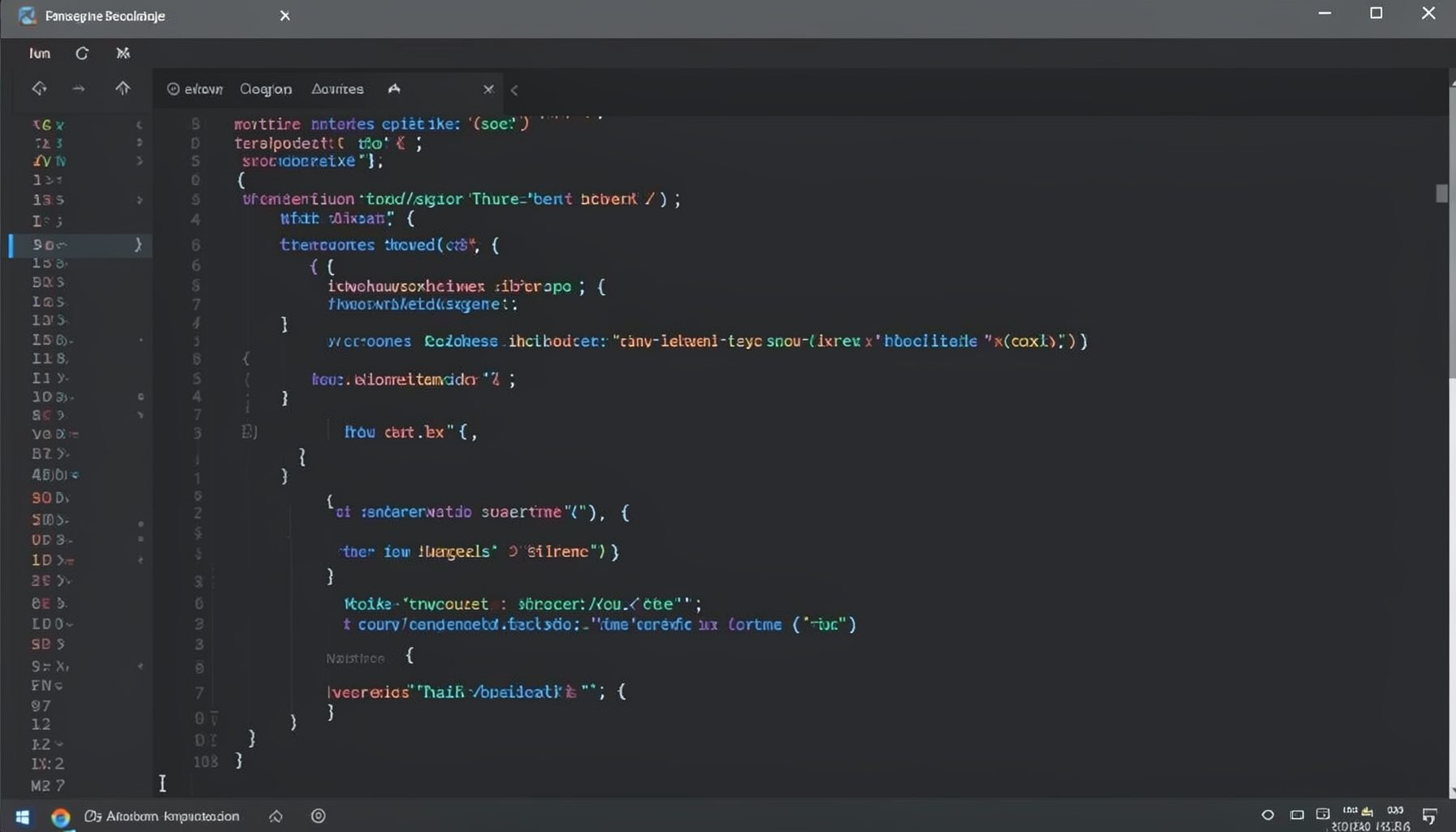
Screen-cast 1: Tab Mode, ECB & More
Covers tab-mode, ECB, Magik Smeller, code folding, visual bookmarks, pragma toggling, moving code, external editor, and MS Explorer.
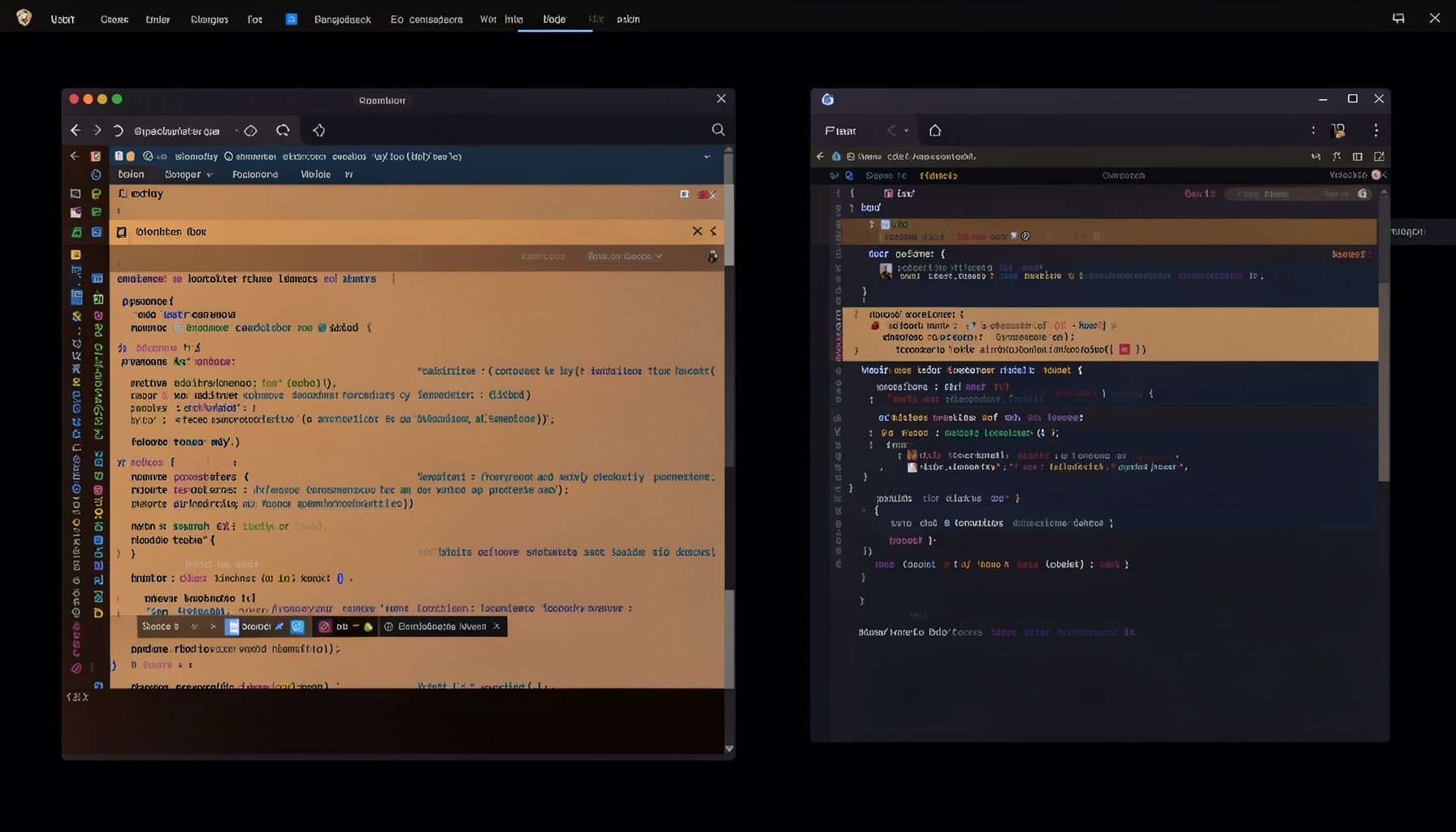
Screen-cast 5: Object Inspection & Deep Print
Inspect a Magik object, prompt for an expression evaluated within a Smallworld session, and display results in a Deep Print buffer.
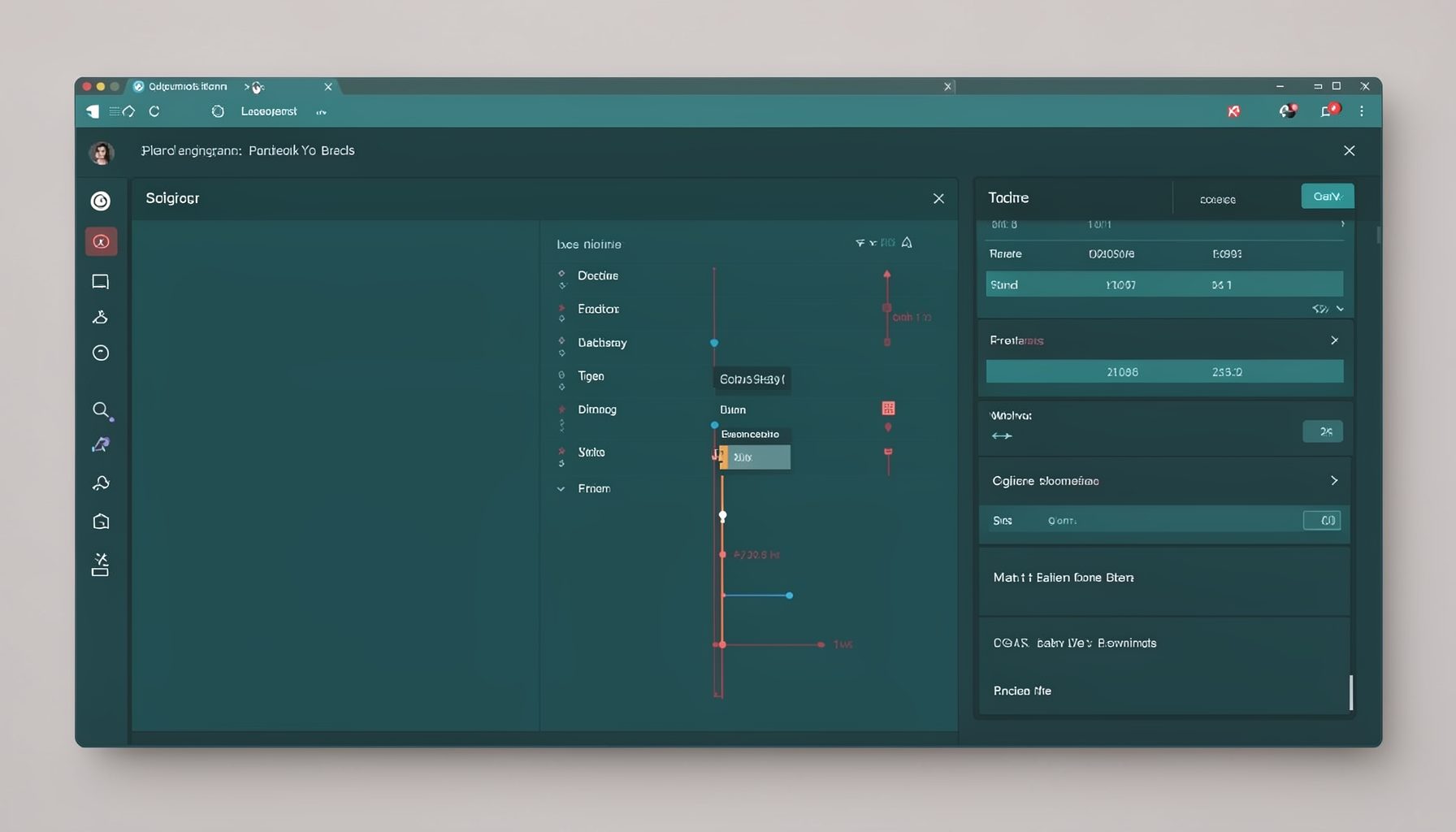
Screen-cast 7: Magik Debugger
Useful tools for application developers: Object Inspector and Magik Debugger with breakpoints and slot/variable monitoring.

Screen-cast 9: Tree Item GUI Control
Tree Item is a GUI control providing extensive facilities for displaying lists with rows, columns, trees, and in-place editing.