Emacs Extensions for
GE Smallworld Magik Development
Screen-casts, tutorials, and productivity tools for Magik programmers who use Emacs. From tab-mode and code folding to the Magik Debugger and object inspector — explore features built by a developer, for developers.
Learn MoreNine screen-casts published between November 2010 and January 2011 — covering everything from ECB mode to the Tree Item GUI control. Read the story behind the project →
Get in Touch
Emacs keybindings for faster Magik editing
For developers working with GE Smallworld's Magik language, every keystroke matters. Editing sessions often stretch across hundreds of lines, jumping between methods, classes and collections, and small inefficiencies compound quickly. A solid set of Emacs keybindings transforms that experience, turning repetitive cursor gymnastics into fluid, almost unconscious motion.
Magik powers critical infrastructure across Australian mining, gas and utilities networks. From the iron ore operations of the Pilbara to the rail corridors west of Melbourne and the distribution systems around Sydney, asset owners rely on Smallworld to model their world. The developers who maintain those models frequently operate from Brisbane, Perth or Adelaide offices, where the mix of remote field sites and head office systems demands efficient, keyboard-driven workflows.
This article walks through a practical set of keybindings, organised by the kind of editing task they support. Whether you are tuning an existing setup or building one from scratch, the goal is the same: keep your fingers on the home row and your mind on the code.
Core movement and editing bindings
The foundation of any fast editing session is confident cursor movement. Standard Emacs bindings such as C-f, C-b, C-n and C-p cover single character and line navigation, while M-f and M-b jump word-wise through identifiers. For Magik code, where method and variable names frequently contain underscores and capital letters, M-f works particularly well, landing cleanly on word boundaries.
Region manipulation is where Magik developers gain the most leverage. C-M-SPC sets a semantic unit, and combined with C-M-a or C-M-e it can jump to the start or end of the current def_method() block. Pair this with C-c C-e from the magik-mode extension to re-indent the entire method and you have a tight edit-kill-indent-paste cycle that rarely needs the mouse.
A handy habit adopted by many Sydney-based Smallworld consultants is to bind C-c w to copy the current method's fully qualified name into the kill ring. From there it can be yanked into a bug report or a ticket without breaking the editing flow. Defining such bindings in a small magik-keys.el file and loading it from init.el keeps the configuration portable between machines, including the thin clients often used in Brisbane regional offices.
Navigation between methods and classes
Magik codebases frequently contain hundreds of methods spread across deeply nested packages. Relying on C-s to isearch every time is fragile, especially when class names share prefixes. The magik-mode extension ships with imenu support, so M-x imenu (or a more convenient personal binding such as C-c i) lists every method and method definition in the buffer, grouped by class.
For cross-file navigation, M-. (xref-find-definitions) and M-, (xref-go-back) are invaluable. They rely on the etags or gtags table built from your Magik sources. On Australian mining projects with multi-million-line codebases, regenerating these tables nightly and saving them to a network share saves several minutes per developer per day. If your site uses Perforce or Subversion, a small wrapper that regenerates tags on commit can be wired into the hooks.
A useful complement is M-x magik-goto-package, bound by many teams to C-c p. It opens the package definition for the class containing the current method, which is often where a missing constant or slot declaration lives. When you have spent the morning in a Melbourne CBD office unwinding a tangled inheritance chain, these navigation aids quickly become muscle memory.
Working with buffers and windows
Most Magik editing involves several buffers at once: source code, the REPL, an Edebug session and frequently the Smallworld Session Manager output. Effective buffer and window management is therefore non-negotiable. C-x b with iswitchb-mode or M-x ibuffer (bound to C-x C-b if you prefer) lets you jump between them quickly.
Window splits are controlled with C-x 2 and C-x 3, while C-x o cycles through them. Many Magik developers rebind C-x o to M-o or C-c o because the original chord sits awkwardly under the left pinky during long sessions. Ace-window or windmove mode can then assign S-<direction> to jump directly to the window on the left, right, above or below, which is especially helpful when Edebug occupies one window and the source another.
A workflow that suits Australian support teams is to dedicate one window to the Magik REPL permanently. Bind C-c r to switch to the REPL window and C-c s to send the current region for evaluation. Combined with C-c z for sending the current method, you can iterate on a fix while a colleague in Perth or Hobart handles a customer call, without ever losing your place in the source.
Debugging shortcuts with Edebug
Edebug is the workhorse debugger for Magik, and the Magik Emacs extension provides instrumenting support that integrates cleanly with the standard Edebug bindings. M-x magik-edebug-instrument-method and C-c C-c to set or remove breakpoints are the basics; the surrounding Edebug bindings such as SPC to step, n to step over and c to continue quickly become second nature.
A deeper look at how these pieces fit together is covered in the tutorial Exploring Magik Objects with Edebug and Inspector in Emacs, which walks through a real inspection session inside a live Smallworld image. It is the natural companion to the keybindings discussed here, especially when you need to inspect object slots during a breakpoint.
For teams who debug across time zones from Canberra to Darwin, it pays to bind C-c d to toggle the source window beside the Edebug buffer and to save the window configuration before each debugging session with M-x window-configuration-to-register followed by C-x r w d. Restoring it with C-x r j d after the call returns means the screen layout is never the casualty of a long debug.
A note worth remembering during these sessions is that any handling of personal information during a debug falls under the Privacy Act 1988 and the Notifiable Data Breaches scheme, so inspecting customer records should be logged and restricted to authorised personnel. Many local teams also enable edebug-sit-for-stealthy, which keeps the debugger quiet on shared screens during client workshops in Adelaide or Brisbane.
Custom bindings for collection inspection
Smallworld developers live inside collections, so the Magik Emacs extension includes commands that summarise, filter and inspect them without leaving the editor. M-x magik-show-collection-stats prints counts, sample elements and slot statistics for the variable at point. Binding this to C-c i (if not already used for imenu) gives you a fast pre-flight check before any modification.
For deeper dives, the inspector buffer is reached via M-x magik-inspect-expression, which evaluates a Magik expression and presents the result in a separate buffer with expandable slots. A common Australian pattern is to bind C-c C-i to inspect the current expression and C-c C-s to inspect the currently selected symbol. Both work well with a region, so highlighting a chained call and pressing C-c C-i shows the intermediate collection without needing a separate REPL transcript.
Because inspections can produce a lot of output, mapping q to quit the inspector window and g to refresh the view, both inherited from the standard *Help* buffer, keeps the workflow consistent. Developers maintaining water and gas networks around the Mornington Peninsula have reported that binding C-c C-f to filter the inspector by slot name saves a measurable amount of time when comparing similar asset records.
Building a personal cheat sheet
Even the most disciplined developers forget bindings from time to time. A printed cheat sheet pinned above the monitor or saved as a desktop PDF keeps the most common chords visible without breaking concentration. The Magik Emacs repository includes a starter sheet under the docs/ directory, but the most useful version is one you build yourself after a week of focused editing.
Start by recording every binding you used during a typical day, then prune anything you did not actually press. Group them by task — movement, navigation, debugging, inspection — so the sheet reflects your real workflow rather than the full menu. Keep it on a single A4 page, in a large monospaced font, and laminate it if you work in a workshop environment, which many field consultants do at sites near Newcastle or Wollongong.
Review the sheet every month. Bindings you never reach for can be removed or reassigned, and any new habit worth a one-letter chord deserves a place on the sheet. Over time the document becomes a personal artefact that reflects the way you work, which is far more valuable than any default layout.
The Magik Emacs extension is available from HydePark Consulting, along with tailored training sessions that can be run onsite across Australia or remotely. If your team is looking to lift its editing speed or to standardise on a shared keybinding map, get in touch through the Magik Emacs site to discuss options for a workshop, a custom build, or a longer engagement. The same efficiency mindset that shapes a good keybinding map applies to other routine tasks, and even something as simple as reading up on ordering Instagram followers fits the broader philosophy of doing routine admin with the same care you bring to code.
Core Features
Tab Mode & ECB
Quick tab switching and Emacs Code Browsing mode for navigating Magik codebases efficiently.
Magik Smeller
Code analysis tool that helps identify potential issues in Magik source files.
Code Folding
Hide/Show mode for collapsing and expanding Magik code blocks to focus on what matters.
Visual Bookmarks
Quick visual bookmarks for jumping between key locations in your Smallworld session buffers.
Object Inspector
Inspect Magik objects and display them in an Emacs Deep Print buffer for detailed examination.
Magik Debugger
Set breakpoints and monitor slots and variables directly from within Emacs.
Development Tools
Direct links between Emacs and the Smallworld Development Tools application, including Click Monitor.
Screen-casts & Tutorials
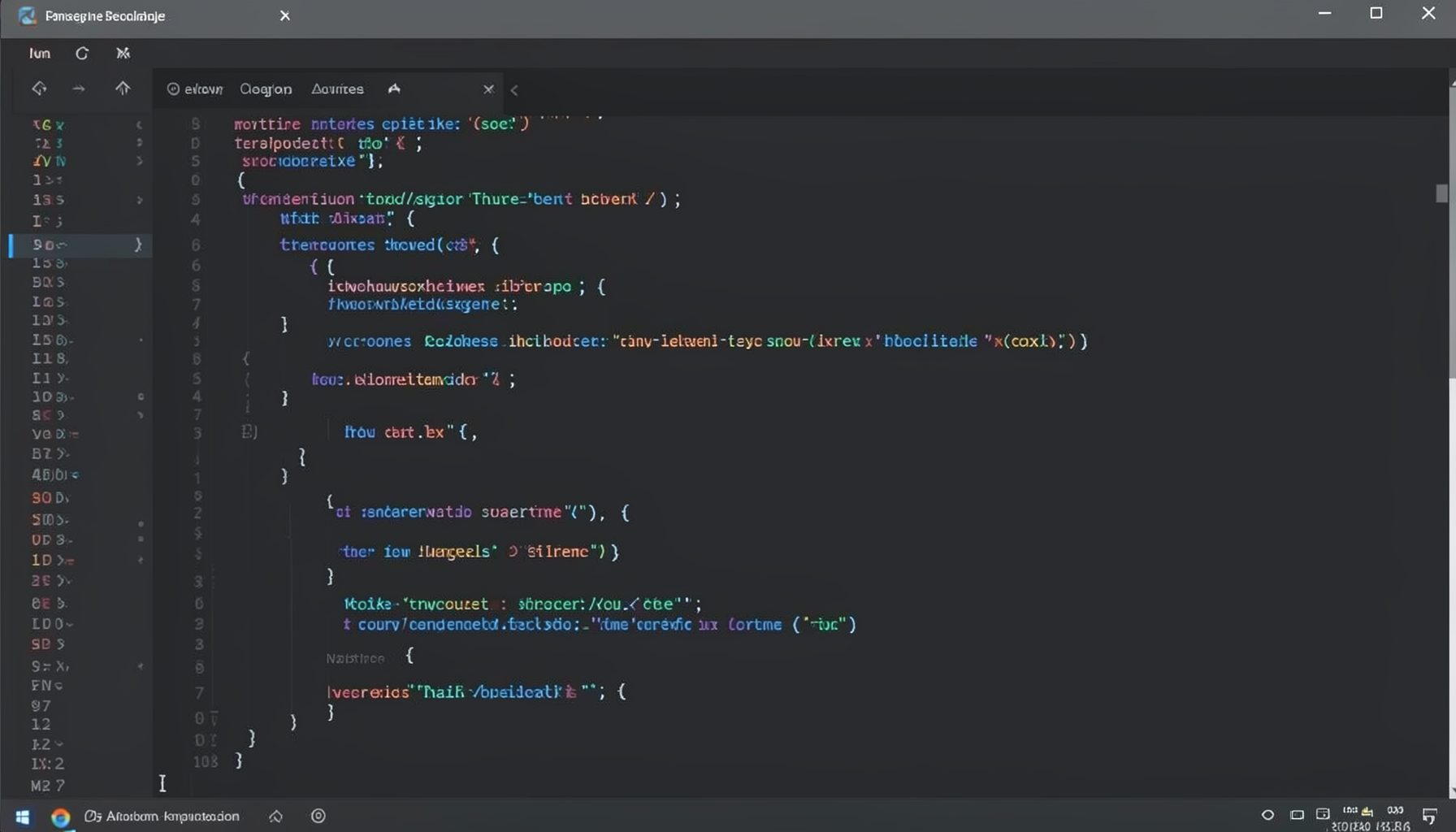
Screen-cast 1: Tab Mode, ECB & More
Covers tab-mode, ECB, Magik Smeller, code folding, visual bookmarks, pragma toggling, moving code, external editor, and MS Explorer.
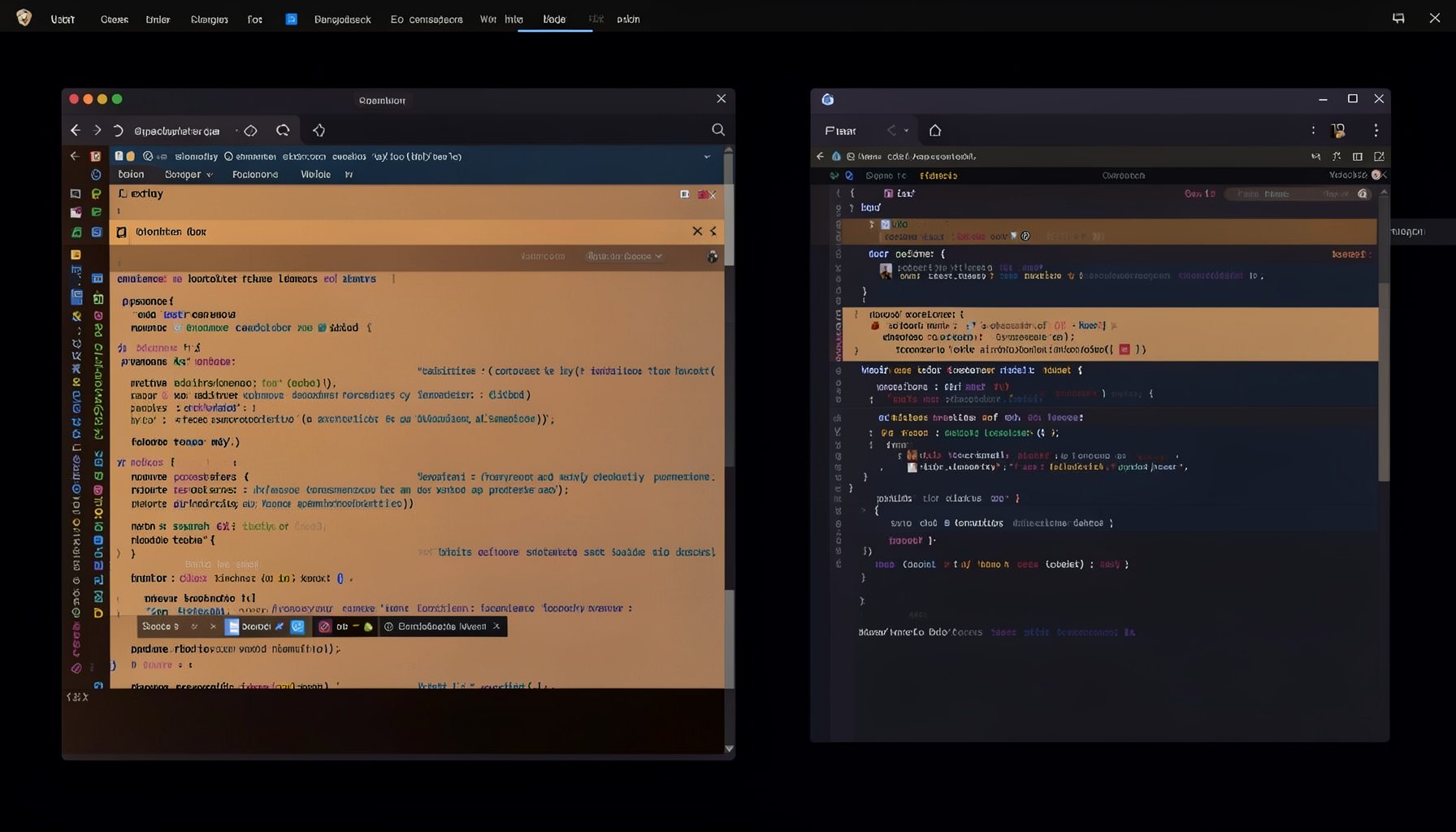
Screen-cast 5: Object Inspection & Deep Print
Inspect a Magik object, prompt for an expression evaluated within a Smallworld session, and display results in a Deep Print buffer.
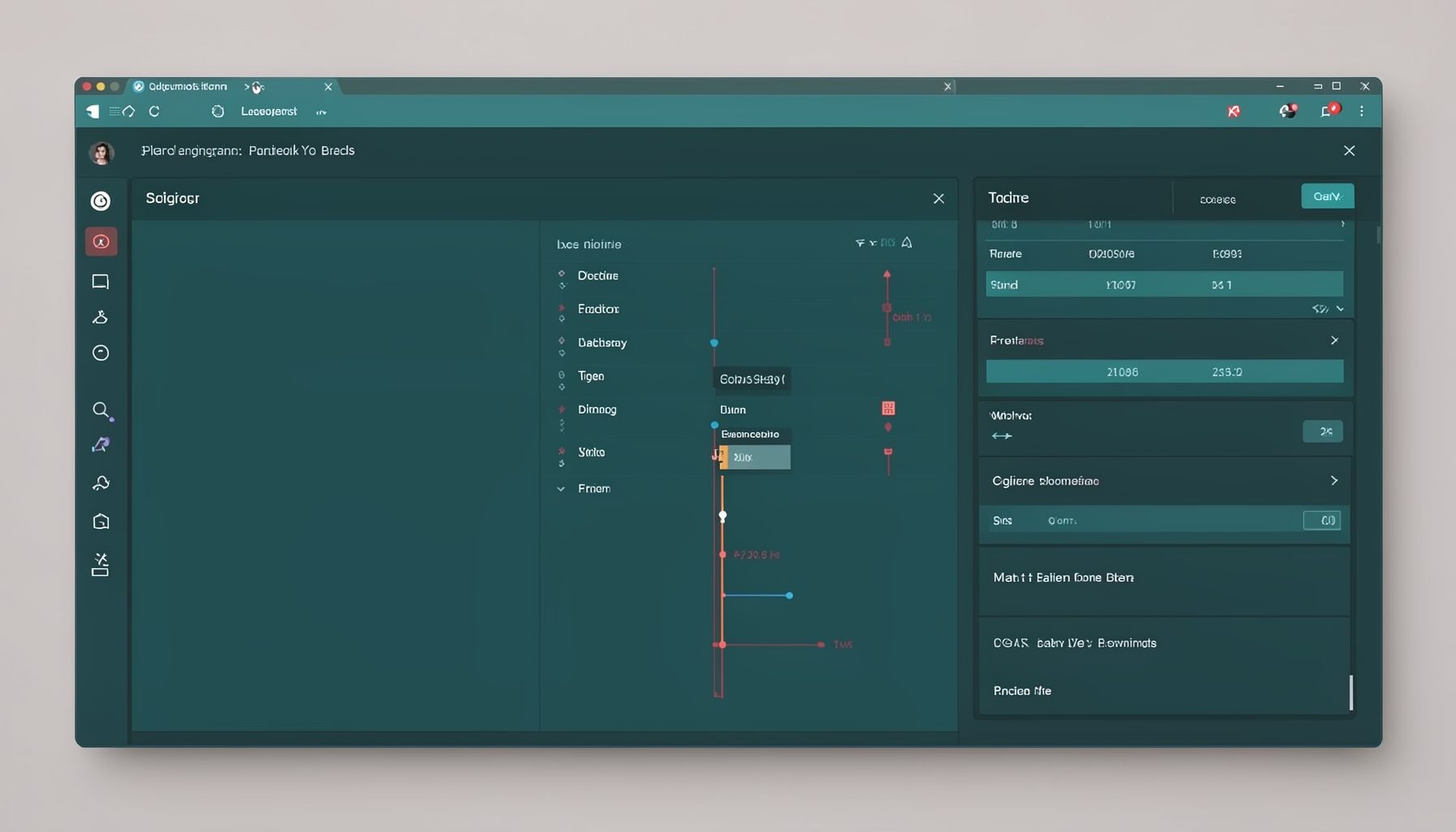
Screen-cast 7: Magik Debugger
Useful tools for application developers: Object Inspector and Magik Debugger with breakpoints and slot/variable monitoring.

Screen-cast 9: Tree Item GUI Control
Tree Item is a GUI control providing extensive facilities for displaying lists with rows, columns, trees, and in-place editing.